











KOCHAT · Màn hình & chức năng
How to handle website clients (Clients tab)
The Clients tab receives your company’s website chat. Take over the conversation, reply, transfer it to a colleague or department, resolve, archive and reopen.
Bài viết này chưa được dịch sang ngôn ngữ của bạn: đang hiển thị bản English.
Trong trang này
What it is for
If your company has the KOCHAT chat on its website (a plan with Omnichannel), every visitor who writes becomes a conversation in the Clients tab. The team answers from phone, computer or web, with no other system.
Who uses it and where it is
Company staff and managers who have the Clients tab (globe icon). It shows Open (open conversations) and Archived / resolved. Each new one appears as “New contact from website”, with the pending count on the tab.
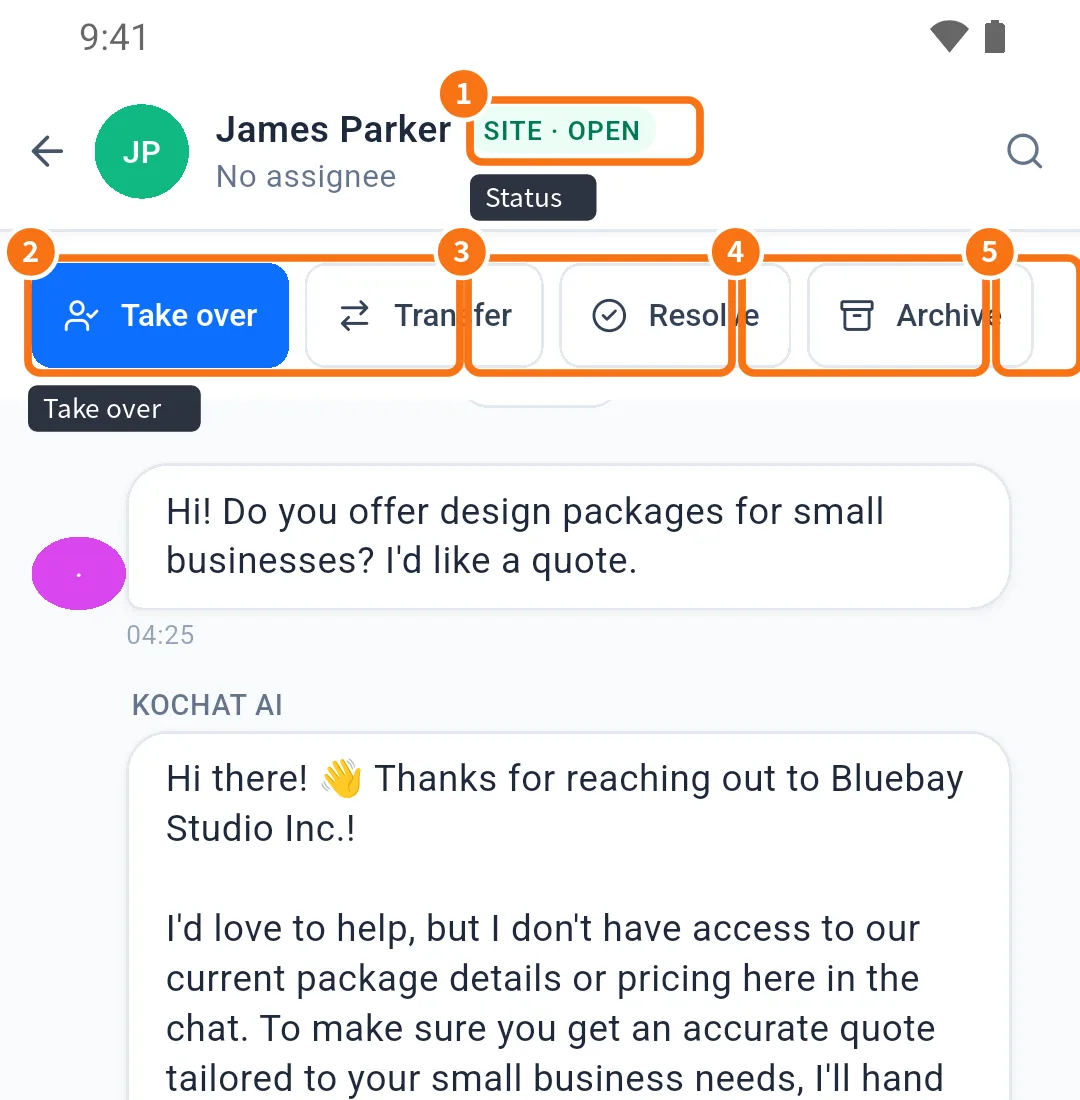
- Status: “SITE · OPEN” and the assignee (or “No assignee”).
- Take over: you become the assignee.
- Transfer: hand it to a person or a department.
- Resolve: closes a solved conversation.
- Archive: removes it from the open list.
Step by step
- Tap Clients and open a “No assignee” conversation.
- Tap Take over. “You took over the ticket” appears.
- Reply in the box below. Use Translate if the client writes in another language; the translation preview shows the text before sending.
- Need someone else? Tap Transfer → To person or To department, choose, and write an Internal note (optional) — the client does not see it.
- Solved? Tap Resolve. If the client comes back, use Reopen.
More options (“More” menu)
- View client profile: origin, device, language, first message and other conversations from the same client.
- Create a group about the client: an internal group (the client does not see it) with a summary and the conversation link.
- Forward by e-mail: sends the whole conversation or the latest 10 messages.
- Mark as client / Mark as supplier.
- Leave this conversation: leaves it to colleagues.
Common problems and what to do
- I have no Clients tab: the company plan has no website chat, or your account does not handle clients.
- “No agents available” when transferring: no colleague can take it; transfer to a department or keep it.
- No Location in the paperclip: it is disabled on purpose in external conversations.
- Action “syncs when the server accepts”: you are offline; it goes through when the connection returns.
Related questions
- Chats screen: list, tabs and search
- Translate messages and the whole chat
- Inside a chat: header, messages and read status