











KoCAD
Lightweight 2D/3D manufacturing CAD linked to KOREOS cases.
界面与功能
全部Workflows 13Getting started 1Screens · ribbon tabs 11Screens · panels, windows and menus 6Engineering 3
Workflows
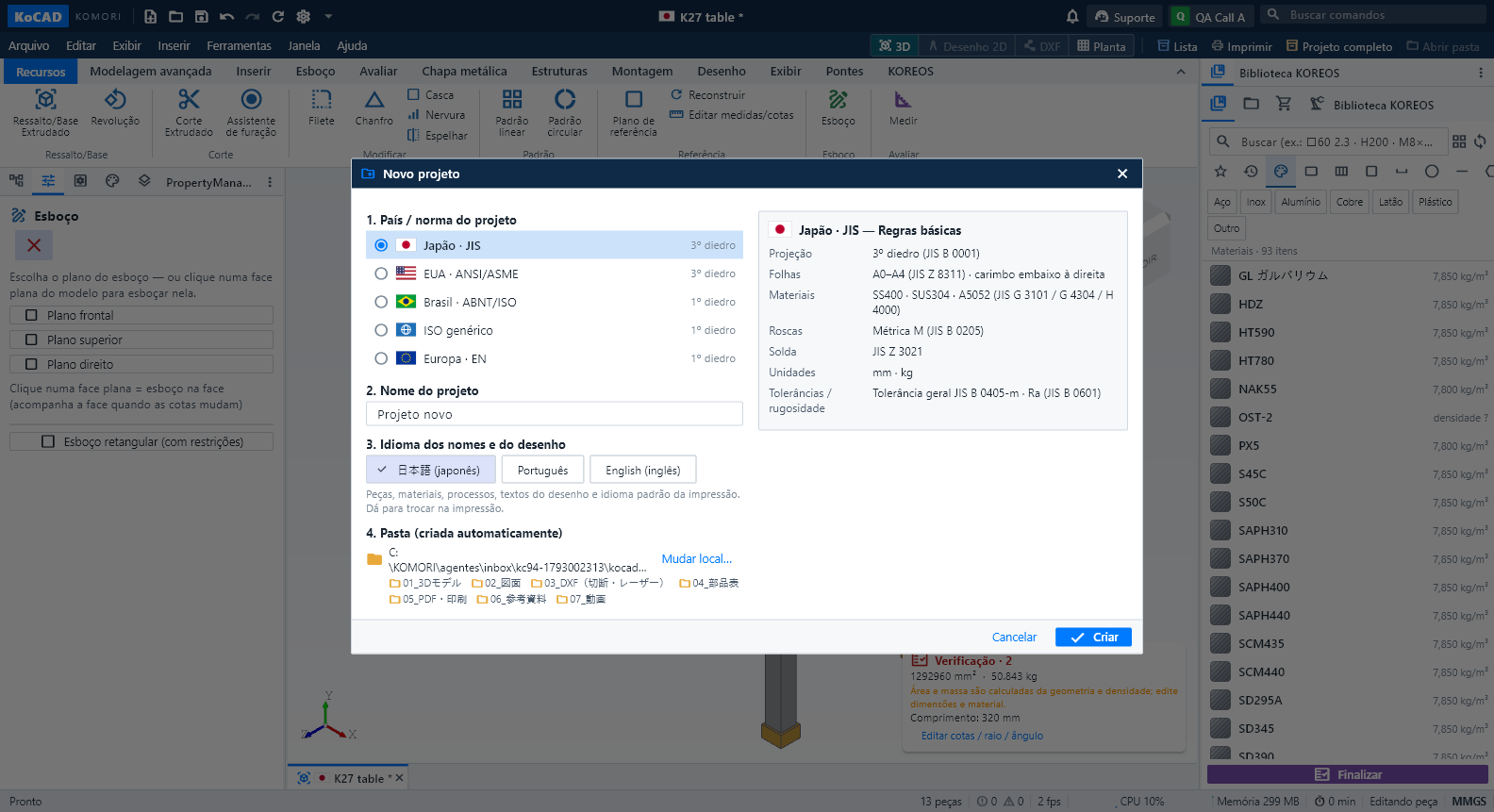 Projects start with country/standard, automatic folder, DXF always, live print previewNew (Ctrl+N), New assembly and New drawing start with the same question: the country / standard of the project — Japan · JIS, USA · ANSI/ASME, Brazil · ABNT/ISO, generic ISO or Europe · EN. A second column summarises its basic rules: projection (JIS and ASME third angle; ABNT, ISO and EN first angle), sheets, materials, threads, welding, units and tolerances. Only JIS has a material catalogue for now; for the others KoCAD says so and never uses JIS data unless you choose it.English
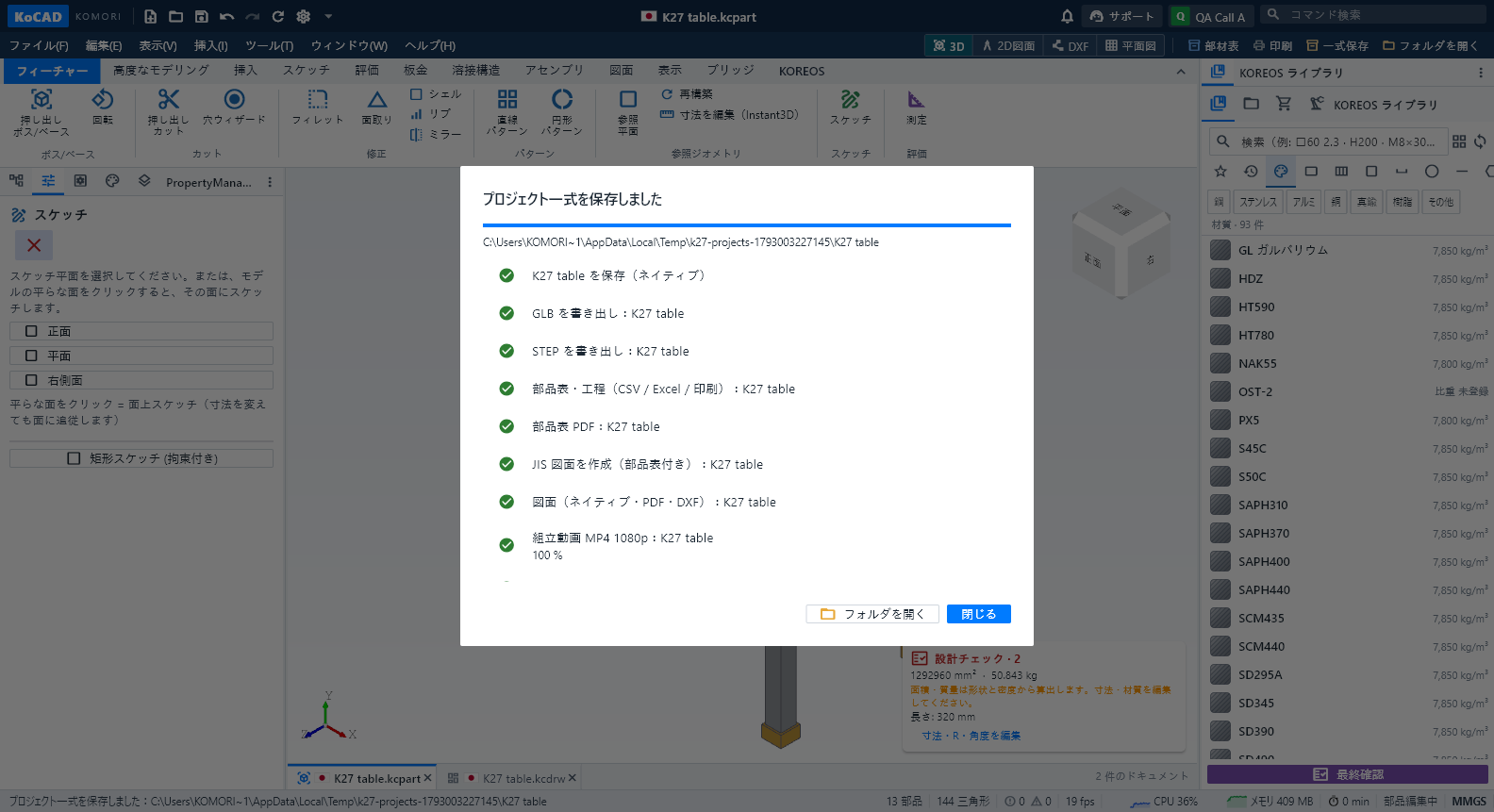 Save and open the complete project (every file, always current)File › Save complete project (or the "Complete project" button next to Print and Open folder) writes everything into the project folder: native parts and assemblies in 01_3Dモデル (with GLB and STEP), native 2D drawings in 02_図面 with their PDF in 05_PDF・印刷, the drawing DXF and each sheet part's cutting/flat DXF in 03_DXF(切断・レーザー), bill of materials and processes as CSV, Excel, PDF and prints in 04_部品表, and the construction film as MP4 1080p in 07_動画 (plus the exploded-view filmEnglish
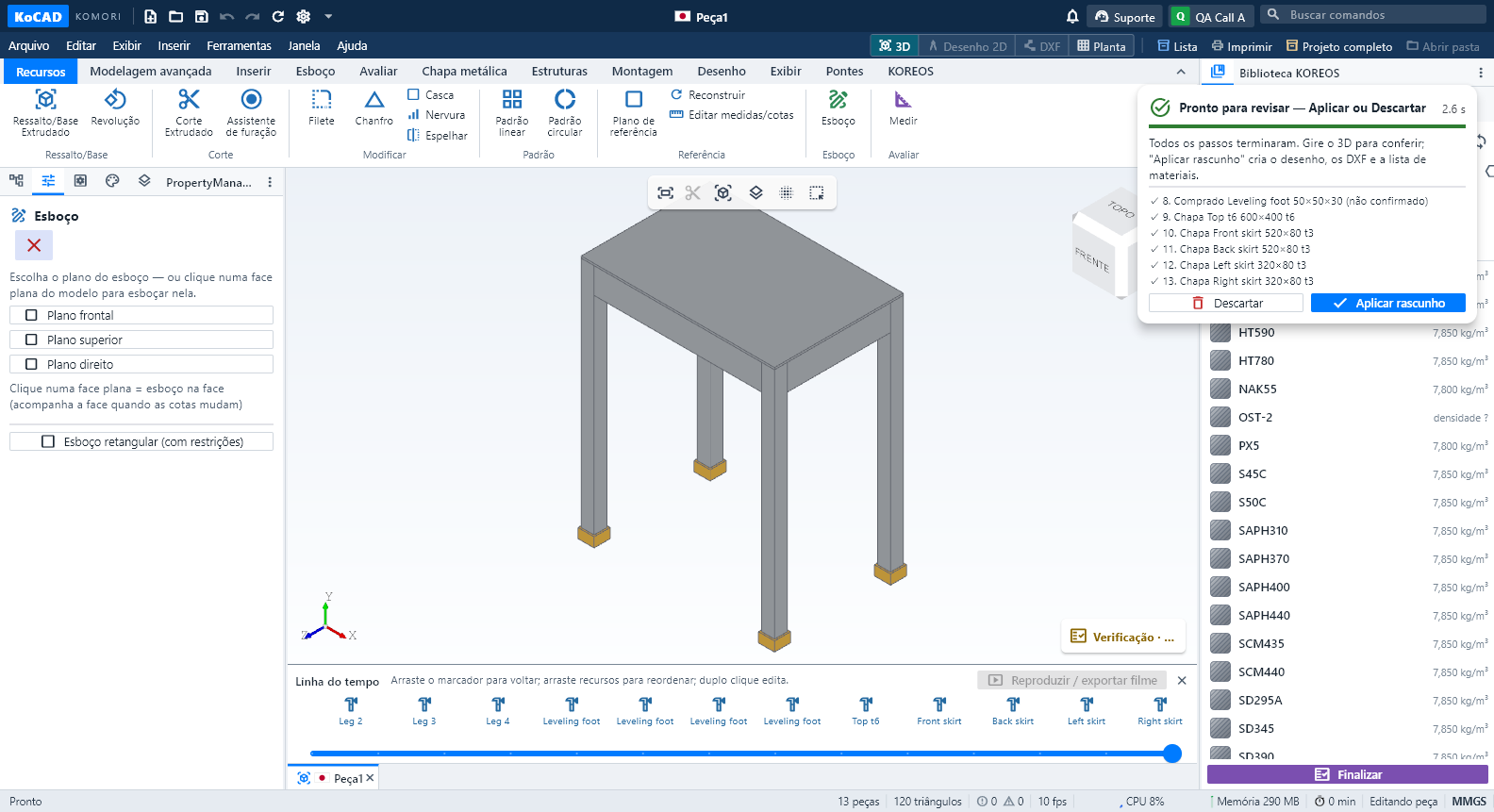 Live AI generation: premises from the standard, real steps, ready to reviewEngineering premises come from the project's country/standard and appear collapsed: "Premises: Japan · JIS standard (edit)" with chips (SS400, plate t3.2/t4.5, tube □40×40×2.3, M8 Ø9 hole…). Click to edit the text; "Back to default" restores it. In a US, Brazil, ISO or EN project the premises change (A36, UNC, NBR, S235…) and are marked to confirm while those standards have no catalogue.English
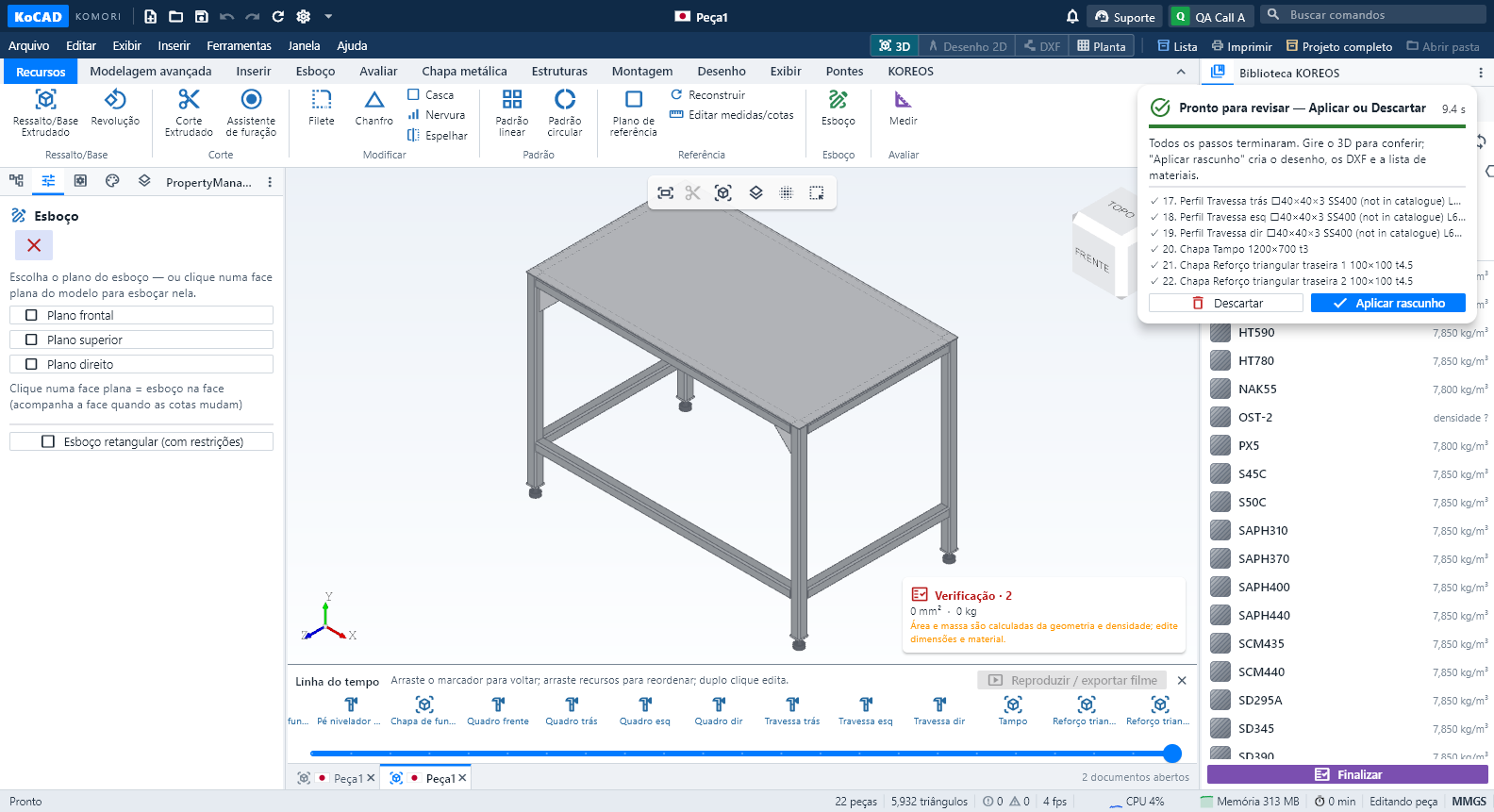 Generate with AI like an engineer: premises, patterns and real-model inspectionIn Generate with AI (or by asking Bob), write the request as usual, for example: "Welded workbench 1200 × 700 × 850 mm total height with feet, SS400, 4 legs 40×40×3 tube, top frame, rails 200 mm from the floor, braces in the rear corners, 3 mm top plate, 4 leveling feet".English
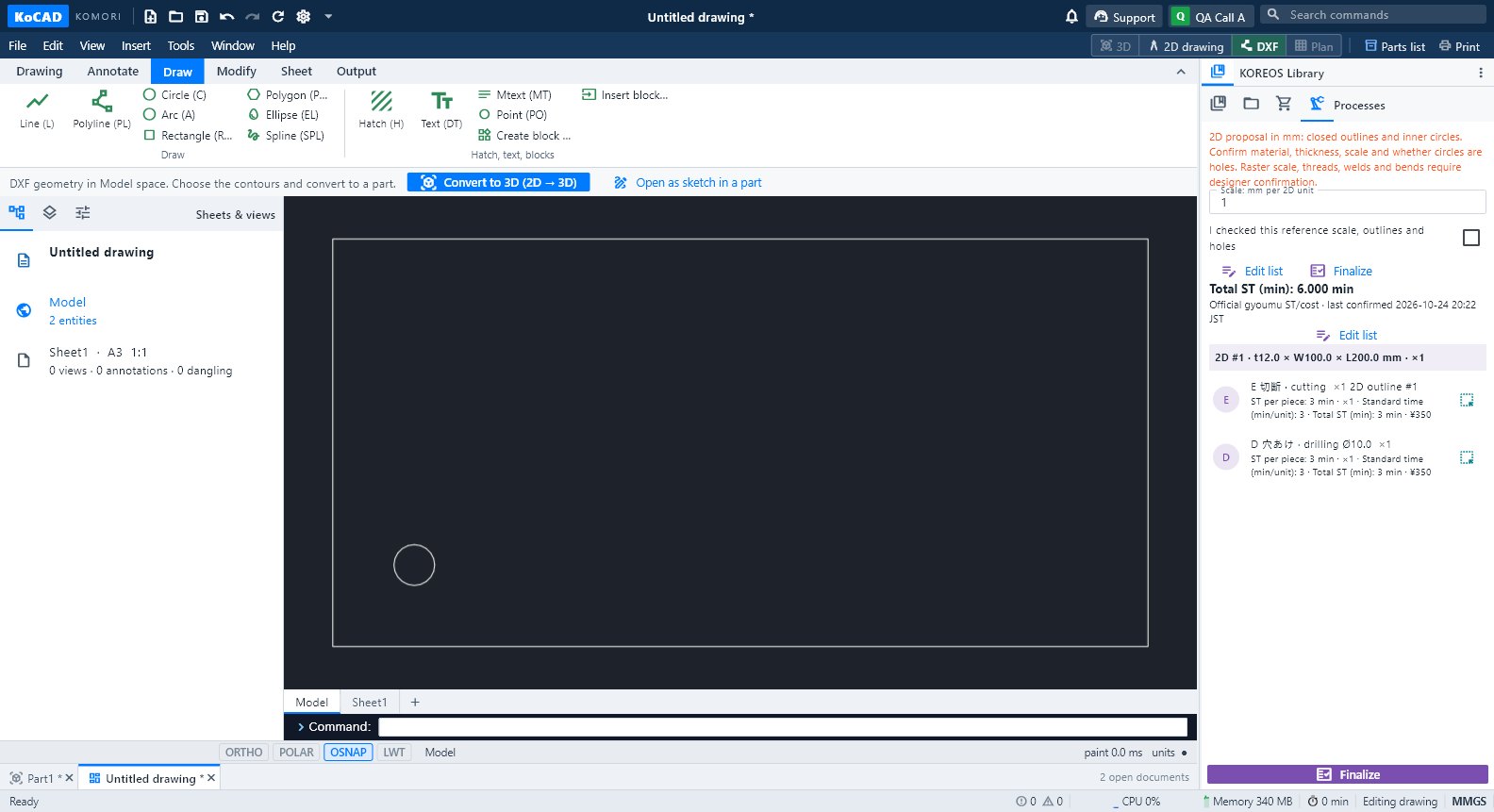 Workflow: from a drawing (photo, PDF, DXF, DWG) to a 3D modelThree ways: trace the image in a sketch, convert a DXF/DWG (2D → 3D) or ask the AI (Generate with AI / Bob) — always with a preview before applying.English
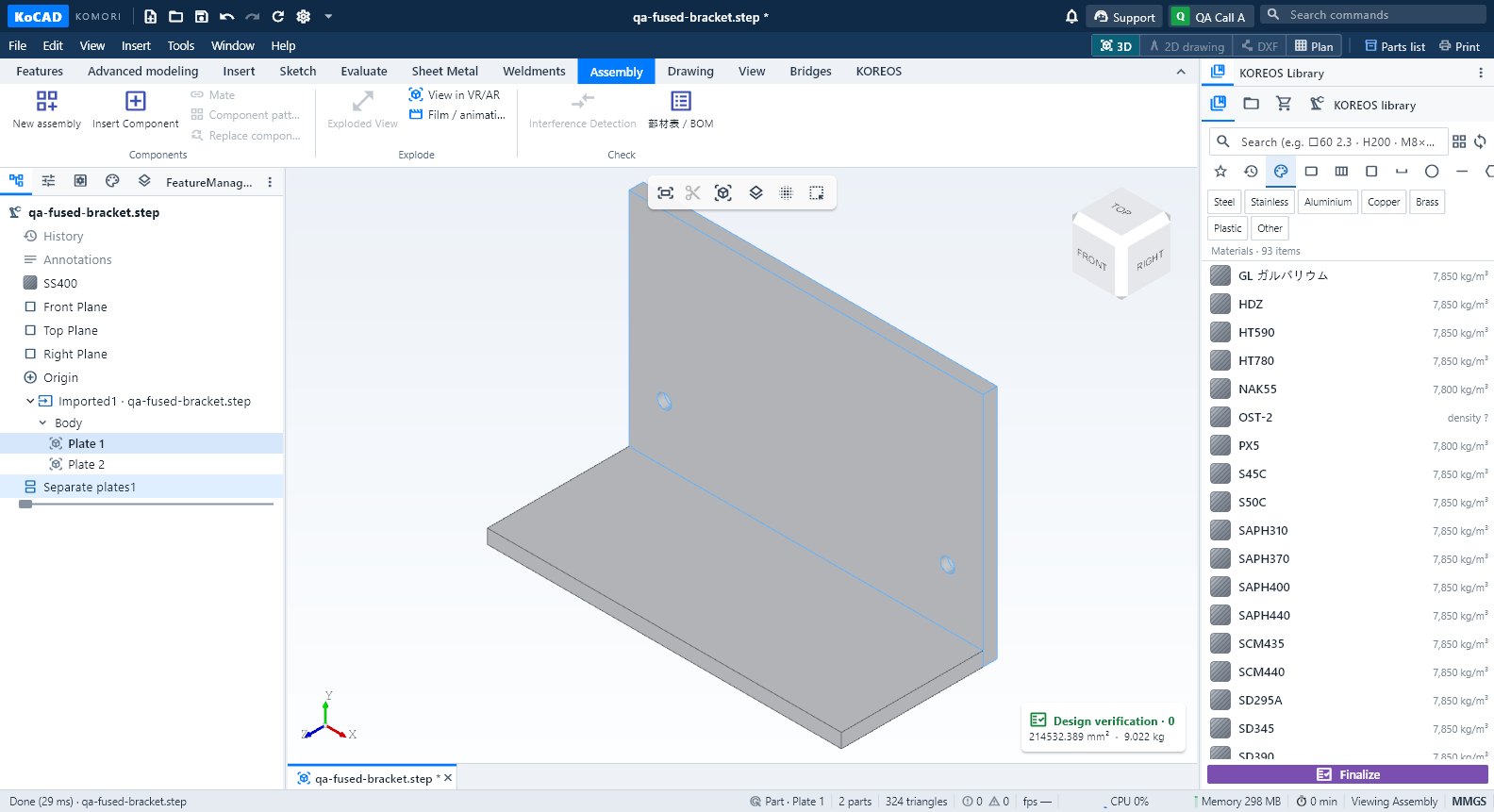 Workflow: import STEP, SolidWorks or GLB and separate the partsOpen a STEP assembly, select and check each part, split a welded single solid into parts, and what changes with GLB/OBJ/STL.English
 Workflow: sheet metal → flat pattern → laser DXF → nestingSheet rules (K = 0.44), Flatten, flat DXF for the laser (AM_0/AM_3/AM_5) and Sheets: how many sheets to buy and the cutting package.English
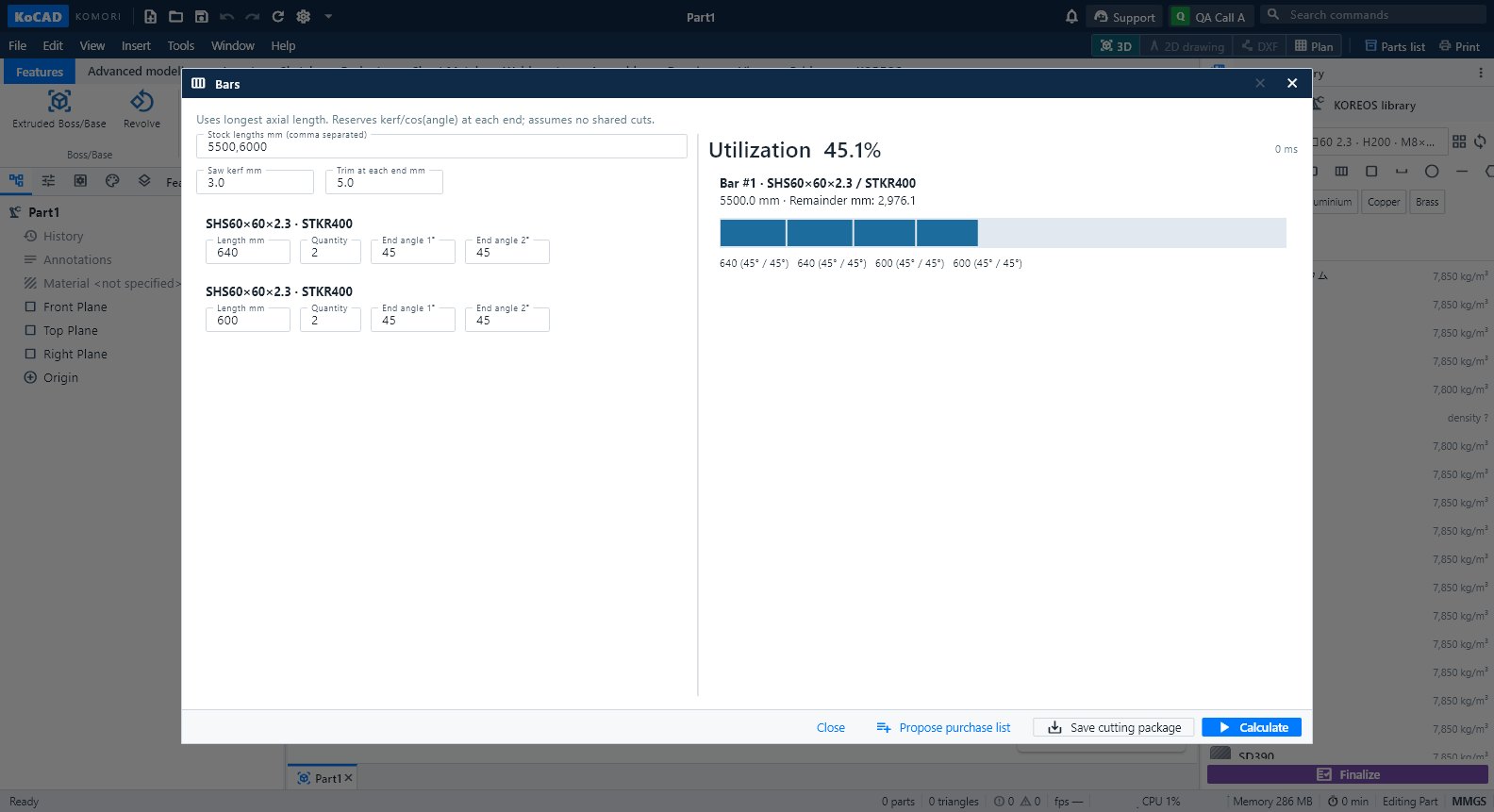 Workflow: weldment → cut list → stock bars to buyCatalogue members, corners, gussets and welds; cut list with angles; Bars works out how many 5.5/6 m bars to buy; proposal to the 部材表.English
 Workflow: assemble, explode and document an assemblyNew assembly → insert → mate → pattern → exploded view → BOM → assembly instruction drawing with balloons.English
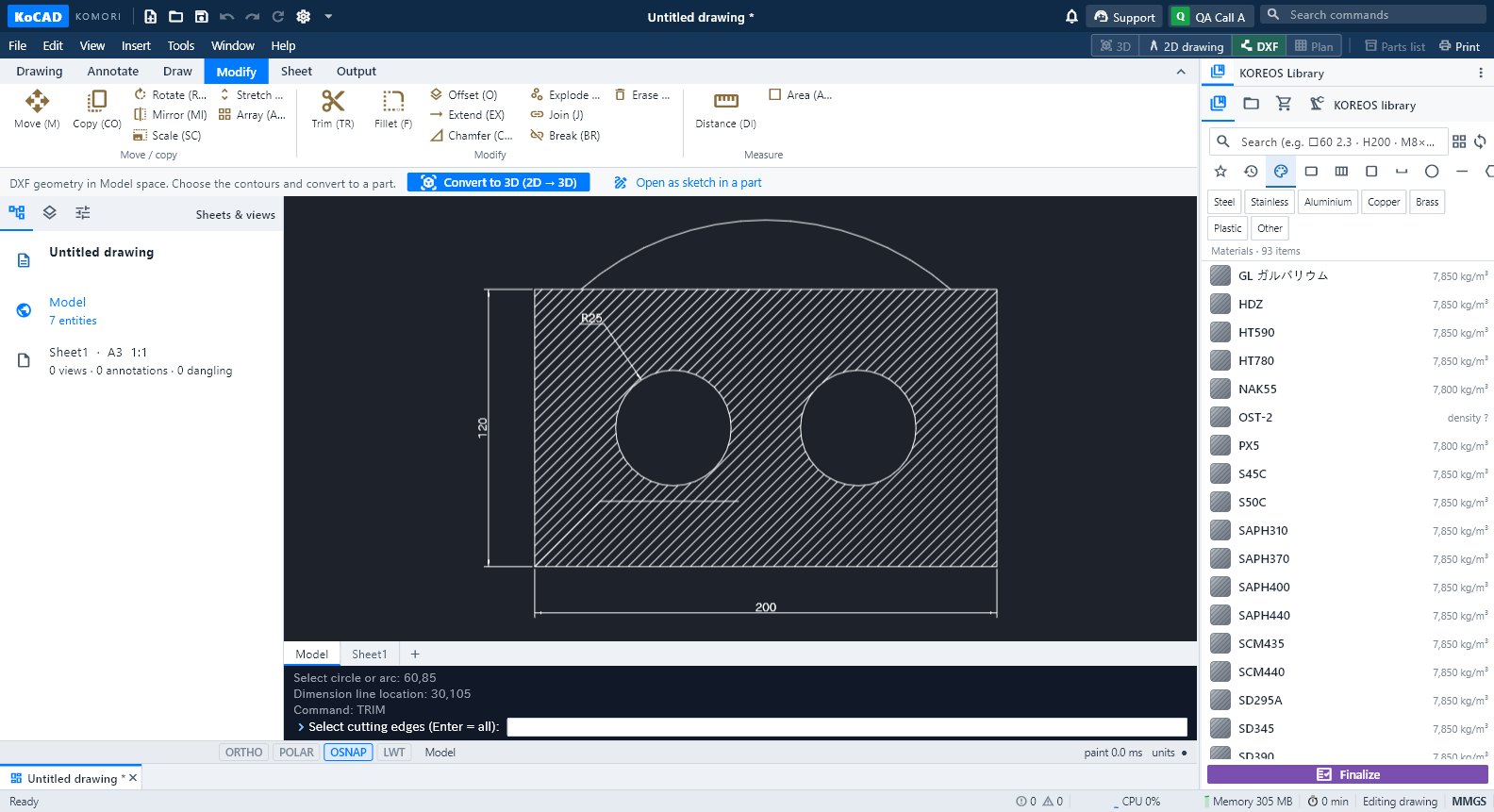 Workflow: JIS shop drawing to PDF, DXF and printFrom model to sheet: views, auto dimensions, hole callouts, surface texture, title block, check, PDF/DXF/DWG, 1:1 printing and upload to the case.English
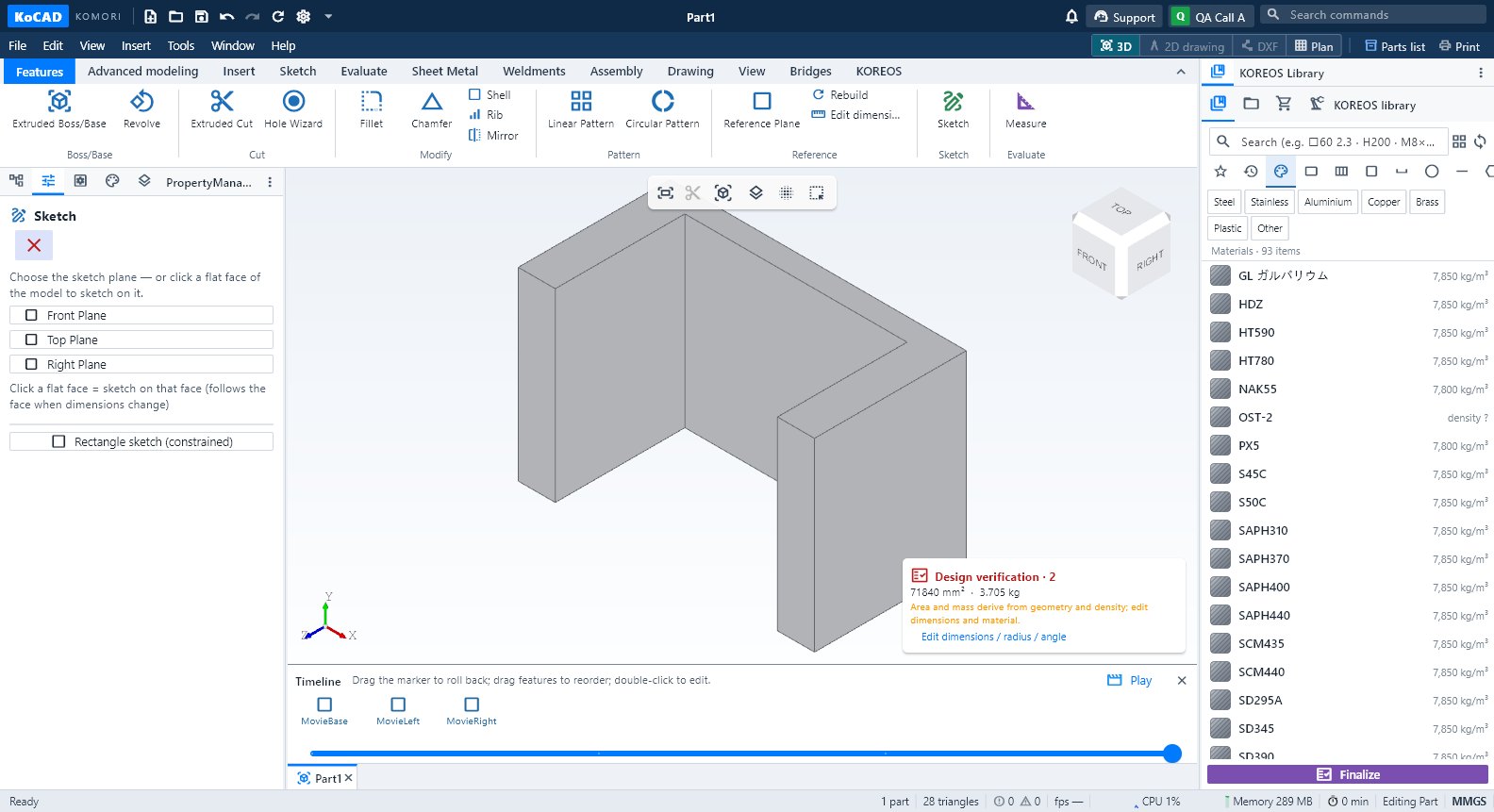 Workflow: film of the build or of the assembly (MP4 / GIF)Timeline → Play: build feature by feature, exploded view or assembly; export MP4 720p/1080p or GIF, offline.English
 Workflow: view in VR/AR with a QR code and the animation studioView in VR/AR: a QR with expiry for Quest or phone, real size 1:1, File or Live mode, animation studio and link revocation.English
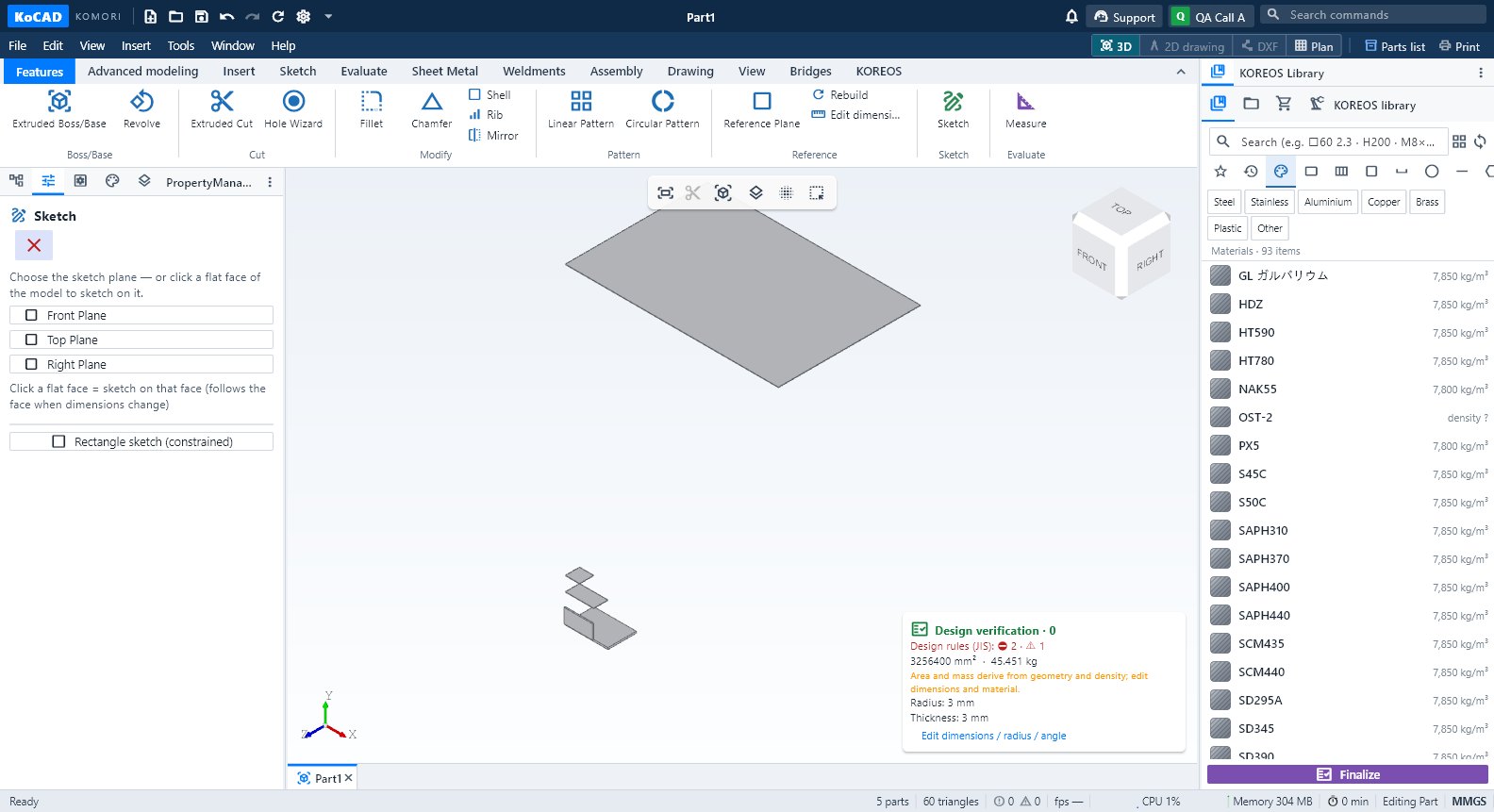 Workflow: check design rules (JIS) before the shopDesign verification → design rules: holes, edges, bolts, welds, materials, guard rails and stairs; choose a fastener; Finalize blocks errors.English
Getting started
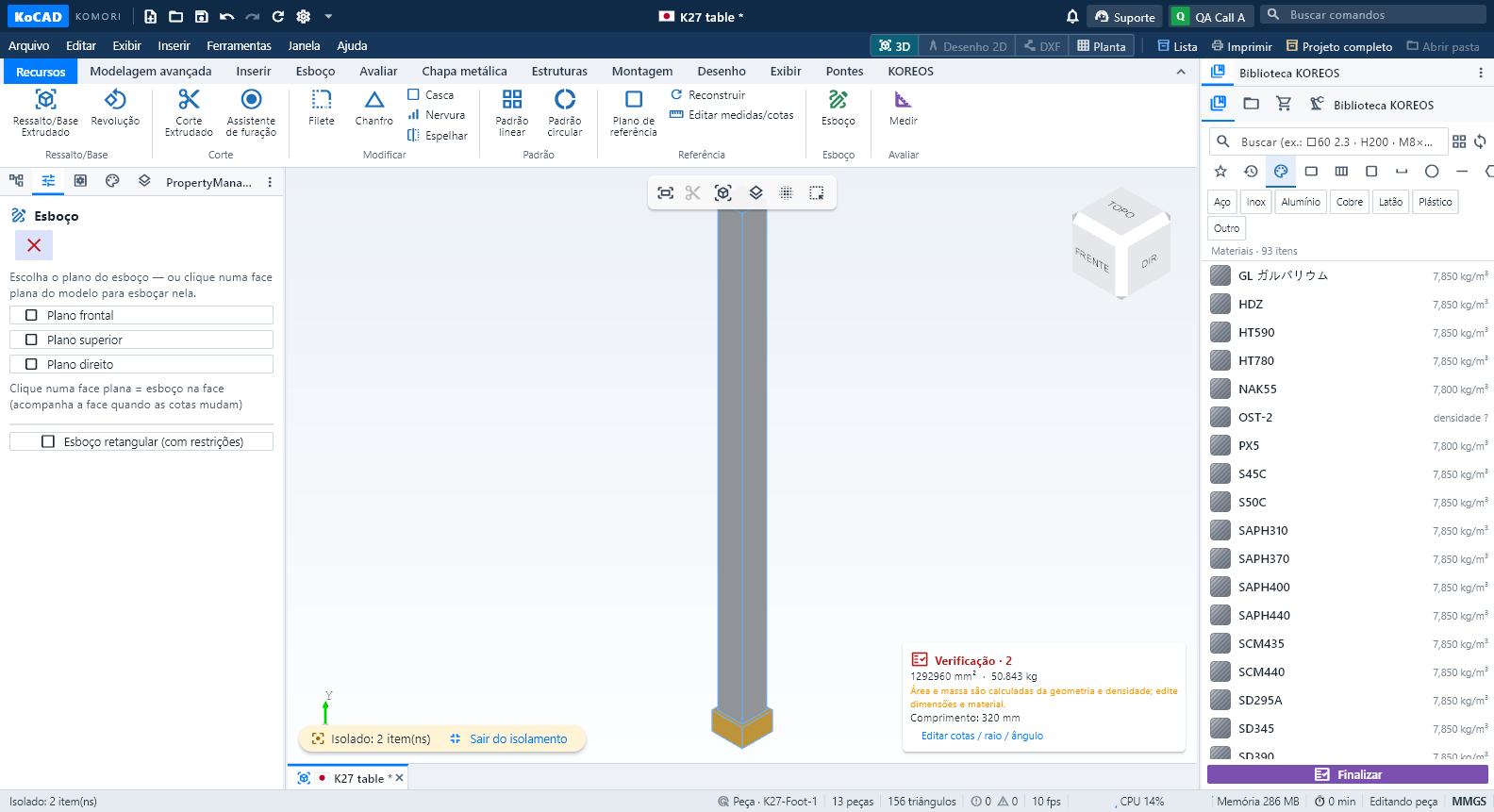
Screens · ribbon tabs
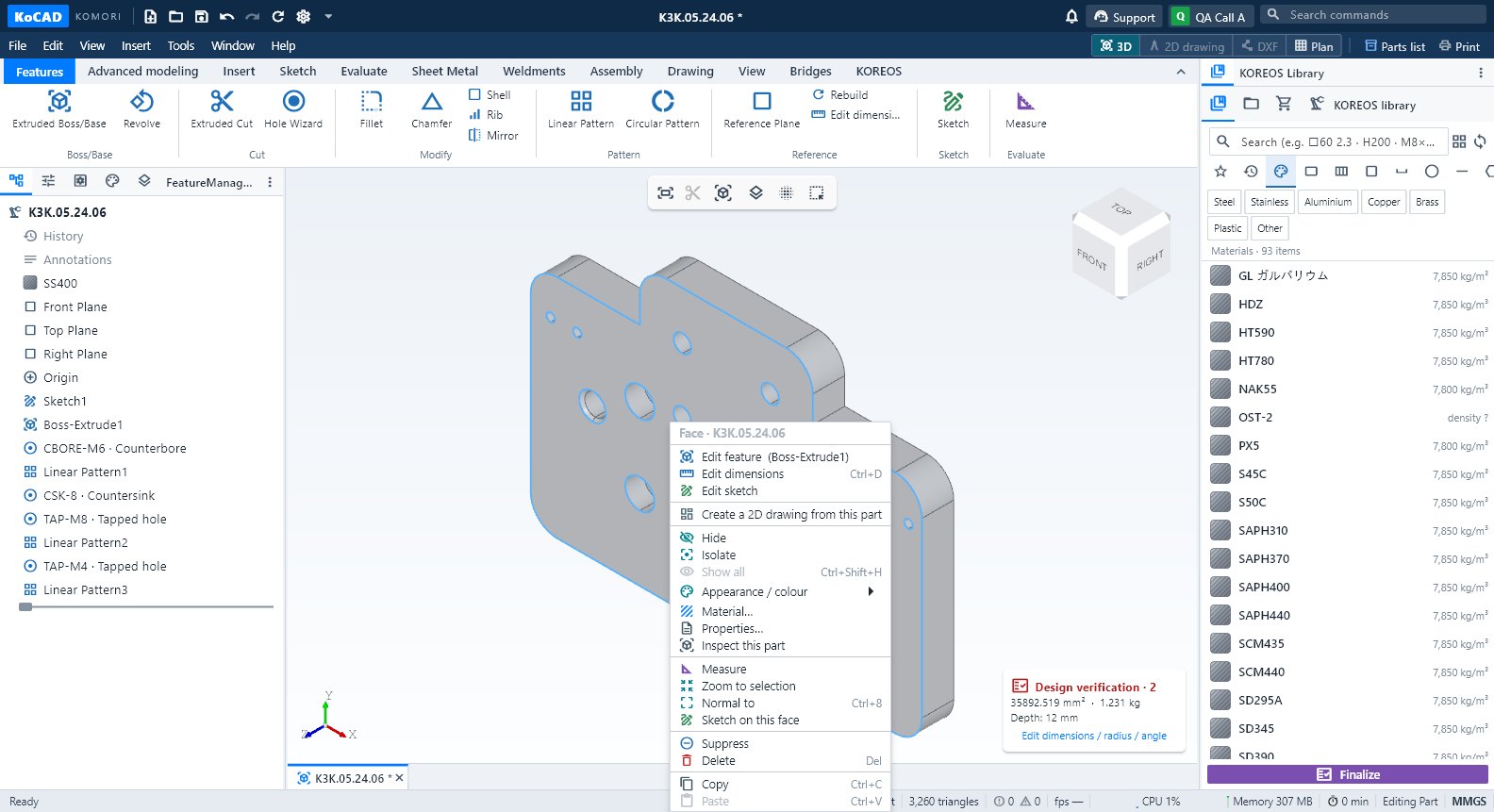 Features tab: extrude, cut, holes, fillets and patternsThe everyday part commands: Extruded Boss/Base, Revolve, Extruded Cut, Hole Wizard, Fillet, Chamfer, Shell, Rib, Mirror, Patterns and Reference Plane.English
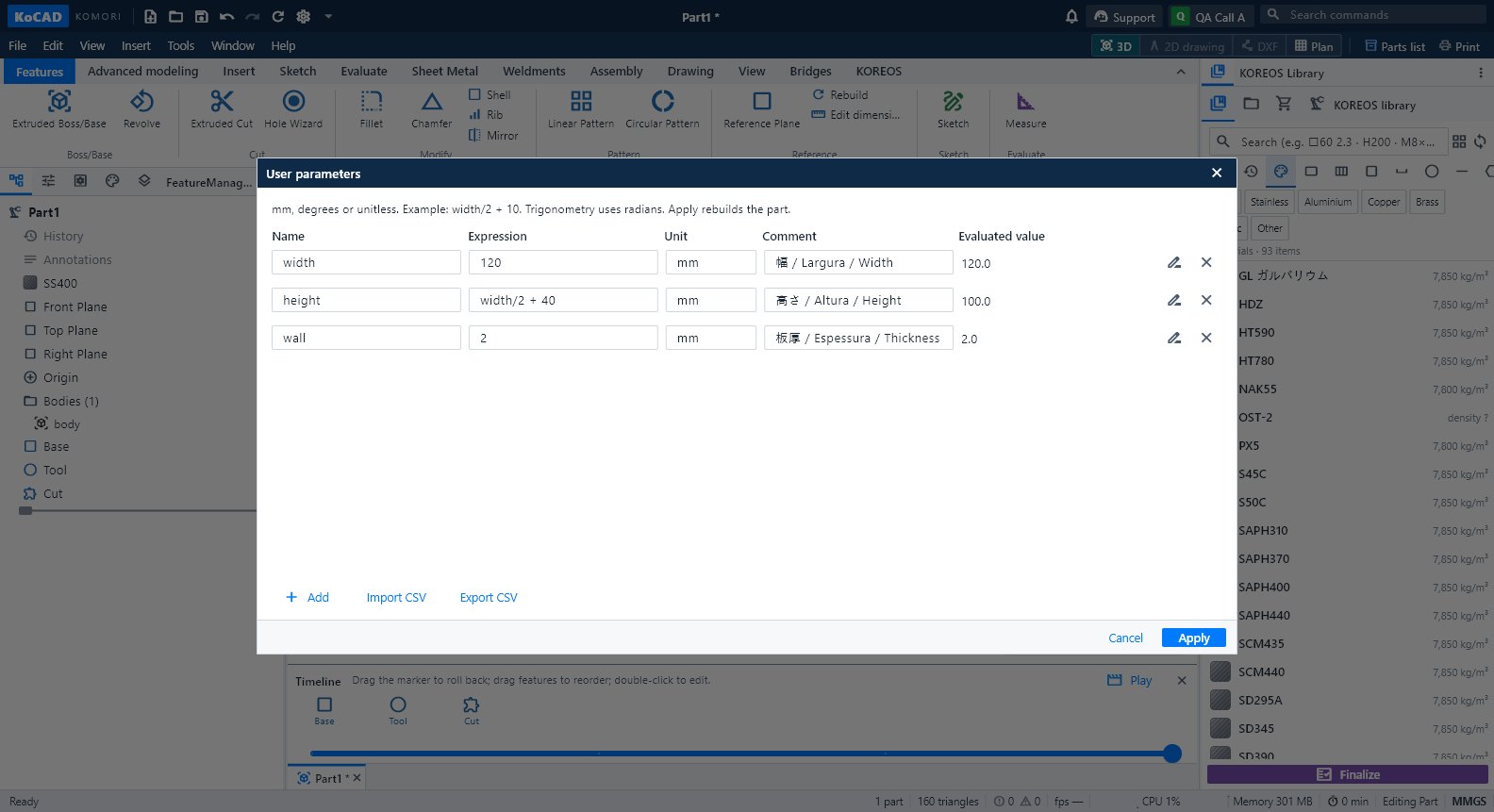 Advanced modeling tab: parameters, timeline, bodies and AIUser parameters with formulas, Timeline, Sweep, Loft, combine/move/split bodies and the Generate with AI group.English
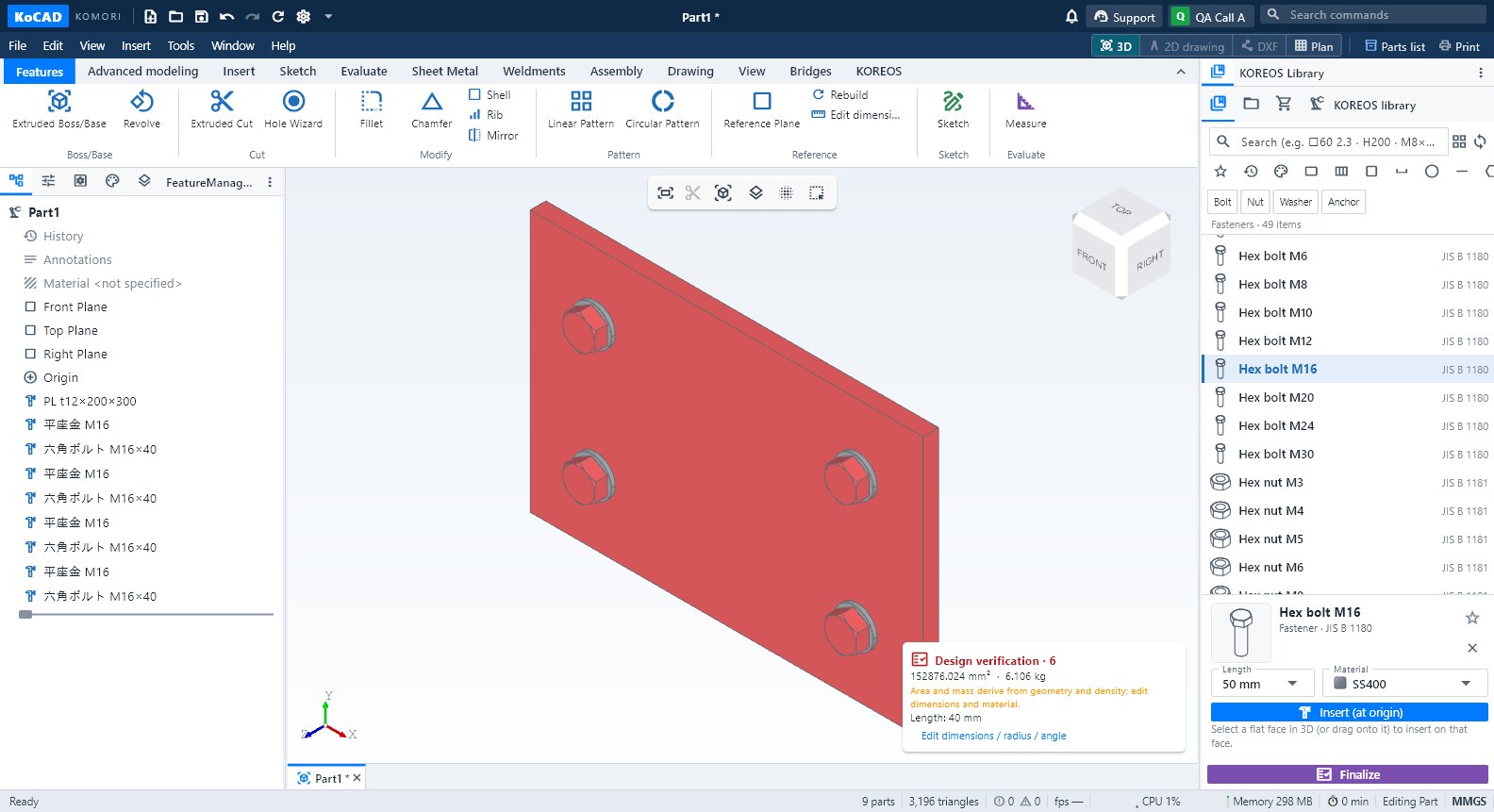 Insert tab: standard parts, materials and membersStandard parts (bolts, nuts, washers, bearings…), KOREOS Materials and Structural Member from the company library.English
 Sketch tab: draw, dimension and trace an imageLine, Rectangle, Circle, arcs, Spline, Point and Centerline; Smart Dimension (D); constrained rectangle sketch; Image reference calibrated by two points.English
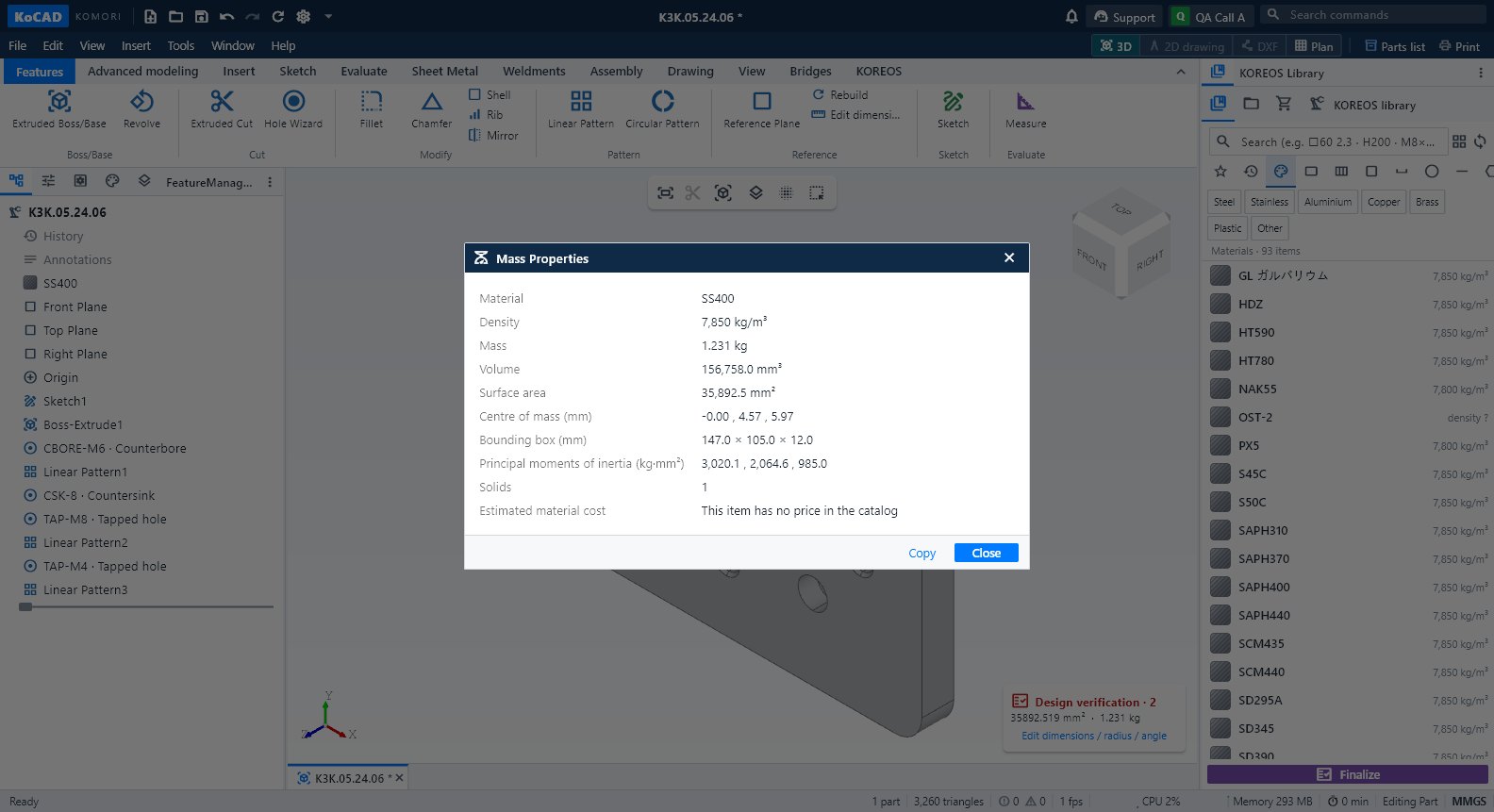 Evaluate tab: measure, mass, verification, interference and costMeasure, Mass Properties, Design verification (design rules), Section View, Interference Detection, sheet-metal manufacturability and Process cost.English
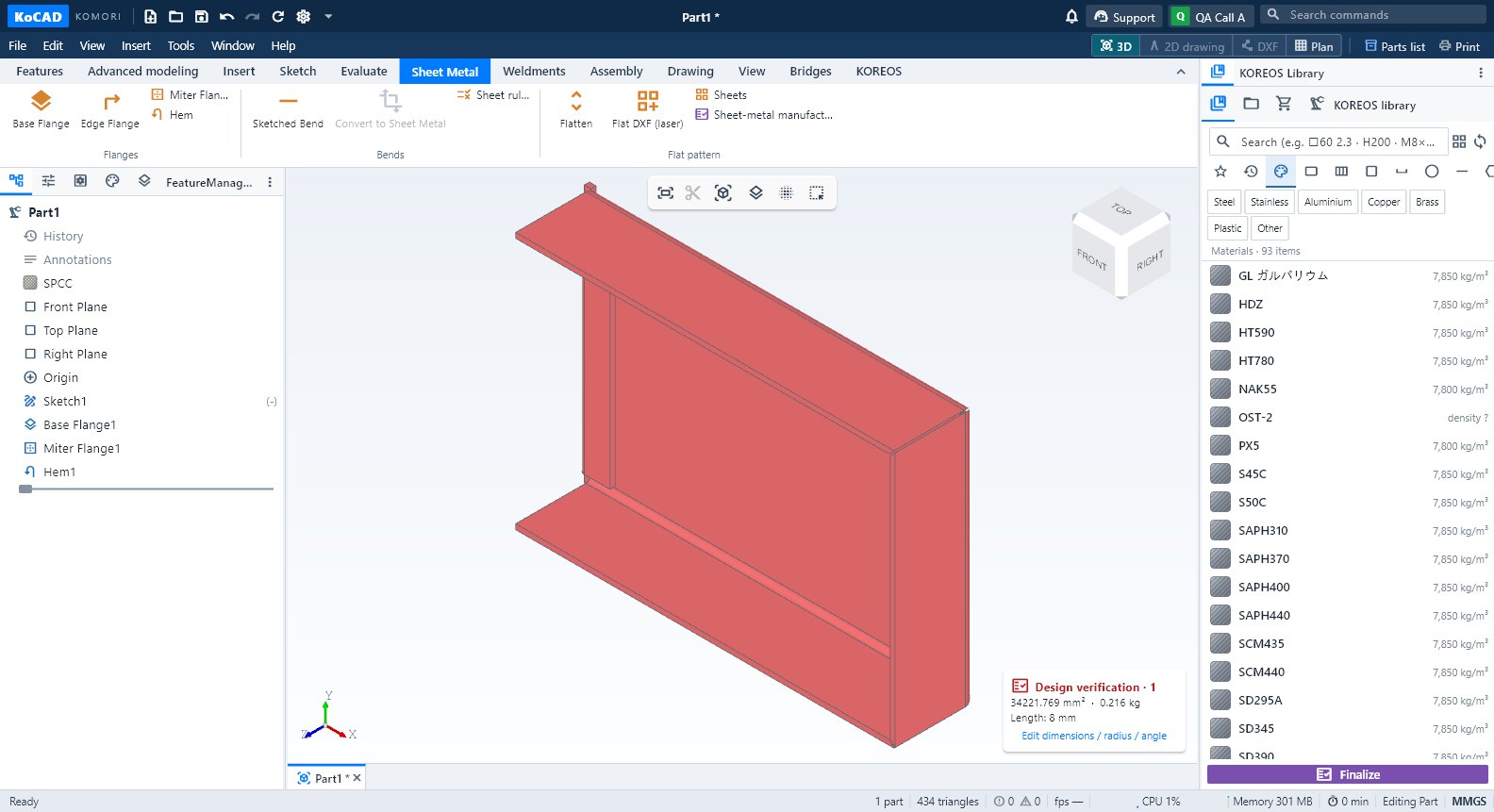 Sheet Metal tab: flanges, bends, flat pattern and laser DXFBase Flange, Edge Flange, Miter Flange, Hem, Sketched Bend, Convert to Sheet Metal, Sheet rules (K = 0.44 default), Flatten, Flat DXF (laser), Sheets and manufacturability.English
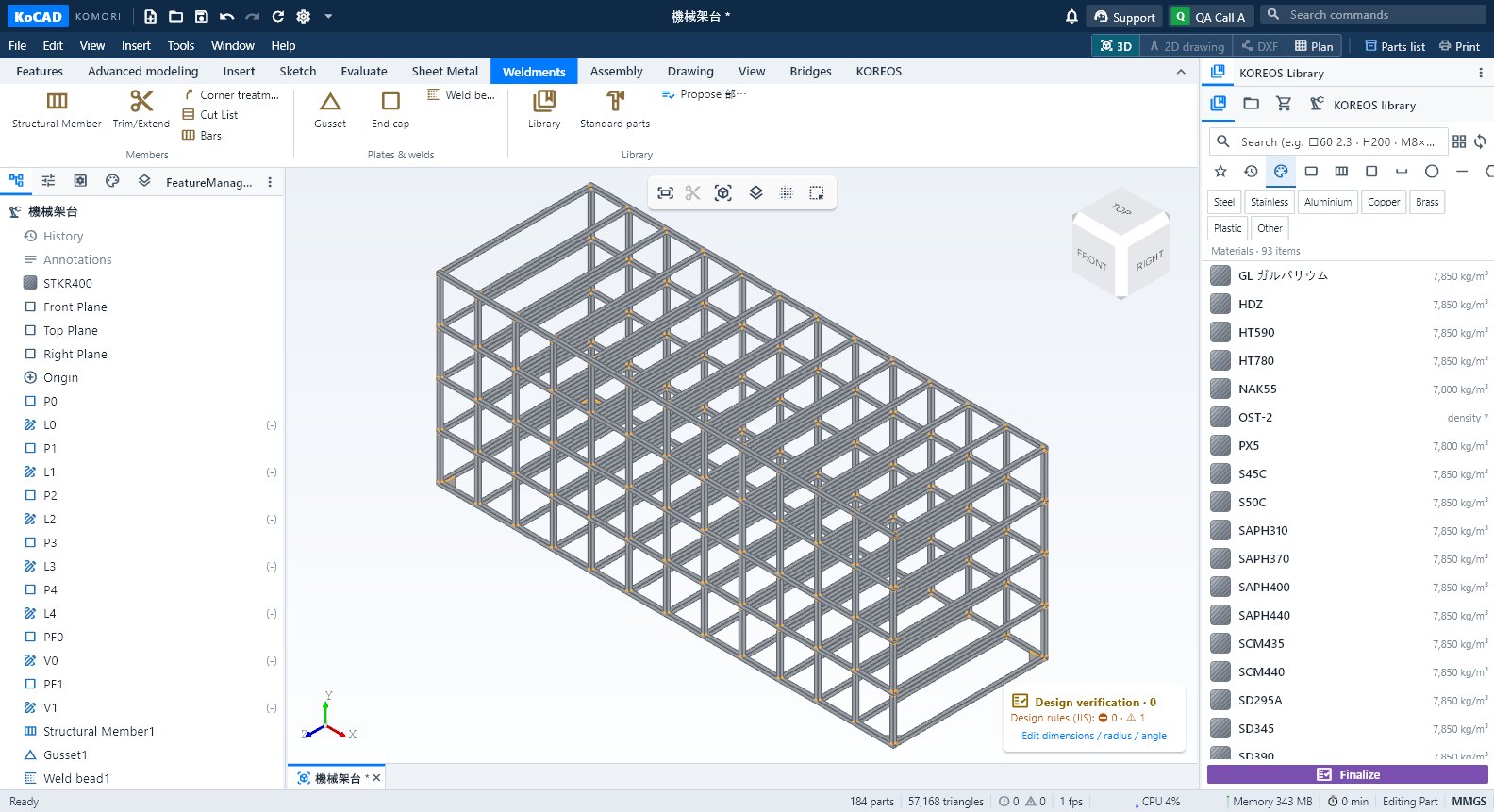 Weldments tab: members, gussets, welds and cut listStructural Member, Trim/Extend, Corner treatment, Cut List, Bars, Gusset, End cap, Weld bead, Library, Standard parts and Propose 部材表.English
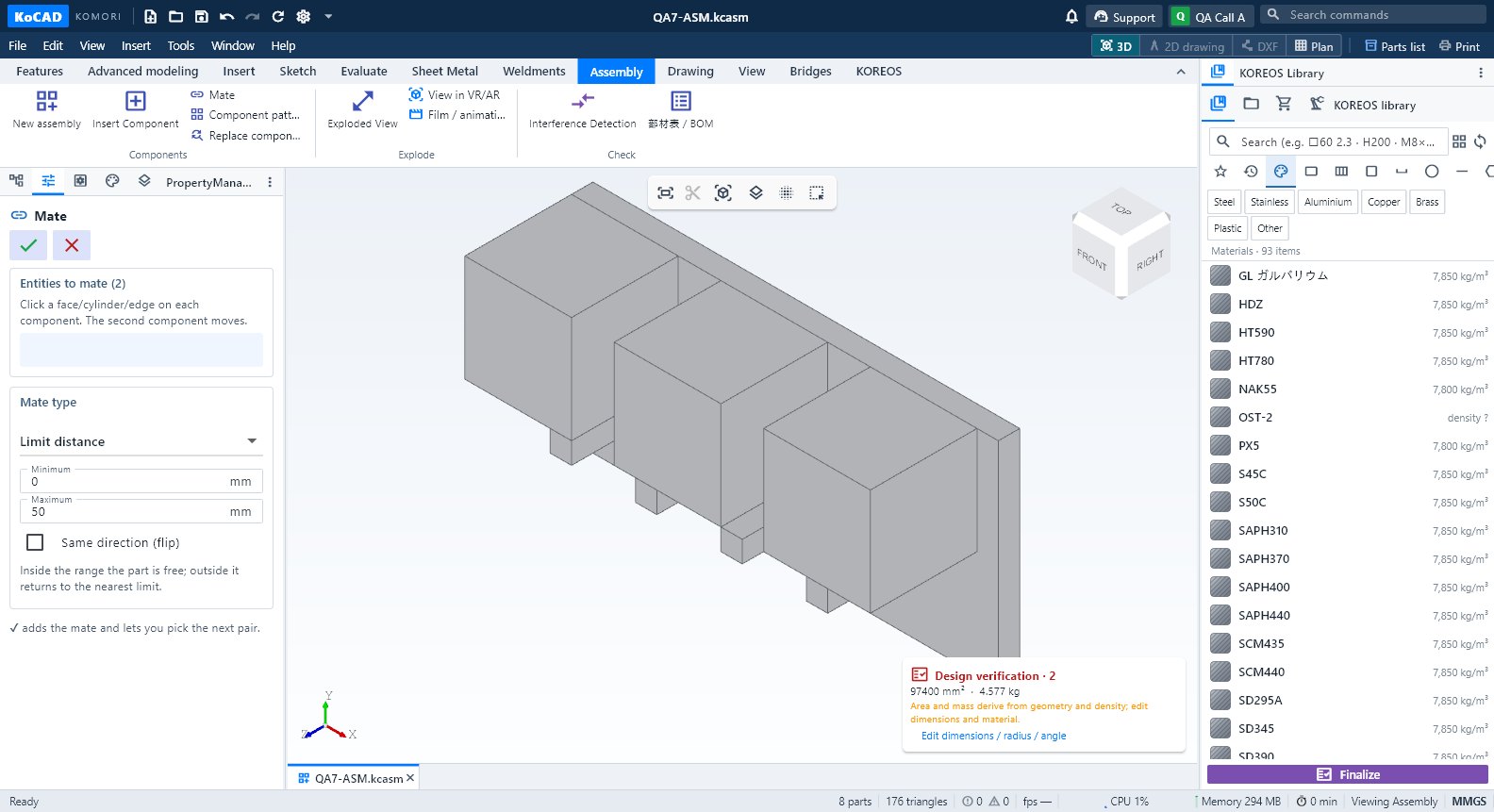 Assembly tab: components, mates, exploded view and BOMNew assembly, Insert Component, Mate, Component pattern, Replace component, Exploded View, VR/AR, Film, Interference Detection and 部材表/BOM.English
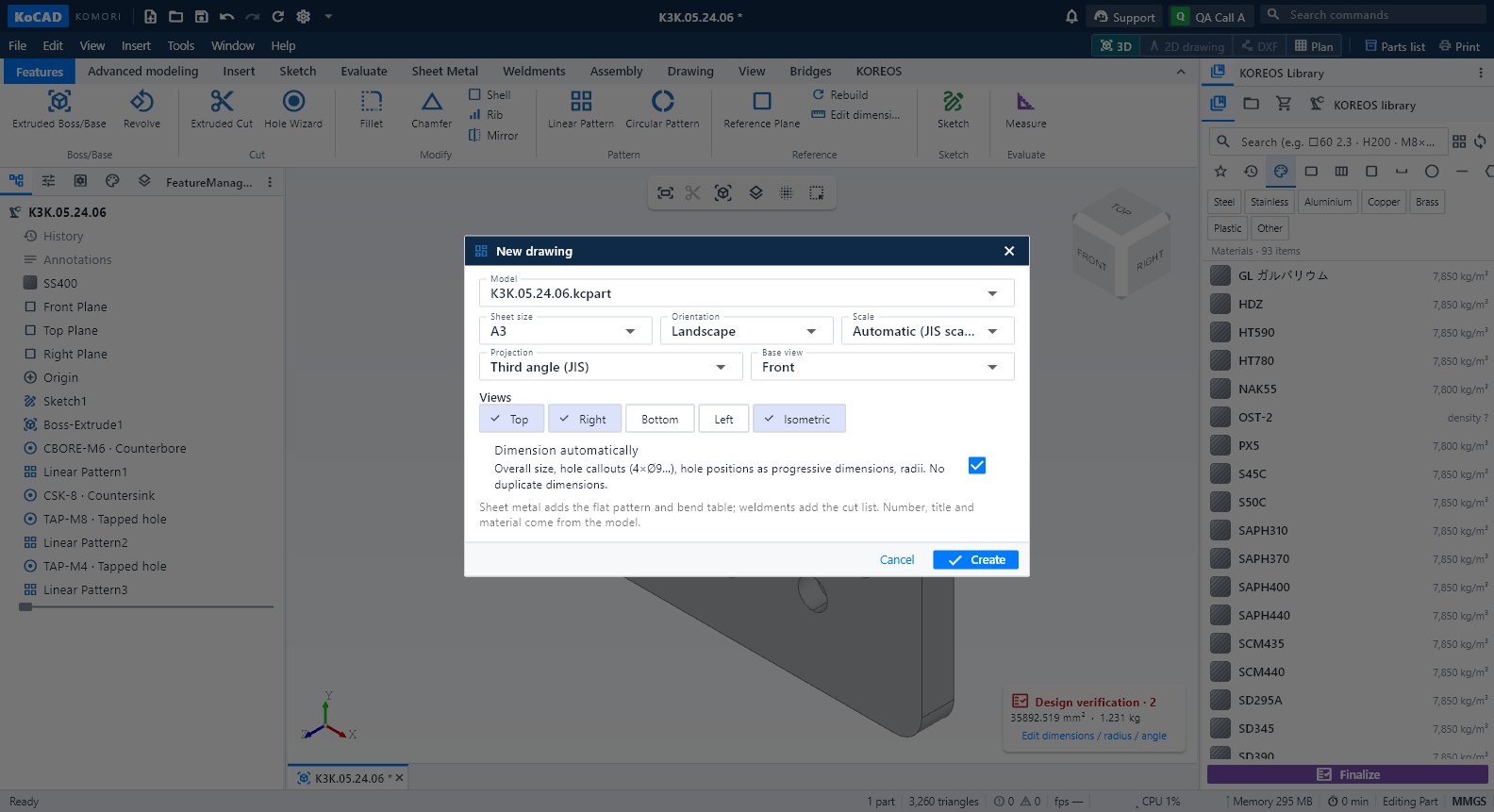 Drawing tab and the 2D drawing workspaceCreate a 2D drawing from this part, New 2D drawing, 3-view DXF, flat DXF and DWG; inside the drawing, the Drawing, Annotate, Draw, Modify, Sheet and Output tabs.English
- View tab: orientation, style, visibility and windowsZoom to Fit (F), Normal to, standard views (Ctrl+1…7), display styles, Perspective, Section View, Hide/Isolate/Show all, detach window, layout and dark theme.English
 Bridges tab: SolidWorks, project folder and other programsOpen SolidWorks files (.sldprt/.sldasm/.slddrw), Open project folder, STEP to SolidWorks and All bridges — optional; KoCAD is complete on its own.English
Screens · panels, windows and menus
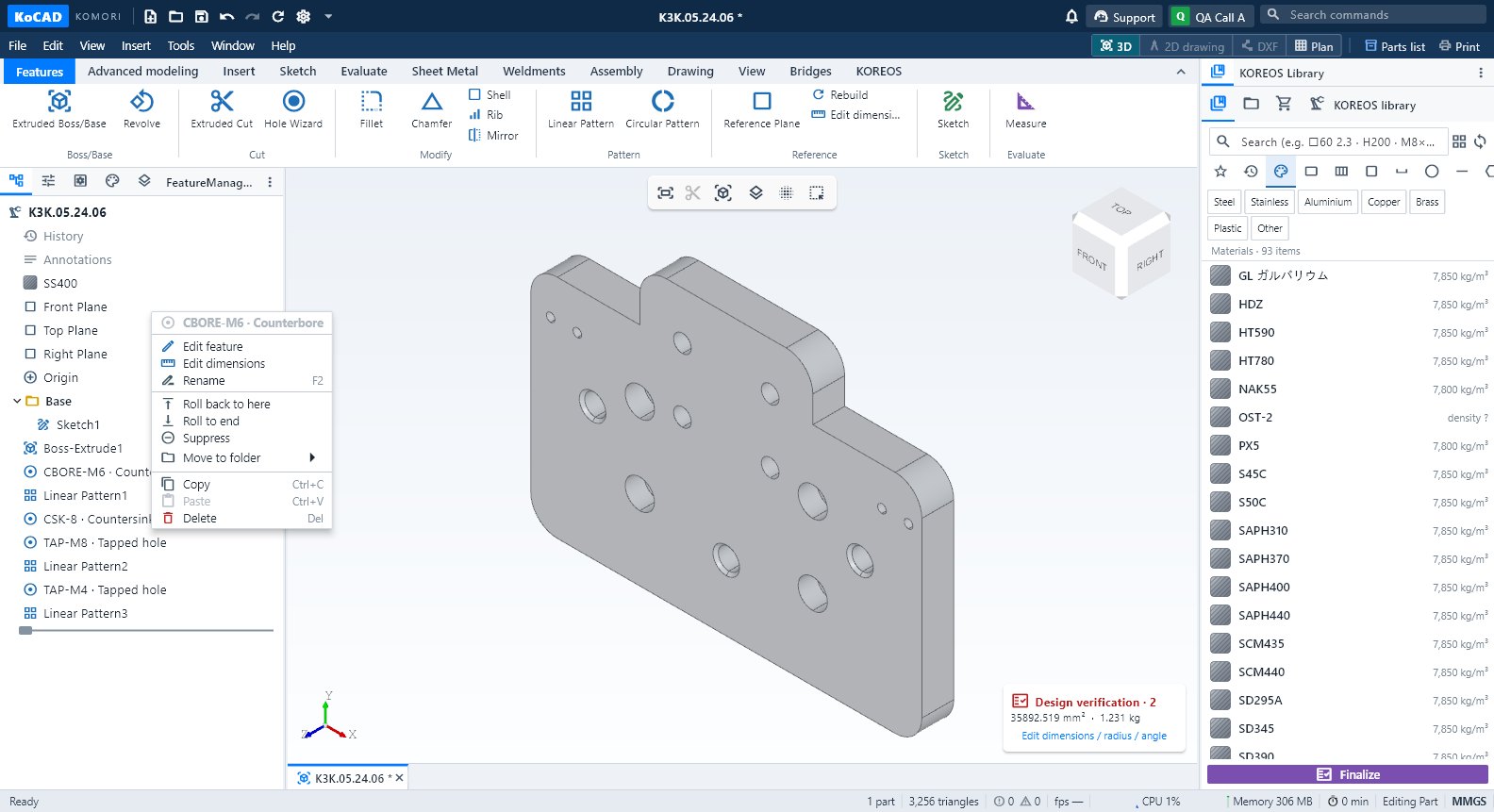 Design tree, PropertyManager and part propertiesThe left panel: feature tree (edit, rename, roll back, suppress), PropertyManager, Configurations, DisplayManager and Layers; properties of the selected part.English
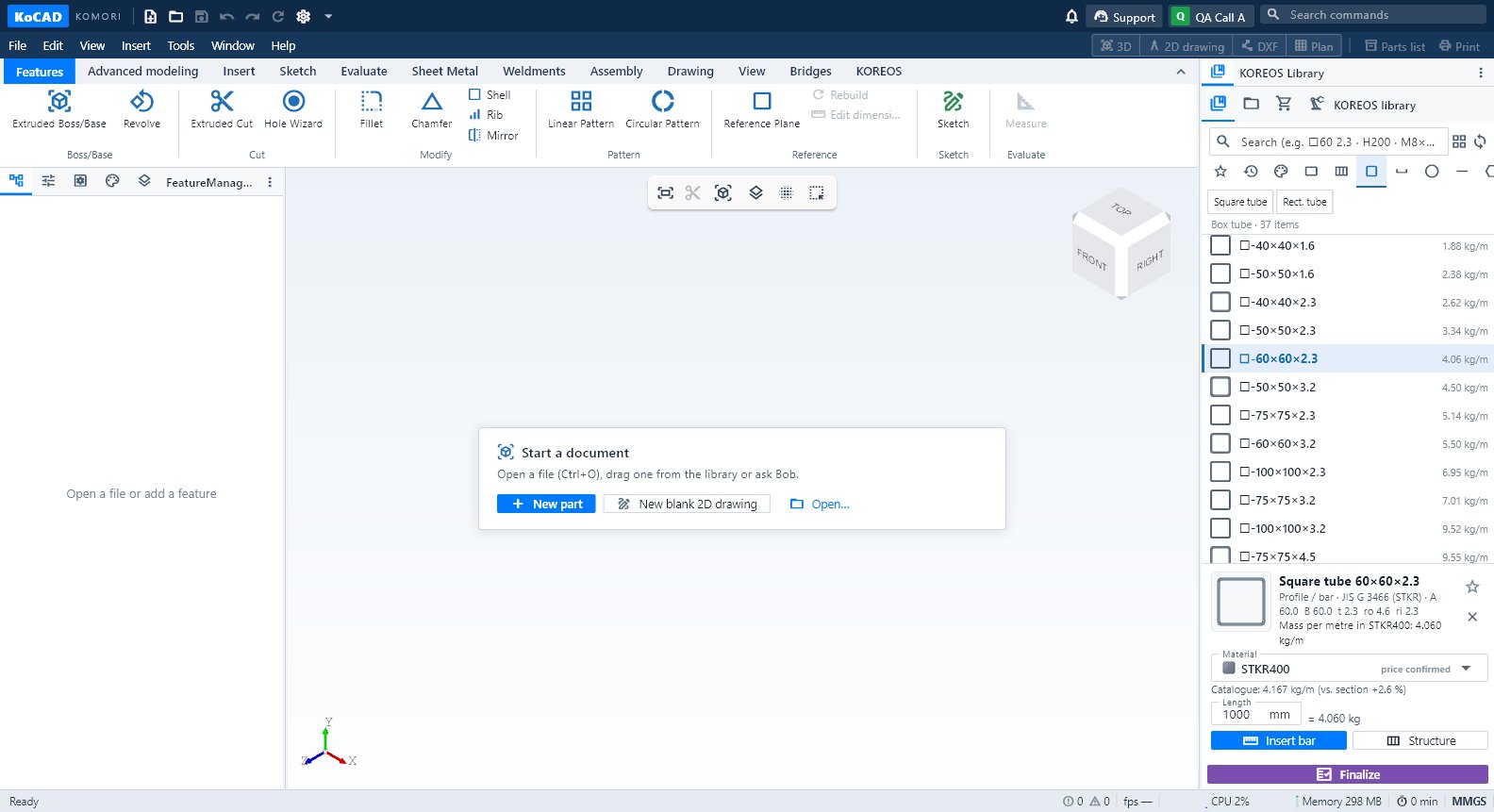 KOREOS Library: materials, profiles, parts and drag into the modelRight panel: find a material, plate, bar, profile or bolt in KOMORI's catalogue and drag it onto the part or into the 3D view.English
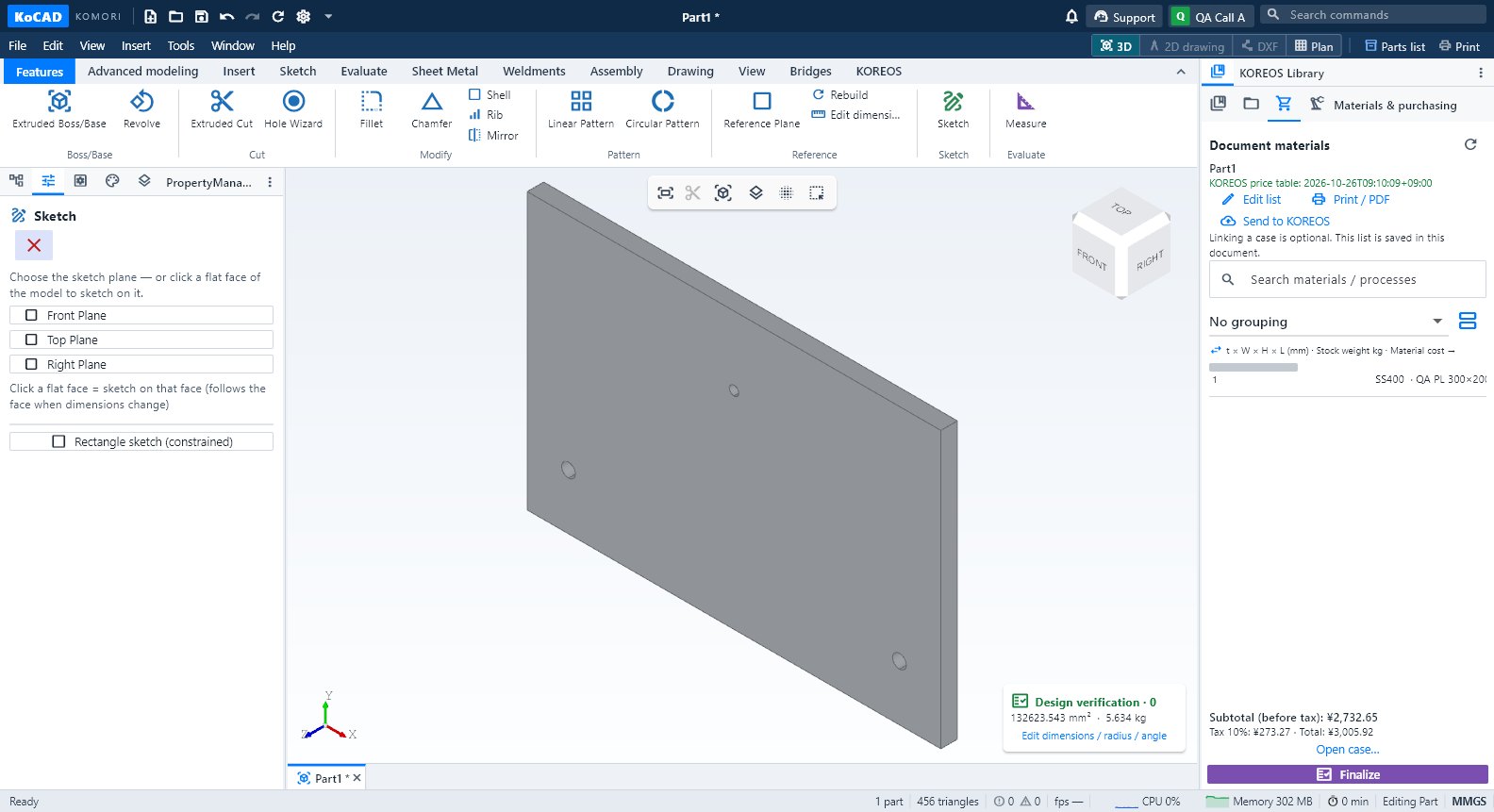 Materials & purchasing, Processes and the Finalize buttonThe document's materials list (edit, purchased items, prices), processes per part with the shop letters, and Finalize with what is missing and the printouts.English
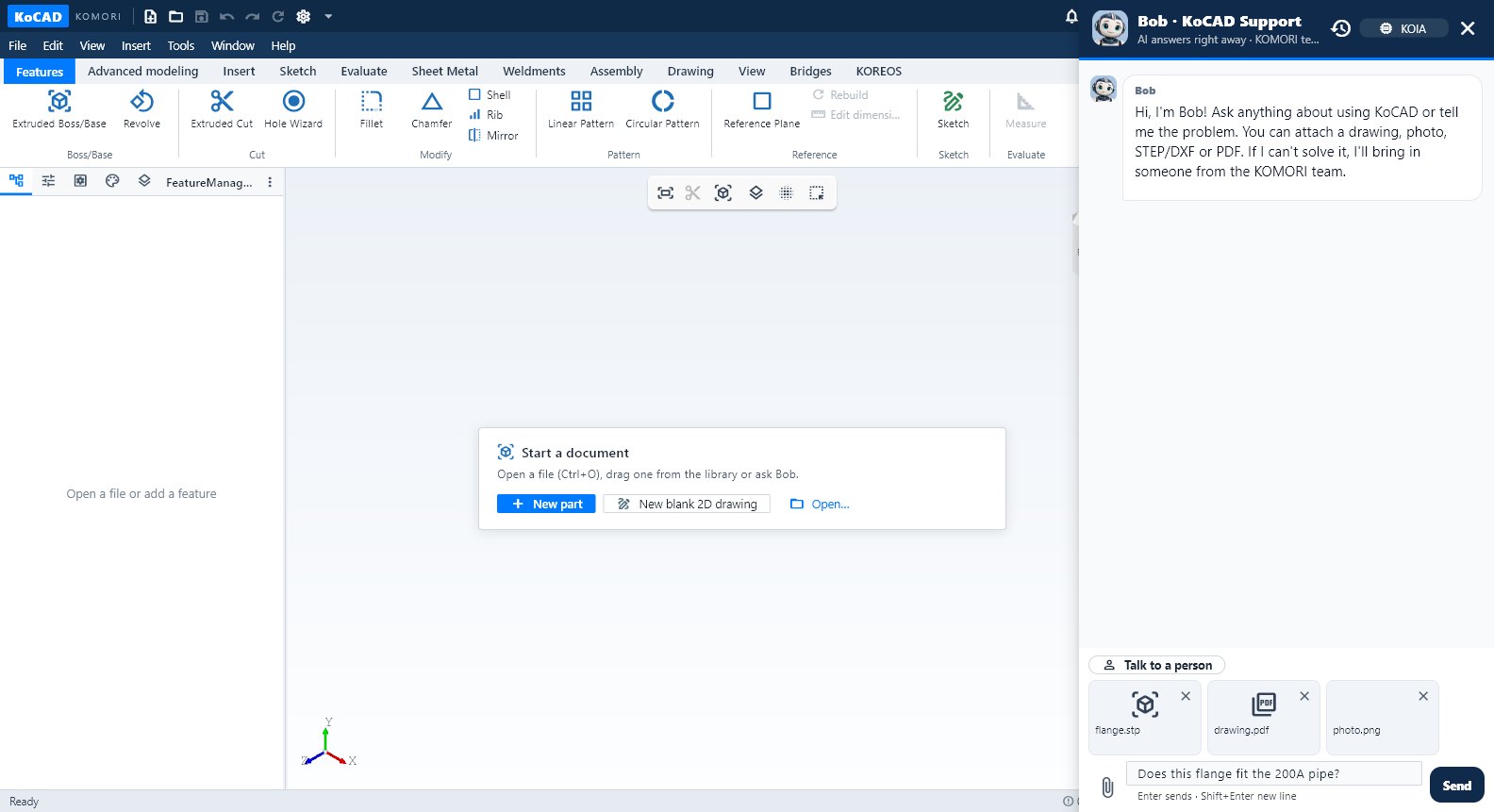 Bob and the Support chatBob answers questions with this Wiki, reads the open model, builds a reviewable plan and executes it in the CAD; the KOMORI team joins when needed.English
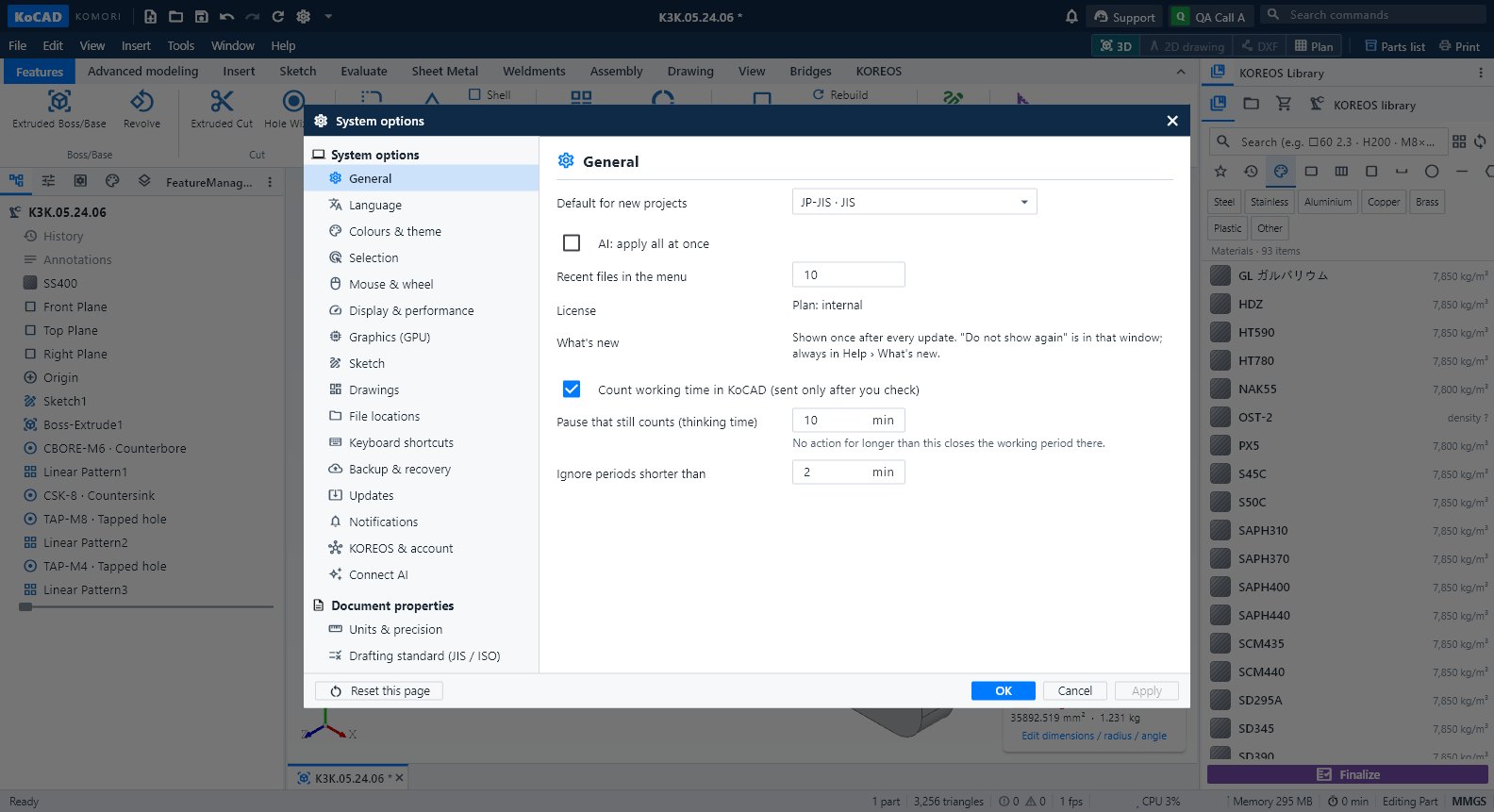 KoCAD Options (Settings)Tools → Options… (Ctrl+,): General, Language, Colours, Selection, Mouse, Display, GPU, Sketch, Drawings, Files, Shortcuts, Backup, Updates (Wiki/Guide), Notifications, KOREOS & account, Connect AI, Units and Standards.English
- Menus, file formats and Print / PDFWhat each menu contains, which files KoCAD opens and exports, and how to print or make a PDF (views, parts list, sheet, plan).English
Engineering
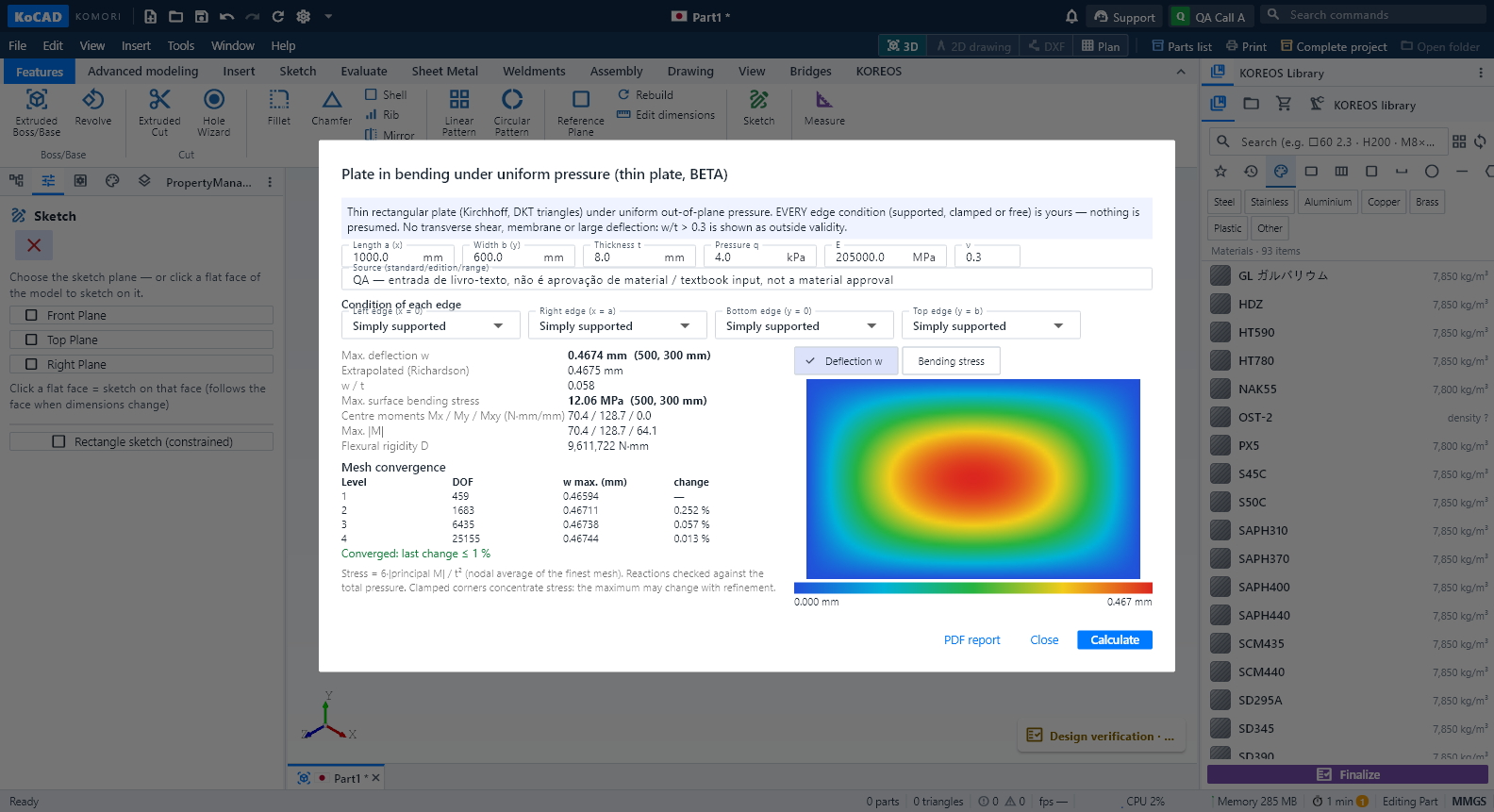 Engineering wave 4 (BETA): plate bending, heat and thermal stress, frame ΔT and the AI second opinionCalculations run in a separate program, only when you press Calculate, with Cancel. The result is bound to the document revision: editing the model during the run cancels it; editing it afterwards shows the result as OUT OF DATE and blocks the PDF until you calculate again. KoCAD 0.31 adds four studies, all BETA: a plate in bending under pressure, steady heat in a plate with thermal stress, a temperature change ΔT on frame members, and an AI second opinion on the whole project. None of them certifies capacity: the real engineering case is still pending and every result states its limits.English
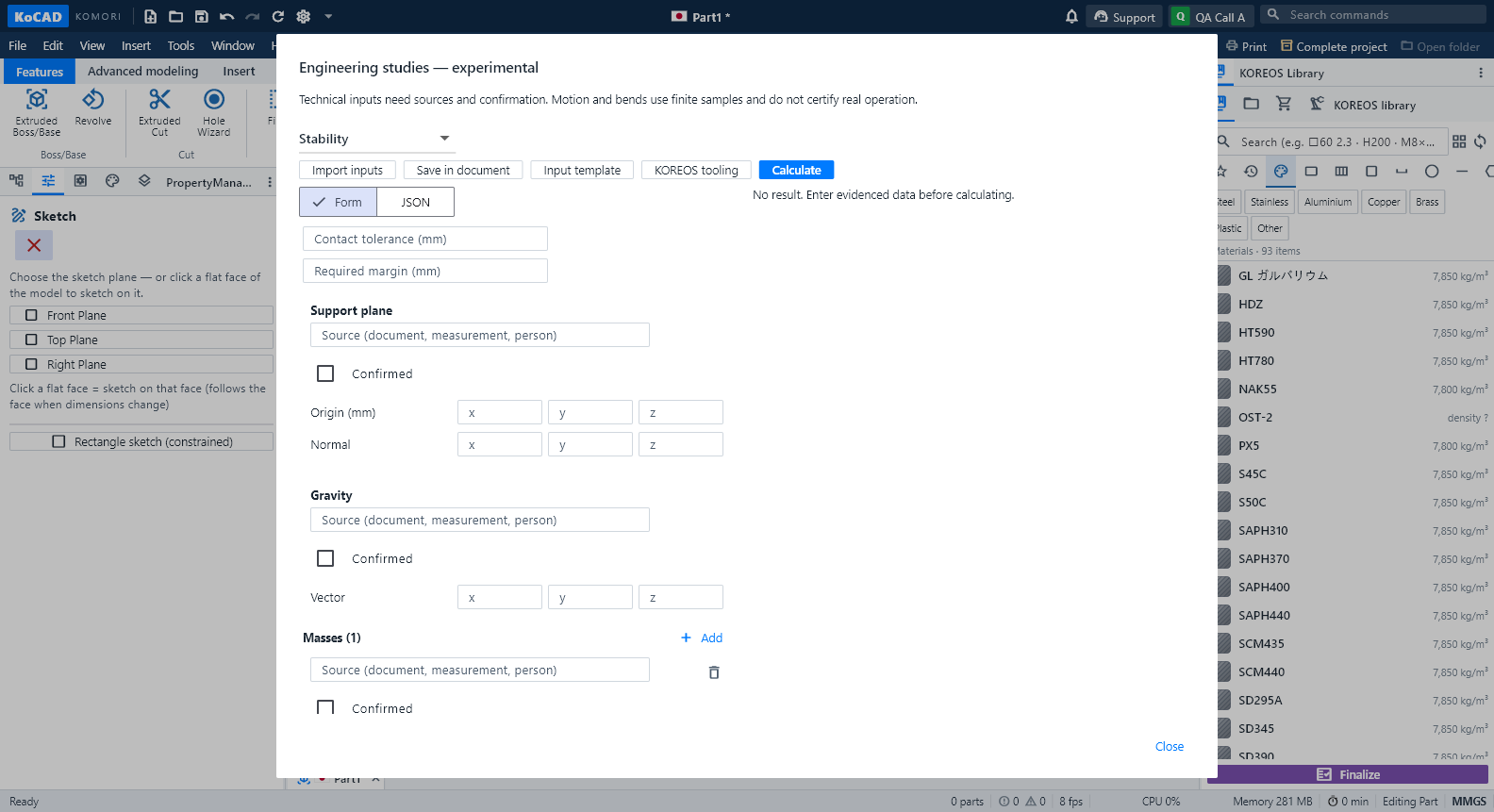 Engineering studies (experimental BETA): stability, clearance, motion and bend sequence — tooling not registeredWhat it is. On-request checks on the open part or assembly: stability (tipping), clearance between bodies, rigid motion with contact, bend sequence with the tooling registered in KOREOS, and process rules (weld/tool access, stock allowance, bumping). It is experimental: every result states what it checked and what is missing; nothing here is a factory approval. Open it from Design verification → Experimental studies. Status (0.30, experimental BETA): TOOLING NOT REGISTERED. The KOREOS press-brake, punch and V-die registry is still empty — the real data was requested from the factory. So the bend sequence answers "Missing data" today and offers no order. No result on this screen is a factory approval.English
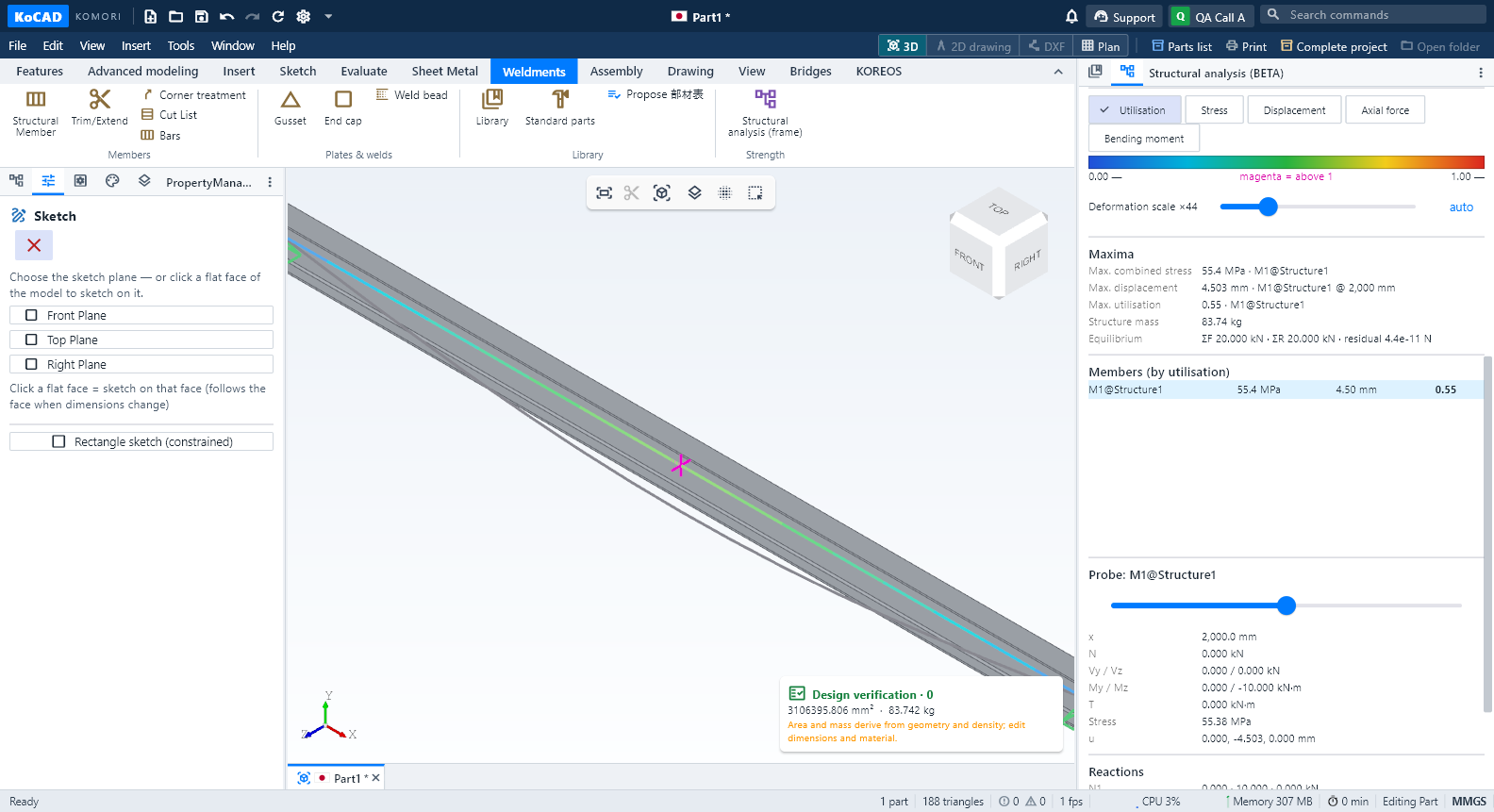 Structural analysis (BETA): stress, deflection, modal, buckling and lightest JIS profileWhat it is. A quick check of strength and deformation of the welded frame drawn in KoCAD (JIS profile members from the KOREOS library). It shows stress, deflection and utilisation in colour in the 3D view, natural frequencies and linear buckling, and suggests the lightest JIS profile that still meets the criteria. It is BETA: a linear-elastic calculation that does not certify capacity; the real engineering case (the 新200m³ base) is still pending. The decision to fabricate stays with engineering.English