











KoCAD · 界面与功能
KOREOS Library: materials, profiles, parts and drag into the model
Right panel: find a material, plate, bar, profile or bolt in KOMORI's catalogue and drag it onto the part or into the 3D view.
此文章暂无您的语言版本,以English显示。
本页目录
What it is
The KOREOS Library is the company catalogue (materials with density and price, plates, bars, □/L/H/U profiles, tubes, standard parts and machine parts). It is downloaded from KOREOS and cached for offline use.
Step by step
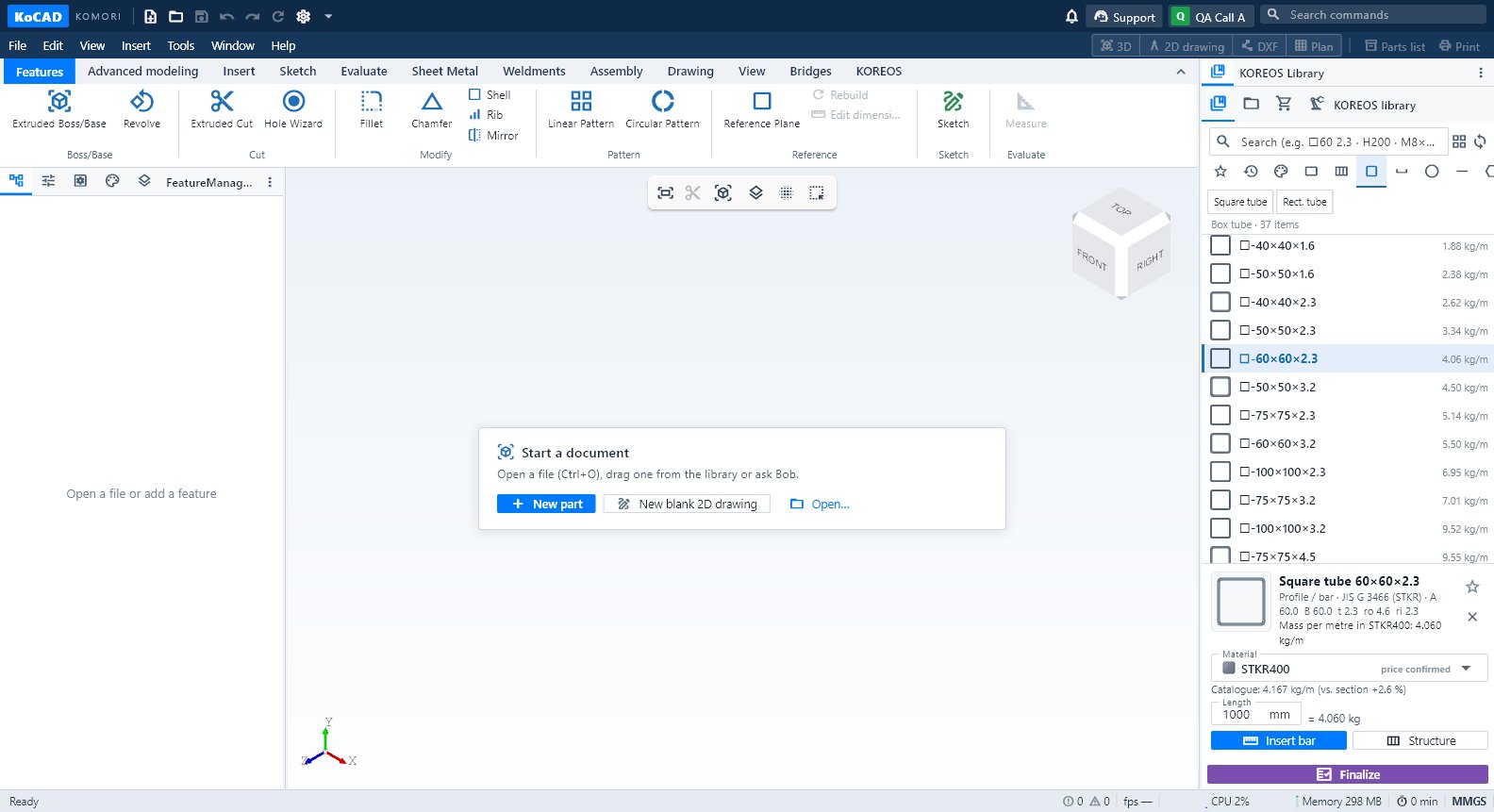
- In the right panel open KOREOS Library (first icon).
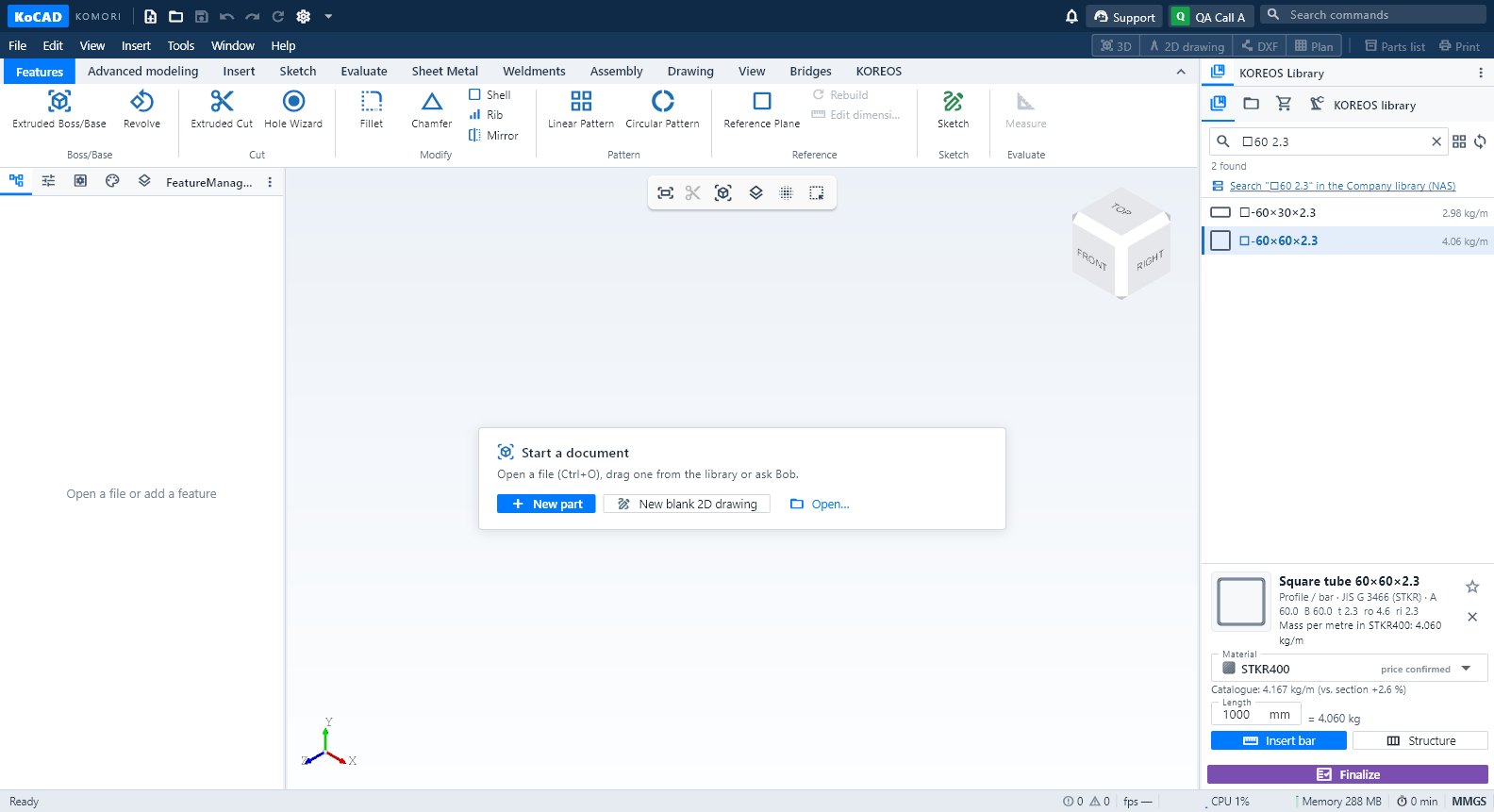
- Search by size or name: □60 2.3, H200, M8×30, A2011 HEX9. Use the filters (Steel, Stainless, Aluminium, Copper, Brass, Plastic, Other) and the shape tabs.
- Material: drag it onto a part. KoCAD applies it to that part/body only and confirms. Or select the part and click Apply … to:.
- Item (plate, bar, profile, bolt): drag it into the 3D view. It drops on the face under the cursor (or at the empty point) and stays selected.
- When you pick a material, the list shows its plates, bars and profiles. If there are none, use Create plate/bar in this material.
Tips
- Star = favourites; clock = recent.
- The company library (NAS) appears for KOREOS core users: categories, search and file properties.
- Options → KOREOS & account → Sync library forces a full download.
Common mistakes
- Dropping a material on empty space changes nothing: drop it on a part or select the part first.
- "density ?" on a material: the register has no density; mass stays pending until it is completed in KOREOS.