











KOREOS · Pantallas y funciones
Polls: how to use
Create internal polls and follow votes, comments and results on a single screen.
Este artículo aún no está traducido a su idioma: se muestra la versión en English.
En esta página
What it is
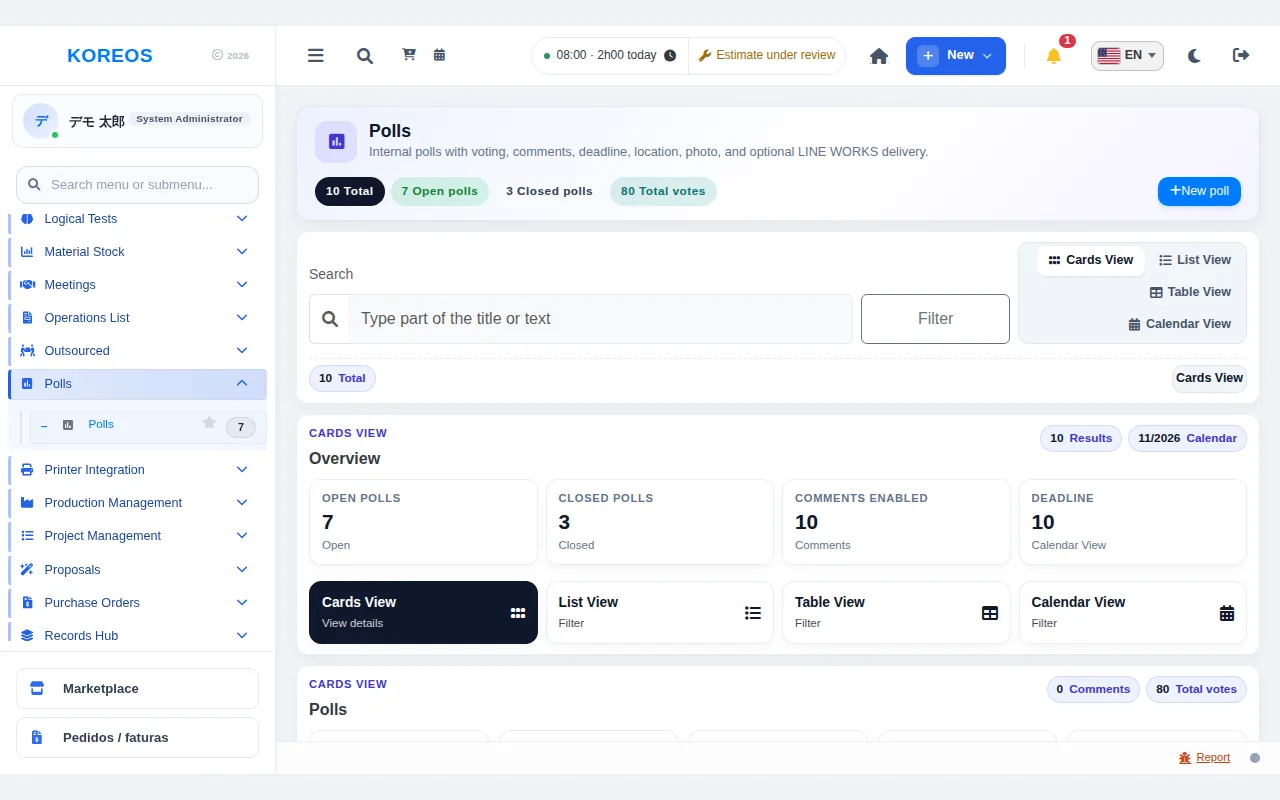
Polls is the quick way to collect the team's opinion. You build multiple-choice or written-answer questions, add a deadline, location and photo, and follow the answers as charts. You can also allow comments.
Who it is for
- Respondents: every employee invited to open polls.
- Creators: people with permission (who also follow the results).
Step by step (answering)
- In the side menu, open Polls. Open and closed polls are listed.
- Open the poll details and choose an option or type your answer.
- Click Submit vote. Polls past their deadline no longer accept votes.
- Use View results to see the share of each option as a chart.
Step by step (creating)
- Click New poll at the top right.
- Fill in the Poll title and Description; optionally set a deadline, location and photo.
- Choose the question type (Multiple choice or Written answer) and enter the Options, one per line (at least two).
- Tick Allow comments if you wish and click Create poll.
Tips
- Use search and the Cards, List, Table and Calendar views to find polls faster.
- Individual answers are confidential: only the creator and management roles can see them.
- Short deadlines usually raise the response rate.
Common questions
Can I fix a poll after creating it?Yes. The creator uses the edit icon to change the question, options or deadline. Deleting also removes all votes and comments and cannot be undone.
How do I see who has not answered yet?On the details screen the creator can see pending participants and follow up.
Can it be used to schedule a meeting?For picking a date, the Calendar's date voting is handier: the result becomes an event.
Availability and plan: see the Marketplace article.