











KOREOS · Pantallas y funciones
Time & attendance: how to use
The basic flow from clocking in to correction, absence and overtime requests and their approval.
Este artículo aún no está traducido a su idioma: se muestra la versión en English.
En esta página
What it is
Time & attendance records clock-in, clock-out and breaks, and carries correction, absence and overtime requests through to approval in a single flow. The records are the basis of the monthly closing. Depending on how your company has set it up, you can also clock in by QR code or tablet.
Who it is for
Every employee uses it to clock in and to send requests. Managers and administrators with permission approve requests and follow the day’s attendance.
Step by step
- In the menu, open "Time Tracking" and go to "My time clock"; the "Clock In / Out" screen is where you register.
- Under "Where are you clocking in?", choose the location (Company, Home Office, etc.).
- Click "Punch in at this location" and confirm the clock-in (or clock-out) at the current time in "Confirm time clock".
- On the way out, choose "Definitive clock-out (end day)" or "Interval exit (coming back)". For a break, clock in again when you return and use "Register return from break".
- Forgot to clock or got it wrong? Send "Request correction". Going to be absent? Use "Request absence". Working overtime? Use "Request overtime". Enter the reason and submit.
- Follow progress in "My requests" (Pending, Approved, Rejected).
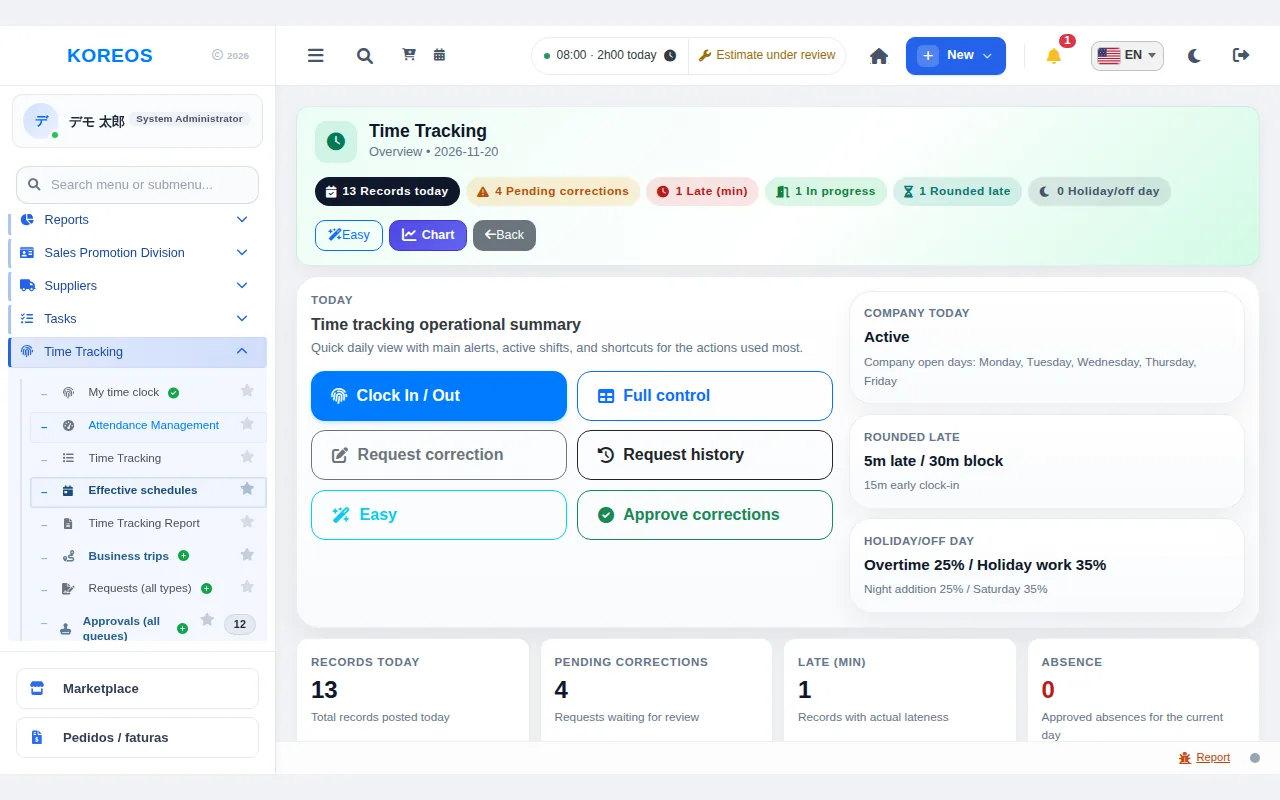
- Approvers open requests from the orange card at the top of the Home screen and approve or reject them. The Time Tracking overview shows the day’s numbers (records, pending corrections, lateness, who is in progress) and shortcuts to the most-used actions; "Effective schedules" shows the schedule being applied.
Tips
- If your day runs past the scheduled time, the system may show an overtime or day-off-work notice: read it before confirming.
- Worked on a day you were not scheduled? You need to request day-off work.
- A correction requires a justification and changes the record only after approval.
- Before the month closes, check "My requests" for anything still pending.
Common questions
I forgot to clock in. What now?
Send a correction request with the right time and a justification. Once approved, the record is updated.
What is the difference between a break and a definitive clock-out?
A break is an exit where you will come back; it does not end the day. Register your return afterwards.
Can I clock in for someone else?
No. Each person can only register their own time.
Availability and plan: see the Marketplace article.