











KOREOS · Pantallas y funciones
Aptitude tests: how to use
Build multiple-choice tests, give them to your team and review the results.
Este artículo aún no está traducido a su idioma: se muestra la versión en English.
En esta página
What it is
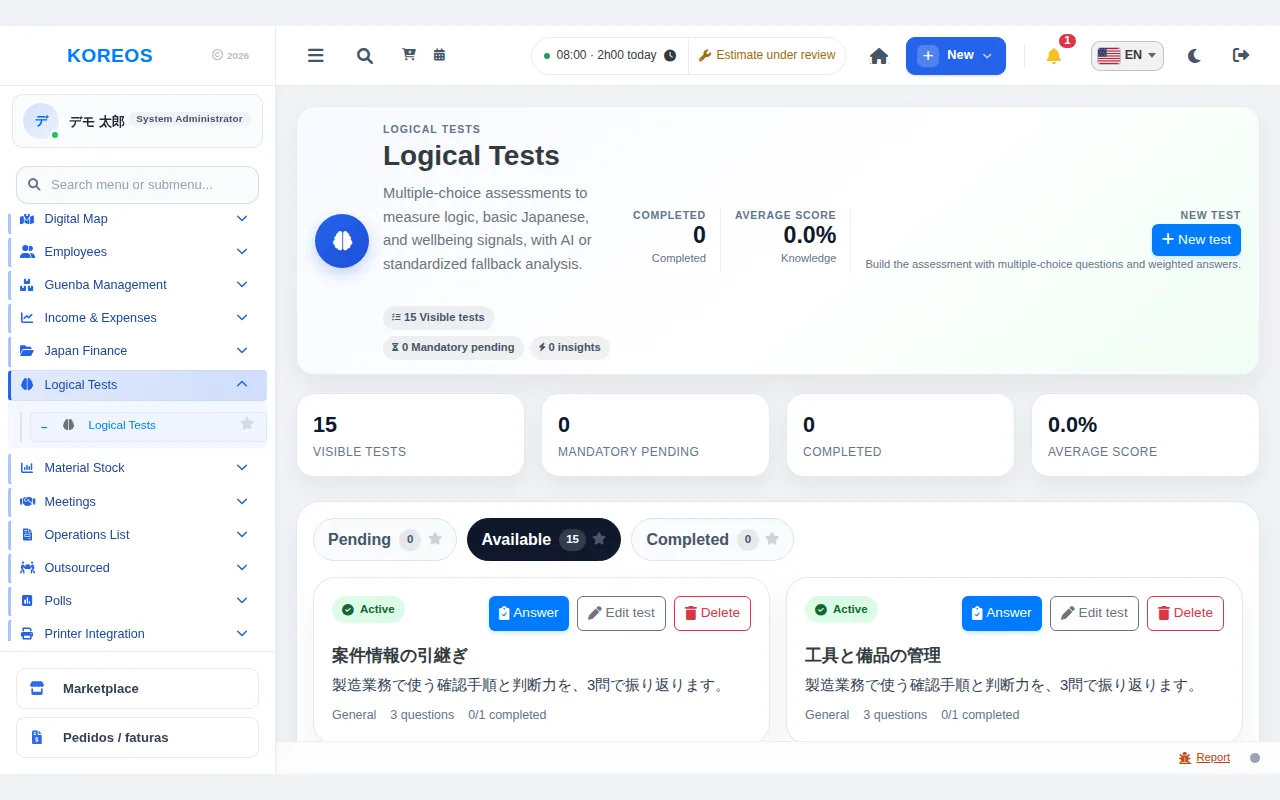
Aptitude tests lets you build multiple-choice tests, give them to your team and review the results. Each question has options with weights, and the result is analyzed after submission. In the menu the screen appears as “Logical Tests”.
Who it is for
- Test takers: employees the test is assigned to.
- Creators: people with permission to create and edit tests.
Step by step (taking a test)
- In the side menu, open Logical Tests. Tests are split into the Pending, Available and Completed tabs.
- Click Answer on the test and answer all mandatory questions.
- Click Submit test. Afterwards, use View result to see your performance.
Step by step (creating)
- Click New test.
- Fill in Title, Description, Focus and Audience (who the test applies to) and choose whether it is mandatory.
- Use Add question to build the questions, with the options and the weight of each answer. Each question needs at least two options.
- Click Save test.
Tips
- The top of the screen shows visible tests, mandatory pending, completed and the average score.
- For tests that can be answered only once, after completion you can only view the result.
Common questions
The screen does not open for me.The module must be active and your account needs permission. Ask your administrator.
Can I delete a test?With permission, yes. The system asks for confirmation first.
Availability and plan: see the Marketplace article.