











KOLOGY Software Pro · Getting started
Getting started with KOLOGY Software Pro
Install, activate, create the administrator, register the company and team, and import the first batch.
On this page
This is the path from installation to the first operating day in Pro. It takes a few minutes and is done once by the administrator.
1. Install and activate
- Install the program on Windows 10 or 11 (64-bit) with the installer received from KOMORI or downloaded from the client portal (Software tab).
- On first launch, enter the computer's activation code and click Activate on this computer. The licence is tied to the PC and works offline afterwards.
2. Create the administrator
- The Initial setup → Create the administrator screen appears once.
- Enter Name, Email, Password and Confirm password. The password needs 12 or more characters and three groups (upper case, lower case, numbers, symbols).
- Click Create administrator and sign in. This is the first full-access account.
3. Company details
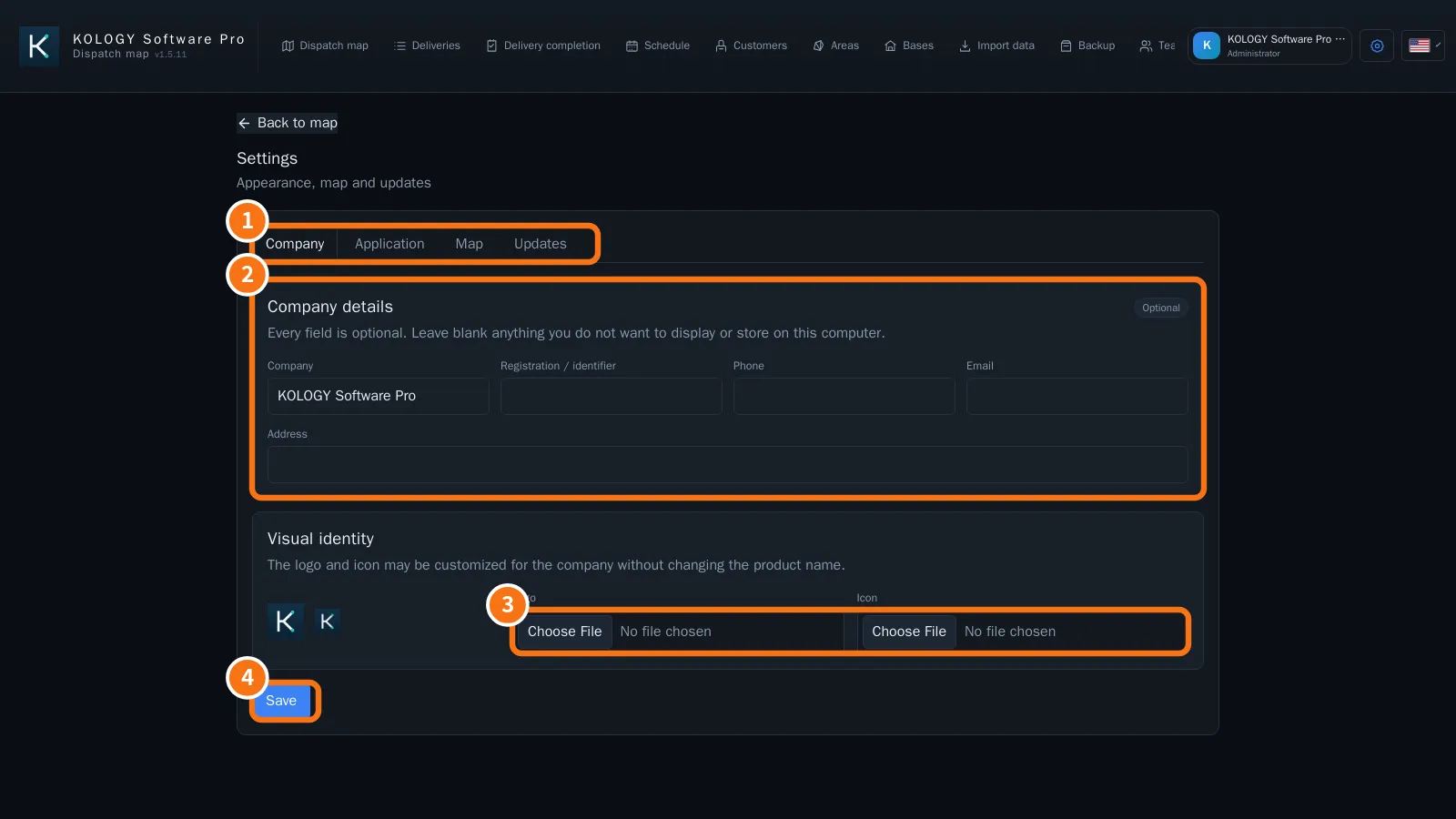
- Open Settings → Company (①).
- Fill in Company details (②) and, if you like, the logo and icon (③).
- Click Save (④).
4. Register the team
- Open Team → Drivers → Register driver: name, code, phone, Route code and vehicle.
- Under System users → Create access account, create accounts for operators (and other administrators).
- If drivers will use the portal, set up email under Email and reminders and use Enable access on the driver (see “How to enable a driver's access”).
5. First batch
- On the map, import the deliveries (Open or Import PW → Paste from browser).
- Check the indicators at the top (Total, Pending, Overdue, Delivered).
- Distribute them in the Schedule or with Build routes.
Common mistakes
- “Check the name, email and password.” A setup field is invalid or the password is too weak.
- “Passwords do not match.” Type the same password in both fields.
Related questions
- What KOLOGY Software Pro adds
- Team: drivers, users and email
- Sign-in, first access and password recovery
- Import deliveries