











KOLOGY Software Pro · Screens & features
How to invite a customer and approve the first request
The full path, from the invitation link until the request shows on the map as a delivery of the batch.
On this page
This walkthrough puts both sides together: what you do in operations and what the customer does in their portal. Use it to get a new customer requesting deliveries on their own.
1. Create the invitation (operations)
- Open Customers.
- Under Create registration link, type the Label (e.g. the customer's name) and set Valid days and Allowed uses.
- Click Create secure link and copy the link right away (it is not shown again).
- Send it to the customer by email or message.
2. Create the account and request (customer)
- The customer opens the link, fills in Create customer account and clicks Create account and continue.
- Under New delivery request, they enter recipient, address, phone, requested date, time window and a note.
- They click Send for approval.
3. Approve (operations)
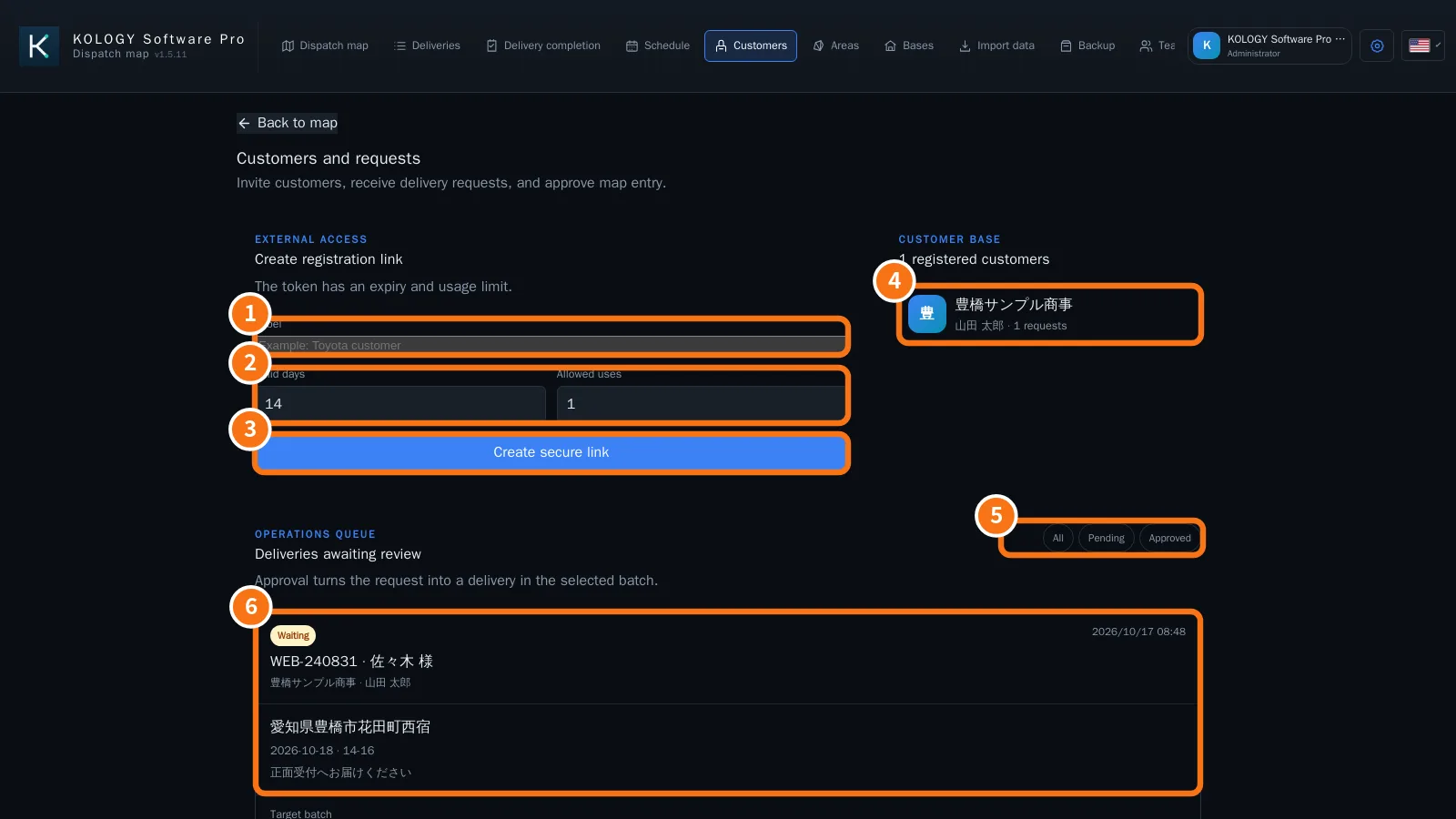
- In Customers, the request appears in the Operations queue as Waiting. The company appears under Customer base.
- Check the details, choose the Target batch and, if you like, a Review note.
- Click Approve and add.
- On the map, the new delivery appears in the chosen batch. Assign a driver as usual.
Common mistakes
- The customer cannot open the link: it expired, ran out of uses, or the system's public URL is not set (Team → Email and reminders).
- The request does not show: check the queue filter (All) and the Sync indicator.
Good practice
- Create one link per customer, with 1 use and a short validity.
- Use a clear Label so you know whose invitation it is.
- When rejecting, write the reason in the Review note; the customer sees the status in the portal.
Related questions
- Customers and requests
- Customer portal
- Sync and working offline