











KOLOGY Software Pro · Screens & features
Delivery areas: colours, priority and new areas
Adjust area name, colour, priority and visibility, reclassify deliveries, and create new areas from the catalog, from addresses or by drawing.
On this page
Areas split the map into delivery regions. Each delivery belongs to the area it falls in; one that falls in none shows as Outside all areas. The Areas screen controls colour, visibility, priority and new areas. The company's fixed places (offices, depots and warehouses) live on the Bases screen — see “Bases, cargo and daily stock”.
Where it is
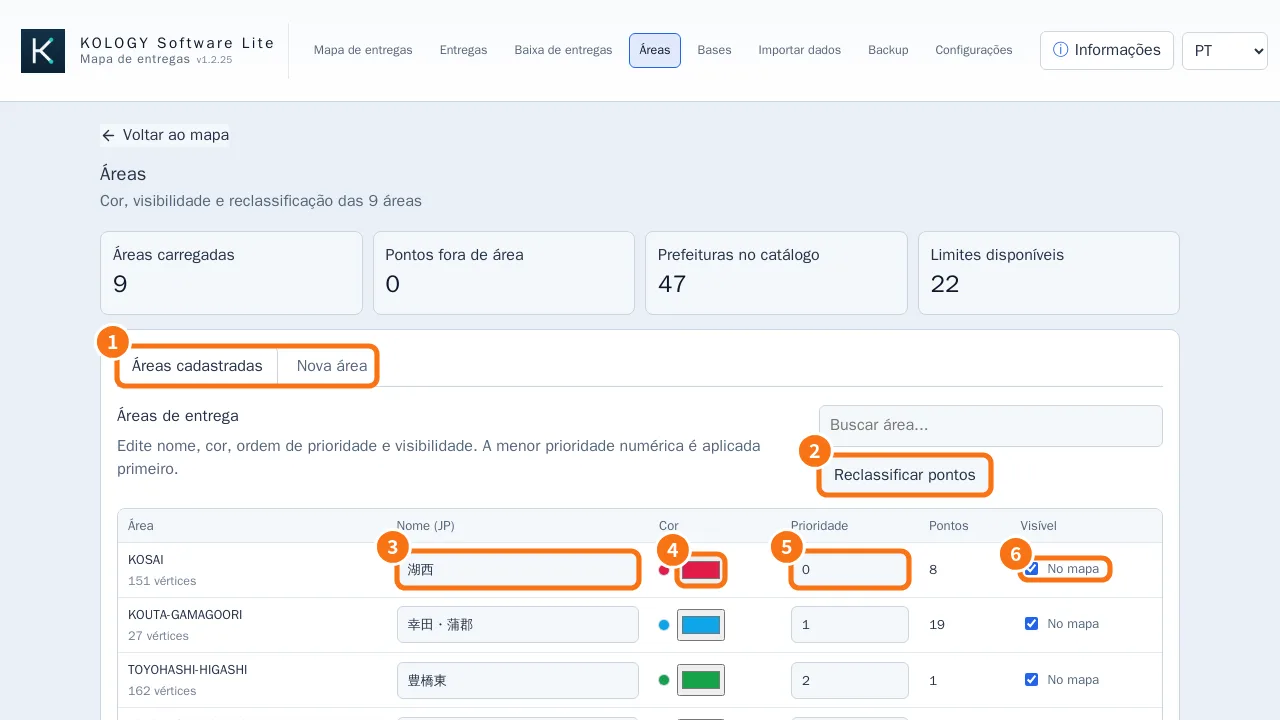
Information → Areas. At the top there are four numbers: Areas loaded, Points outside any area, Prefectures in catalog and Boundaries available.
Adjust existing areas
- On the Registered areas tab (①), find the area (use Search areas...).
- Change the Name (JP) (③) and Colour (④). The colour applies to the map and the legend.
- Set the Priority (⑤): when two areas overlap, the lower number receives the delivery.
- Tick or untick On map (⑥) to show or hide it.
- Click Reclassify points (②) to apply the visible areas to the batch's deliveries, by priority. “X points reclassified.” appears.
Create a new area
The New area tab offers two paths:
- City or administrative region (official boundary): choose the Prefecture and the City, ward, town, or village, enter the Area code, name and colour, and click Create official area.
- Neighborhood or locality from data (suggestion from imported addresses): pick the neighbourhood and click Create suggested area. The outline surrounds known points with a margin; it is not an official boundary. In Lite, suggestions belong to the Smart addresses and neighborhoods extension.
Both let you tick Give the new area priority and Reclassify deliveries now. You can also draw directly on the map: right-click → Draw new area, or Ctrl + click on the background for each vertex and Enter to finish.
Common mistakes
- “An area with this code already exists. Use a different code.”
- “Review the new area's code, name, and color.” A field is empty.
- Many deliveries changed area: reclassifying affects the whole batch. Check priority first.
- Many “Points outside any area”: those deliveries have no area. Create a new one or import the region's .txt.
Related questions
- Bases, cargo and daily stock
- How to create a new area
- Offline maps by prefecture