











KOLOGY Software Pro · Screens & features
Sign-in, first access and password recovery
Sign in with email and password, activate access through the first-access link, recover a password and change emails and password safely.
On this page
In Pro, each person (administrator, operator, driver or customer) uses their own email and a strong password. Nobody sees another person's password, not even the administrator.
Sign in
- On the Sign in to KOLOGY Software Pro screen, enter Email and Password and click Sign in.
- Each role lands on its screen: office on the map, driver on My routes, customer on My requests.
- To leave, click the user card → Sign out.
Driver first access
- The administrator enables access; the driver receives by email (or the administrator copies) the First-access link, valid for 1 hour and one use.
- The driver opens the link (Activate your driver access), creates a password and clicks Activate my access.
Forgot password
- On the sign-in screen, click Forgot password.
- Enter the account email and click Send recovery link.
- Open the email, use the link (valid 1 hour), set the new password and click Save new password. “Password updated. You can now sign in.” appears.
Change email or password (Security tab)
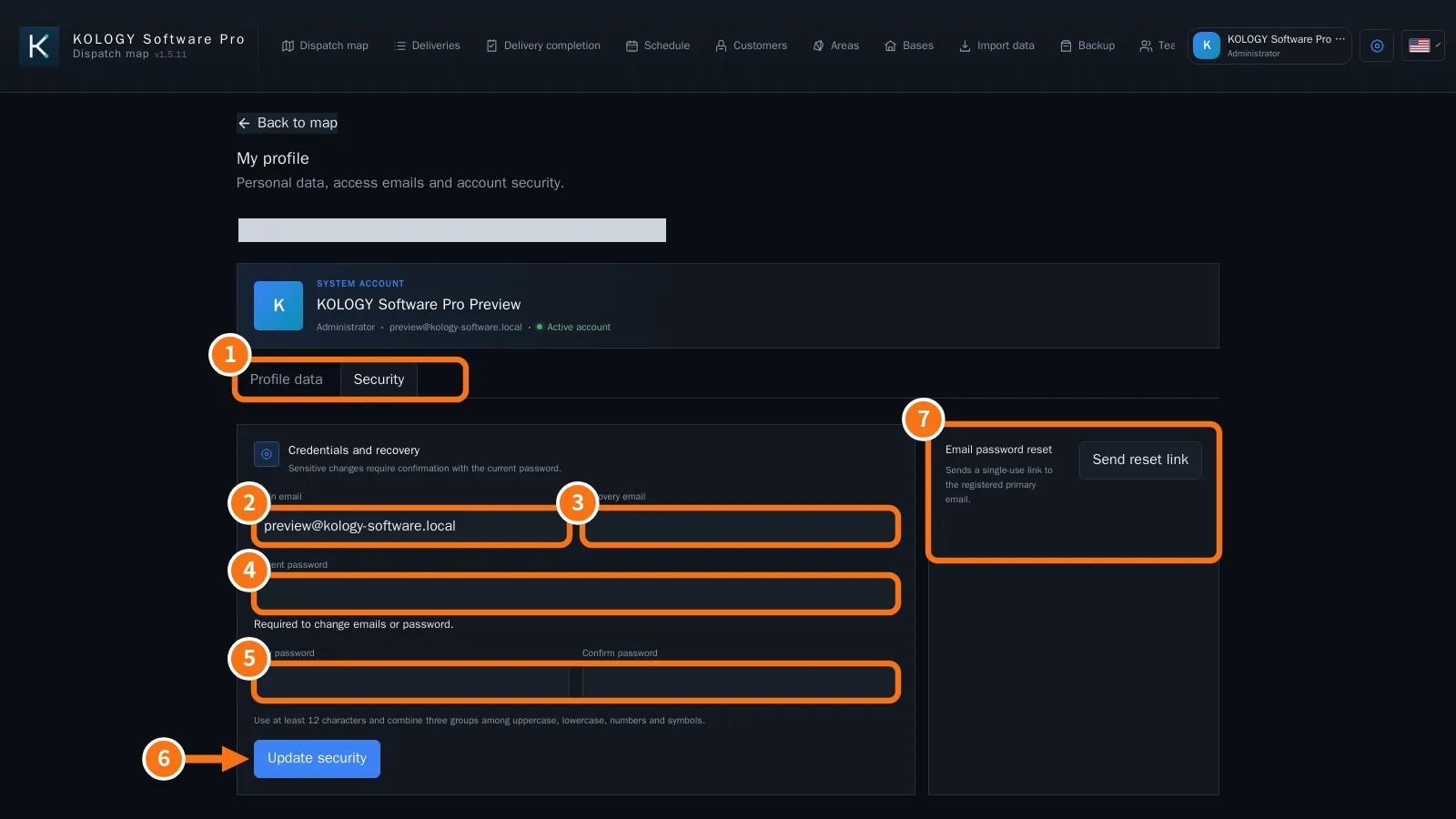
- User card → My profile → Security tab (①).
- Change the Login email (②) and/or Recovery email (③).
- Enter the Current password (④): it is required to change emails or password.
- To change the password, fill in New password and Confirm password (⑤).
- Click Update security (⑥).
- Alternative: Send reset link (⑦) sends a single-use link to the registered email.
Common mistakes
- “Incorrect email or password. After five attempts, access pauses for 15 minutes.” Wait, or use Forgot password.
- “The link expired, was already used, or the password is invalid.” Ask for a new link (driver: Renew first access).
- “The current password is incorrect.” / “This email is already in use.”
Related questions
- My profile
- How to enable a driver's access
- Team: drivers, users and email