











KOLOGY Software Pro · Screens & features
Driver record (operational record)
A driver's agenda, planned, completed, pending and overdue deliveries for a day, with a timeline of completions.
On this page
The Driver record shows how a driver's day went (or is going): what was planned, what was delivered, what is pending and what is overdue. It is different from View as driver, which shows the driver's own screen.
Where it is
On the map, Drivers tab → click the row or the live pin; or Team → Operational record. It opens in an internal window, without leaving the map.
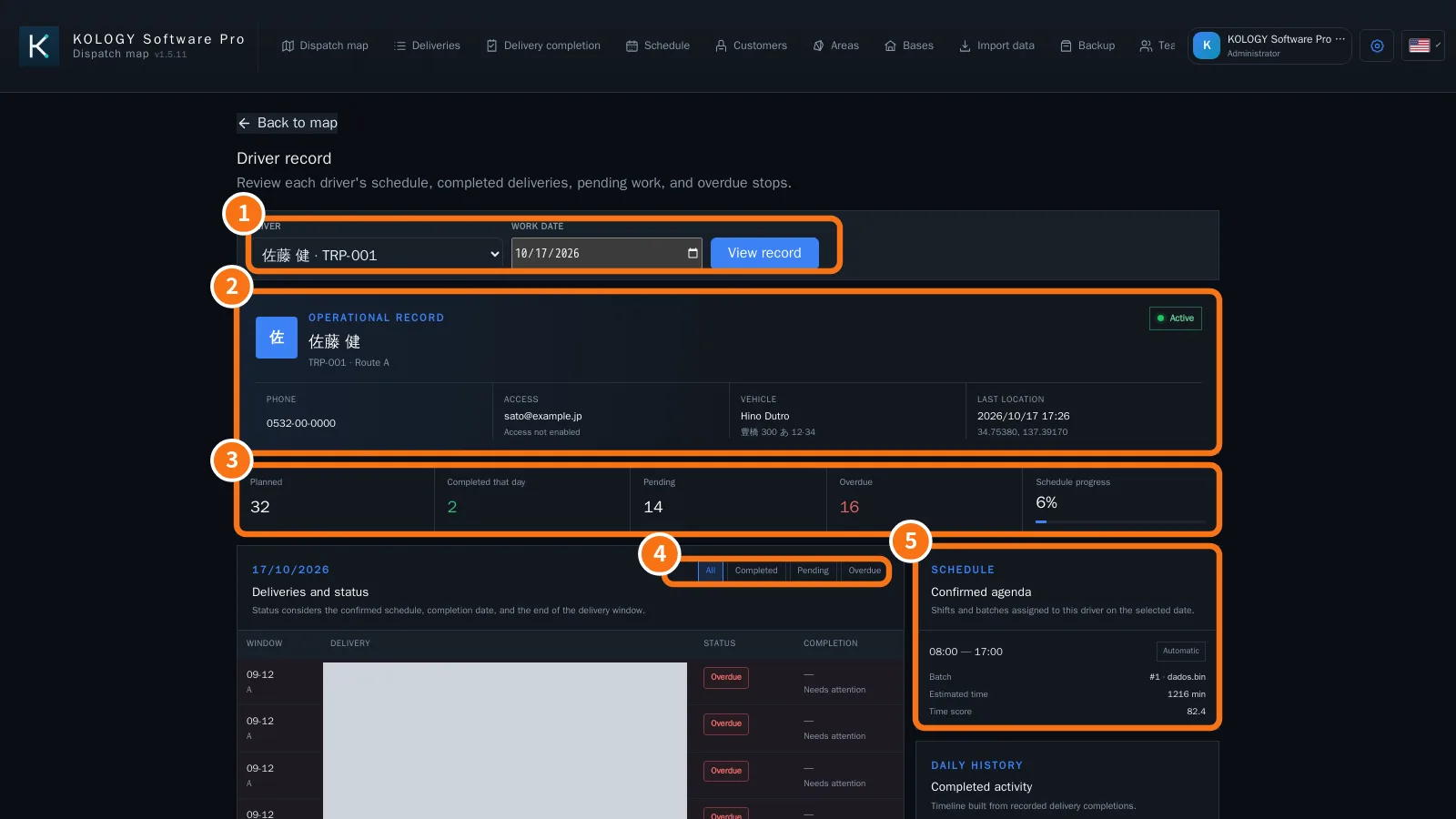
What is on the screen
- Driver and Work date, with the View record button.
- Operational record: name, code, route, phone, access, vehicle and Last location (date, time and coordinates).
- Day summary: Planned, Completed that day, Pending, Overdue and Schedule progress.
- Filters All, Completed, Pending and Overdue for the Deliveries and status list (window, delivery, status and completion).
- Confirmed agenda: shifts, batch, source (Manual or Automatic), estimated time and time score. Below, the Daily history with the timeline of completions.
Step by step
- Choose the Driver and Work date.
- Click View record.
- Use Overdue to see only what needs attention (“Needs attention”).
- To fix things, go back to the map and edit the delivery, or redo the distribution in the Schedule.
How status is calculated
- Completed: a completion was recorded.
- Pending / Awaiting completion: still within the planned window.
- Overdue: the end of the confirmed window has passed with no completion.
- Extra completed: delivered without being on that day's schedule.
Common mistakes
- “No confirmed schedule for this date.” Confirm the distribution in the Schedule.
- “No delivery completion recorded on this date.” The driver has not recorded any delivery yet.
Tips
- Mid-afternoon, open each driver's record with the Overdue filter so you can act before the shift ends.
- Last location helps decide who is closest to an overdue delivery.
- Compare the record's time score with the Schedule cards when building the next day's roster.
Related questions
- Schedule and distribution
- Driver portal
- Delivery completion and proof