











KOLOGY Software Pro · Pantallas y funciones
How to record a delivery (driver)
Quick guide for drivers: sign in, turn on location, follow the stops and complete each delivery with recipient and photo.
Este artículo aún no está traducido a su idioma: se muestra la versión en English.
En esta página
This guide is for drivers. You use your phone's browser; nothing to install. Your access was enabled by the company and you created your password through the first-access link.
At the start of the shift
- Open the system address the company gave you and sign in with your Email and Password.
- My routes opens with your route, vehicle and the day's summary.
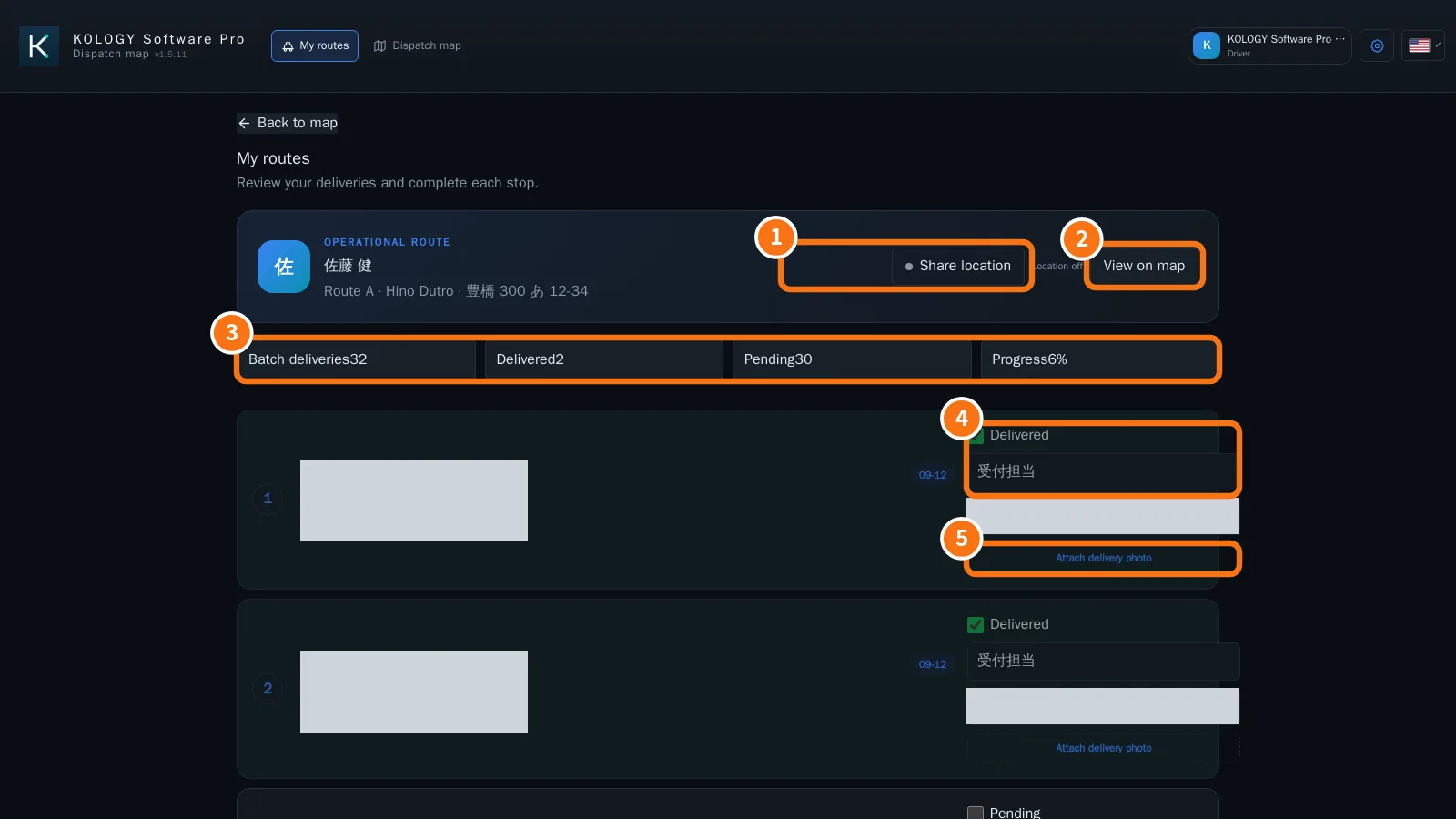
- Tap Share location (①) and allow location access in the browser.
At each stop
- Follow the order of the stops. To see them on a map, tap View on map (②).
- When you deliver, type the name of the person who received it in Recipient and, if needed, a note (④).
- Tap Attach delivery photo (⑤) and take a photo of the delivered parcel.
- Tick Delivered. The summary (③) updates and the office sees the delivery in green.
- To check, tap View proof.
At the end of the shift
- Make sure no stop was left Pending by mistake.
- Turn off location sharing and tap your name → Sign out.
Common mistakes
- No stops appear: your route has not been assigned yet. Contact the office.
- Forgot password: on the sign-in screen, Forgot password.
- Ticked Delivered by mistake: untick it and tell the office.
A good proof photo
- Show the parcel at the delivery spot (door, reception or parcel box).
- If possible, keep the house or room number visible.
- Avoid photographing people.
- Check the photo is sharp before ticking Delivered.
If the recipient is not there or the delivery cannot be made, do not tick Delivered: write what happened in the note and tell the office so it can be rescheduled.
Related questions
- Driver portal
- Sign-in, first access and password recovery