











KOLOGY Software Pro · Mga screen at feature
Customers and requests: invitations and approval
Create a registration link with expiry and usage limit, receive customers' requests and approve them into the right batch.
Hindi pa naisasalin ang artikulong ito sa inyong wika: ipinapakita ang bersyong English.
Sa pahinang ito
With the Customers screen, customer companies can request deliveries on their own, without phone calls or spreadsheets. You send an invitation link; the customer creates an account and enters the delivery; the request waits in a queue and only reaches the map after someone in operations approves it.
Where it is
Top menu Customers, or on the map Operations → Customers and requests. For administrators and operators.
Step by step: invite a customer
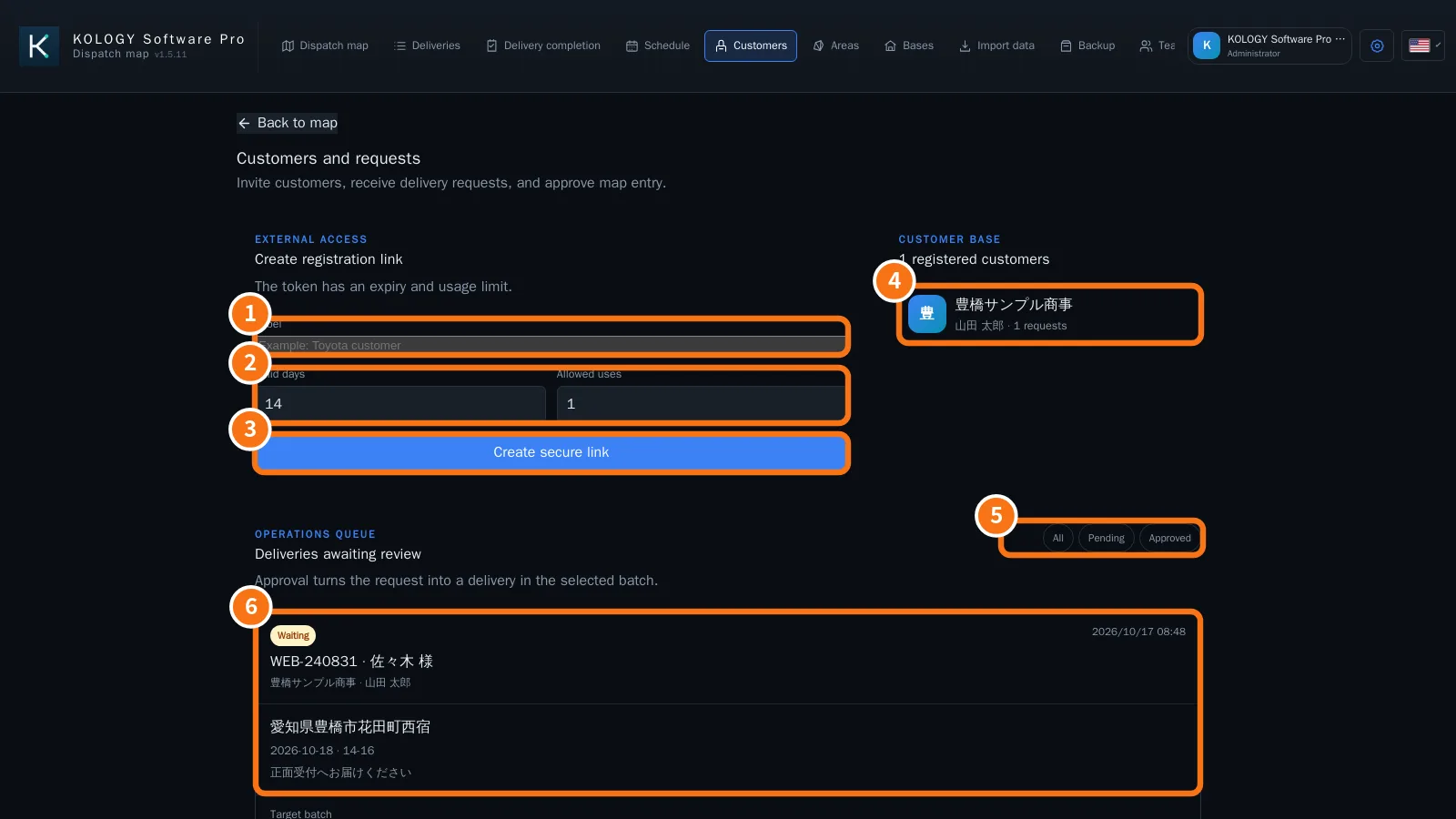
- Under Create registration link, fill in the Label (①), so you can recognise the invitation later.
- Set Valid days and Allowed uses (②). E.g. 14 days and 1 use.
- Click Create secure link (③). “Link ready to copy” appears.
- Copy the link and send it to the customer. The full link is shown only at that moment.
The Customer base (④) lists registered companies, the contact person and how many requests each sent.
Step by step: review a request
- In the Operations queue, filter by All, Pending or Approved (⑤).
- Open the request card (⑥): status (Waiting), reference, recipient, company, address, requested date, time window and note.
- Choose the Target batch and, if you like, write a Review note.
- Click Approve and add (the request becomes a delivery of that batch and appears on the map) or Reject. “Review saved.” appears.
Common mistakes
- The customer says the link does not work: it expired or reached its usage limit (“This invite is invalid, expired, or has reached its usage limit.”). Create a new one.
- I lost the link before sending it: for security it is not shown again. Create another.
- Invitations do not open outside the company: check the system's Public URL under Team → Email and reminders.
Related questions
- Customer portal: requesting deliveries
- How to invite a customer and approve the first request
- Team: drivers, users and email