











KOLOGY Software Pro · Mga screen at feature
How to move your data to another computer
Back up to a USB drive, install and activate on the new PC, and restore the data without losing anything.
Hindi pa naisasalin ang artikulong ito sa inyong wika: ipinapakita ang bersyong English.
Sa pahinang ito
Changing computers or sending the old PC for repair? Data moves by backup; the licence is tied to each computer and needs a re-issue through the client portal. Follow this order.
On the old computer
- Plug in a USB drive.
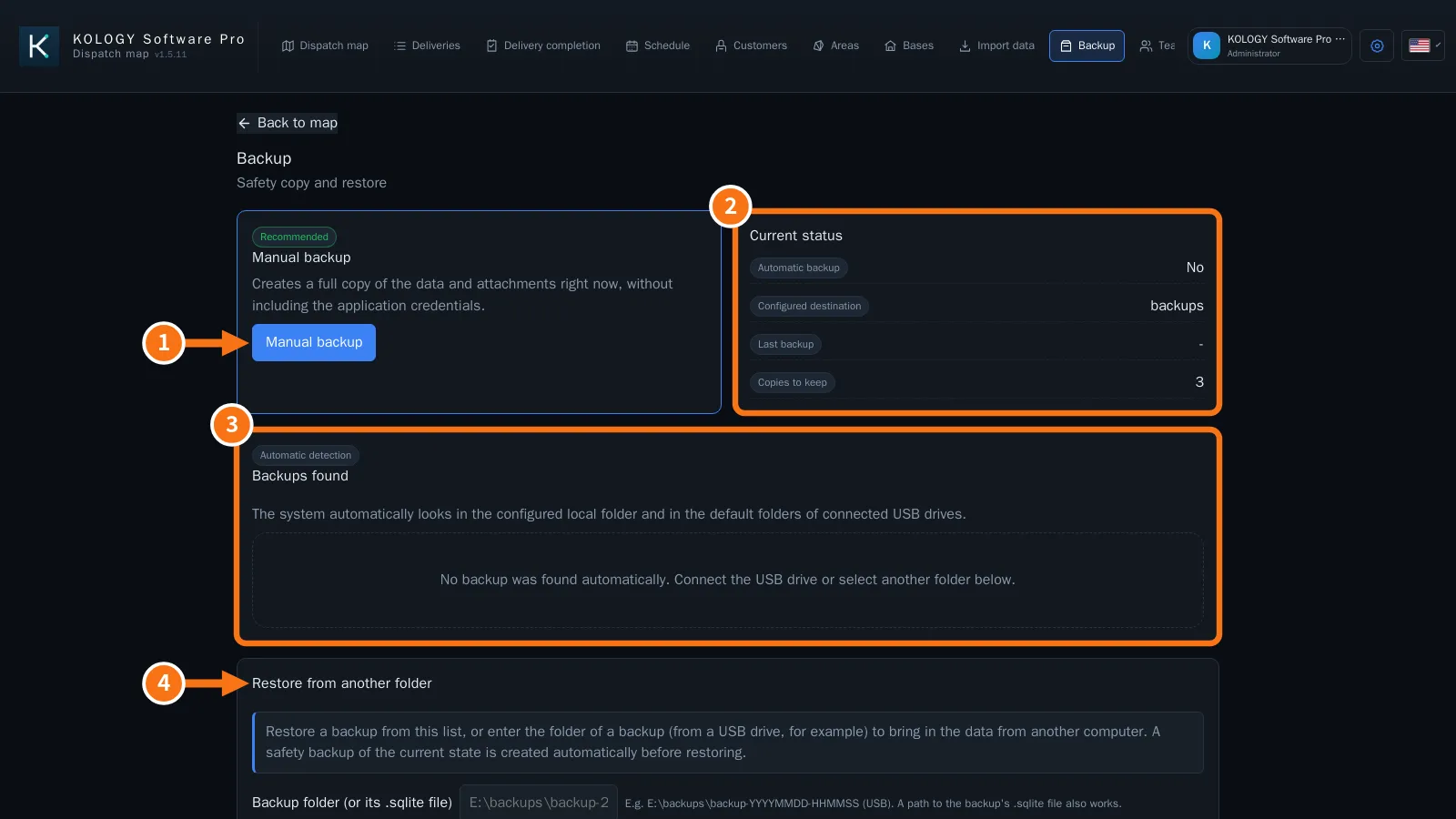
- Open Information → Backup.
- Under Automatic backup, set the USB drive as Destination folder (e.g. E:ackups) and use Manual backup to create the copy now. Wait for “Backup created and validated successfully.”
- Close the program and eject the USB drive safely.
In the client portal
- Request a device change / code re-issue for the new computer.
- Download the installer from the Software tab (link valid 30 minutes, 3 uses).
On the new computer
- Install the program and open it. Enter the new code and click Activate on this computer.
- Plug in the USB drive and open Information → Backup.
- The backup should show under Backups found. Click Restore. If it does not appear, use Restore from another folder and enter the folder (e.g. E:ackupsackup-YYYYMMDD-HHMMSS).
- Confirm in Confirm restore. The program first makes a safety copy of the current state.
- Click Apply restore or close and reopen the program.
- Check on the map: batches, areas and bases should all be there.
Common mistakes
- I copied the program folder and it asked for activation: that is expected. The licence does not travel with the copy; activate with a code for the new PC.
- “This recovery code belongs to another computer.” Request a device change in the portal.
Checklist on the new computer
- The day's batch and the import history are there.
- Areas have the right colours and priorities; bases are on the map.
- Company details and logo in Settings → Company.
- Automatic backup set up again to a folder on this PC or a USB drive.
- In Lite, under Extensions, click Sync now to bring in the service's extensions.
Related questions
- Backup, restore and safe updates
- Buy, install and activate
- Plans and limits: Lite vs. Pro