











KOLOGY Software Pro · 界面与功能
How to move your data to another computer
Back up to a USB drive, install and activate on the new PC, and restore the data without losing anything.
此文章暂无您的语言版本,以English显示。
本页目录
Changing computers or sending the old PC for repair? Data moves by backup; the licence is tied to each computer and needs a re-issue through the client portal. Follow this order.
On the old computer
- Plug in a USB drive.
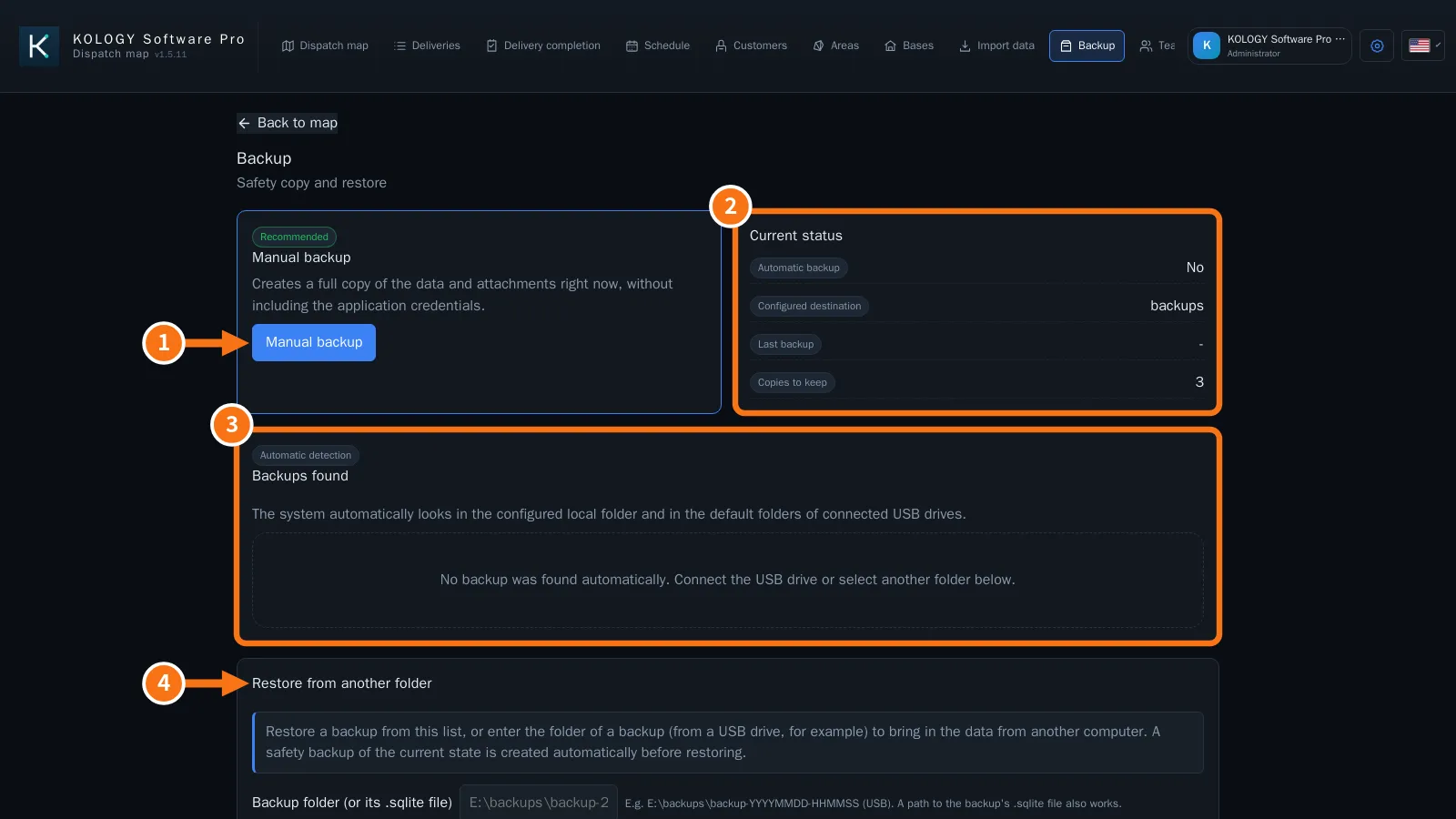
- Open Information → Backup.
- Under Automatic backup, set the USB drive as Destination folder (e.g. E:ackups) and use Manual backup to create the copy now. Wait for “Backup created and validated successfully.”
- Close the program and eject the USB drive safely.
In the client portal
- Request a device change / code re-issue for the new computer.
- Download the installer from the Software tab (link valid 30 minutes, 3 uses).
On the new computer
- Install the program and open it. Enter the new code and click Activate on this computer.
- Plug in the USB drive and open Information → Backup.
- The backup should show under Backups found. Click Restore. If it does not appear, use Restore from another folder and enter the folder (e.g. E:ackupsackup-YYYYMMDD-HHMMSS).
- Confirm in Confirm restore. The program first makes a safety copy of the current state.
- Click Apply restore or close and reopen the program.
- Check on the map: batches, areas and bases should all be there.
Common mistakes
- I copied the program folder and it asked for activation: that is expected. The licence does not travel with the copy; activate with a code for the new PC.
- “This recovery code belongs to another computer.” Request a device change in the portal.
Checklist on the new computer
- The day's batch and the import history are there.
- Areas have the right colours and priorities; bases are on the map.
- Company details and logo in Settings → Company.
- Automatic backup set up again to a folder on this PC or a USB drive.
- In Lite, under Extensions, click Sync now to bring in the service's extensions.
Related questions
- Backup, restore and safe updates
- Buy, install and activate
- Plans and limits: Lite vs. Pro