











KOLOGY Software Pro · 界面与功能
Import deliveries: dados.bin, area .txt files and paste from browser
Three ways to bring in the day's deliveries, with batches, history and the original file always preserved.
此文章暂无您的语言版本,以English显示。
本页目录
Before working on the map, the program needs the day's deliveries. You can bring in the file from the previous system, the area polygons, or simply paste a list copied from the browser. Every import becomes a new batch: importing again never deletes what is already there.
Where it is
- On the map: Open → Select dados.bin / Select area .txt files / Import and recovery.
- On the map: Import PW → Select PW file (.bin, .ini or .txt from the previous system) / Paste from browser / Import center.
- The full screen: Information → Import data.
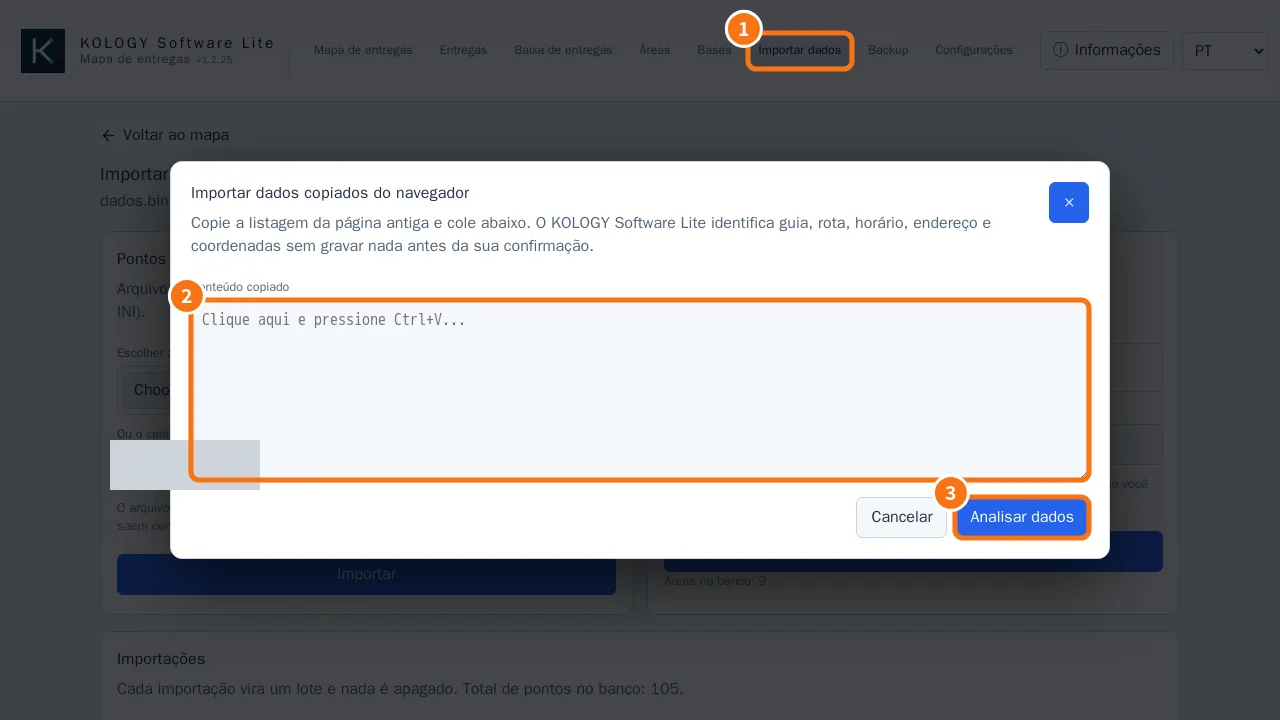
Step by step: paste a list from the browser
- On the page of the system you use that day, select the deliveries table and copy it (Ctrl+C).
- Open Import data (①) and click Paste from browser.
- Click the Copied content box (②) and press Ctrl+V.
- Click Analyze data (③). The program identifies delivery number, route, time window, address and coordinates, without saving anything yet.
- Check the totals: Rows found, Ready to add, Pending and Recognized fields.
- In the Import preview, each row shows Ready or No coordinates and where the coordinate came from (clipboard, recovered by delivery number, or by address from local history).
- Click Add to map. “X points added to a new batch.” appears. Only ready rows go in; pending rows stay visible for correction.
Step by step: import the dados.bin file
- Under Delivery points, click Choose file (or type the path in Or the path on this machine).
- Click Import. The file is read as Shift-JIS, so kanji addresses come out right.
- The message reads “Batch #N imported: X points (Y skipped)”.
Step by step: import the areas
- Under Areas, click Choose .txt files (one file per region) or enter Or the folder holding the .txt files.
- Click Import. Re-importing an area only replaces the polygon: colour and visibility stay as you set them.
Import history
The Imports table lists every batch with File, File date, Declared, Imported, Skipped and Imported at. Use the row's Dispatch map button to open that batch. The original file is kept; daily work is saved to a copy with Save.
Common mistakes
- “The file has no [Rec n] record.” The file is not in the expected format. Check that you picked the right dados.bin.
- “The area file is not a valid JSON polygon.” The area .txt is damaged or of another type.
- “No row has coordinates or a match in local history.” The pasted list has no coordinates and its slips/addresses were never imported before.
- “The pasted content is too large for one import.” Split the list into parts.
Related questions
- Dispatch map: the main screen
- Delivery areas
- How to prepare the delivery day