











KOLOGY Software Pro · Mga screen at feature
Operations centre: the Pro map
Batch indicators, Filters, the Operations menu, fixed or accordion delivery panel, the Drivers tab and the Sync indicator.
Hindi pa naisasalin ang artikulong ito sa inyong wika: ipinapakita ang bersyong English.
Sa pahinang ito
In KOLOGY Software Pro, the dispatch map becomes the Operations centre: besides the pins, it shows the batch status in real time, drivers on duty and whether data is synchronized. Every filter applies to pins, lists and counts at once.
Who uses it and where
Administrators and operators. It is the first screen after signing in. Drivers see a reduced version with only their deliveries.
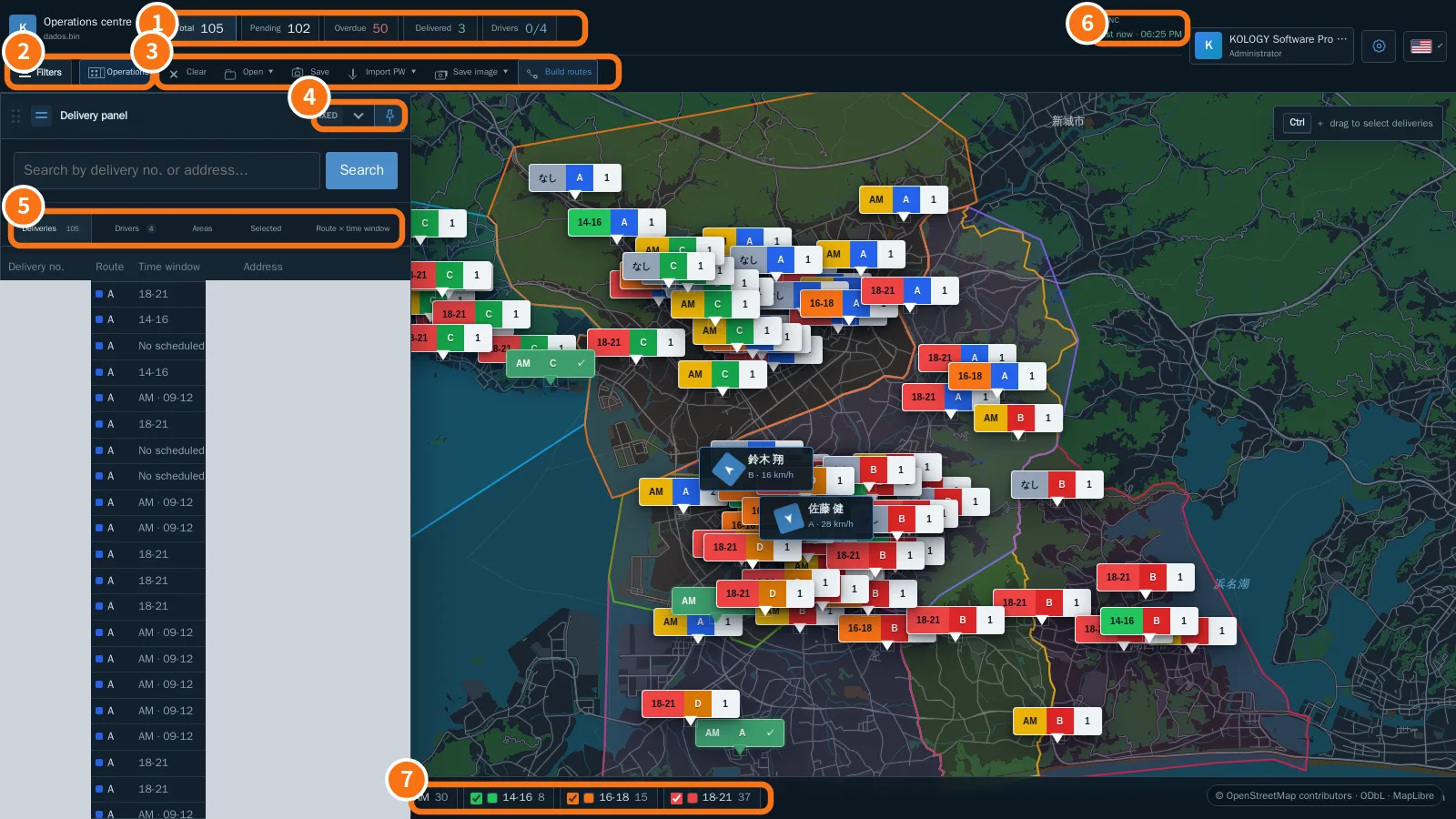
Parts of the screen
- Indicators: Total, Pending, Overdue, Delivered and Drivers (online / total). Click one to filter.
- Filters and Operations: Filters opens the filter panel; Operations opens the centre with Schedule, Delivery completion, Drivers and access, Customers and requests, Import data, Areas, Bases, Backup, Settings and Operations guide, in internal windows over the map.
- Map tools: Clear, Open, Save, Import PW, Save image and Build routes (same as Lite).
- Panel mode: Fixed (docked left, full height) or Accordion (compact); unpinned, the panel can be dragged and remembers its position.
- Panel tabs: Deliveries, Drivers, Areas, Selected and Route × time window.
- Sync: shows the last synchronization (“just now”) or “offline”.
- Time slots in the footer, with counts. New time windows brought by a batch get their own filter automatically.
At the top right are the user card (opens My profile and Sign out), the information gear (shortcuts, appearance, version) and the language flag.
The filter panel
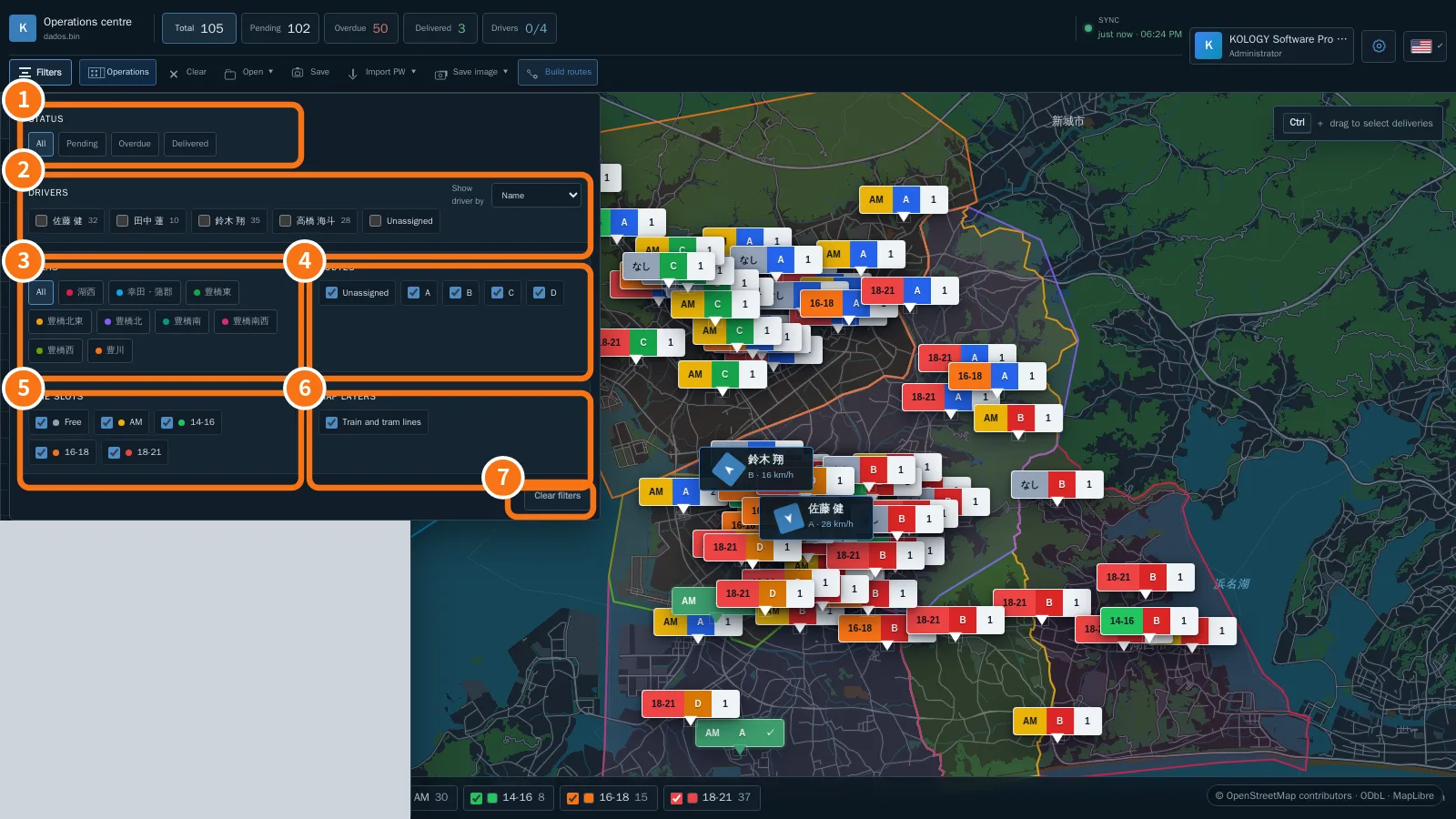
- Status: All, Pending, Overdue, Delivered.
- Drivers: tick one or more, or Unassigned. Under Show driver by, choose Name, Code or Route.
- Areas.
- Routes (including Unassigned).
- Time slots.
- Map layers: Train and tram lines.
- Clear filters.
The Drivers tab
- Click the Drivers tab. The list shows name, code, route, connection (Online/Offline) and deliveries, completed, pending and overdue.
- Search by name, code or route.
- Click the row, or the driver's live location pin (showing route and speed), to open the Operational record.
- Use + Register to create a real driver with a code and default route; tick Assign this delivery/pickup to the new driver if you came from a delivery.
Common mistakes
- Top numbers don't match the list: a filter or selection is on. Use Clear filters and Show all.
- Sync shows “offline”: the internet dropped. Keep working; the queue is sent when you reconnect. See “Sync and working offline”.
Related questions
- Schedule and distribution
- Driver record
- Ctrl selection, Save image and layers