











KOLOGY Software Pro · Mga screen at feature
Backup, restore and safe updates
Manual and automatic backup (USB drives too), restore with a safety copy, and updates that only restart when you confirm.
Hindi pa naisasalin ang artikulong ito sa inyong wika: ipinapakita ang bersyong English.
Sa pahinang ito
The program's data (batches, deliveries, areas, bases, licence, extra maps and settings) lives in a Windows user folder, separate from the program folder. That is why an update never deletes anything. Still, back up: it protects you against disk failure, a change of computer or an operating mistake.
Where it is
Information → Backup (copies and restore) and Settings → Updates tab.
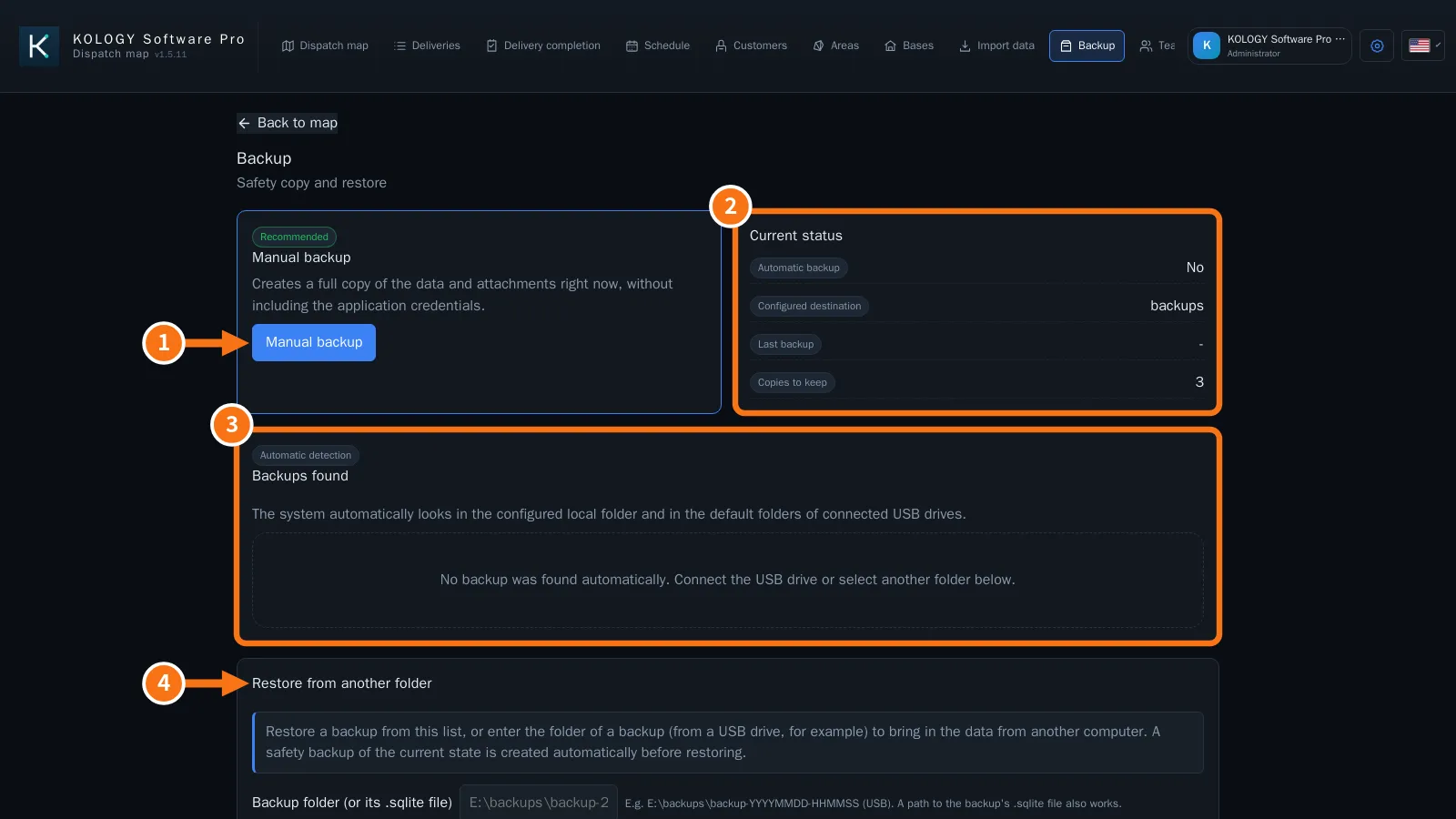
Example from KOLOGY Software Pro; the Lite Backup screen is the same.
Manual backup
- Click Manual backup (①). The Create backup now window explains that the database and attachments will be copied and validated.
- Confirm and wait for “Processing safely...”.
- “Backup created and validated successfully.” appears. The Current status box (②) shows the Last backup.
Automatic backup (e.g. to a USB drive)
- Under Automatic backup, enter the Destination folder (e.g. E:ackups on the USB drive) or use Select folder.
- Choose the Frequency or Interval (hours) and how many to keep (Copies to keep, default 3).
- Tick Enable automatic backup. While the program is open it saves on its own and deletes the oldest copies.
Restore
- Under Backups found (③), the program lists backups in the configured folder and on connected USB drives. Click Restore on the one you want.
- Or use Restore from another folder (④): enter the backup folder (e.g. E:ackupsackup-YYYYMMDD-HHMMSS) or its .sqlite file.
- In Confirm restore, the program first creates and validates a mandatory copy of the current data.
- Click Apply restore, or close and reopen the program to finish.
Update the program
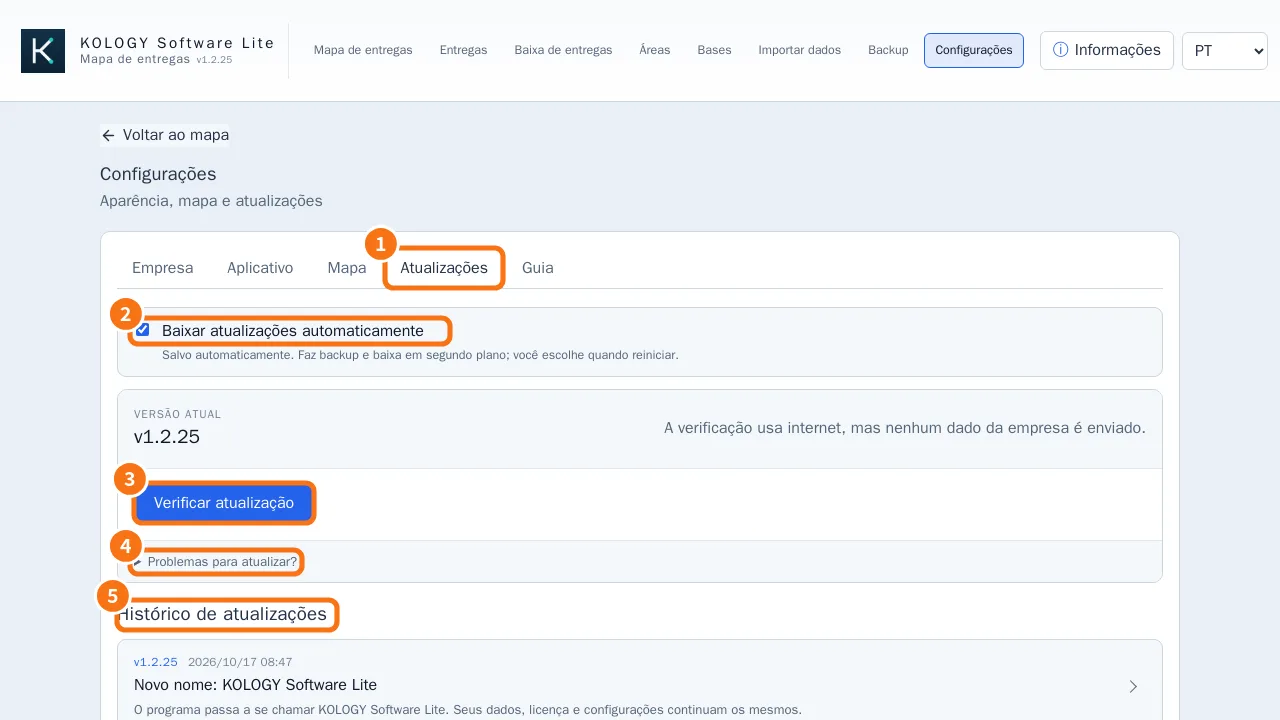
- Open Settings → Updates (①).
- Download updates automatically (②) is on by default: the program backs up and downloads in the background.
- Or click Check for updates (③). If there is a new version, click Download update and confirm Back up and download.
- When “Update ready to install” appears, choose Restart and update or Later. The program never closes by itself.
- See what changed under Update history (⑤); click a version for details.
The check uses the internet, but no company data is sent. If an old version downloads the update but cannot apply it, open Having trouble updating? (④) → Download full installer and install over the top, without uninstalling.
Common mistakes
- “No backup was found automatically.” Connect the USB drive or enter the folder under Restore from another folder.
- “Could not update. Please try again.” Check the connection; if it repeats, use the full installer.
Related questions
- How to move your data to another computer
- Program settings
- Common problems