











KOLOGY Software Pro · Mga screen at feature
How to create a new area (catalog, addresses or drawing)
Three ways to create a delivery area and how to apply it to deliveries already imported.
Hindi pa naisasalin ang artikulong ito sa inyong wika: ipinapakita ang bersyong English.
Sa pahinang ito
Started delivering in a new city or want to split a large region? Create a new area. Pick the path that fits.
- Path · When to use
- Official boundary (catalog) · The area is a whole city, ward, town or village.
- Suggestion from addresses · The area is a neighbourhood where you already have imported deliveries.
- Drawing on the map · The area has a shape of your own.
A. From the official boundary catalog
- Open Information → Areas → New area tab.
- Under City or administrative region, pick the Prefecture and the City, ward, town, or village. “Boundary ready to create” should appear.
- Enter the Area code (unique), name and colour.
- Tick Give the new area priority if it should win over current areas, and Reclassify deliveries now.
- Click Create official area. “Area X created. Y deliveries were reclassified.” appears.
B. From address suggestions
- On the same tab, go to Neighborhood or locality from data (needs an imported batch with addresses and coordinates).
- Pick the Neighborhood / locality and adjust code, name and colour.
- Click Create suggested area.
C. Drawing on the map
- On the map, right-click → Draw new area, or hold Ctrl and click the background for each vertex.
- Place at least 3 vertices. To close, click the first one again or press Enter (or Finish area).
- Name it in New local area name. It appears under Local areas on this computer. To give up, Cancel drawing.
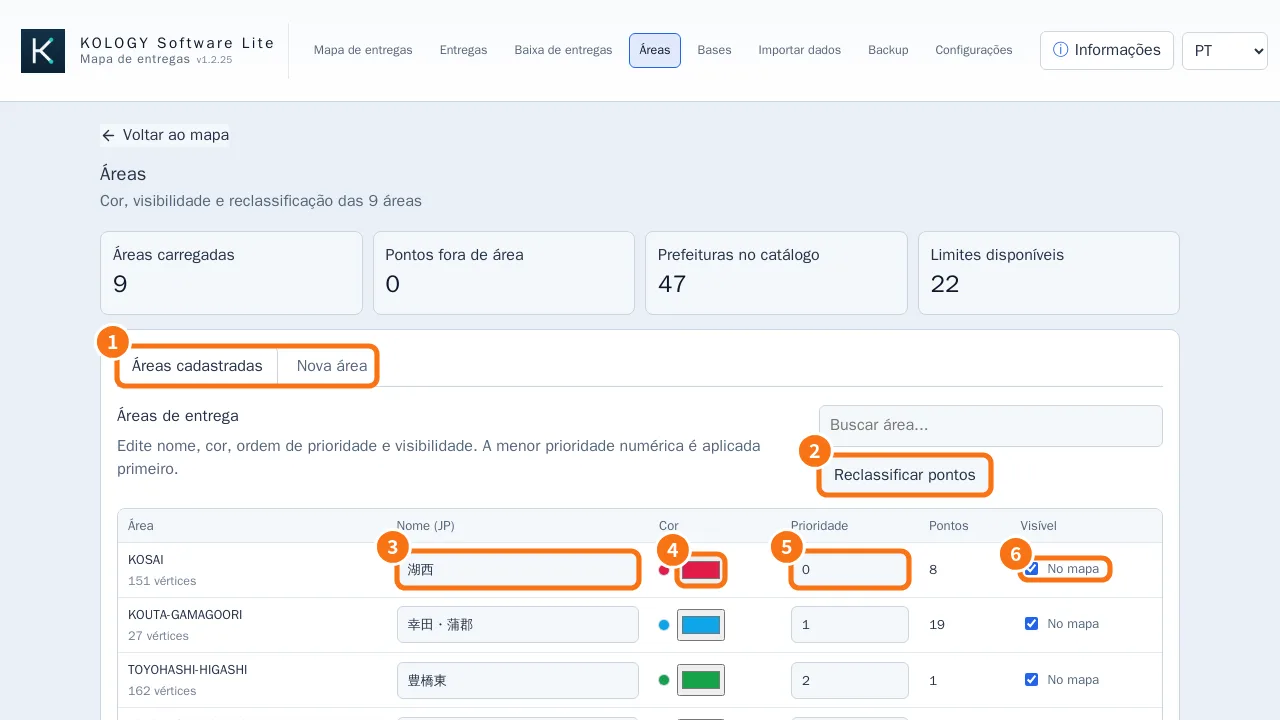
After creating it, check the Priority and click Reclassify points if you did not tick reclassification.
Good practice
- Use short, unique, recognisable codes (e.g. the city name in Latin letters plus a number).
- When a small area sits inside a large one, give the small one the lower priority number so it receives its own deliveries.
- Pick colours clearly different from neighbouring areas so the map stays readable.
- After creating it, check Points outside any area: the number should go down.
Related questions
- Delivery areas
- Offline maps by prefecture
- Right-click menu, markers and manual drivers