











KOCHAT · Pantallas y funciones
Automatic message translation
Read Japanese, Portuguese or English messages already translated, adjust each chat with the 文A button and send your own text translated.
Este artículo aún no está traducido a su idioma: se muestra la versión en English.
En esta página
What it is for
In multilingual teams, automatic translation shows the translated message right under the original, with no tap needed. You can also send what you write already translated into your colleague’s language.
Turn it on for all chats
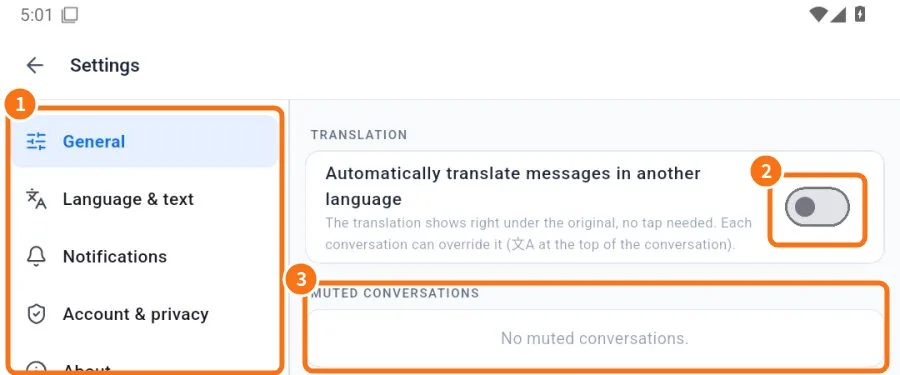
- Open Settings → General tab.
- ② Turn on Automatically translate messages in another language (off by default).
- In Translate to, choose My language (the app's), Japanese, Portuguese or English.
Change it for one chat
- Open the chat and tap 文A at the top.
- In Translation for this conversation, choose Follow default, Always or Never.
- Pick another language in Translate to, if you want.
- To send translated, turn on Translate what I send and choose Send in. Before sending, a preview appears above the field (Sending in …); tap Send original if you prefer not to translate.
How to read a translated message
- Under the original you see the translation and a label like Translated from Japanese.
- Tap See original to switch.
- On a message that was not translated automatically, tap and hold → Translate.
Limits
- Translation is automatic: people’s names, abbreviations and in-house terms may come out odd. For important details (amounts, dates, addresses), check the original.
- Message translation languages are Japanese, Portuguese and English.
Common mistakes
- Nothing is translated: check whether the chat is set to Never in 文A.
- It translated into the wrong language: check Translate to in the general setting and in the chat.
- “Translating…” never ends: check your internet and tap Retry.
Related questions
- App language and text size
- Settings: what each tab has
- FAQ: chats, attachments and translation
- Problems: attachments, translation and desktop app