











KOCHAT · Pantallas y funciones
How to delete one or several messages
“Delete for me” removes it only from your screen; “Delete for everyone” works on your own messages up to 60 minutes after sending and deletes the attachment. Use Select for several.
Este artículo aún no está traducido a su idioma: se muestra la versión en English.
En esta página
What it is for
Sent it to the wrong chat, with a typo or with a file that shouldn't be there? KOCHAT deletes like the messengers you already know: just for you, or for everyone within the time limit.
The two options
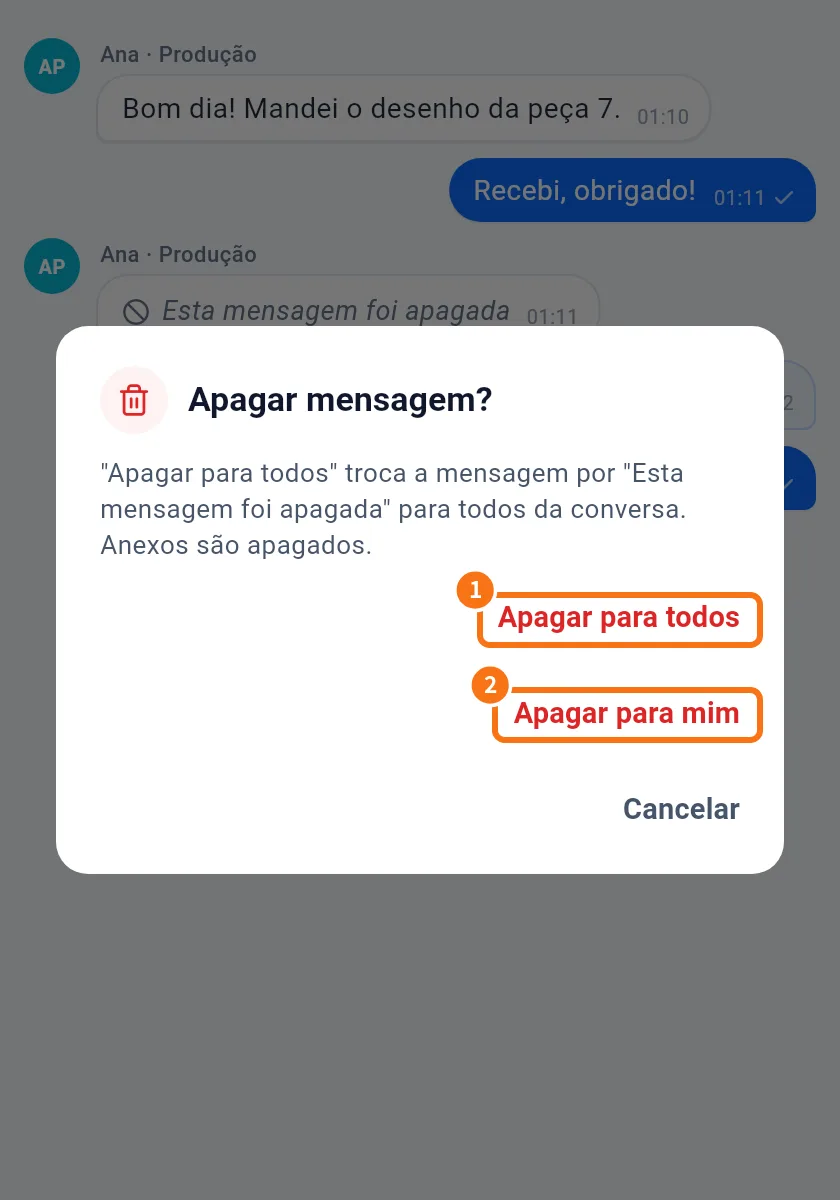
- Delete for everyone: only your own messages, up to 60 minutes after sending. Everyone sees “This message was deleted” and the attachment is deleted from the server.
- Delete for me: works on any message. It disappears only from your screen; others still see it.
(The screenshot shows the Portuguese version.)
Step by step: delete one message
- Touch and hold the message (right-click on a computer).
- Choose Delete.
- In Delete message?, tap Delete for everyone or Delete for me.
- You see “Deleted for everyone” or “Deleted for you”.
Step by step: delete several
- Touch and hold a message → Select.
- Tap other messages to mark them. The top shows “3 selected”.
- Tap the bin (Delete). “Delete 3 messages?” appears.
- Choose the option. “Delete for everyone” appears only if all selected messages are yours and within the time limit.
- To give up, tap Cancel selection.
Phone, desktop and web
It works the same on phone, computer and web. A message deleted for everyone disappears from every participant's devices. Call records cannot be deleted.
Common problems and what to do
- No “Delete for everyone”: the message isn't yours or 60 minutes have passed. Use “Delete for me” and, if needed, ask the chat's admin.
- I deleted for me by mistake: it can't be undone on your screen; others still see it.
- Someone had already downloaded the file: deleting removes it from KOCHAT, not from where they saved it.
Related questions
- Message menu: react, reply, copy, pin and more
- How to reply to, quote and forward a message
- Open, download and save received files