











KOCHAT · Pantallas y funciones
Open, download and save received files
Open photos, videos and PDFs inside the app, download with the original name, save to the gallery or a folder, and understand the safety badge (Verified, Can’t verify, Possibly dangerous).
Este artículo aún no está traducido a su idioma: se muestra la versión en English.
En esta página
What it is for
Anything that arrives in a chat — photo, video, audio, PDF, spreadsheet, DXF, 3D, Office (Word/Excel/PowerPoint), ZIP, source code and email (.eml) — can be opened inside KOCHAT, downloaded with its original name or saved to your device. Every received file gets a badge saying whether it was checked.
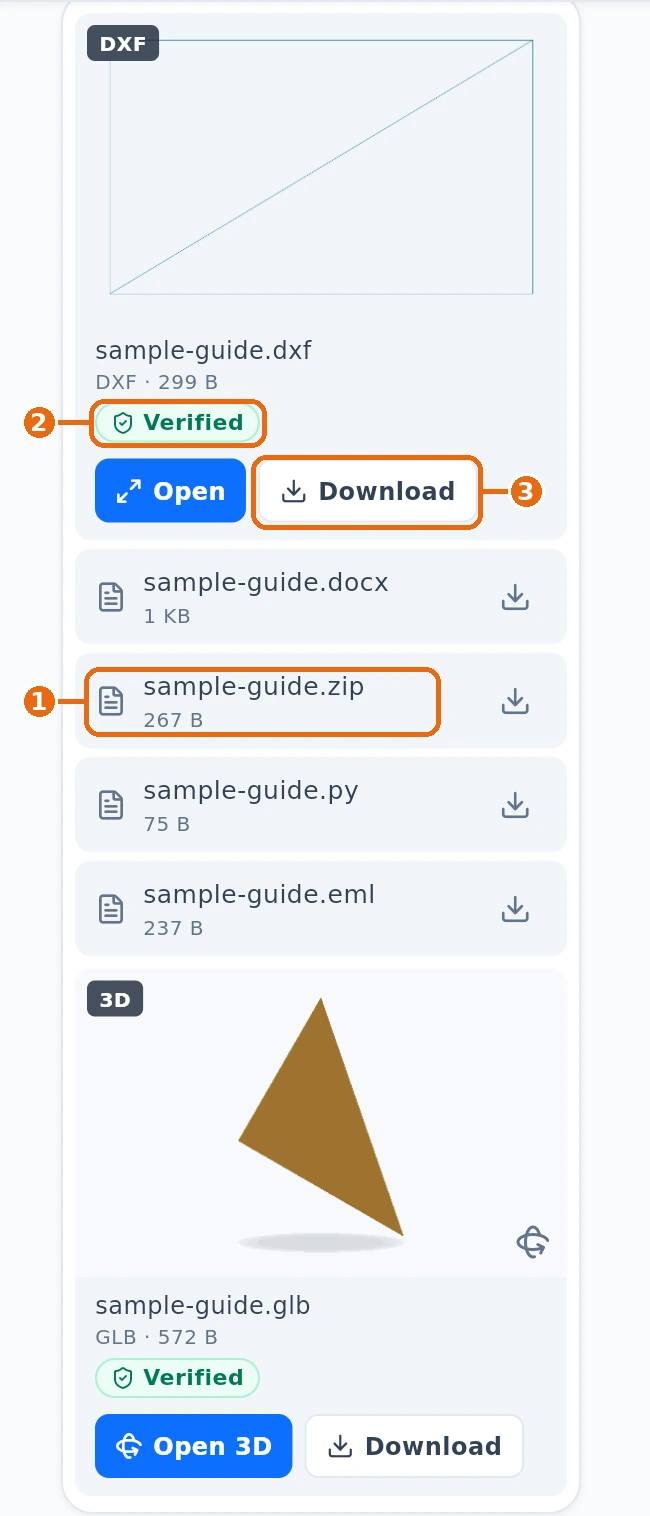
- ① Open: tap the filename, as shown with the ZIP file. For DXF, tap Open. For a GLB model, tap Open 3D.
- ② Badge: shows the result of the safety check.
- ③ Download: saves the file with its original name.
The safety badge
- Verified (green): checked by the antivirus and safety rules. Safe to open.
- Can't verify (yellow): could not be checked (for example a password-protected archive or a very large file). The app asks first: Open anyway or Cancel.
- Possibly dangerous (red): a program, macro, PDF with script or virus. It only opens if you tick I understand the risk and want to open it anyway. Tap the file to see the Reasons.
Step by step: open and save
- In the chat, tap the filename to open the preview, or use Open or Open 3D when the button is shown. Photos appear as a lightweight preview inside the conversation. Tap one to enlarge it to full screen or use the Download button to save the original file. PDFs open in a reader with pages (e.g. "3 / 12"); the text stays crisp at any zoom, the mouse wheel scrolls smoothly through pages without skipping, and you can zoom with Ctrl+wheel, pinch or the − / + buttons. Video and audio play right there. DXF, 3D, Office (Word/Excel/PowerPoint), ZIP, source code and email (.eml) files also open right inside KOCHAT — no need to leave the app. To view an Outlook .msg email inside KOCHAT, ask for an .eml copy.
- To keep it, tap Download on the card or in the viewer. The original name is kept.
- To choose where, touch and hold the file (right-click on a computer) and use Save to Photos / Files on the phone or Save as… on a computer.
- To pass it to another app, use Share or Open with….
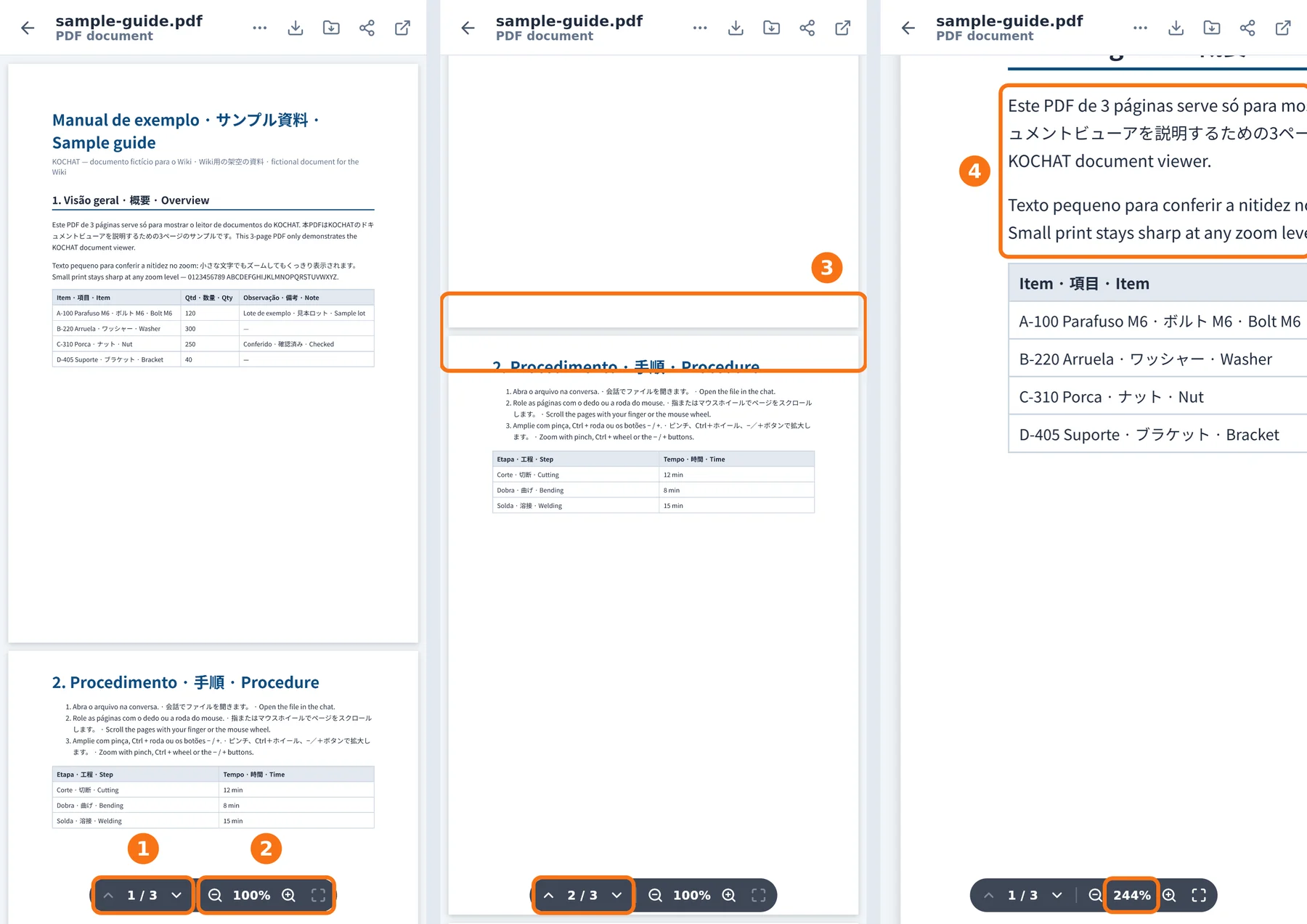
PDF reader. ① The counter shows the current page and the total; the arrows go to the previous or next page. ② − and + zoom out and in (the percentage is in the middle); the last button returns to fit width. ③ With the mouse wheel or your finger, pages scroll continuously without skipping. ④ Zoomed in (here 244%), the text stays crisp. On a computer, Ctrl + wheel also zooms; on a phone, pinch.
Auto-download
In Settings → Storage and data you choose which media types (photos, audio, videos, documents) download by themselves on mobile data, Wi-Fi or roaming. Each chat or group can also have its own rule.
When auto-download is turned off for a type, the file arrives blurred, showing its size and a ⬇ button. Tap ⬇ to download it manually.
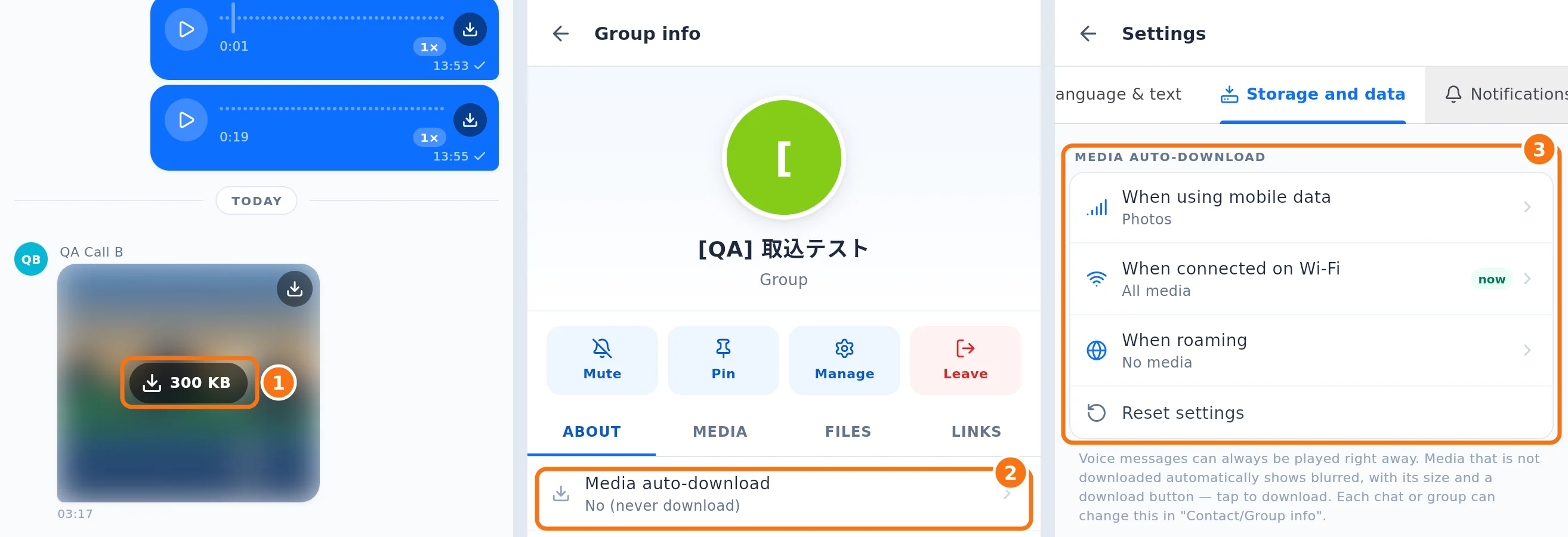
① Tap the ⬇ button with the size to download. ② To change only one group or chat, open its info and tap Media auto-download. ③ The general rule (mobile data, Wi-Fi and roaming) is in Settings → Storage and data.
Phone, desktop and web
- Android: downloads go to Downloads (you see "Saved to Downloads: …").
- iPhone: Save to Photos / Files opens the system sheet to choose Photos or Files.
- Computer: Save as… opens the system dialog; on some computers PDFs open in the system viewer.
- Web: the browser downloads the file as usual.
Common problems and what to do
- "No app on this device opens this file type": save it and open it in a compatible app (for example a spreadsheet reader).
- "The document took too long to open": the connection is slow. Tap Try again or download it first.
- "Media unavailable": the message was deleted or the file is no longer on the server.
Related questions
- Send photos, videos and files (preview and caption)
- Chat info: media, files, links and search
- Message menu: react, reply, copy, pin and more