











KOCHAT · Primeros pasos
Sign in, sign out and reset your password
How to sign in with email and password or the quick sign-in buttons, what to do when the session expires, how to sign out of a device and reset your password.
Este artículo aún no está traducido a su idioma: se muestra la versión en English.
En esta página
What it is for
You sign in to KOCHAT once on each device. The account is the same everywhere: the email and password of your company account (the same as KOREOS) or of your free personal account.
Sign in with email and password
- Open KOCHAT. The Sign in screen appears.
- Enter your Email and Password.
- Tap Sign in. Your chats load in a few seconds.
Sign in with the quick buttons
Below the Sign in button there is a row or continue with. Use it if your account is linked:
- KOREOS: uses the KOREOS session already open in your browser.
- Google: signs in with the Google account linked to your record. On iPhone this button may not appear.
- Buttons marked soon do not work yet.
On a computer, quick sign-in opens the browser. Finish there; KOCHAT shows Continue in the browser that opened… and signs in by itself when you come back. To give up, tap Cancel.
Forgot your password
- On the Sign in screen, tap Forgot your password?.
- The browser opens the recovery page. Enter your email.
- Open the email you receive and create a new password.
- Go back to KOCHAT and sign in with the new password. Other devices may ask you to sign in again.
Sign out
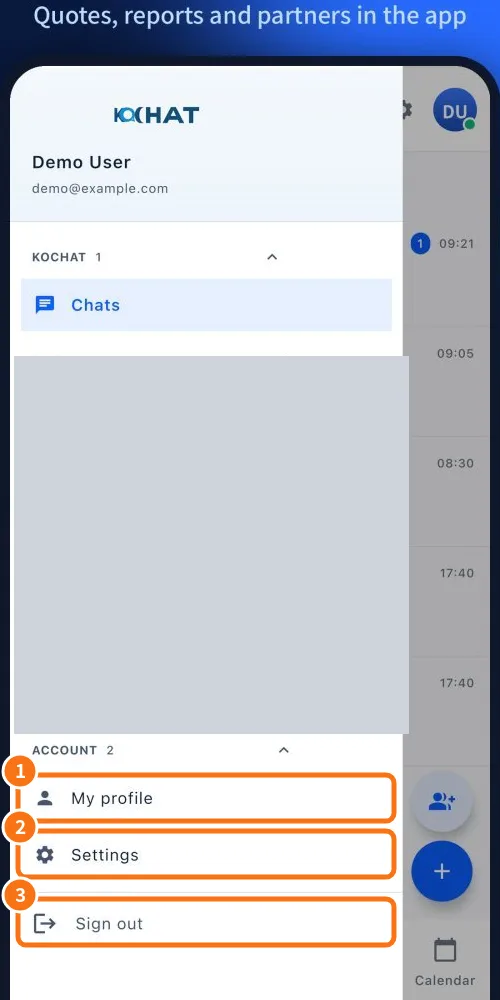
- Open the ☰ menu.
- ③ Tap Sign out (or Settings → Account & privacy → Sign out).
- Confirm Sign out of your account on this device?.
Signing out applies to that device only. Your chats stay on the server and come back when you sign in again. Nothing changes on your other devices.
Session expired
If you see Your session expired. Sign in again to pick up where you left off., it is normal after a long time without opening the app or after changing your password. Sign in again; nothing is lost.
Common mistakes
- “Could not sign in. Check your email and password.”: check capital letters, spaces at the end of the email and the keyboard language. Still failing? Reset the password.
- “No connection to the server.”: check your internet (Wi-Fi or mobile data) and try again.
- Company account deactivated: only your company administrator can reactivate it.
- Personal account on iPhone: create the account on the website first (chat.its-komori.com/free), then sign in to the app.
Related questions
- Create a free personal account
- Use on several devices at once
- Problems: sign-in and account
- Delete your account