











KoCAD
Lightweight 2D/3D manufacturing CAD linked to KOREOS cases.
Mga screen at feature
LahatMga daloy ng trabaho 13Pagsisimula 1Mga screen · ribbon tab 11Mga screen · panel, window at menu 6Engineering 3
Mga daloy ng trabaho
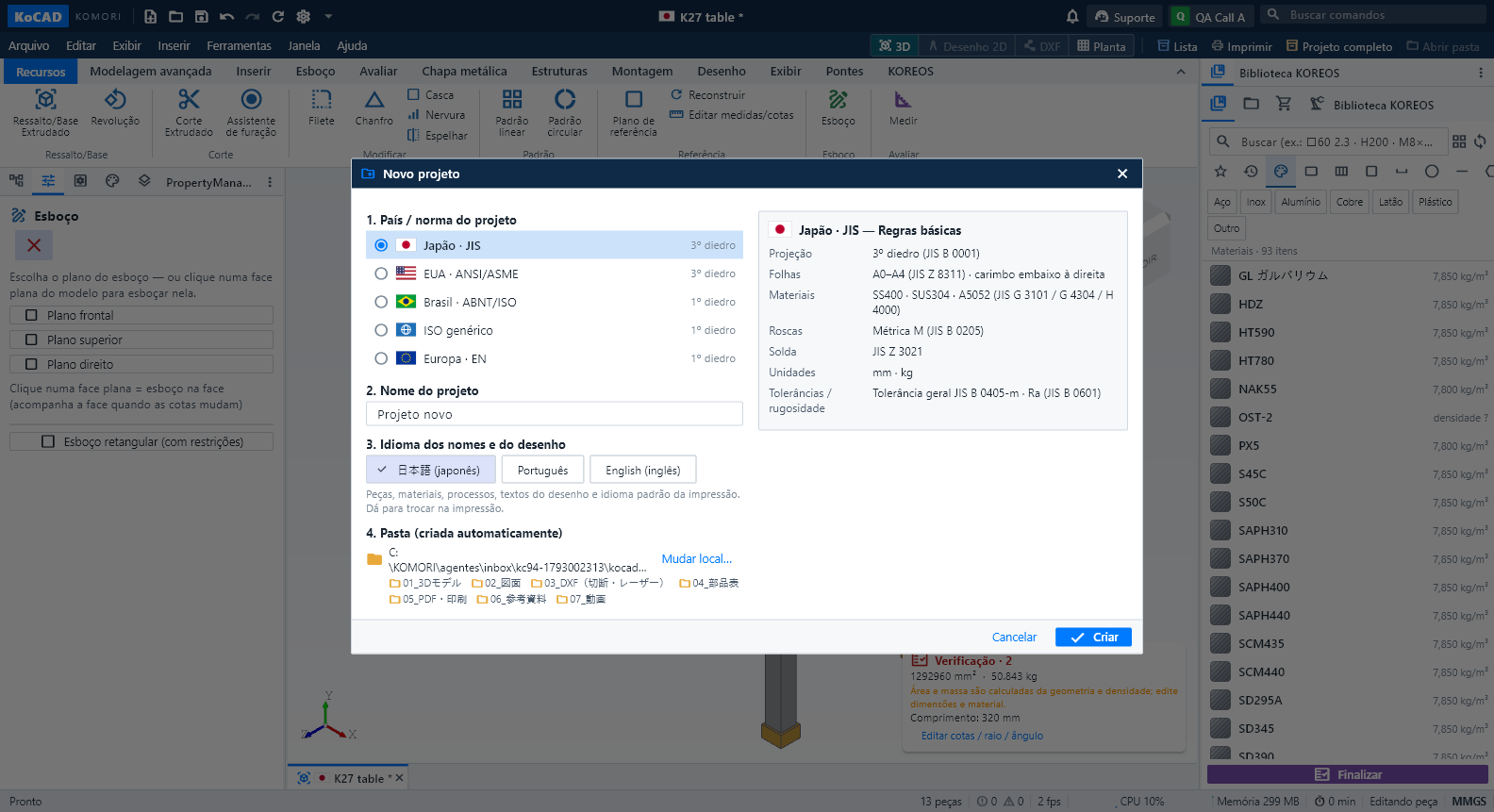 Projects start with country/standard, automatic folder, DXF always, live print previewNew (Ctrl+N), New assembly and New drawing start with the same question: the country / standard of the project — Japan · JIS, USA · ANSI/ASME, Brazil · ABNT/ISO, generic ISO or Europe · EN. A second column summarises its basic rules: projection (JIS and ASME third angle; ABNT, ISO and EN first angle), sheets, materials, threads, welding, units and tolerances. Only JIS has a material catalogue for now; for the others KoCAD says so and never uses JIS data unless you choose it.English
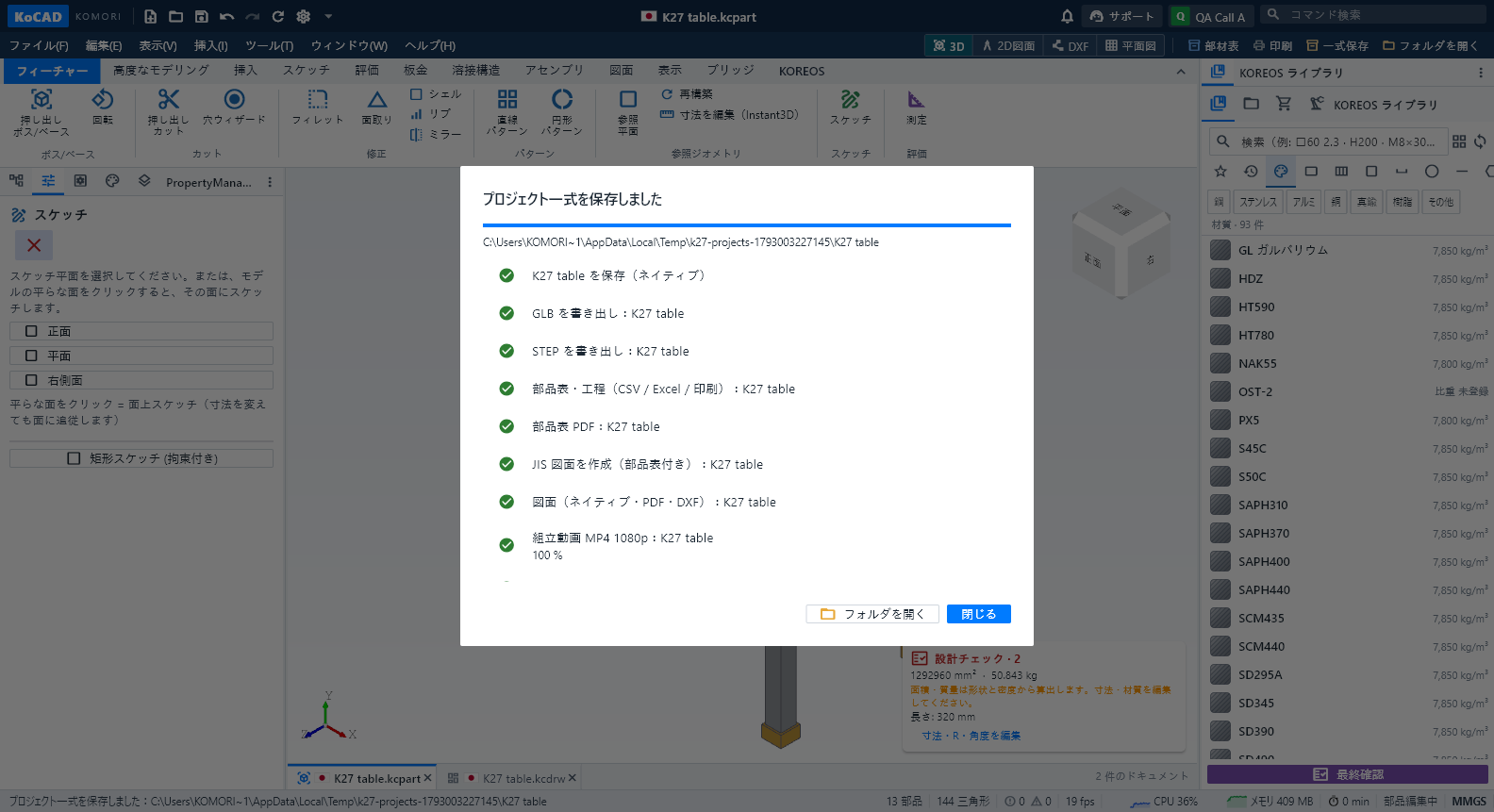 Save and open the complete project (every file, always current)File › Save complete project (or the "Complete project" button next to Print and Open folder) writes everything into the project folder: native parts and assemblies in 01_3Dモデル (with GLB and STEP), native 2D drawings in 02_図面 with their PDF in 05_PDF・印刷, the drawing DXF and each sheet part's cutting/flat DXF in 03_DXF(切断・レーザー), bill of materials and processes as CSV, Excel, PDF and prints in 04_部品表, and the construction film as MP4 1080p in 07_動画 (plus the exploded-view filmEnglish
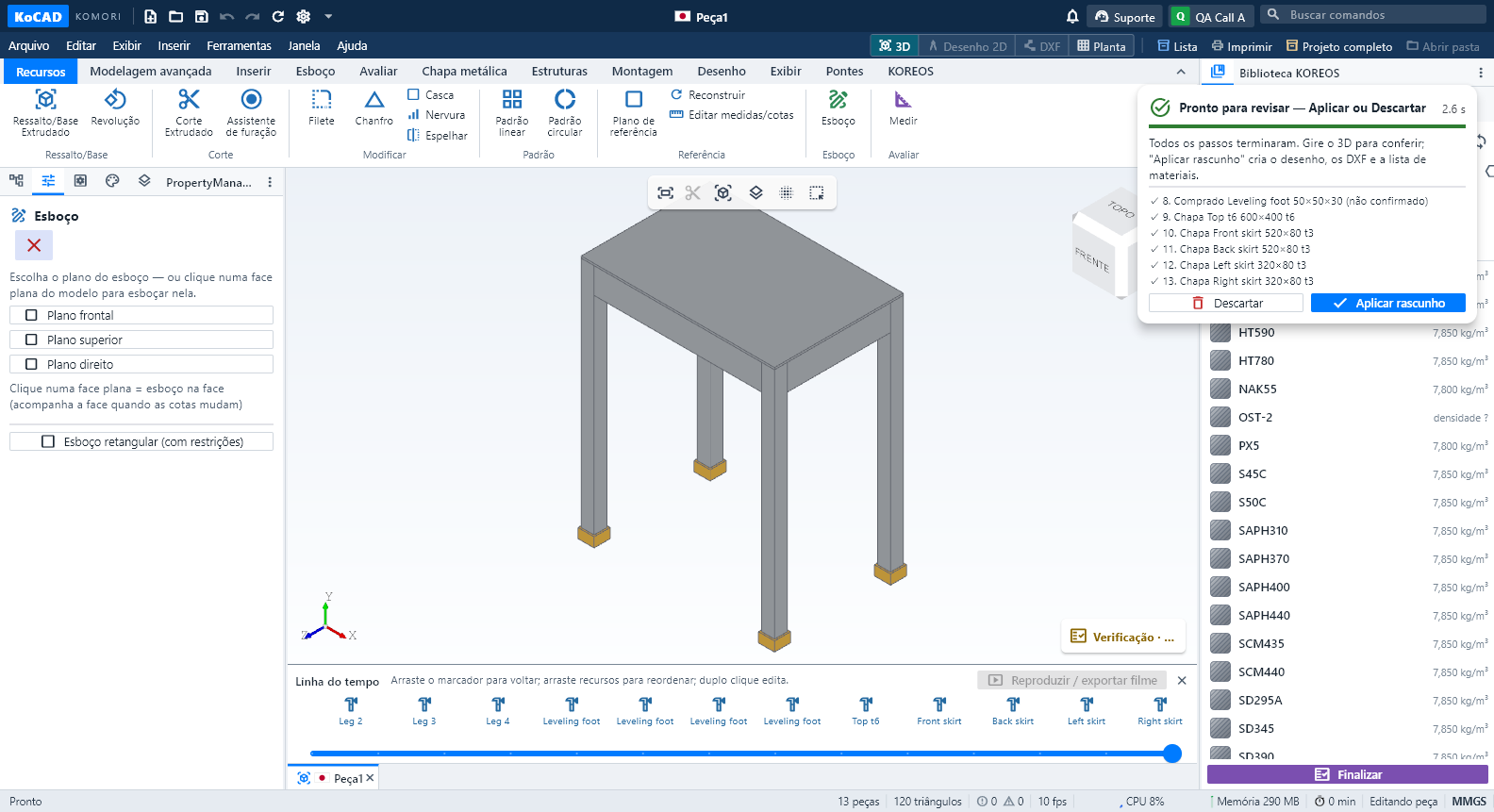 Live AI generation: premises from the standard, real steps, ready to reviewEngineering premises come from the project's country/standard and appear collapsed: "Premises: Japan · JIS standard (edit)" with chips (SS400, plate t3.2/t4.5, tube □40×40×2.3, M8 Ø9 hole…). Click to edit the text; "Back to default" restores it. In a US, Brazil, ISO or EN project the premises change (A36, UNC, NBR, S235…) and are marked to confirm while those standards have no catalogue.English
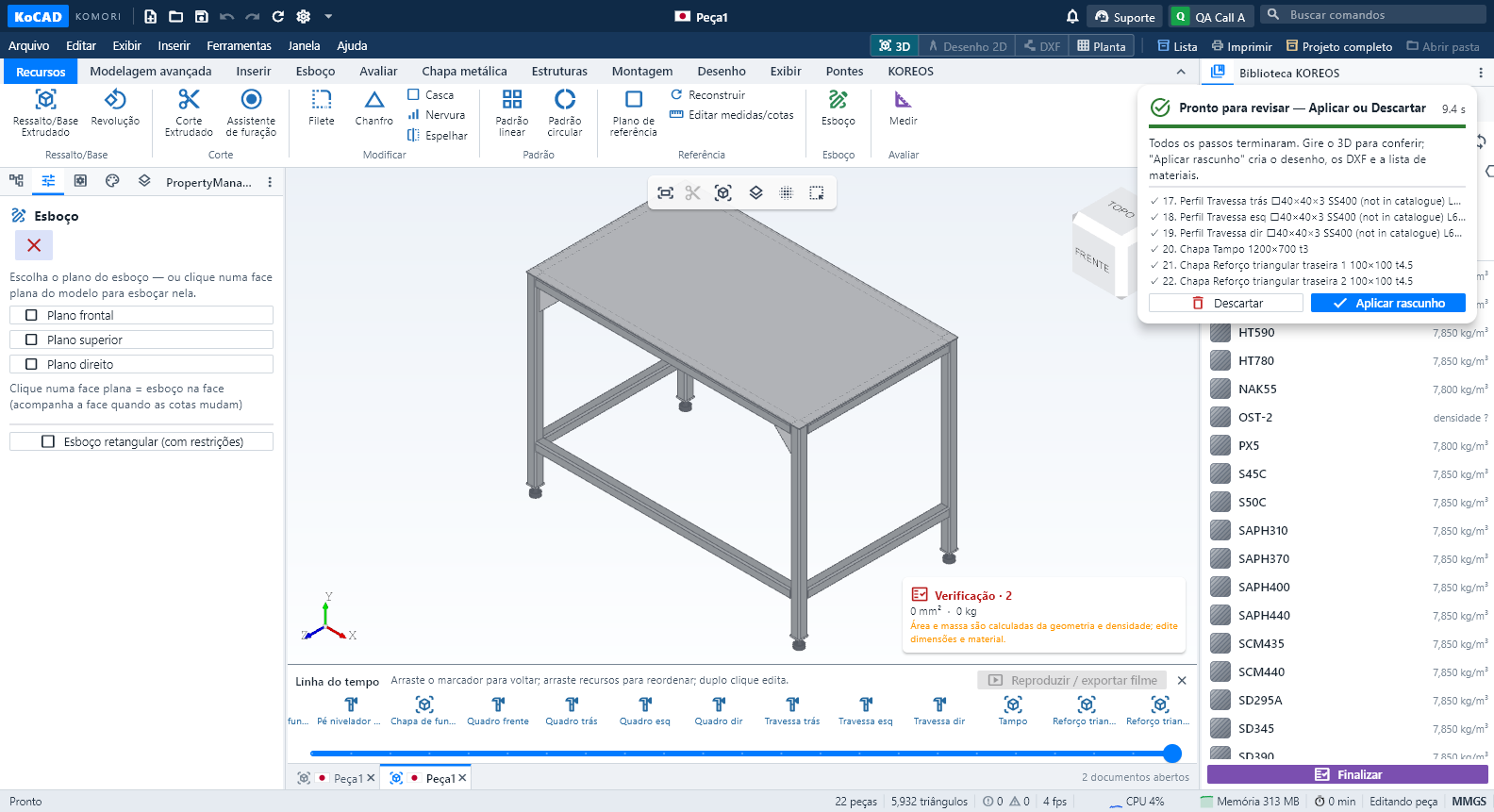 Generate with AI like an engineer: premises, patterns and real-model inspectionIn Generate with AI (or by asking Bob), write the request as usual, for example: "Welded workbench 1200 × 700 × 850 mm total height with feet, SS400, 4 legs 40×40×3 tube, top frame, rails 200 mm from the floor, braces in the rear corners, 3 mm top plate, 4 leveling feet".English
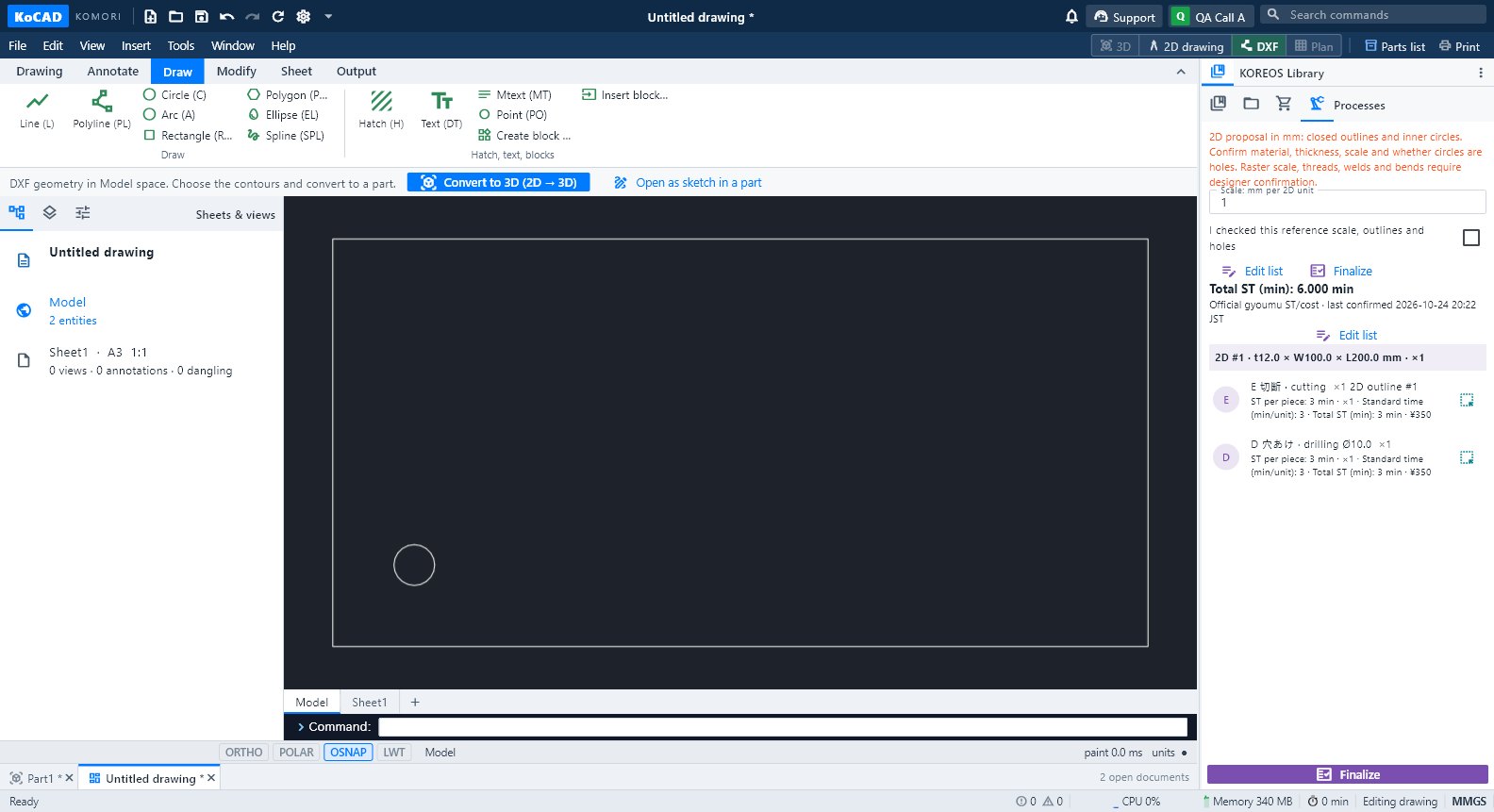 Daloy: mula drawing (larawan, PDF, DXF, DWG) hanggang 3D na modeloTatlong paraan: i-trace ang larawan, i-convert ang DXF/DWG (2D → 3D) o hilingin sa AI — laging may preview bago i-apply.
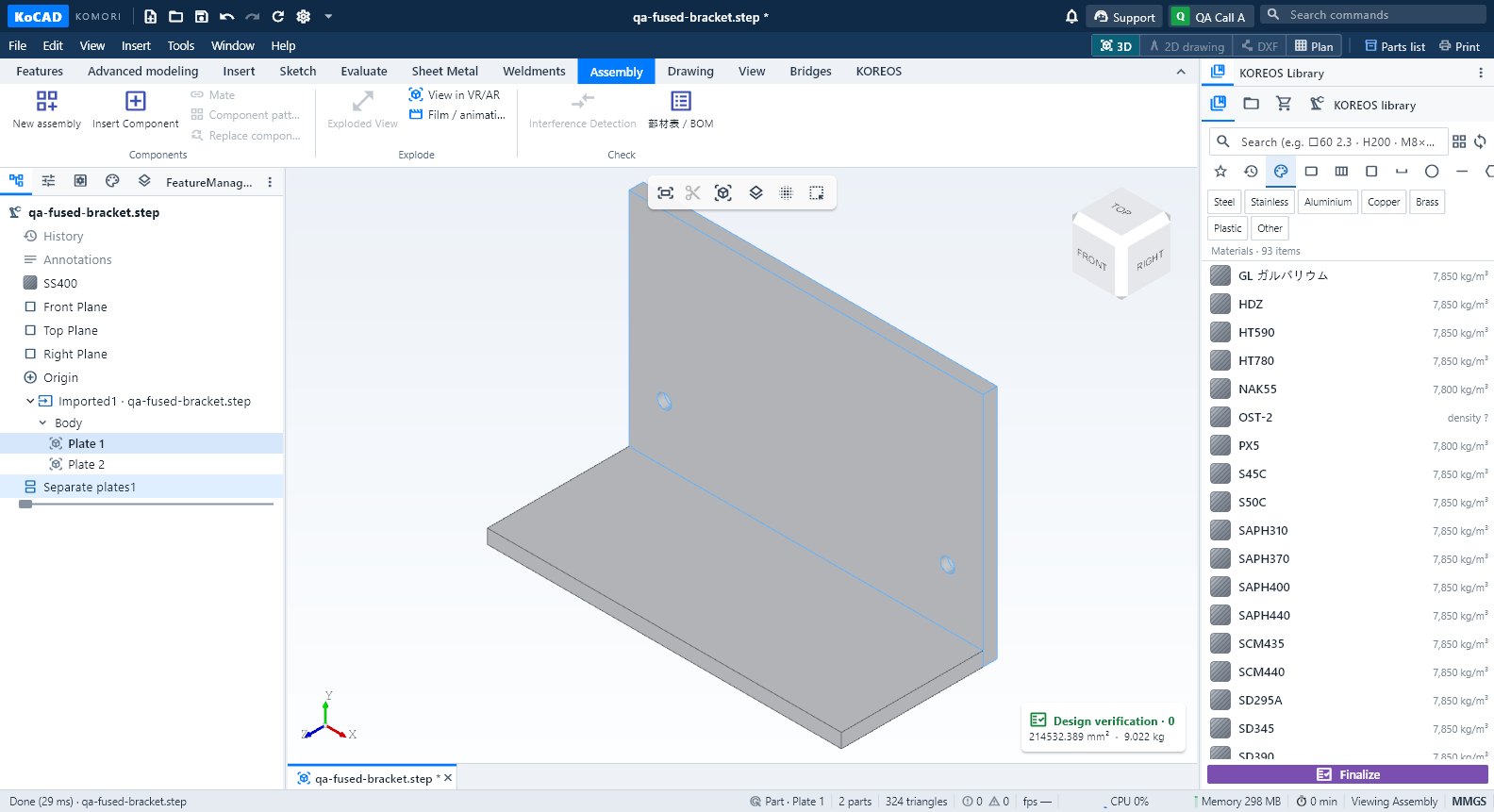 Daloy: mag-import ng STEP, SolidWorks o GLB at paghiwalayin ang mga piyesaBuksan ang STEP assembly, suriin ang bawat piyesa, hatiin ang isang welded solid sa mga piyesa, at ang pagkakaiba ng GLB/OBJ/STL.
 Daloy: sheet metal → flat pattern → DXF ng laser → nestingSheet rules (K = 0.44), Flatten, flat DXF para sa laser (AM_0/AM_3/AM_5) at Sheets: ilang plate ang bibilhin at ang cutting package.
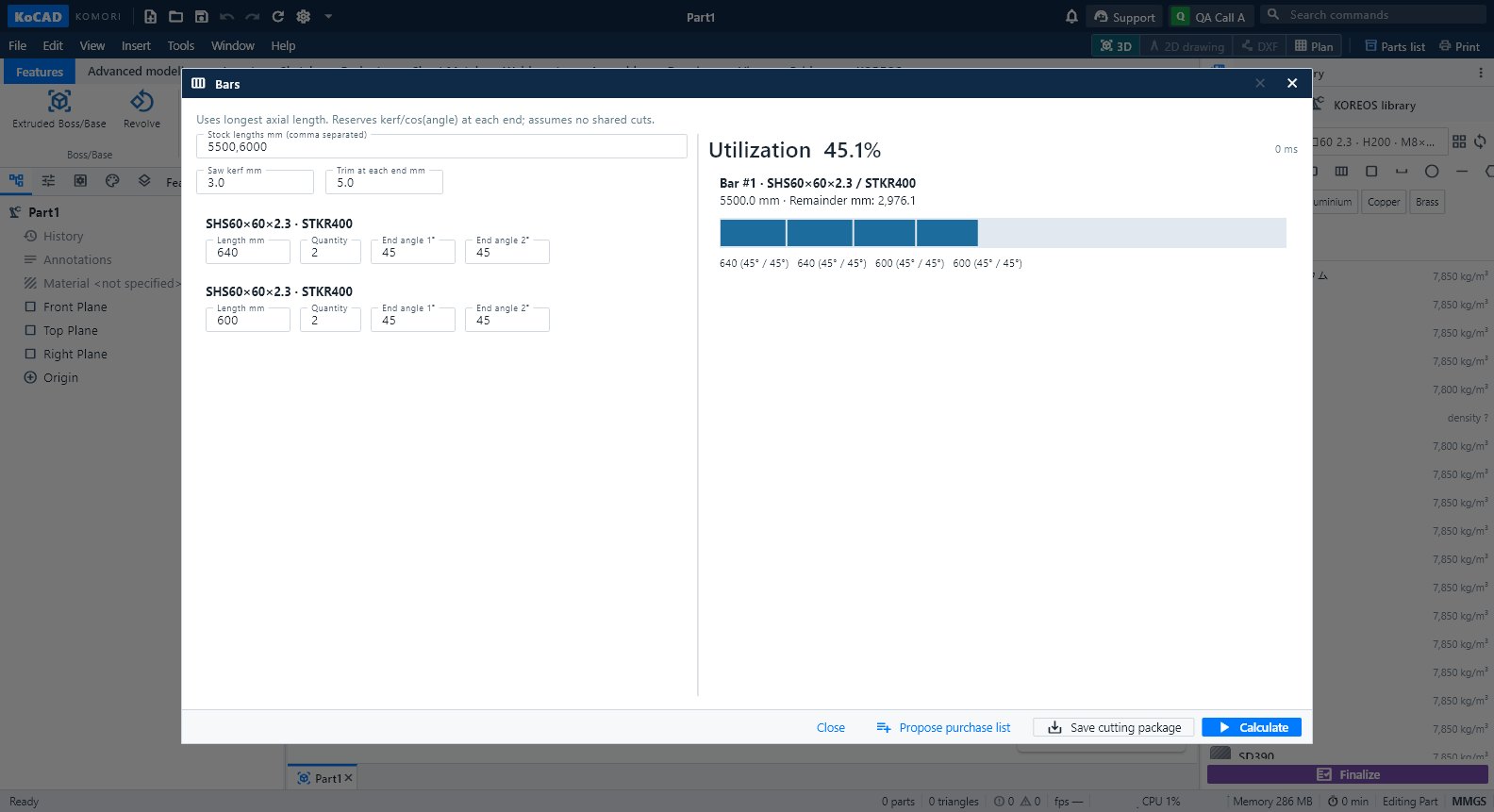 Daloy: weldment → cut list → mga bar na bibilhinMga member mula sa katalogo, kanto, gusset at weld; cut list na may anggulo; Bars para sa bilang ng 5.5/6 m na bar; proposal sa 部材表.
 Daloy: mag-assemble, mag-explode at gumawa ng drawing ng assemblyNew assembly → insert → mate → pattern → exploded view → BOM → drawing ng instruction na may balloons.
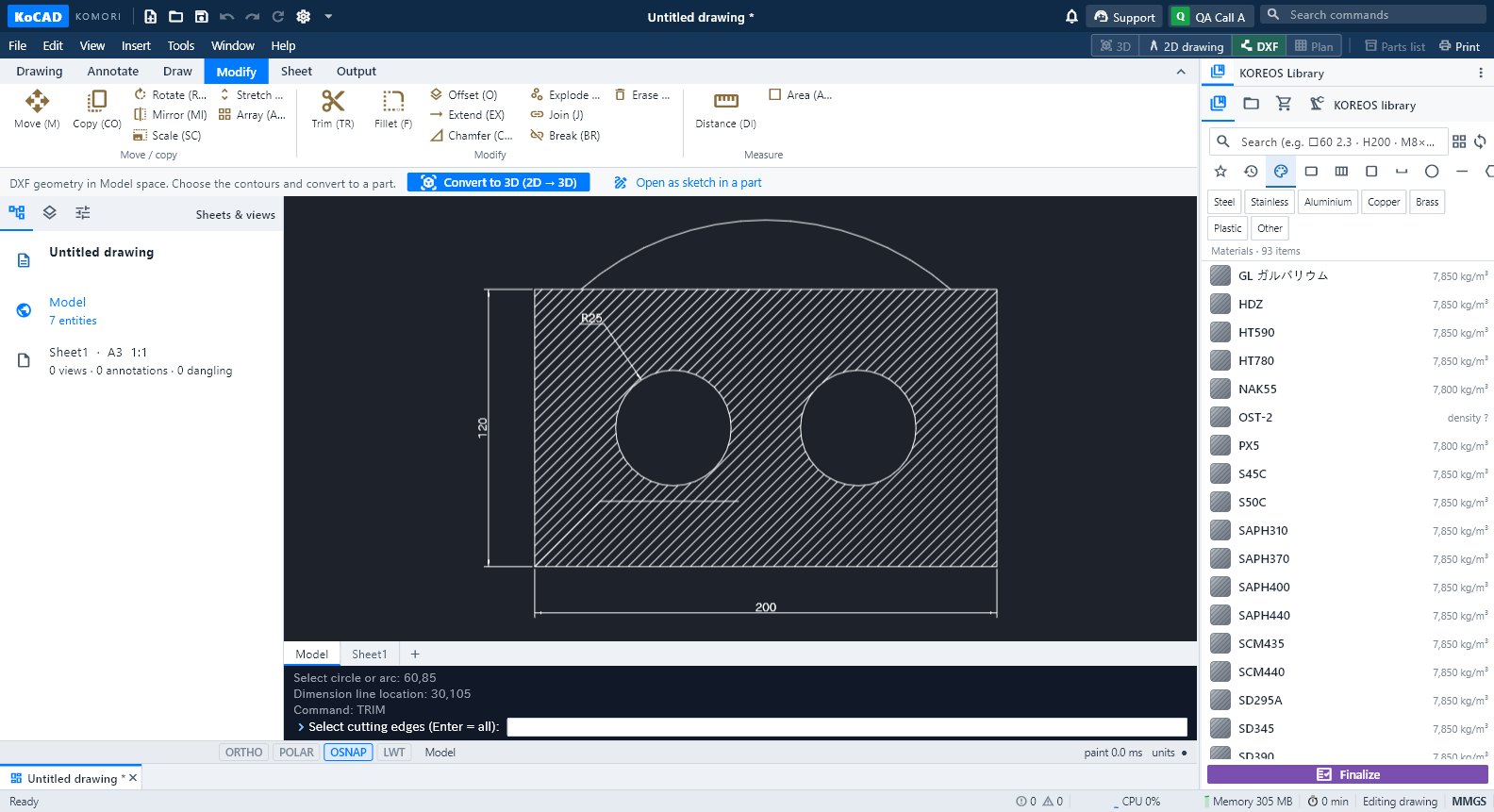 Daloy: JIS shop drawing hanggang PDF, DXF at printMula modelo hanggang sheet: view, auto dimension, hole callout, title block, Check, PDF/DXF/DWG, 1:1 na print at pag-save sa kaso.
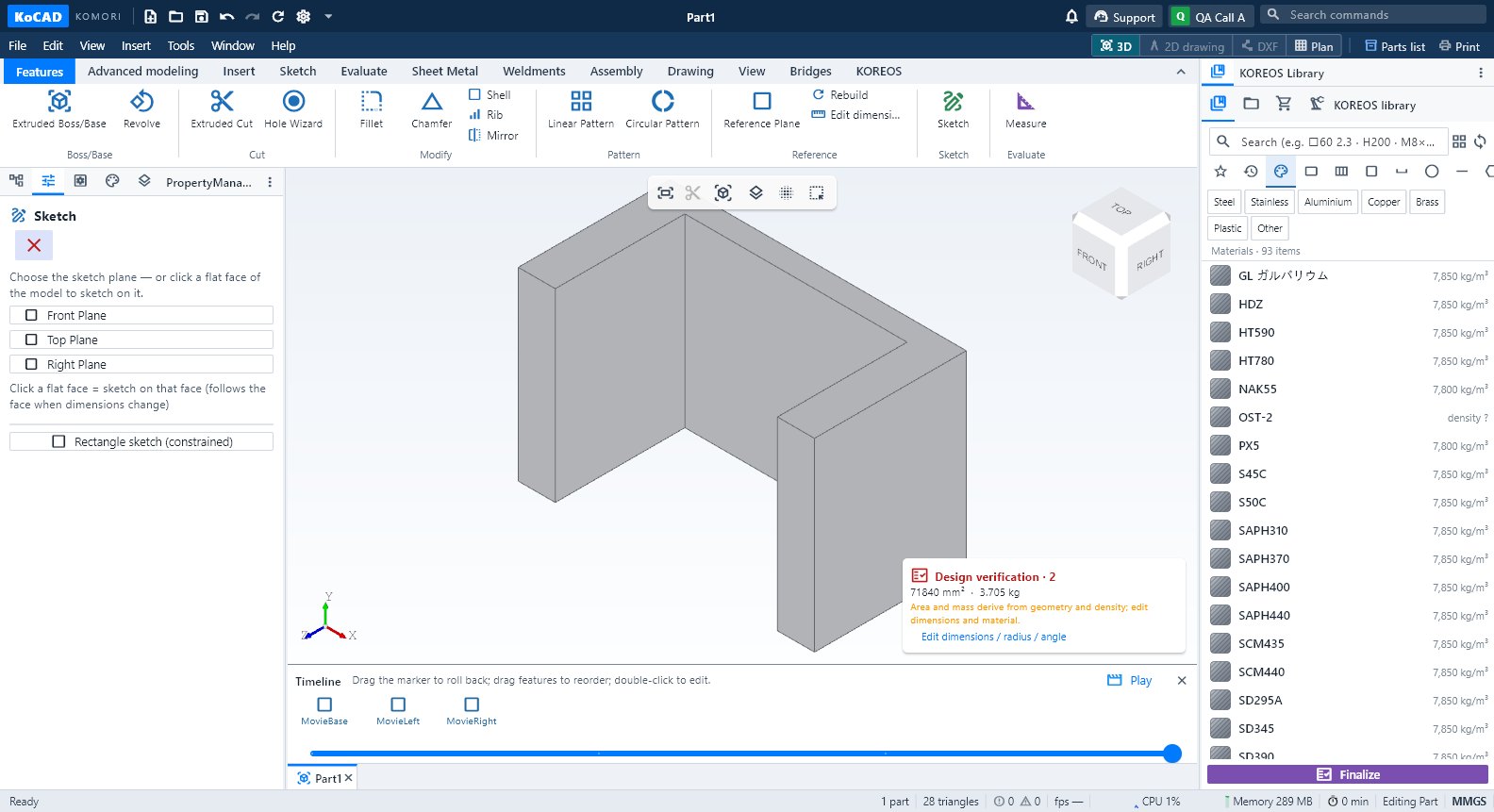 Daloy: pelikula ng pagbuo o ng assembly (MP4 / GIF)Timeline → Play: pagbuo bawat feature, exploded view o assembly; i-export ang MP4 720p/1080p o GIF, kahit offline.
 Daloy: tingnan sa VR/AR gamit ang QR at ang animation studioView in VR/AR: QR na may takdang oras para sa Quest o telepono, totoong laki 1:1, File o Live mode, studio at pag-revoke ng link.
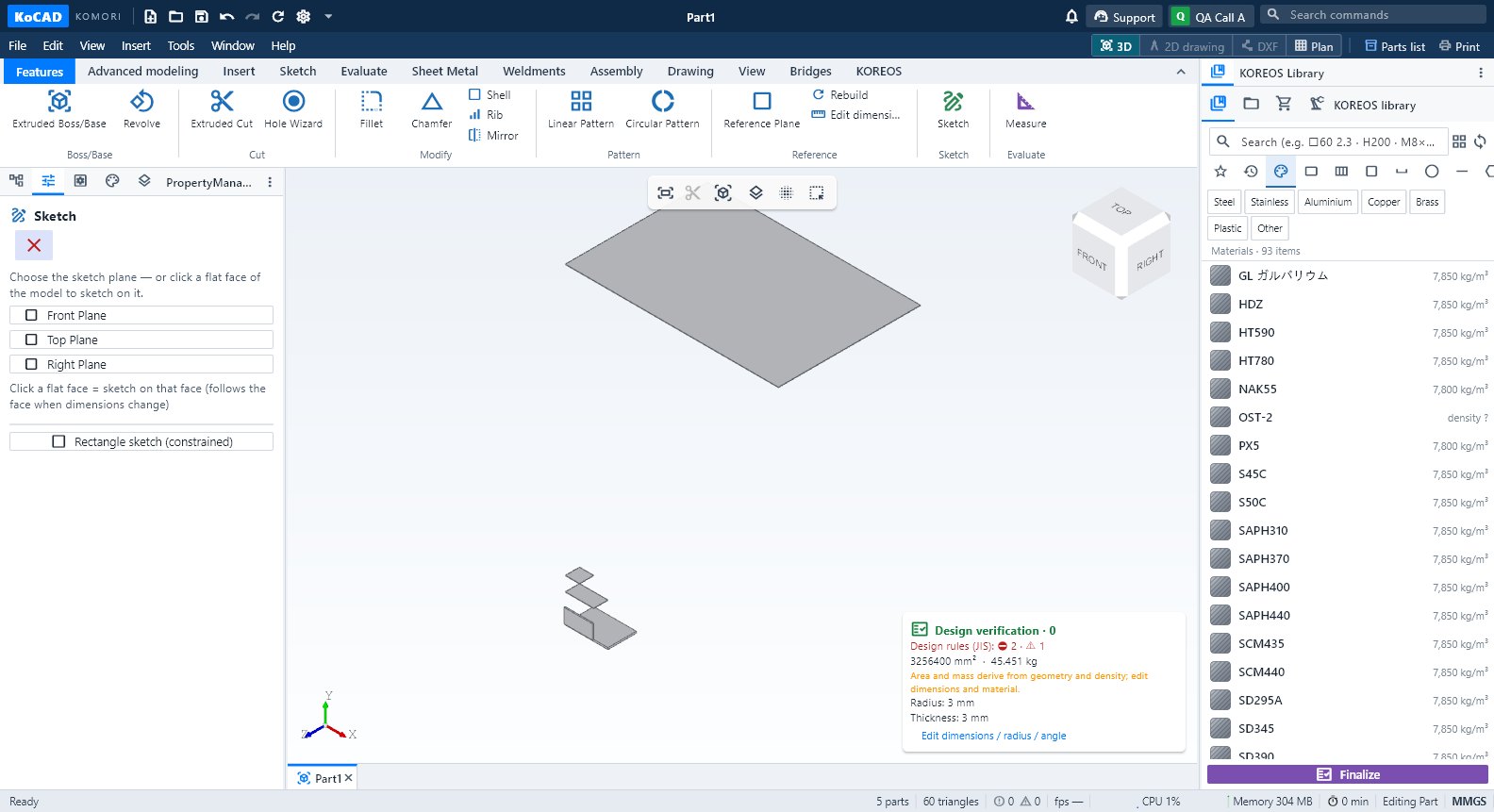 Daloy: suriin ang design rules (JIS) bago ang pagawaanDesign verification → design rules: butas, gilid, bolt, weld, materyal, guard rail at hagdan; Choose fastener; hinaharang ng Finalize ang error.