











KoCAD · Màn hình & chức năng
Sketch tab: draw, dimension and trace an image
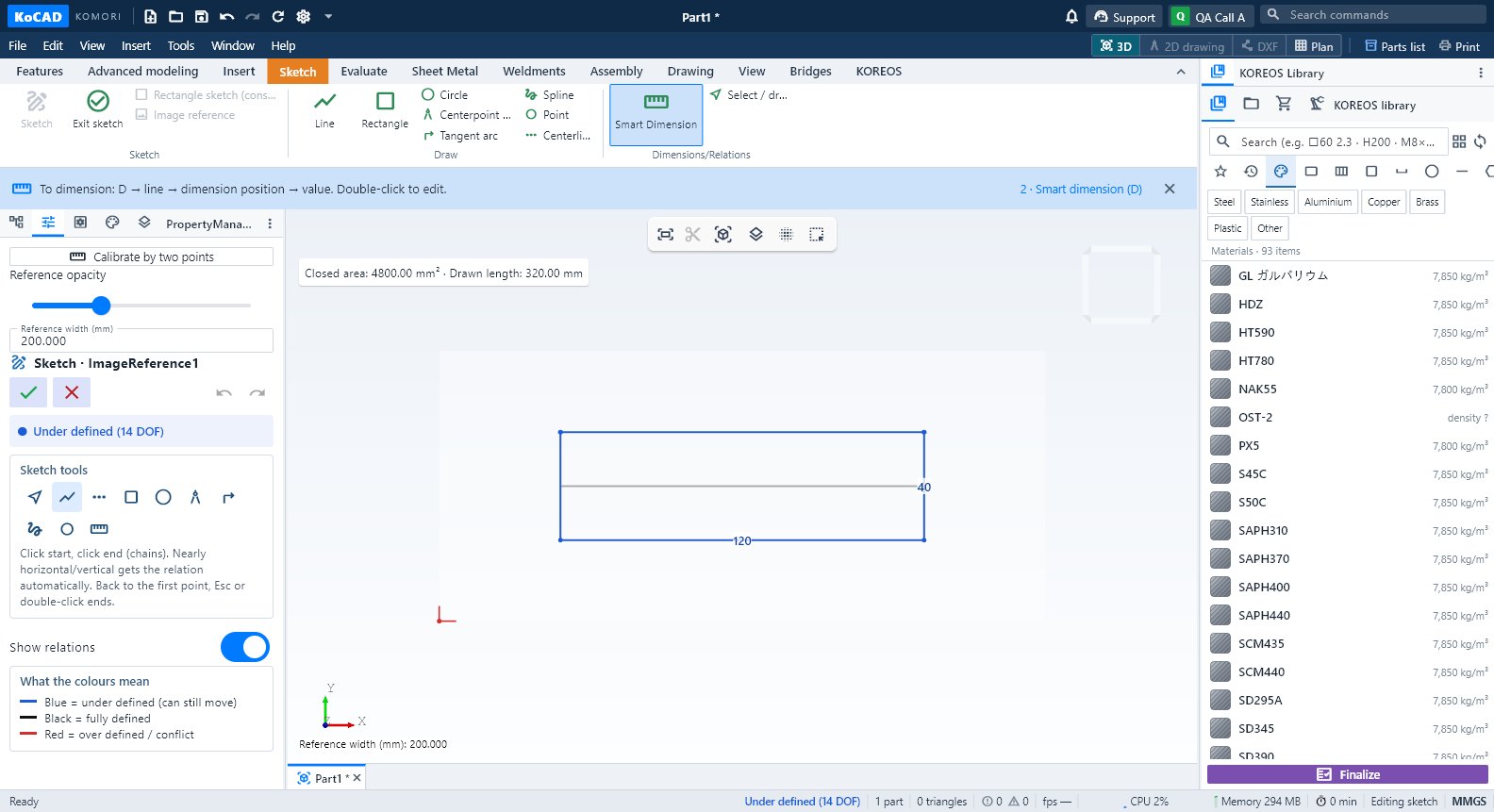
Line, Rectangle, Circle, arcs, Spline, Point and Centerline; Smart Dimension (D); constrained rectangle sketch; Image reference calibrated by two points.
Bài viết này chưa được dịch sang ngôn ngữ của bạn: đang hiển thị bản English.
Trong trang này
What it is
The 2D sketch is the base of most features. The Sketch tab is highlighted while you are inside a sketch.

Groups and buttons
- Sketch: Sketch · Exit sketch · Rectangle sketch (constrained) · Image reference.
- Draw: Line · Rectangle · Circle · Centerpoint arc · Tangent arc · Spline · Point · Centerline.
- Dimensions/Relations: Smart Dimension (D) · Select / drag.
Step by step: draw over a photo or PDF
- On the Sketch tab click Image reference and open a JPG, PNG or PDF (PDF uses the first page, rendered on the PC).
- Mark two points with a known distance, type the real distance in mm and click Apply and trace.
- Draw lines, circles and arcs over the image; dimension as usual. A closed area subtracts holes.
- Adjust opacity in the sketch panel or use Calibrate by two points to recalibrate. The image is embedded in the file.
Tips
- Black = fully defined, blue = under defined (DOF shown in the status bar), red = over defined.
- Options → Sketch → "Show sketch relations" turns the relation symbols on/off.
- Recalibrating changes only the image: check the geometry you already drew.
Common mistakes
- "Over defined — delete the red relation": there is one dimension or relation too many. Delete the red one.
- The extrusion ignores the sketch: the outline is not closed. Look for the loose (highlighted) point.