











KoCAD · Pantallas y funciones
KOREOS Library: materials, profiles, parts and drag into the model
Right panel: find a material, plate, bar, profile or bolt in KOMORI's catalogue and drag it onto the part or into the 3D view.
Este artículo aún no está traducido a su idioma: se muestra la versión en English.
En esta página
What it is
The KOREOS Library is the company catalogue (materials with density and price, plates, bars, □/L/H/U profiles, tubes, standard parts and machine parts). It is downloaded from KOREOS and cached for offline use.
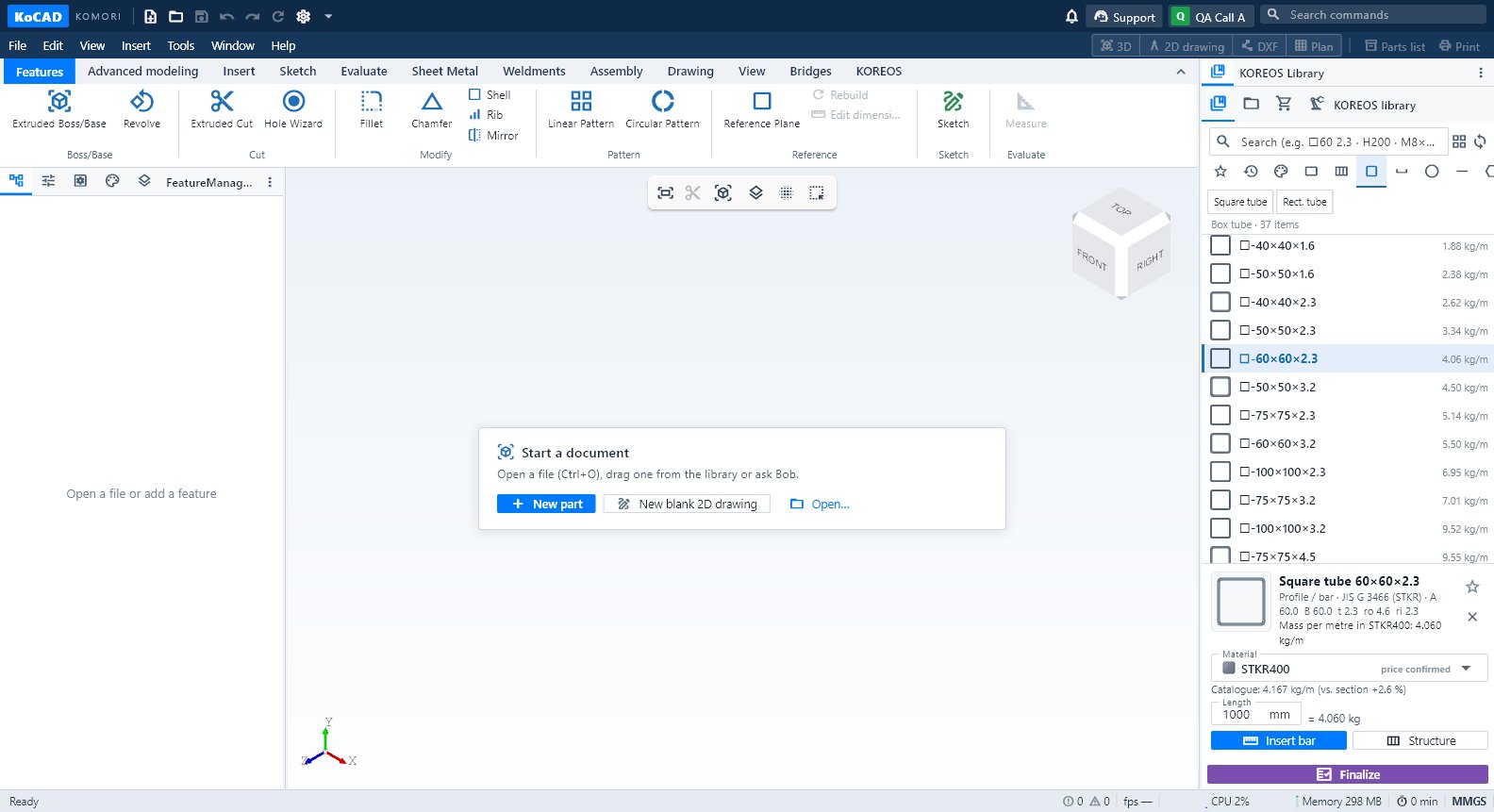
Step by step
- In the right panel open KOREOS Library (first icon).
- Search by size or name: □60 2.3, H200, M8×30, A2011 HEX9. Use the filters (Steel, Stainless, Aluminium, Copper, Brass, Plastic, Other) and the shape tabs.
- Material: drag it onto a part. KoCAD applies it to that part/body only and confirms. Or select the part and click Apply … to:.
- Item (plate, bar, profile, bolt): drag it into the 3D view. It drops on the face under the cursor (or at the empty point) and stays selected.
- When you pick a material, the list shows its plates, bars and profiles. If there are none, use Create plate/bar in this material.
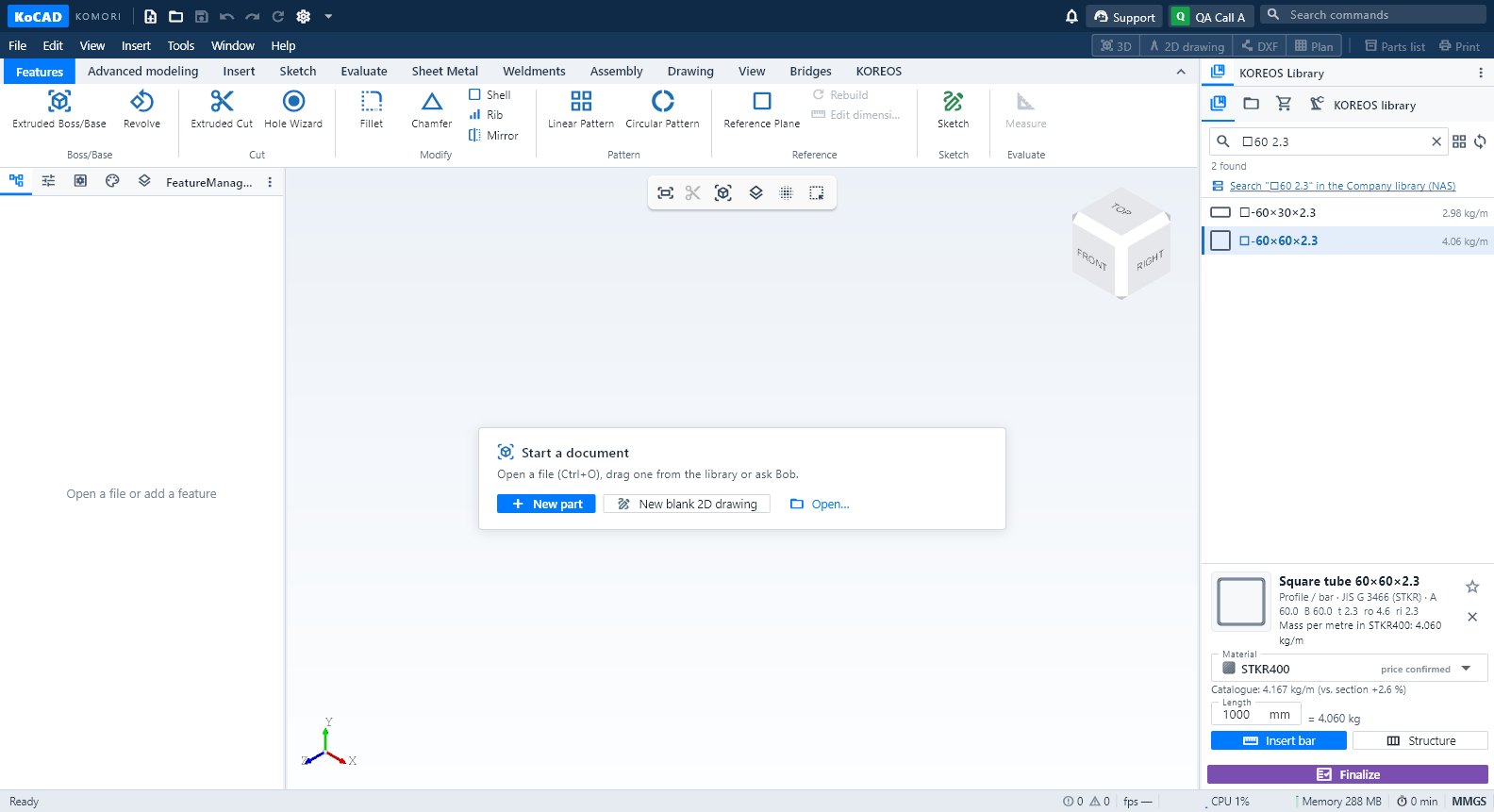
Tips
- Star = favourites; clock = recent.
- The company library (NAS) appears for KOREOS core users: categories, search and file properties.
- Options → KOREOS & account → Sync library forces a full download.
Common mistakes
- Dropping a material on empty space changes nothing: drop it on a part or select the part first.
- "density ?" on a material: the register has no density; mass stays pending until it is completed in KOREOS.