











KOREOS · Primeros pasos
Marketplace: how to activate modules and plans
How to find, activate or buy modules, and how to read plans and prices.
Este artículo aún no está traducido a su idioma: se muestra la versión en English.
En esta página
How KOREOS is licensed
KOREOS is modular. The base (time and attendance, staff directory, customers and suppliers, departments) comes with the system. You choose the rest in the Marketplace. Each module is in one of these situations:
- Included in every plan, such as Tasks, Calendar, Announcements and Reports.
- Add-on module with a monthly price. Some are already included in one of the plans (the card shows, for example, that the module is included in the Lite plan), in which case there is no extra charge.
- On request: integrations such as AI tools, 3D preview, printer integration, remote desk, VR room and LED vision are quoted per project.
- Separate product: KŌLOGY (logistics), KMR (field staff) and Karta (business cards) have their own website and sign-up and are not sold inside KOREOS.
Plans
The public plans (Lite, Standard and Enterprise) differ in user limit and in the module tiers they include. The current list with prices is on the KOREOS page of the KOMORI website. Prices are always shown with the 10% consumption tax already added, and the annual price covers 12 months.
Step by step in the Marketplace
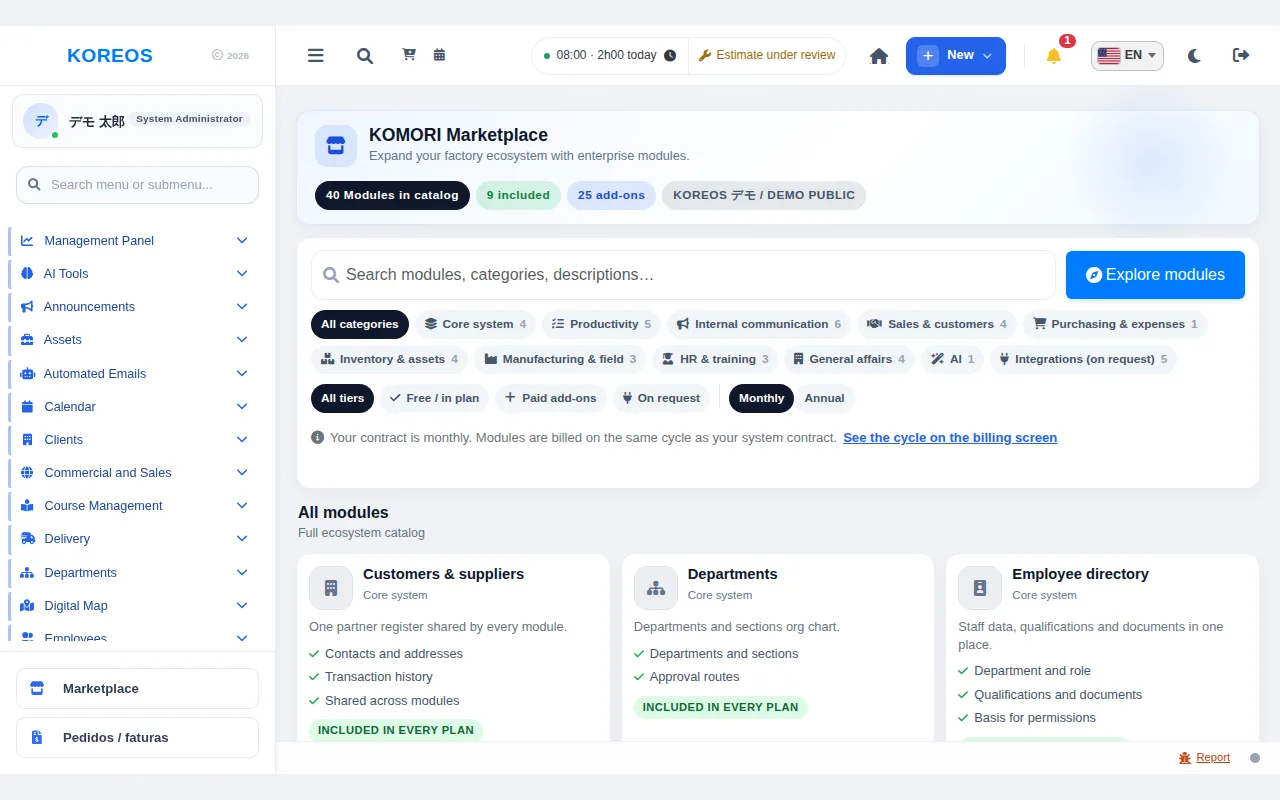
- Click Marketplace at the bottom of the side menu (only administrators see this button).
- Use the “Search modules, categories, descriptions…” box, or click Explore modules to jump to the list.
- Narrow the list with the filters: category (for example Inventory, Finance, HR), language (PT, EN, JP) and tier (Core, Light, Standard, Advanced, One-time). Switch between Monthly and Yearly to see the price for the billing cycle you want.
- Click the module card to open its details: description, version, languages, compatibility, Changelog and the Reviews tab.
- Use the card’s button. If the module is in your plan, it shows “Included in your plan”. If it is paid, click Buy and complete the secure payment; when you return, the module shows as Active in the system and its entry appears in the side menu.
- After using it, leave a rating and comment in the Reviews tab (Submit review).
Orders and billing
The Orders and billing button next to the Marketplace in the side menu gathers your company’s orders, payments and invoices.
Tips
- If a menu item disappeared, check that the module is still active and that your user has permission for it.
- To see how a module works before activating it, read its manual in this section or try the demo environment (demo.its-komori.com).
Common questions
Who can activate or buy modules?
Company administrators. Other users only see the modules that are already active and open to them.
Do I need to install anything?
No. KOREOS modules become available in the system once activated.
A module is included in my plan but does not appear in the menu.
Ask your administrator to check that the user has permission for the module (Settings > Permissions).