











KOREOS HOME · 界面与功能
Owner: set up the family in the cloud in one afternoon
For the person who creates the family space. You create the free account, confirm the email, invite each person with their own access, decide who can administer and adjust Home for the household routine. At the end, everyone sees the same calendar, tasks and shopping list.
此文章暂无您的语言版本,以English显示。
本页目录
What this is for
For the person who creates the family space. You create the free account, confirm the email, invite each person with their own access, decide who can administer and adjust Home for the household routine. At the end, everyone sees the same calendar, tasks and shopping list.
Step by step
- Install the official app or open home.its-komori.com; the first screen has a ① Sign up free button that opens the Free plan sign-up in one tap (calendar, tasks and shopping list, no payment card).
- Fill in the household name, e-mail, a password of at least 12 characters and accept the terms; if anything is missing, the screen tells you exactly what (② message, ③ empty field).
- Open the confirmation email and confirm the address before inviting anyone.
- In Settings, open Family and create an invitation for each person; send the code directly to them.
- Tell them the code is valid for 7 days; they can choose the ④ Invite tab, enter the ⑤ Invite code and sign up with their own details, or tap ⑥ Google using the code to join the inviter's household without creating a separate account. The language they picked stays the same after signing in with Google.
- When everyone has joined, go back to Family and decide who will be administrator; the others stay as members.
- Open Family apps and use Edit to order or hide shortcuts the household does not use.
- Check the plan in the account area: Free has calendar, tasks and shopping with a member limit; Plus and Pro add belongings, money, goals and comparisons.
- Create a test event and a test task, ask someone else to check them on their device, then delete the test.
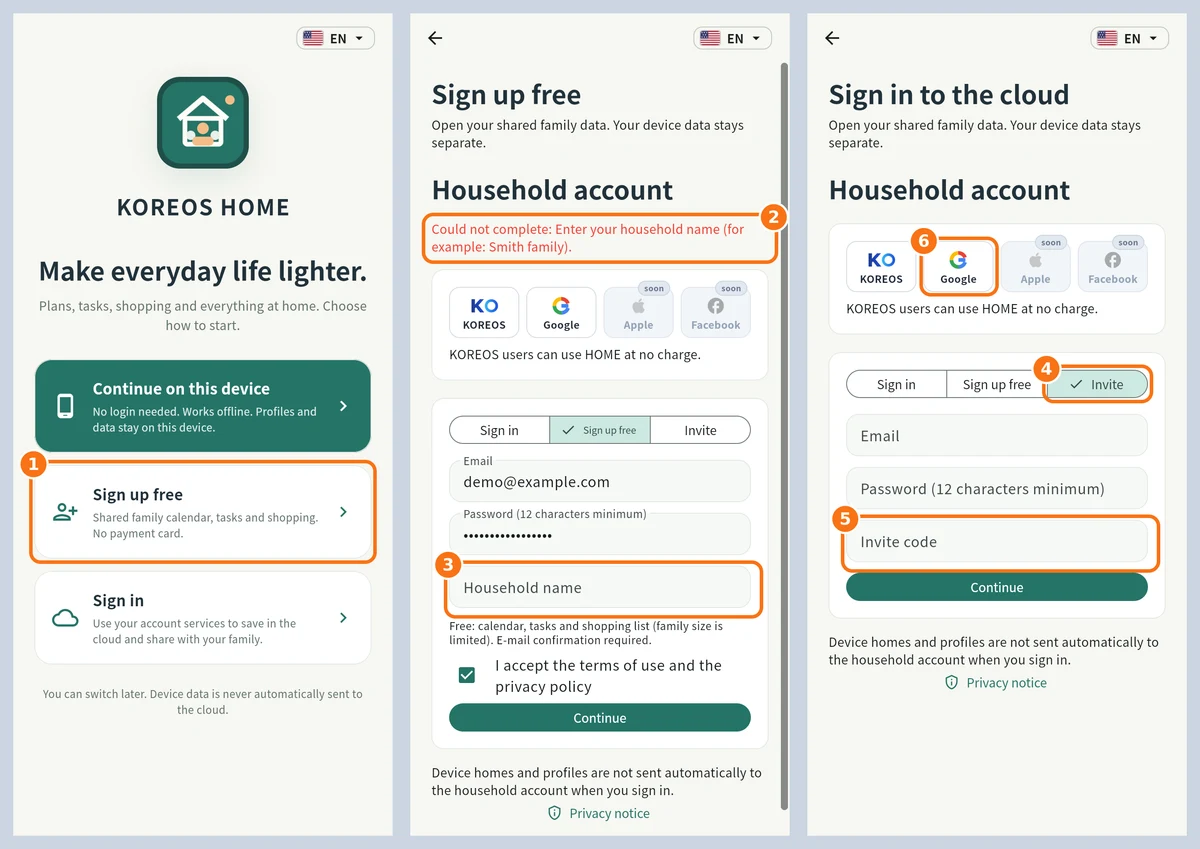
Real app screens, version 1.2.2 (demo input). Left: ① Sign up free opens the sign-up in one tap. Middle: ② the message says exactly what is missing and ③ is the empty field. Right, for the invited person: ④ Invite tab, ⑤ Invite code and ⑥ Google to join with the code without a separate account.
Tip
If something goes wrong
Invitation expired or refused: create another; old codes do not become valid again. Member limit reached: the owner checks the plan. The other person cannot see the data: they are in device mode or another family; check at the top. Confirmation email not received: check spam and the address typed.
Related articles
- FAQ: 20 answers