KoCAD · What’s new
[0.12] First steps: sketch, dimensions, extrusion and 2D drawing
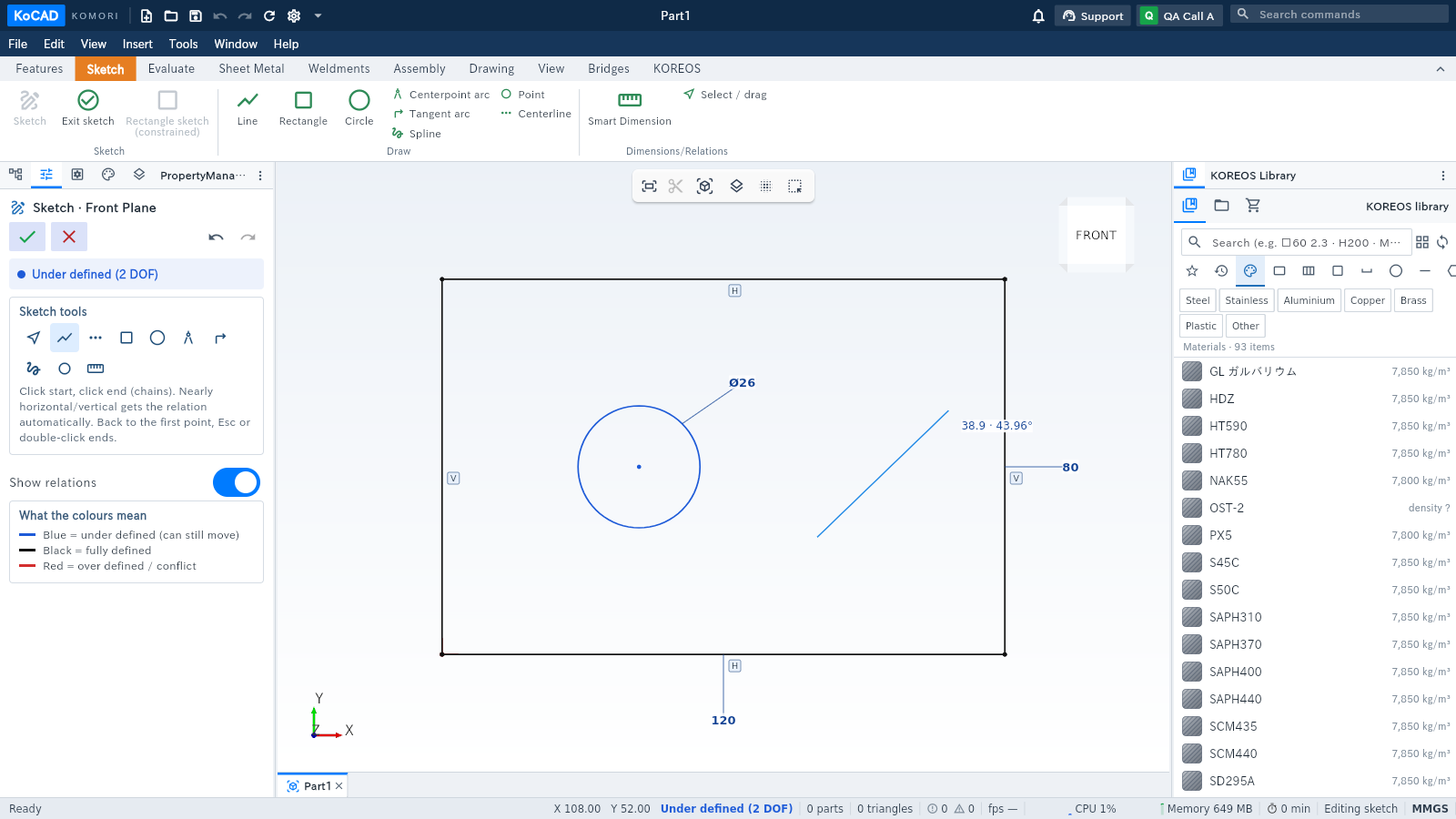
Sketch: click New part and choose Front, Top or Right. Use Line, Rectangle or Circle in the Sketch tab. A solid extrusion requires a closed profile.
Mac: KoCAD requires Apple Silicon (M1 or later) and macOS 11 or later. The CAD kernel and DWG tools are ARM64; Intel Macs are unsupported. In Downloads, choose the DMG marked Apple Silicon and drag KoCAD to Applications.
Sketch: click New part and choose Front, Top or Right. Use Line, Rectangle or Circle in the Sketch tab. A solid extrusion requires a closed profile.
Dimensions: Sketch → Dimensions/Relations → Smart dimension, or press D. Click a line, circle or arc, click the dimension position, enter the value and confirm. Select two points for a point-to-point distance. Esc leaves the tool. In Select mode, double-click an existing dimension value to edit. Sketch dimensions set width and height; extrusion depth is a separate value.
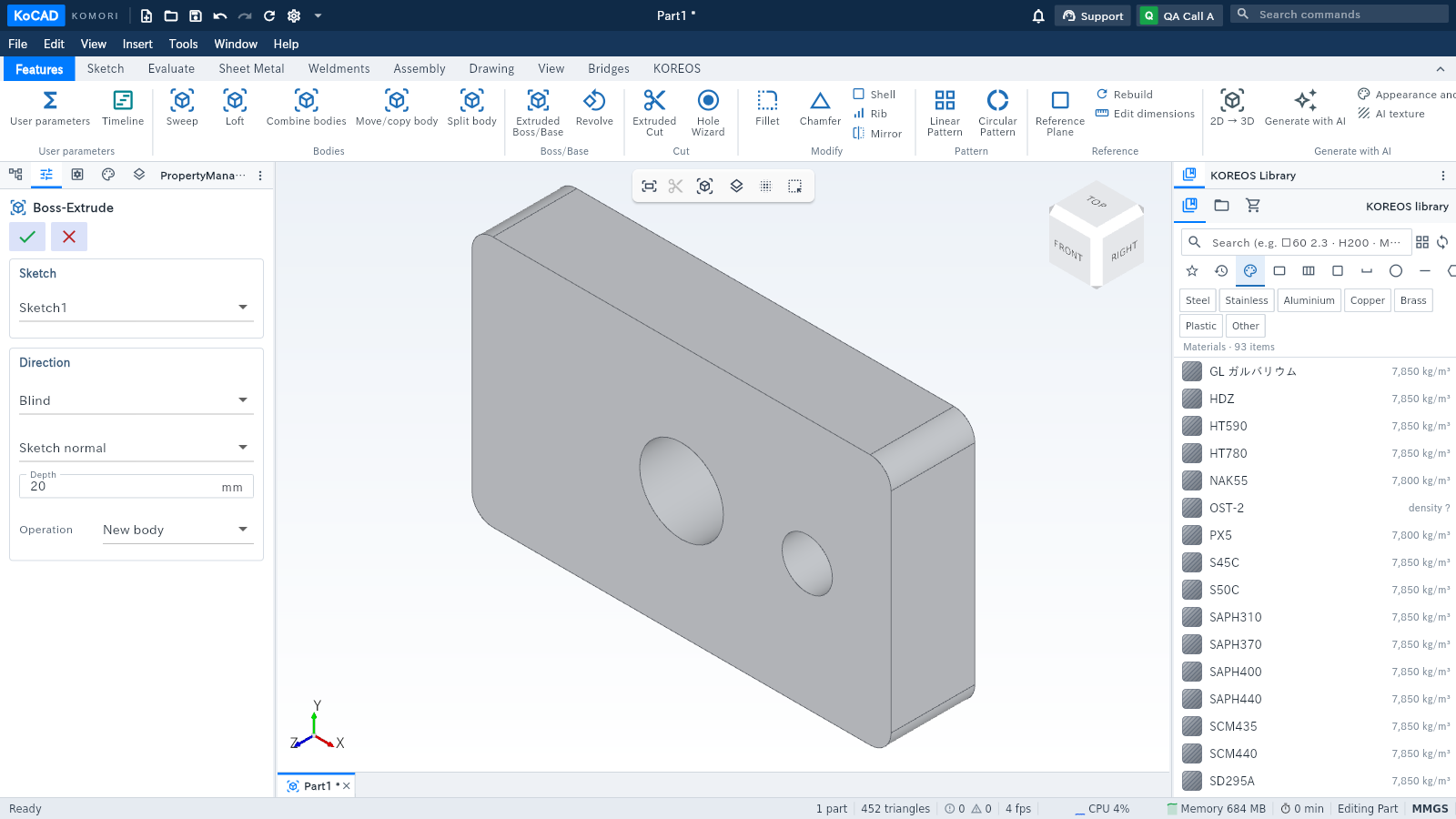
Extrude: click Finish sketch (✓). A new closed sketch automatically opens the Extrusion PropertyManager on the left. Enter Depth in mm, choose direction and confirm with ✓. In 0.12.0 the field is inside the Direction group. The feature ribbon also opens Extruded Boss/Base. Double-click the feature in the tree to change depth.
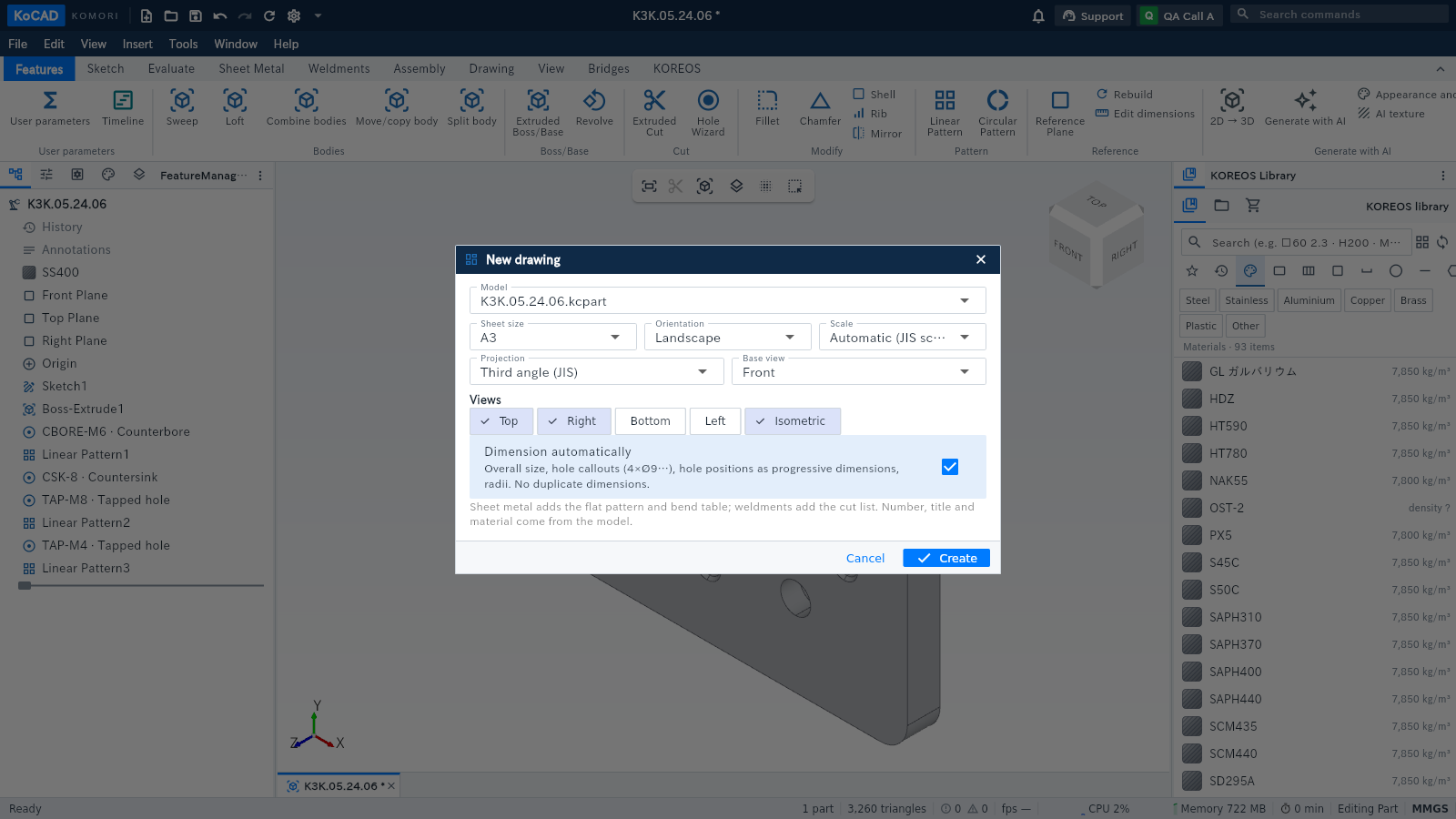
2D drawing: open the Drawing tab. Use the drawing-from-model button for a fabrication sheet; save the part when prompted, then choose sheet and scale. Use New blank 2D drawing to start from scratch (also in File). Open DXF/DWG with File → Open. Save native drawings as .kcdrw.
Wiki/Guide: Settings (Options) → Updates → Wiki/Guide. Bob reads the same server corpus. The next update highlights depth, adds an outline preview and shows four short first-launch cards.