











KMR · 界面与功能
Monthly dashboard: results, goals and charts
The month summary with sign-ups, approaches, hours, monthly goal, charts by store and by hour, and filters.
此文章暂无您的语言版本,以English显示。
本页目录
What it is for
The Dashboard tab shows how the month is going: how many applications, approaches and conversations, how many days and hours worked, how far you are from the goal and where the best results are.
What is on the screen
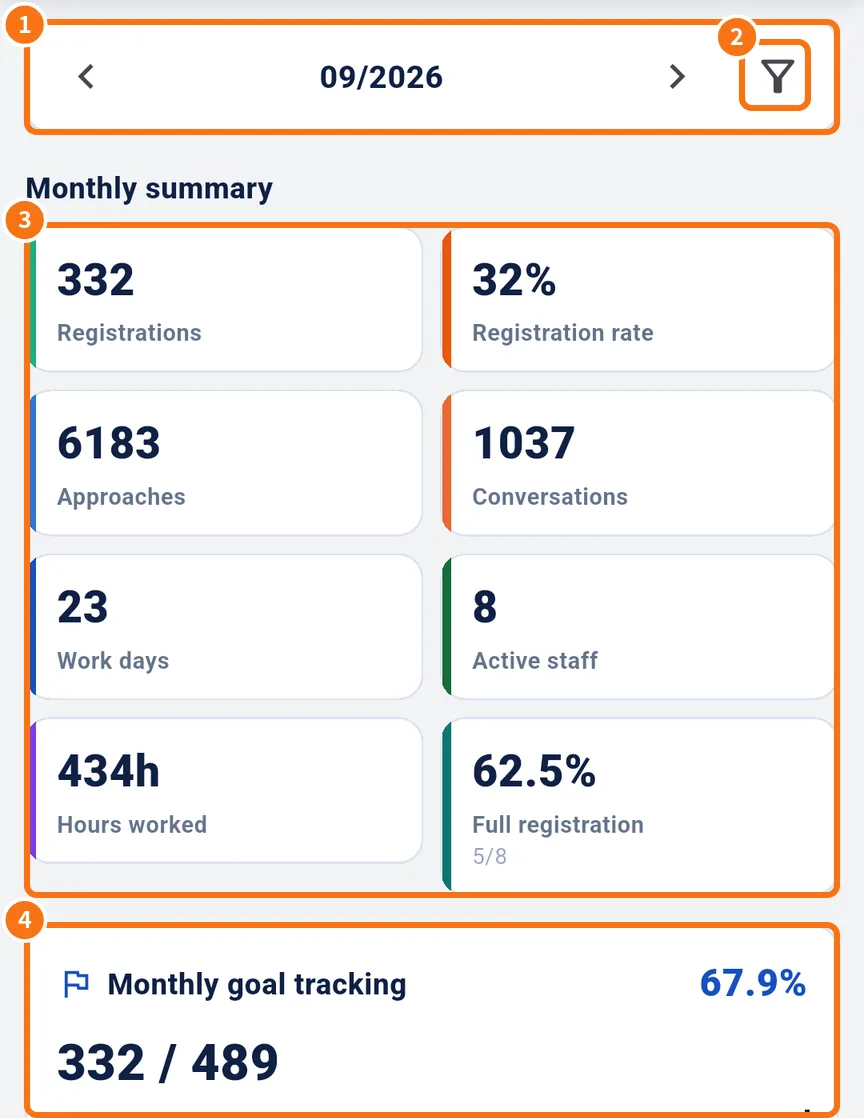
- ① The month, with arrows to change it.
- ② The filter: Project, Store and Contract type, with Apply and Clear.
- ③ Monthly summary: registrations (applications), registration rate, approaches, conversations, work days, active staff, hours worked and full registration.
- ④ Monthly goal tracking: actual / goal and the percentage. The vertical line shows how much of the month has passed (“Month elapsed”), and Days left appears.
- Further down: Daily trend, By store, By hour, By contract type, Application quality, a Ranking summary and open Alerts, each with See all.
Step by step
- Open the Dashboard tab.
- Choose the month with the arrows (①).
- To see one project or store, tap the filter (②), choose and tap Apply.
- Compare actual against the goal (④). If the bar is behind the month line, the team is below pace.
- Scroll down to see by store and by hour where the best results are.
- Tap See all on Ranking or Alerts to open the full screen.
Common mistakes
- “No data”: there are no records in that month or filter. Tap Clear.
- The goal does not show: the monthly goal is set on the web panel (Dashboard → Monthly goal).
- Numbers differ from what you expect: check whether a project/store filter is still on.
Related questions
- Managers on the phone: tabs, Home and Menu
- Attendance (勤怠), applications (入会受付) and ranking
- Management panel in the browser