











KOREOS · Màn hình & chức năng
Purchasing: how to use
How to move a purchase request through decision, ordering and receiving on one screen.
Bài viết này chưa được dịch sang ngôn ngữ của bạn: đang hiển thị bản English.
Trong trang này
What it is
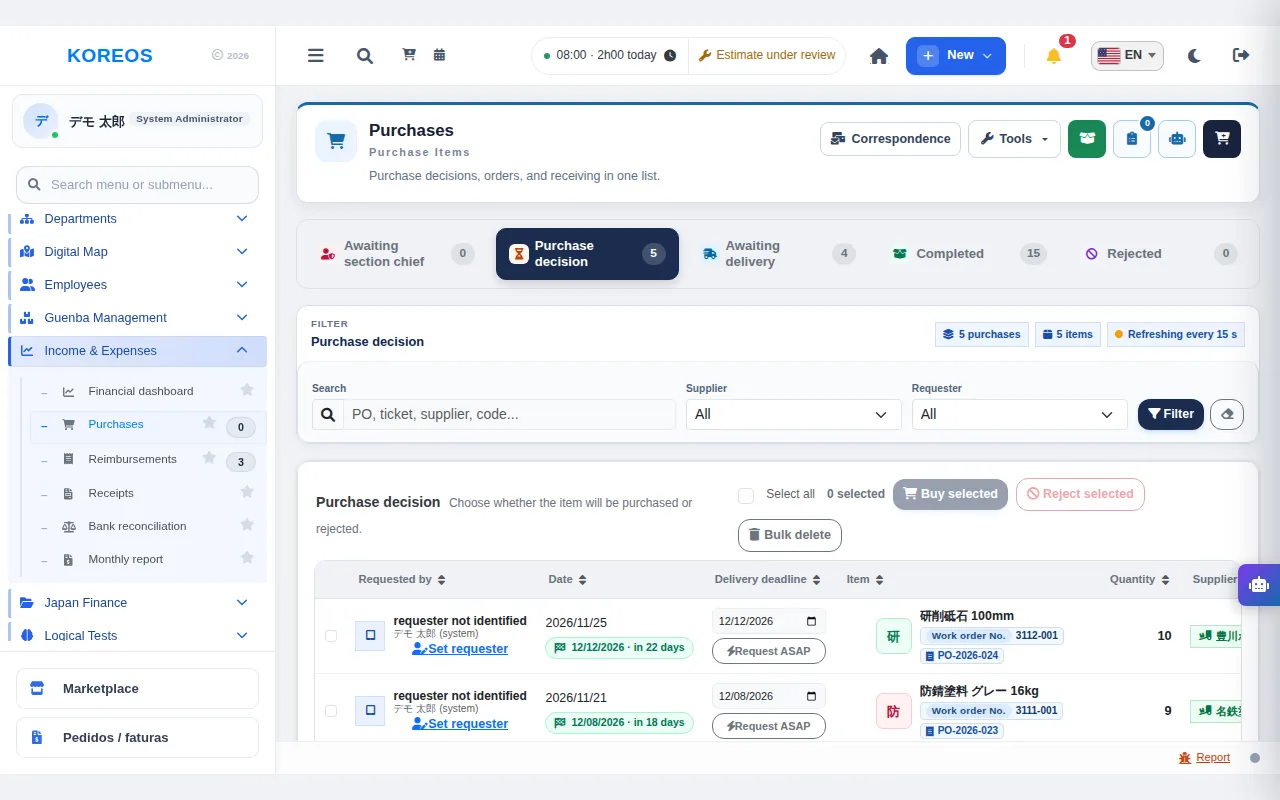
Purchasing brings the purchase decision, the order and receiving into a single list. The screen is titled "Purchases" with the description "Purchase decisions, orders, and receiving in one list." A record is kept of who approved.
Who it is for
The purchasing team, the people who decide on purchases and whoever raised the request.
Step by step
- Raise a request: click the cart button at the top right ("New purchase order"). A step-by-step wizard opens: in "Order and supplier" enter the items and supplier, in "Destination and links" state the purpose and the links to a case or stock, and in "Review the order" check everything before registering. Move forward with "Continue".
- Follow it through the tabs: "Purchase decision", "Awaiting delivery", "Completed" and "Rejected" show the count for each stage. Utensil requests go first through the "Awaiting section chief" tab and only then move to "Purchase decision".
- Decide the purchase: in "Purchase decision", tick the items and click "Buy selected" or "Reject selected". Rejected items stay in the history of the "Rejected" tab.
- Search: type a PO, case, supplier or code in "Search", filter by "Supplier" and "Requester" and click "Filter". The list refreshes by itself every 15 seconds.
- Receive the goods: confirmed purchases wait in "Awaiting delivery". When they arrive, use the green button ("Register delivery") to record receipt. Fully received purchases go to "Completed".
- Check your requests: the "My requests" button shows how the requests you made are progressing.
Tips
- The "Tools" menu leads to related settings and screens.
- "Awaiting delivery" shows confirmed purchases not yet received; payment and settlement are followed in the finance area.
Common questions
Q. A utensil request does not appear in "Purchase decision".It first needs the section chief's release. Check the "Awaiting section chief" tab.
Q. Where do I see what was rejected?In the "Rejected" tab, which keeps the history.
Q. The list is not up to date.It refreshes every 15 seconds. If an update notice appears, click the button to apply it.
Availability and plan: see the Marketplace article.