











KOREOS · Màn hình & chức năng
Remote desk: how to use
How to connect to approved company computers and log the purpose and time of use.
Bài viết này chưa được dịch sang ngôn ngữ của bạn: đang hiển thị bản English.
Trong trang này
What it is
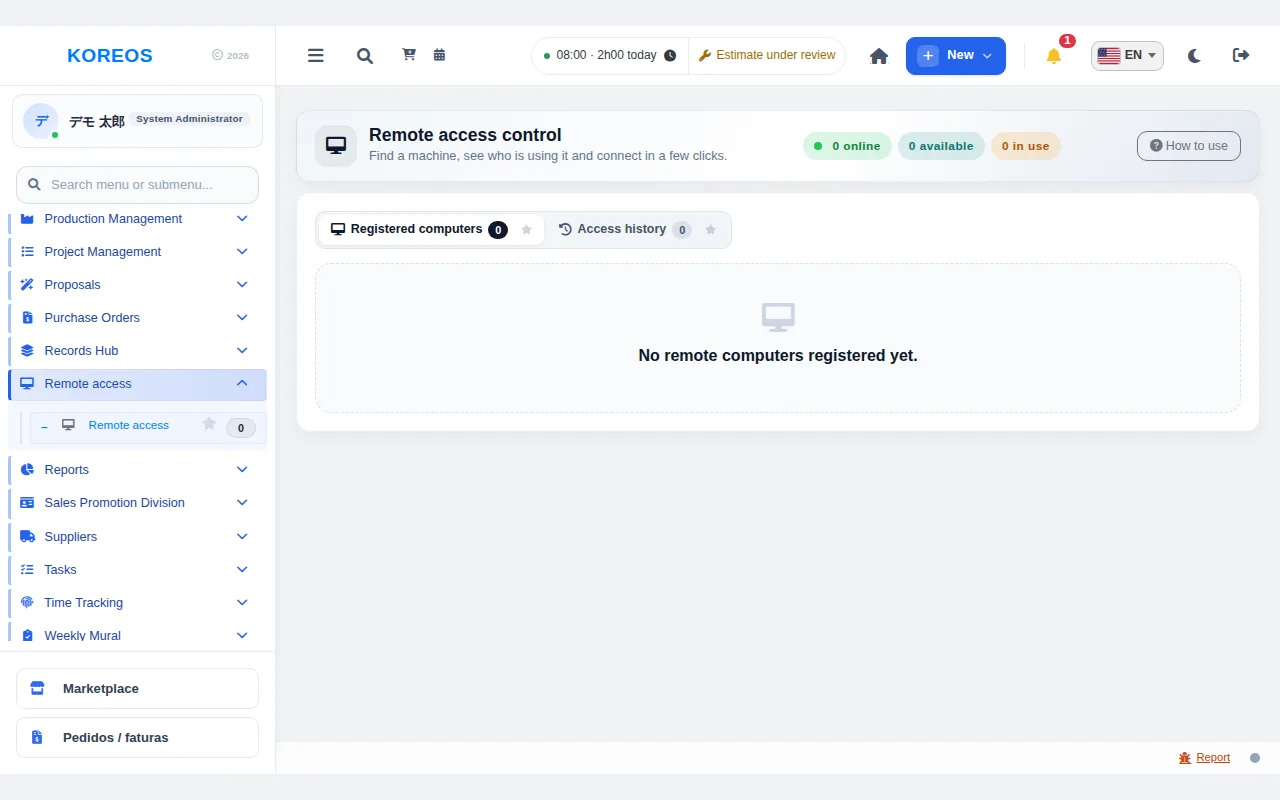
Remote desk lets you connect securely, from the browser, to approved company computers. You register the machines and keep a history of who connected, when, for what purpose and for how long. Set-up depends on your environment and is quoted per project.
Who it is for
- People who need the files or working environment of a company PC while away from the office.
- Support and maintenance staff who connect to internal machines.
- Administrators who want to record and control who uses each machine.
Step by step
- Register the machine (administrator): on the registered-computers tab click "New remote computer" and enter "Computer name", "Location or department" and "Responsible user". Choose the "Connection type" — "External link (Chrome Remote Desktop)" or "Screen in the browser (through KOREOS)" — set the access password and click "Save".
- Find the machine: the list shows each machine's state — "Available", "In use" or "Disabled" — and the search filters by machine, location, department or owner.
- Start the access: click the connect button on the machine. In the window, choose the purpose under "What will be done in this session?" (maintenance, support, checking, etc.), add details if you like, type the "Confirmation password" and click "Start access".
- Work: the session screen carries the Google Remote link. If the browser blocks the pop-up, click "Open Google Remote". Keep the screen open: time is being counted.
- Finish: when you are done, click "Complete access" to record the usage time. If you left the screen midway, use "Resume active session".
- Review the history: the history tab shows person, machine, purpose, when and duration for each access.
Tips
- If someone is already using the machine you will see "Someone else is using this machine. Check with them before connecting."
- Use the "Comments" tab of the session to note what was done or leave a message for the next user.
- To stop use temporarily, disable the machine instead of deleting it: the registration and history remain. Deleting also removes all of its history.
- The "How to use" button shows the set-up and access steps.
Common questions
I clicked connect and nothing opened.A. The browser may have blocked the pop-up. Click "Open Google Remote" or allow pop-ups; the timer keeps running.
No machines appear in the list.A. No computers have been registered, or none are authorised for you. Ask an administrator to register one.
Can anyone connect?A. Every access requires the confirmation password, and the purpose and duration are logged in the history.
Availability and plan: see the Marketplace article.