











KOREOS · Màn hình & chức năng
Inventory: how to use
Record stock in and out with QR and see balances and items to reorder in one list.
Bài viết này chưa được dịch sang ngôn ngữ của bạn: đang hiển thị bản English.
Trong trang này
What it is
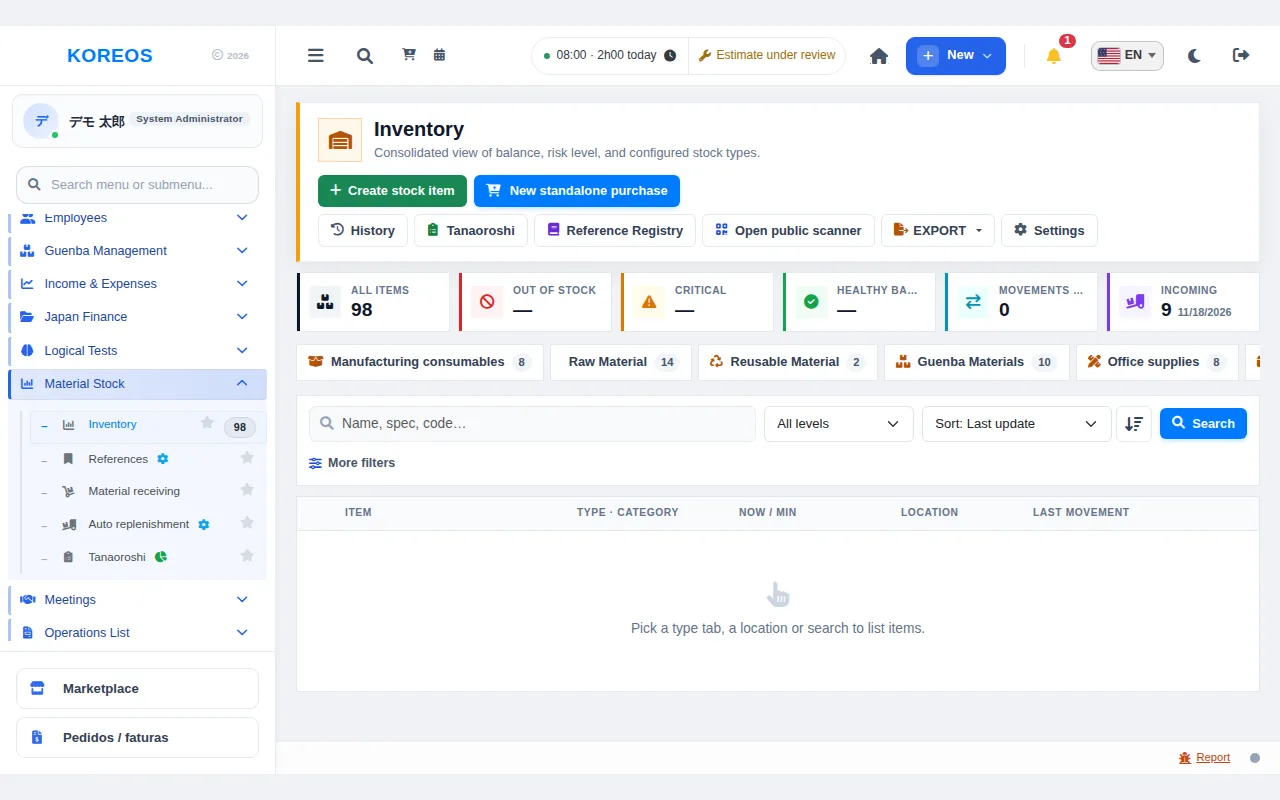
Inventory shows the balance of materials, consumables and office items in one list, records stock in and out, and warns you when an item is running low. With QR labels and a tablet, withdrawals are recorded on the spot at the workplace.
Who it is for
People who look after the warehouse or the material on the shop floor, and managers who want to know what is running short and when to reorder.
Step by step
- In the side menu, under "Material Stock", open "Stock". At the top you see the totals: "All items", "Out of stock", "Critical", "Healthy balance", "Movements today" and "Incoming".
- Pick the tab for the type of material (for example manufacturing consumables, raw material or office supplies), or type a name, size or code in the search field and click "Search". You can also sort and filter by level.
- To add a new item, click "Create stock item". If something has to be bought, use "New standalone purchase".
- Open an item to see the current balance, the item QR and the movement history (Input and Output). The QR label can be printed and stuck on the material.
- When the purchased material arrives, record it under "Material receiving". Withdrawals can be recorded by scanning the QR with a tablet.
- Under "Auto replenishment", see the items below their minimum and go ahead with the quote request or the approval.
- To check the physical balance, use "Tanaoroshi" (stocktaking). The list can be exported to Excel or PDF with the "EXPORT" button.
Tips
- Set a minimum quantity for each item: the "Critical" and "Out of stock" indicators then tell you when to reorder.
- When you record an output, link the case or project: it is then easy to see where the material was used.
- The "History" button lists every movement in one place.
- "Open public scanner" opens the QR reading screen for devices without a login.
Common questions
The list is empty.Choose a type tab, a location or run a search: the items appear right after.
I recorded the wrong quantity.Check the item's movement history and record it again with the correct quantity.
Do I need a tablet?No. Registering and looking up items also works on a computer.
Availability and plan: see the Marketplace article.