











KOREOS · Màn hình & chức năng
Sales (CRM): how to use
Follow leads and deals by stage until closing, with forecast and results per rep.
Bài viết này chưa được dịch sang ngôn ngữ của bạn: đang hiển thị bản English.
Trong trang này
What it is
Sales (CRM) follows each deal from lead to closing, stage by stage, and shows realized revenue, a closing forecast and results per rep. You log the day's activities (calls, visits, emails) so the next step is never missed.
Who it is for
Sales reps who want to follow every opportunity, and managers who want to see the team's numbers, goals and stalled deals.
Step by step
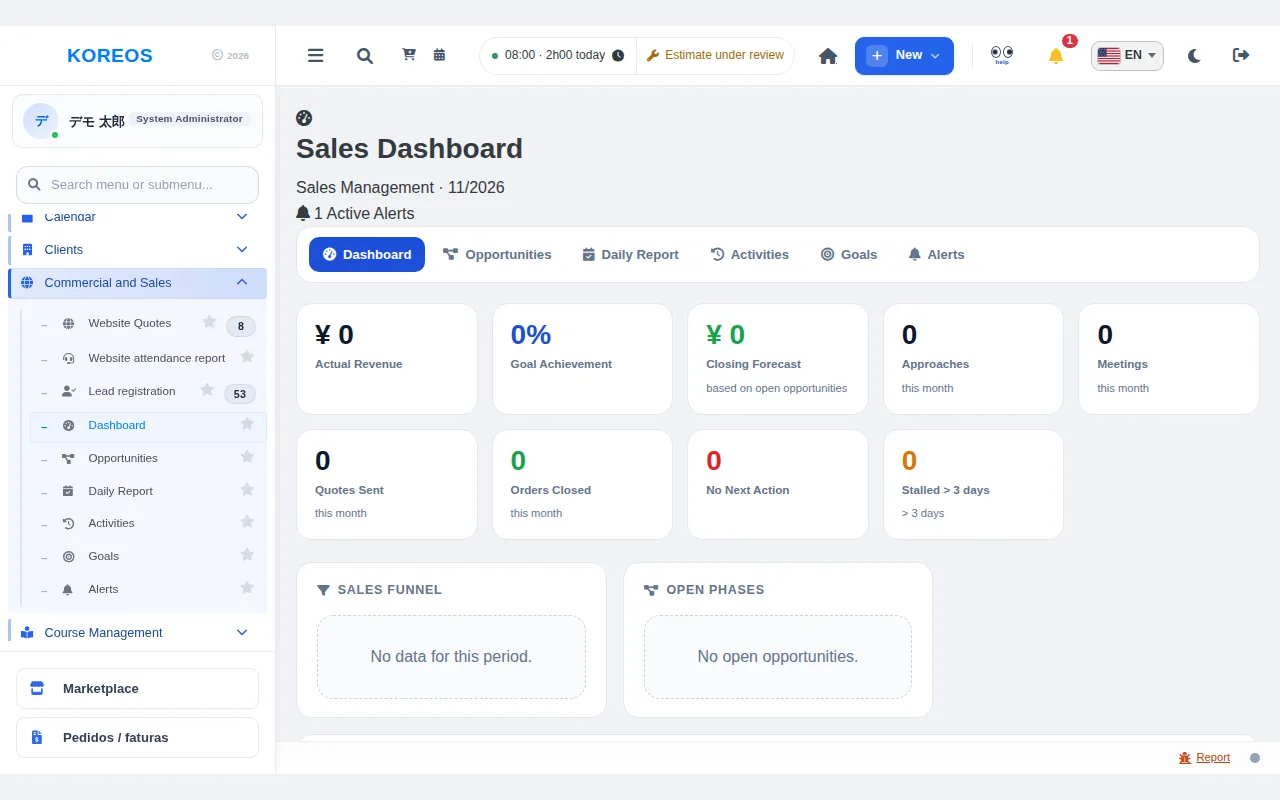
- In the side menu, under "Commercial and Sales", open "Dashboard". The tabs at the top are "Dashboard", "Opportunities", "Daily Report", "Activities", "Goals" and "Alerts".
- Open "Opportunities" and click "New Opportunity". Fill in "Company", "Contact", "Estimated Value", "Expected Close", "Next Action" and other fields, then click "Save".
- As the deal moves forward, open the opportunity and use "Change Phase". The phases are "Lead", "First Contact", "Scheduled", "Needs Analysis", "Proposal Preparation", "Proposal Sent", "Quote Sent", "In Analysis", "Negotiating", "Closed", "Lost" and "On Hold". When you mark a deal as lost, you can record the "Loss Reason".
- After a call or visit, click "Log Activity" on the opportunity and note the type and the outcome. The entry is kept under "Activities".
- At the end of the day, open "Daily Report" and save your numbers (approaches, quotes sent, orders closed), a short summary and tomorrow's plan.
- Under "Goals", set the goals for the period. On the "Dashboard", follow "Goal Achievement", "Closing Forecast", "Sales Funnel" and "Monthly Ranking".
Tips
- The "No Next Action" and "Stalled > 3 days" cards point to forgotten deals. It is worth checking them every morning.
- The "Alerts" tab gathers warnings such as stalled opportunities and a missing daily report.
- The opportunity list has search and a filter by owner.
Common questions
All Dashboard numbers are zero.They fill in as you add opportunities, daily reports and goals. You can also change the period to see earlier months.
I created the wrong opportunity.Open it to edit, or delete it if you no longer need it (the system asks for confirmation first).
Can I see my colleagues' opportunities?It depends on your permission. The filter by owner is available to people with that access.
Availability and plan: see the Marketplace article.