











KoMail · Màn hình & chức năng
Daily use: tidy the inbox, reply and keep track of dates
A short routine to start the day in KoMail, in the app or at webmail.its-komori.com. You check the active mailbox, separate what matters, reply safely, open attachments looking at the verification badge and move dates to the Calendar. Each function has its screen article; this is the practical order.
Bài viết này chưa được dịch sang ngôn ngữ của bạn: đang hiển thị bản English.
Trong trang này
What this is for
A short routine to start the day in KoMail, in the app or at webmail.its-komori.com. You check the active mailbox, separate what matters, reply safely, open attachments looking at the verification badge and move dates to the Calendar. Each function has its screen article; this is the practical order.
Step by step
- Open KoMail and check at the top which mailbox is active; with several mailboxes, switch before reading.
- Start with the Primary tab, then look at the other tabs shown, such as Work.
- Star what needs a reply today and use Archive to take handled messages out of the inbox.
- To find an old conversation, search a short word from the subject or the sender.
- Open the conversation, expand earlier messages and choose Reply, Reply all or Forward depending on who must receive it.
- Before opening an attachment, tap the badge: green no problem found, yellow could not be checked, red possible danger with the preview blocked.
- For a reply that should go out later, use Schedule and check date, time and time zone; it waits in Scheduled.
- If the message contains a date, open Calendar, use Add and register the event; for several days, fill in Until.
- Finally, check Sent and Scheduled and leave only pending items in the inbox.
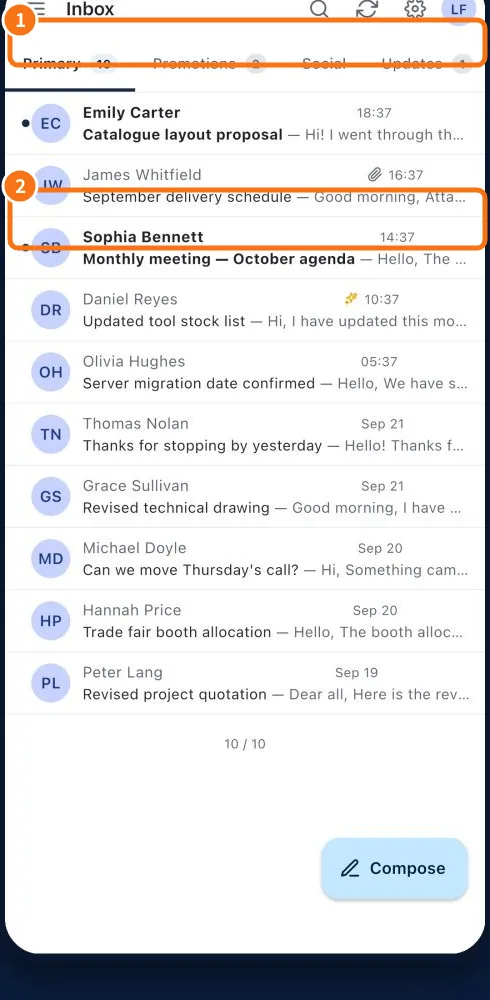
Demo screen. Numbered highlights mark the controls discussed; the image language may differ from yours.
Tip
If something goes wrong
Message disappeared: check the active mailbox, the tab and the Archive folder before searching Trash. Red attachment: do not open it; confirm with the sender through another channel. Scheduled send failed: open the item, read the reason (quota, password or limit) and do not create several copies. Event missing: check the month, the workday filter and the selected calendar.
Related articles
- FAQ: 20 answers