











KoMail · Pantallas y funciones
Open attachments and understand scan badges
Each attachment shows a scan state. Its badge helps choose the next step and may block an unsafe preview.
Este artículo aún no está traducido a su idioma: se muestra la versión en English.
En esta página
What this is for
Each attachment shows a scan state. Its badge helps choose the next step and may block an unsafe preview.
Step by step
- Open the message and locate the attachment.
- Tap the badge to read the result and reason.
- Green means the scan found no issue; yellow means it could not be checked, such as a password-protected archive.
- Red signals possible danger and blocks preview.
- If the sender or file is unexpected, verify through another channel before considering a download.
- Attachments: «Download» now opens «Save as» so you choose the name and folder (on iPhone, the «Save to Files» sheet). Japanese and accented file names are kept.
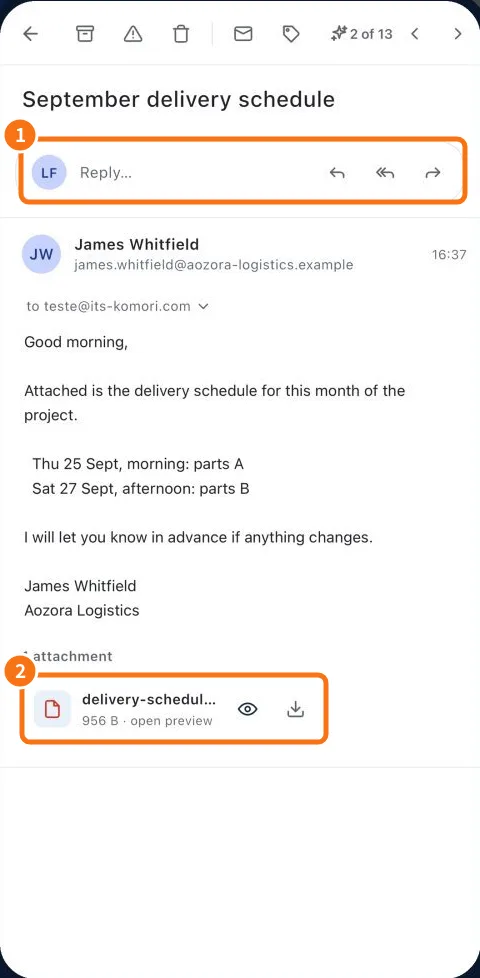
Demo screen. Numbered highlights mark the controls discussed; the image language may differ from yours.
Tip
If something goes wrong
An unavailable preview does not mean the email is lost. Read the reason and request a suitable format if needed.
Related articles
- FAQ: 20 answers