KoMail · Pantallas y funciones
Inbox, search and folders
Organize messages, find old emails and create your own folders.
Este artículo aún no está traducido a su idioma: se muestra la versión en English.
En esta página
Inbox
This is the first screen. Messages are split into tabs (Primary, Promotions, Social, Updates) and unread ones are shown in bold. The paperclip means there is an attachment.
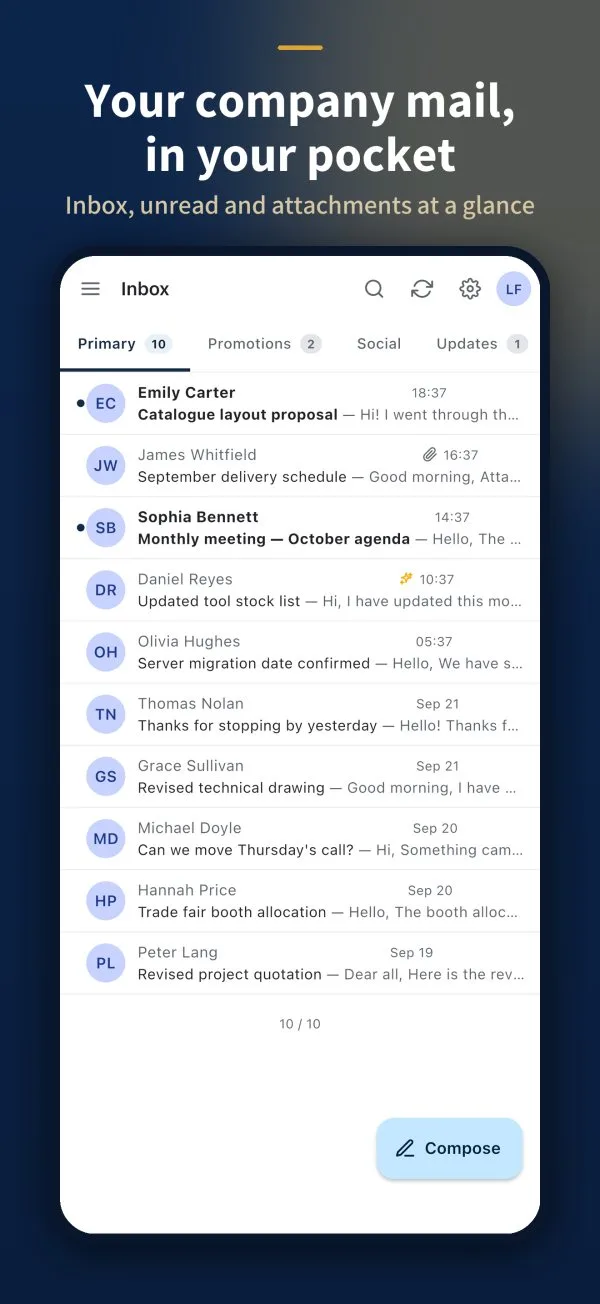
- Compose: the button at the bottom starts a new message.
- Refresh: the arrows icon at the top.
- Settings: the gear icon.
- Many at once: use Select, then archive, delete, mark as read or move the chosen messages.
Search for an email
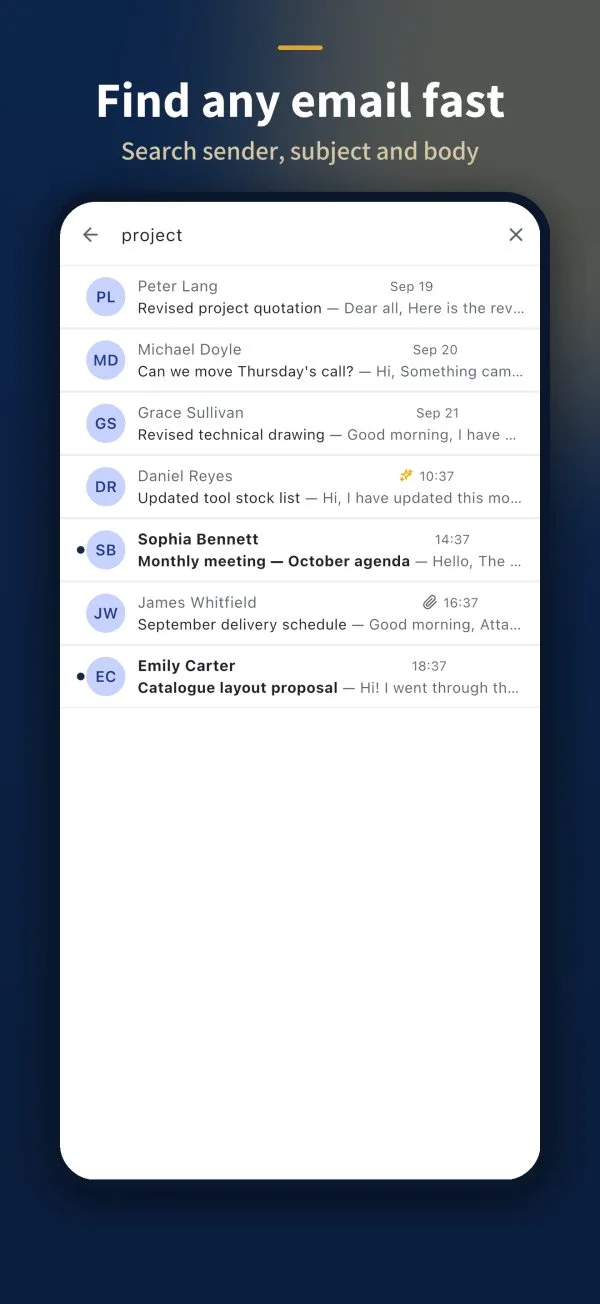
- Tap the magnifier at the top.
- Type a name, a subject or a word from the text.
- Search runs on the server, across the whole mailbox — not only what is on the device.
Folders
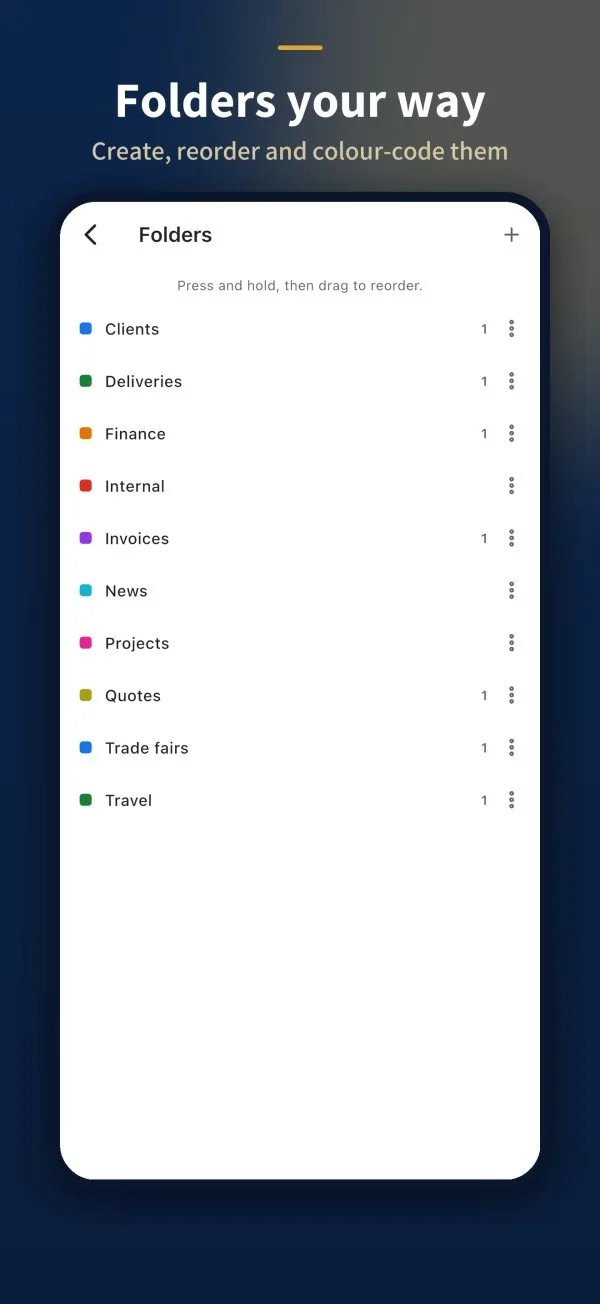
Besides Inbox, Sent, Drafts, Scheduled, Spam and Trash, you can create your own folders.
- Open the menu (☰) and go to Folders.
- Tap + to create a New folder.
- In each folder’s ⋮ menu: Rename folder, pick a Colour or delete it.
- Press and drag a folder to change the order.