KOCHAT · Primeros pasos
Path — Business: teams, groups and multiple devices
The articles for people who use KOCHAT at work, with a company account, in the right order.
Este artículo aún no está traducido a su idioma: se muestra la versión en English.
Follow in order. Each step names the manual article that explains it in detail — search the title in the Wiki.
- Account types and roles in KOCHAT — Free personal account, company member, external guest, administrator and owner: what each one sees and can do.
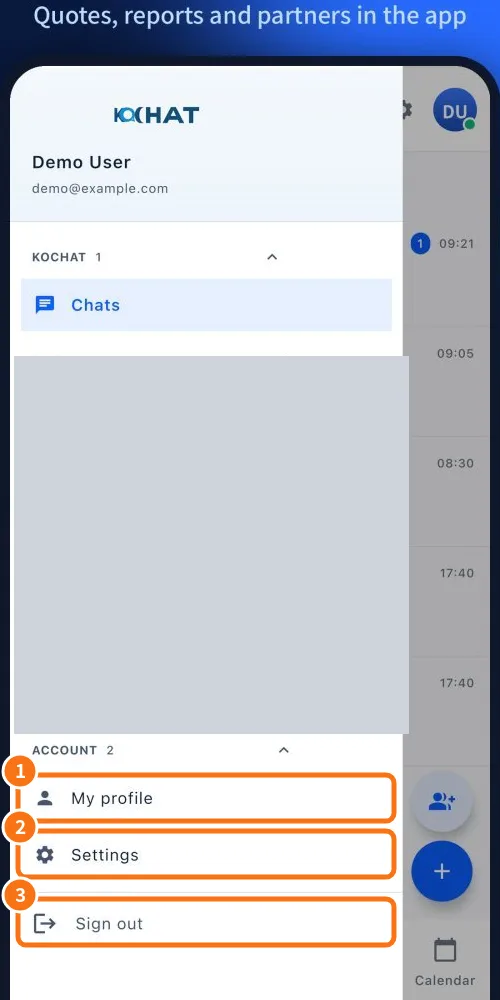
- Sign in, sign out and reset your password — How to sign in with email and password or the quick sign-in buttons, what to do when the session expires, how to sign out of a device and reset your password.
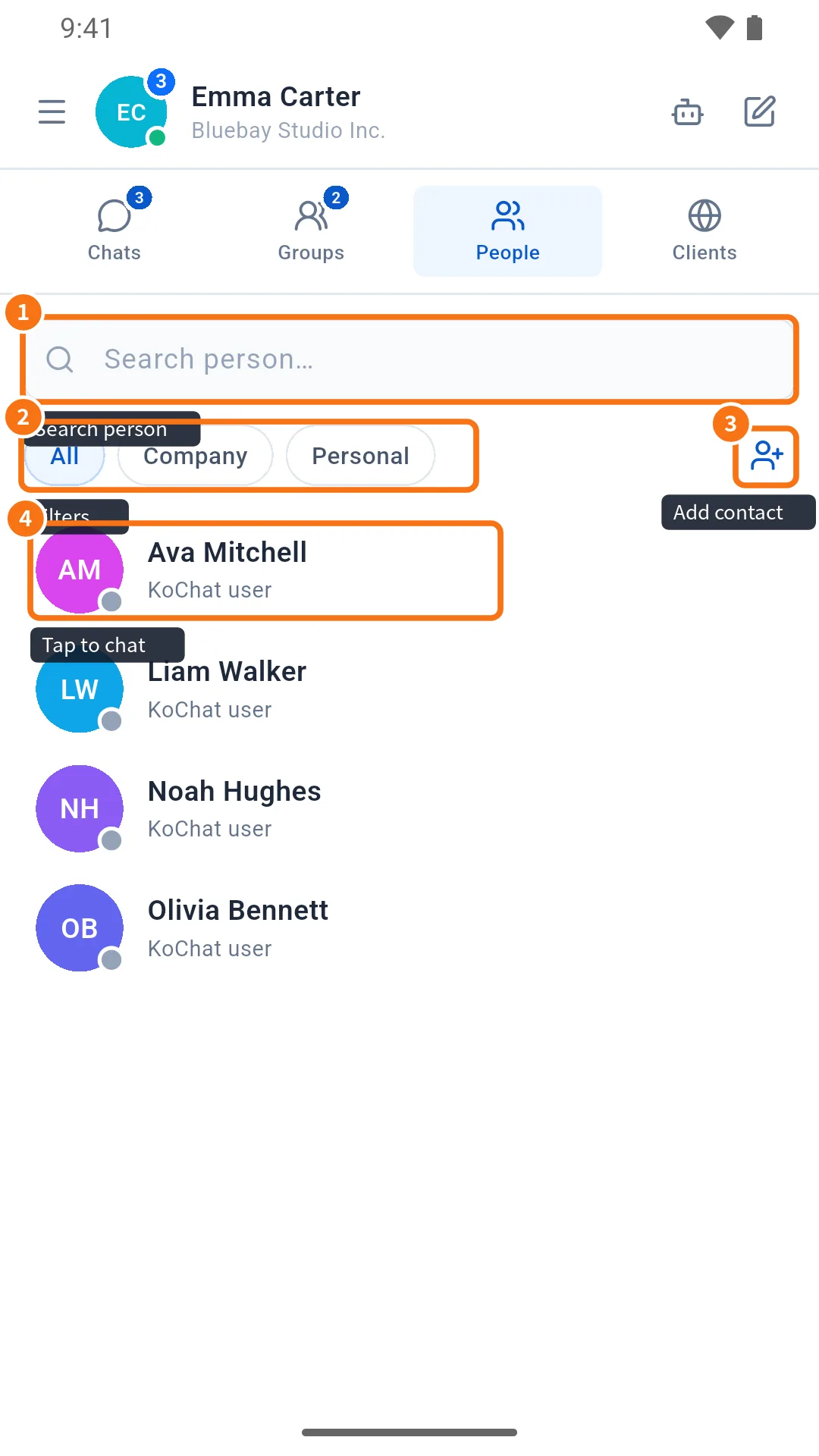
- People tab: find colleagues and view profiles — The People tab gathers company colleagues and your personal contacts, with search, All/Company/Personal filters, profiles and the add-contact button.
- Groups tab and group chats — The Groups tab lists only group chats; how a group chat works: names on bubbles, @ mentions, who has read, settings and company groups.

- Manage a group: members, photo, invite link and leaving — From the group gear: change name and photo, add or remove members, create the guest invite link, leave or delete the group. Who can do what.
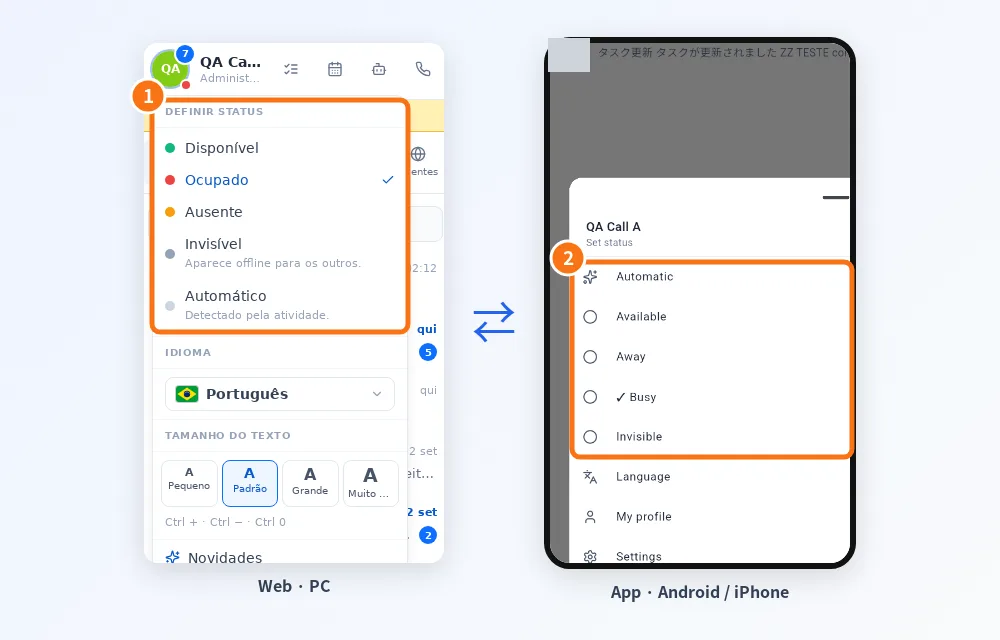
- Use on several devices at once — Phone, computer and browser together: what syncs, how calls ring, what is saved per device and how to sign out of just one.
- KOCHAT on the computer (Windows, Mac and Linux) — The desktop app: window and tray, start with the system, voice calls, paste and drag files, shortcuts and updates.
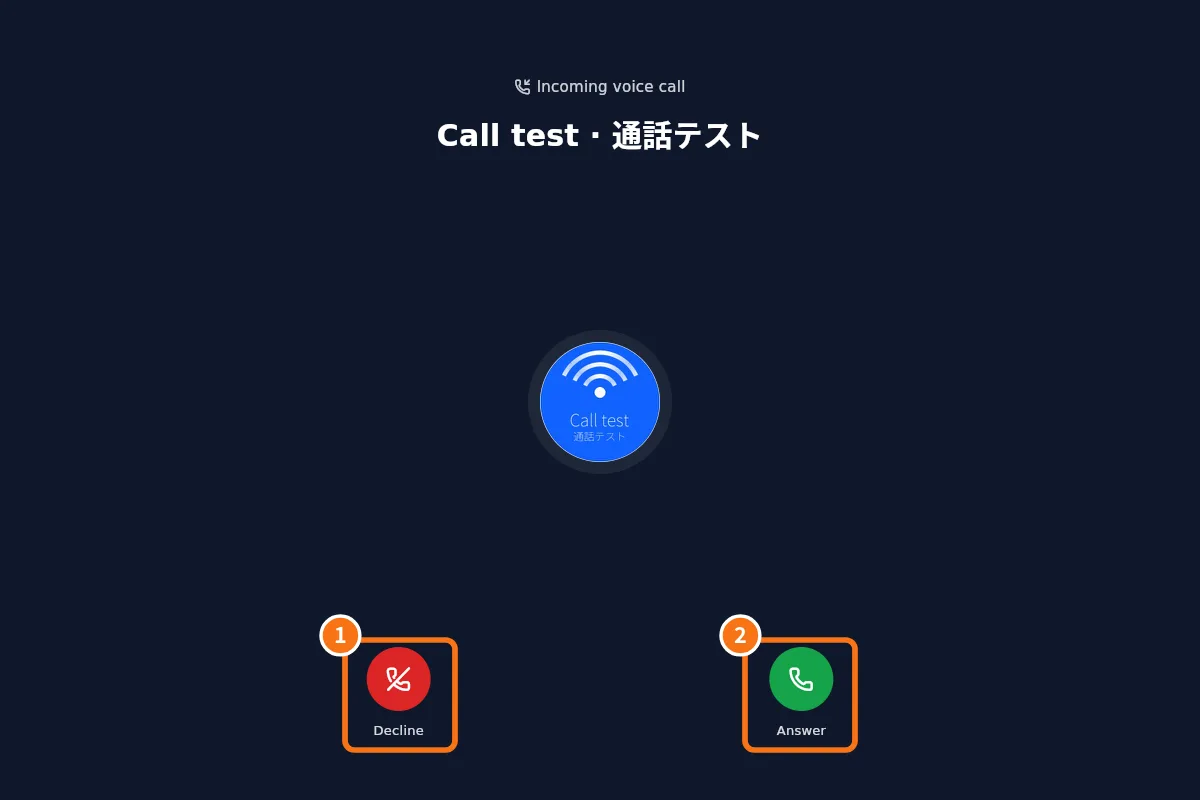
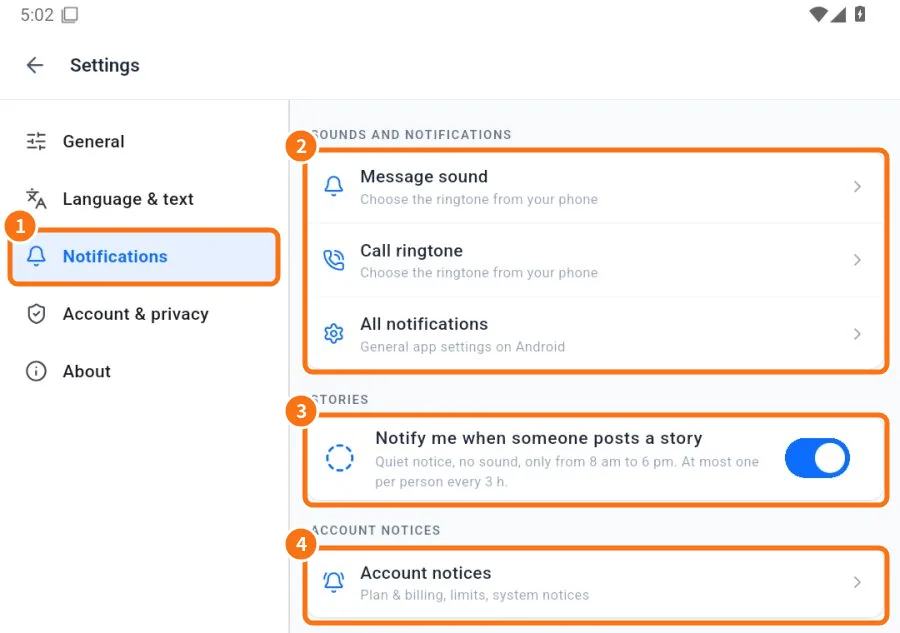
- Notifications: what to notify and how it sounds — Choose notification types (messages, mentions, calls…), message and call sounds, story alerts and account notices.