











KoCAD · Màn hình & chức năng
Workflow: import STEP, SolidWorks or GLB and separate the parts
Open a STEP assembly, select and check each part, split a welded single solid into parts, and what changes with GLB/OBJ/STL.
Bài viết này chưa được dịch sang ngôn ngữ của bạn: đang hiển thị bản English.
Trong trang này
Step by step
- File → Open… the STEP (or drag the file into the window). Large files show progress (stages, predicted time).
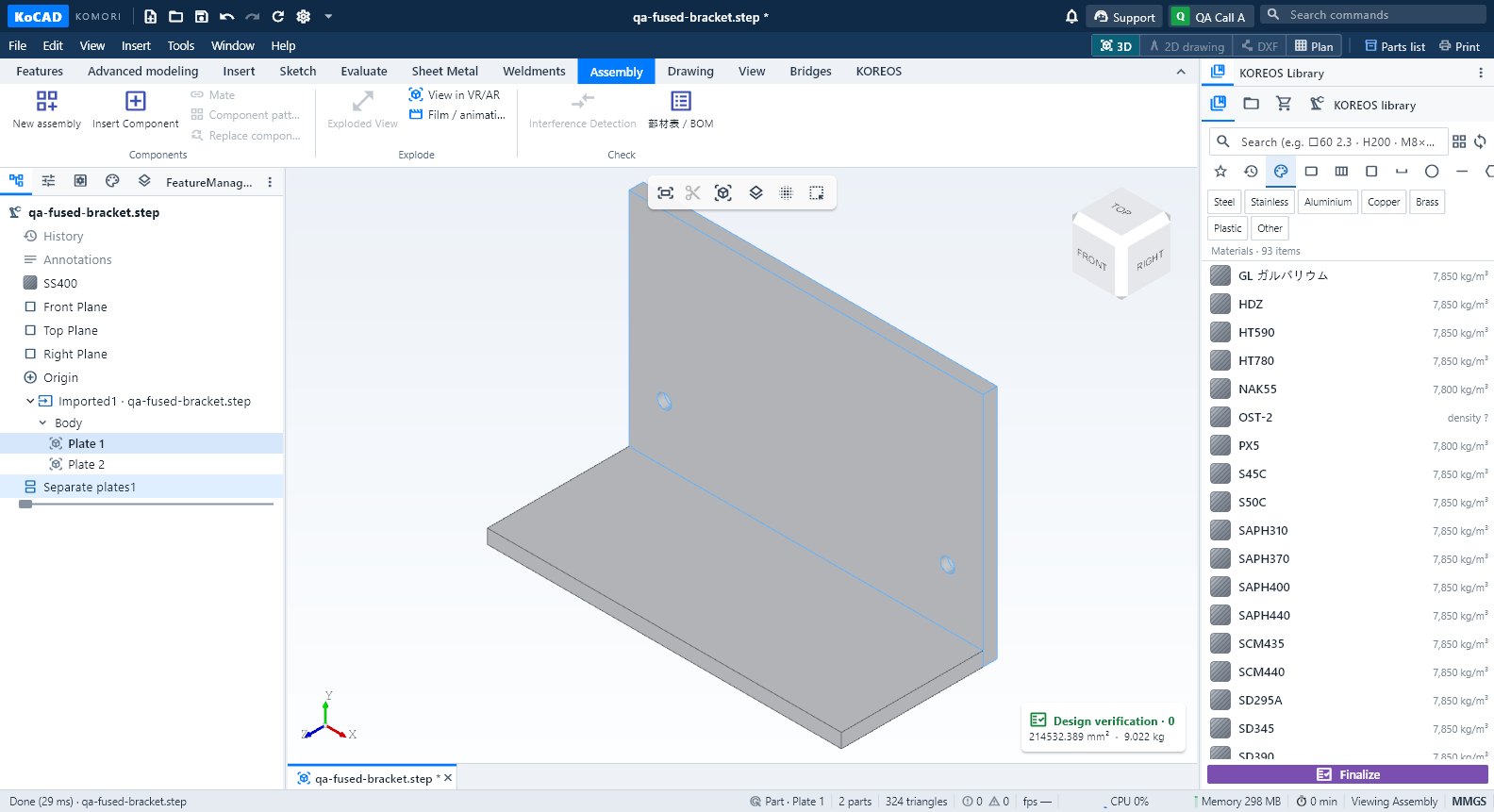
- The tree follows the file structure. Click a part in 3D: it is highlighted and the properties panel shows its data.
- A welded bracket that came as one solid: select it and use Separate into parts (panel or right-click). Confirm the rebuild of the sheet regions. The original STEP is kept; Ctrl+Z undoes.
- Check name, material and thickness of each part. The geometry gives net mass, area, oriented blank, outline length and holes by diameter.
- Continue with Materials & purchasing and Processes (see the 部材表 workflow).
SolidWorks and meshes
- .sldprt/.sldasm/.slddrw: preview and properties at once; the 3D comes from the STEP with the same name or from SolidWorks installed on the PC (Bridges tab).
- GLB/OBJ/STL: display mesh — rotate, measure and use it in films, but no editable features and no interference check. To verify, open the STEP.
Tips
- Very large assembly: View → Large assembly mode.
- Purchase weight (raw stock) can be higher than net mass after cut-outs and holes.
Common mistakes
- Separate into parts does not split: regions without constant thickness or very complex solids stay whole. Fix them in the source CAD or with the sheet tools.
- A shell without volume gets no invented weight: it shows as pending.