











KoCAD · Màn hình & chức năng
Bob and the Support chat
Bob answers questions with this Wiki, reads the open model, builds a reviewable plan and executes it in the CAD; the KOMORI team joins when needed.
Bài viết này chưa được dịch sang ngôn ngữ của bạn: đang hiển thị bản English.
Trong trang này
What it is
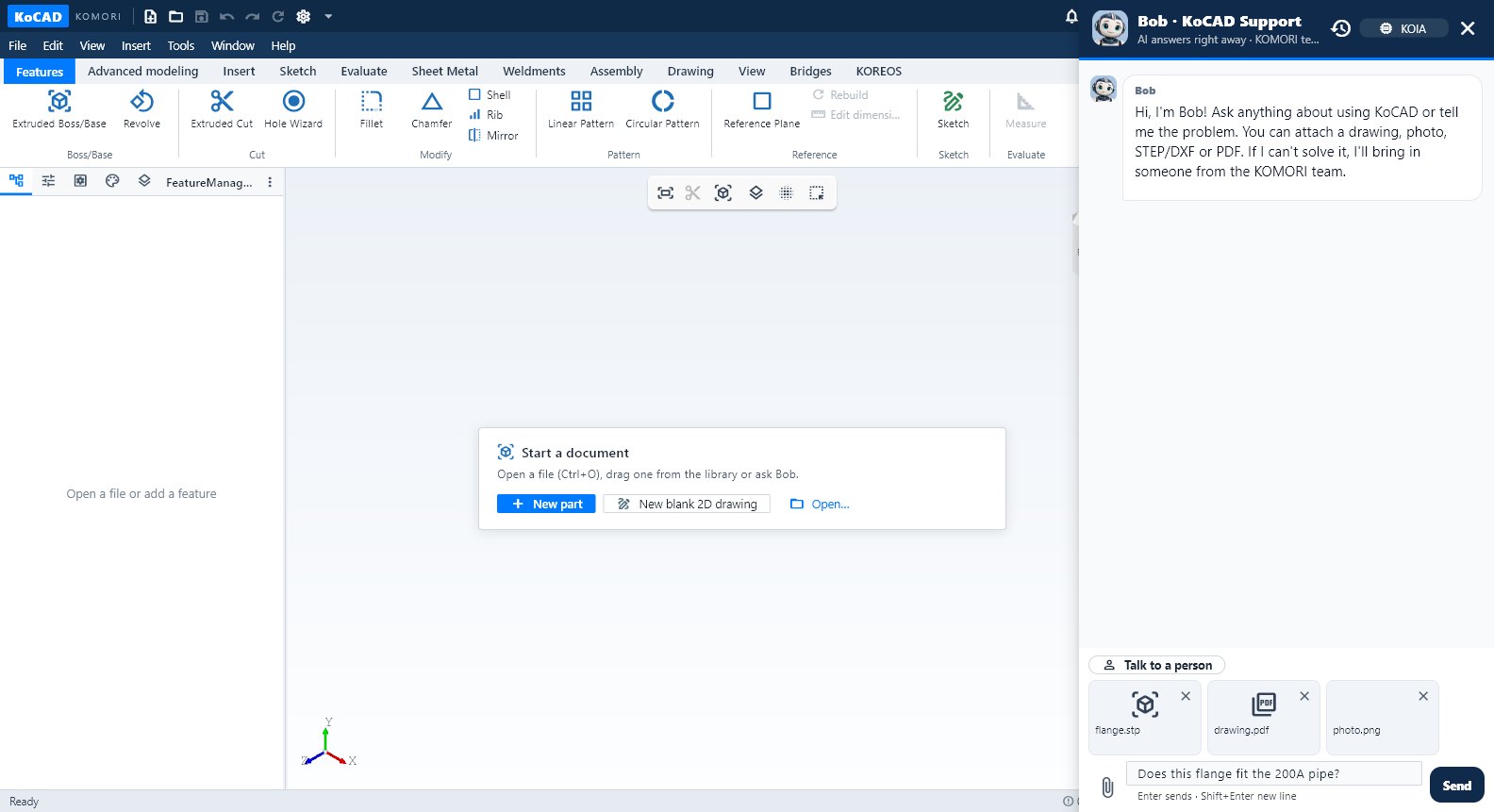
The Support button (title bar) — or Help → Support chat (AI + team)… — opens Bob's chat. He answers right away about functions, usage and materials, reads the tree, selection and view of the open document and can propose and execute operations on the model.
Step by step
- Open Support. Choose the engine at the top: KOREOS core accounts use KOIA or the KOMORI Cascade; other accounts connect their own key in Options → Connect AI.
- Write the request with sizes in mm. You can attach a photo, PNG or drawing (drag, paste or the clip). Enter sends.
- To change the model Bob shows the steps. Check sizes and operation type and click Execute plan. The 3D is built step by step: Pause, Resume, speed and Stop.
- Ctrl+Z undoes Bob's whole batch; Redo restores it.
Tips
- With a drawing attached and a request like "make it like the drawing, in 3D", Bob opens the project generator by himself and repairs his own plan up to 4 rounds.
- What the drawing does not say becomes an editable assumption (house/JIS default: SS400, t3.2 plate, □40×40×2.3 tube, Ø9 hole for M8…).
- The history icon shows Project conversations; deleting a conversation also deletes its memory.
- Save, export and send to a case ask for a separate confirmation.
- Need a person? Ask in the chat: the KOMORI team is called.
Common mistakes
- "Waiting for the GPU": the reader is busy; the request waits in the queue and retries by itself (up to ~6 min). Cancel is safe.
- Bob asks a question ("M8 tapped or clearance?"): answer it; he does not guess sizes.