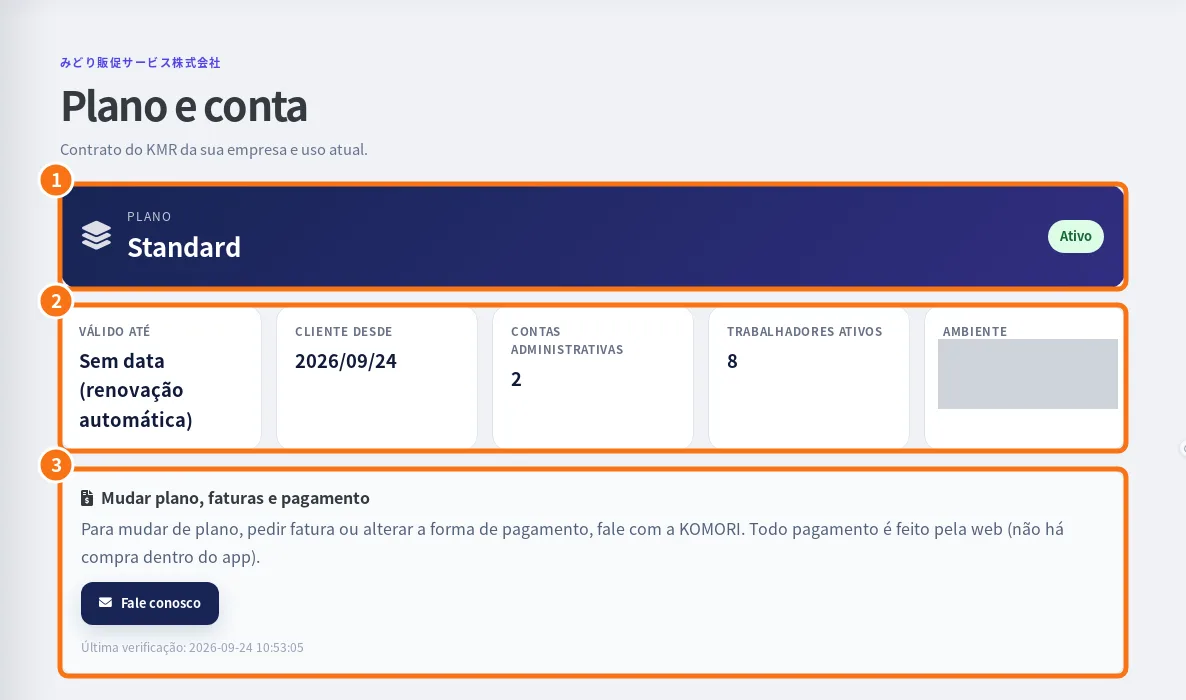
团队与运营
KMR
组织团队并跟踪推广活动运营。
界面与功能
全部Home 1Work (clock-in) 3Shifts 2Messages 1My page 3Payment statements 1Settings and support 2Free account 2Manager — Home and Today 2Manager — Dashboard 1Manager — Shifts 2Manager — Messages 1Manager — Team and accounts 2Manager — Records and setup 3Manager — Payment statements 1On the web (browser) 2How to — staff 5How to — manager 5Plans and limits 1
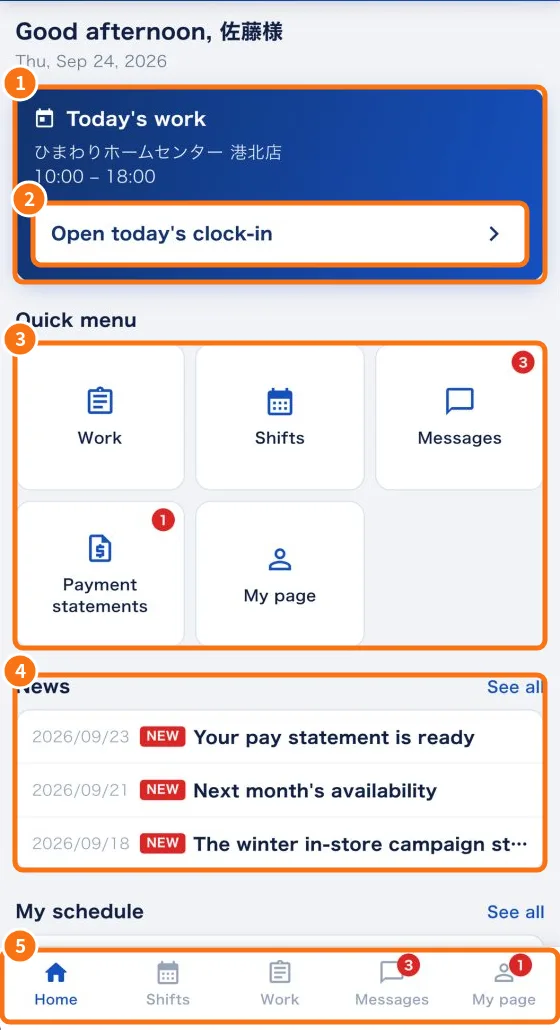
Home
Work (clock-in)
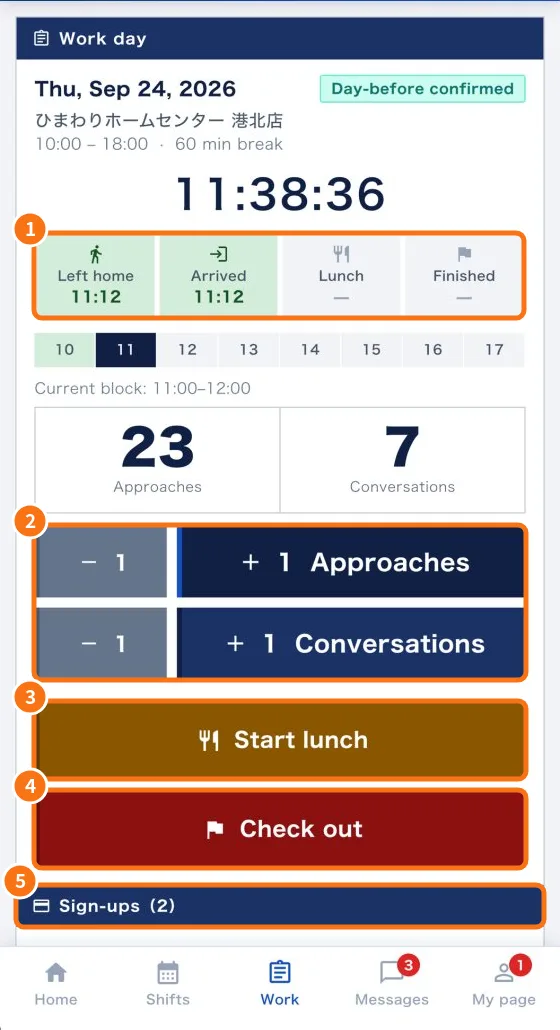 Work tab: confirm the shift and record the dayAnswer shift confirmations, record leaving home, arrival, lunch and check-out, count approaches and conversations, and add sign-ups.English
- Daily report (日報): questions, photos and required fieldsWhat the app asks at check-in, lunch and check-out, how to attach photos and how to fix “required items missing”.English
- No signal and location: how the app saves and sends recordsWhat happens when the internet drops at the store, and when the app uses your location.English
Shifts
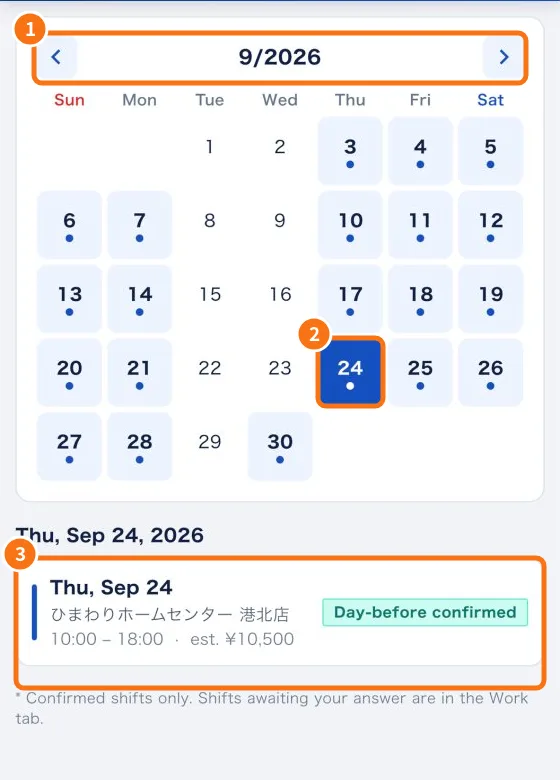 Shifts tab: your shift calendarSee the days you work on a calendar, with store, hours and estimated pay.English
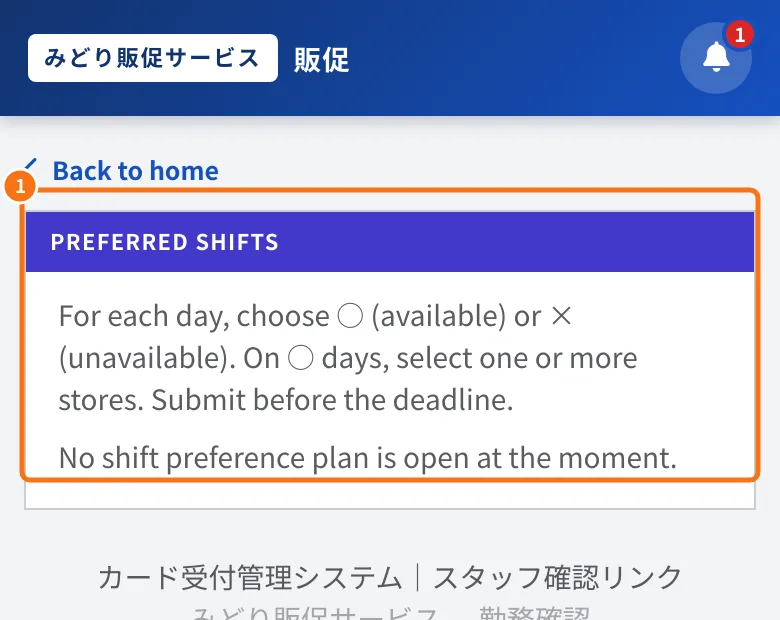 Submit availability (shift preferences)How to mark the days you can work and the stores you prefer, before the deadline set by your company.English
Messages
My page
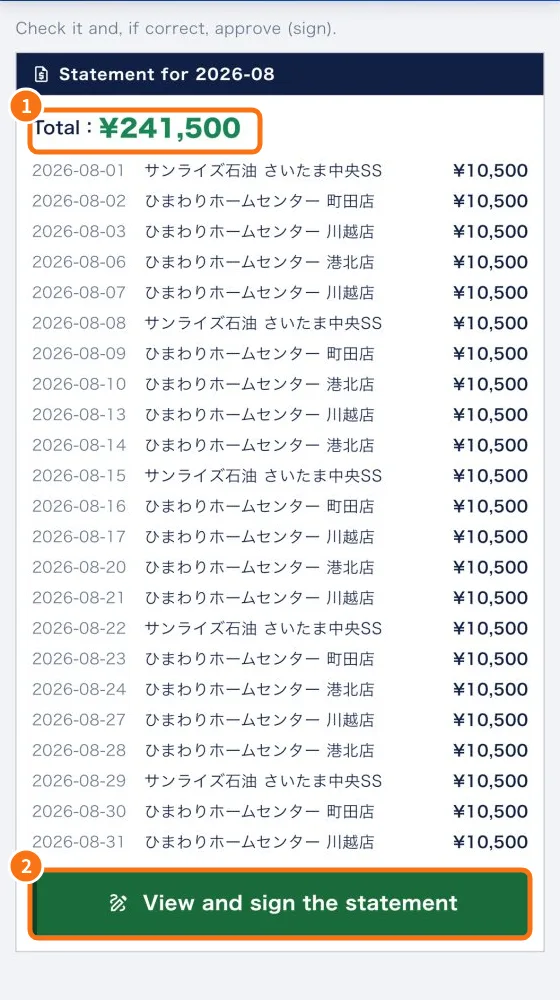 My page: your details, payments, training and settingsWhat is on the My page tab and how to reach payment statements, training and settings.English
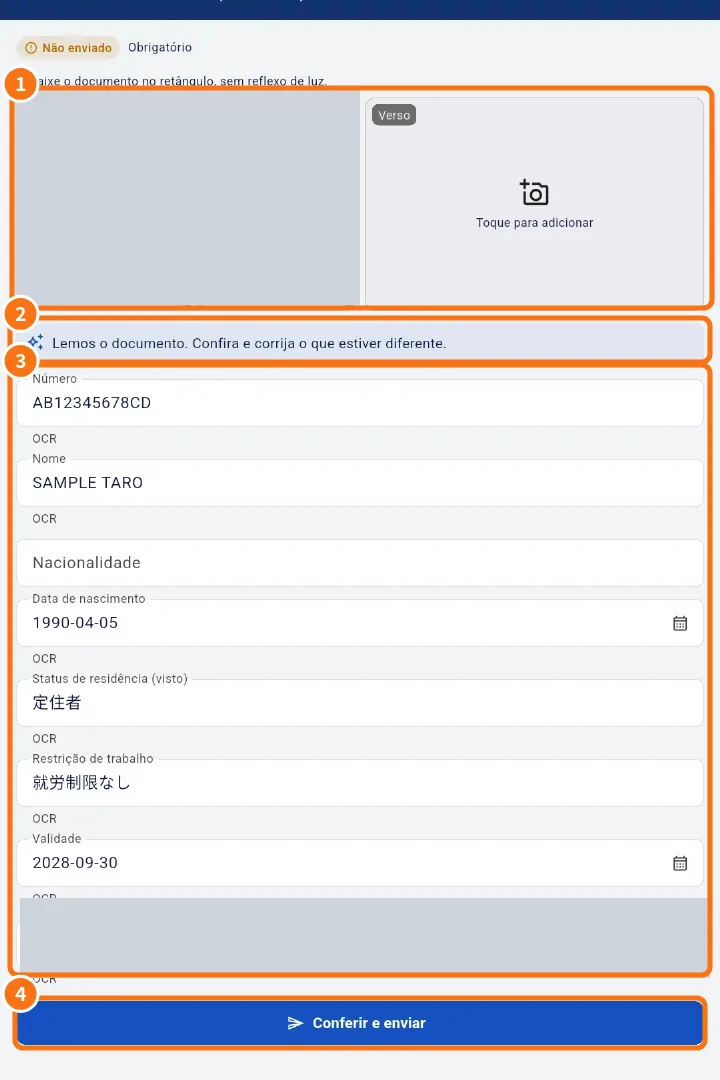 Profile & documents: personal details, photos and automatic document readingHow to fill in your details, send photos and documents with automatic reading, and what happens when a document expires.English
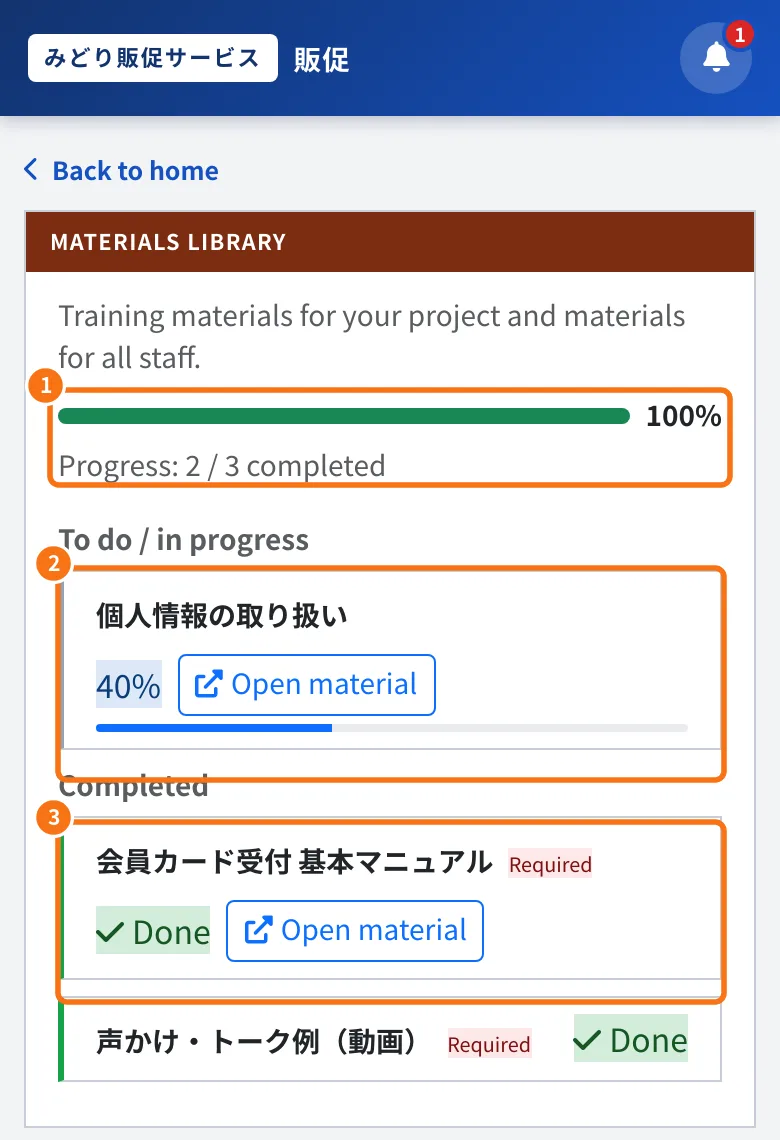 Manual & training: mandatory materials and progressHow to open manuals, videos and tests, see what is mandatory and what counts as completed.English
Payment statements
Settings and support
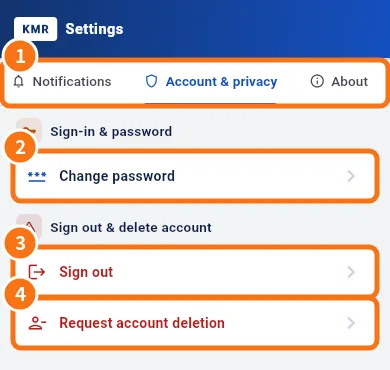 Settings: general, language, notifications, account and aboutThe five tabs of KMR Settings and what each one does, for staff and for managers.English
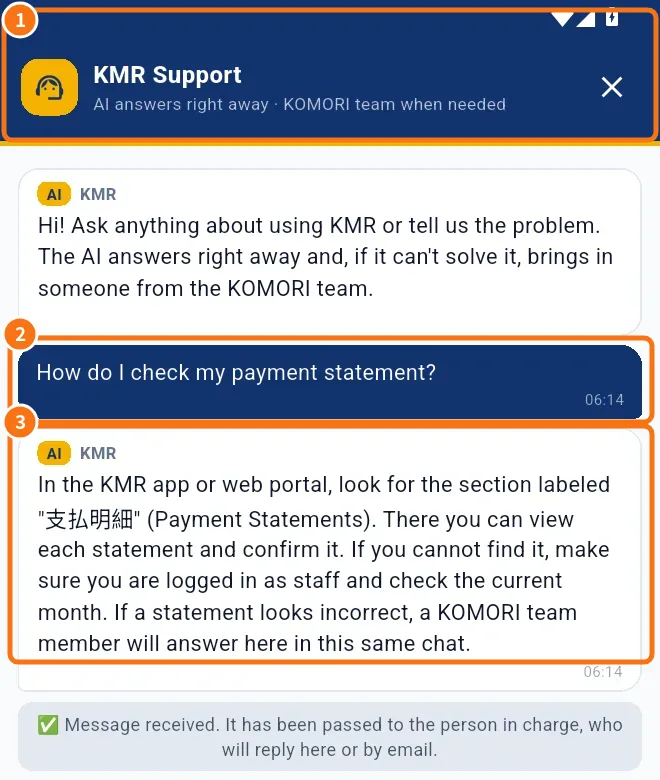 In-app support, Report a problem, Wiki and What's newWhere to ask questions inside the app, how to report a problem with a screenshot, where to read this guide and see what changed in each version.English
Free account
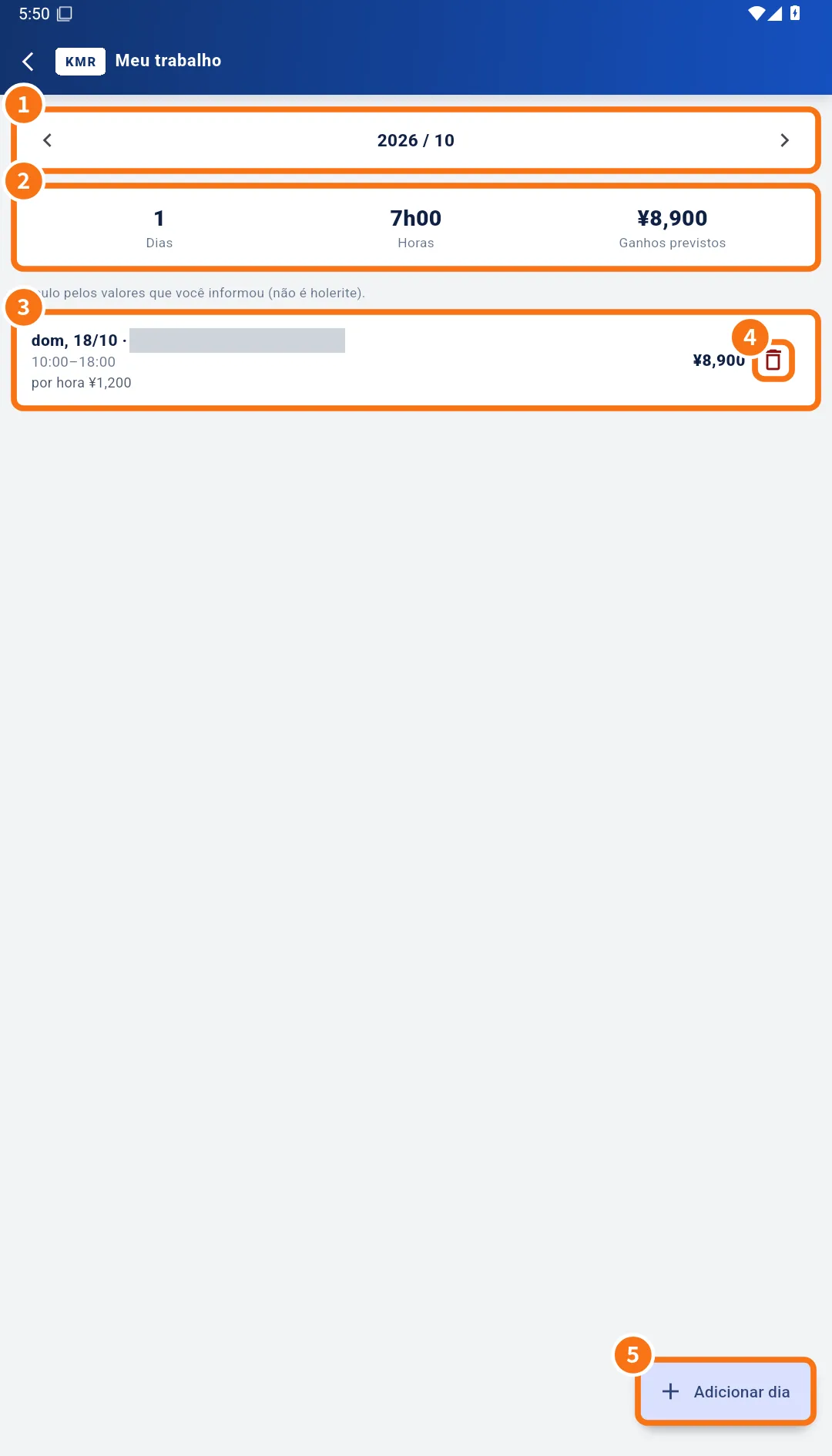 My work (free account): register days and see expected earningsHow a free-account user registers work days, clocks in and follows hours and expected earnings.English
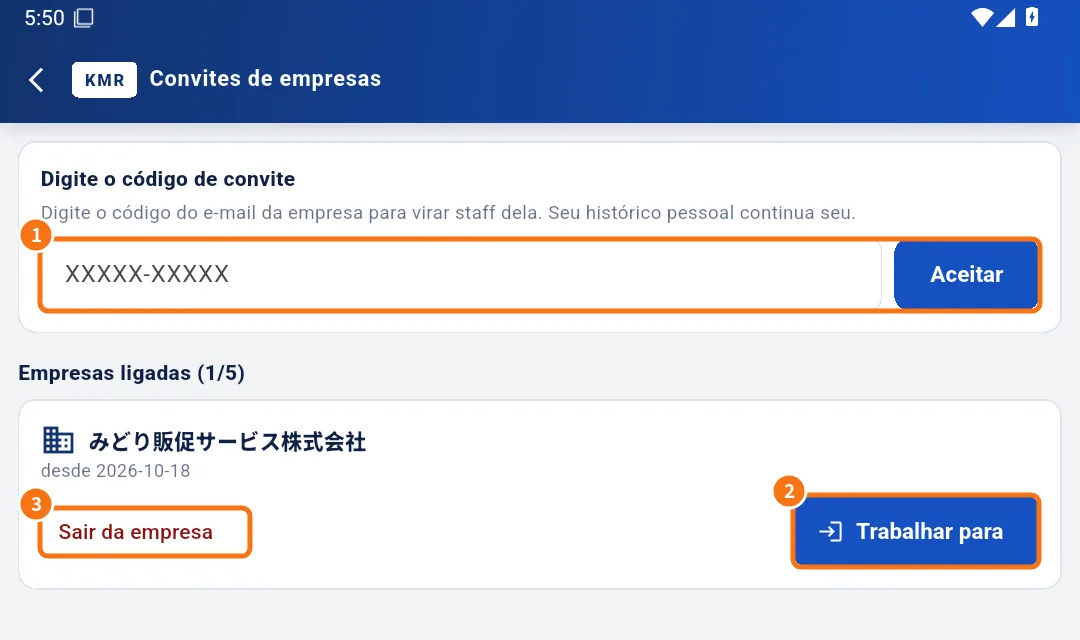 Company invitations: link your free account to a companyHow to accept a company invitation code, work for it in the app, return to your personal account and leave the company.English
Manager — Home and Today
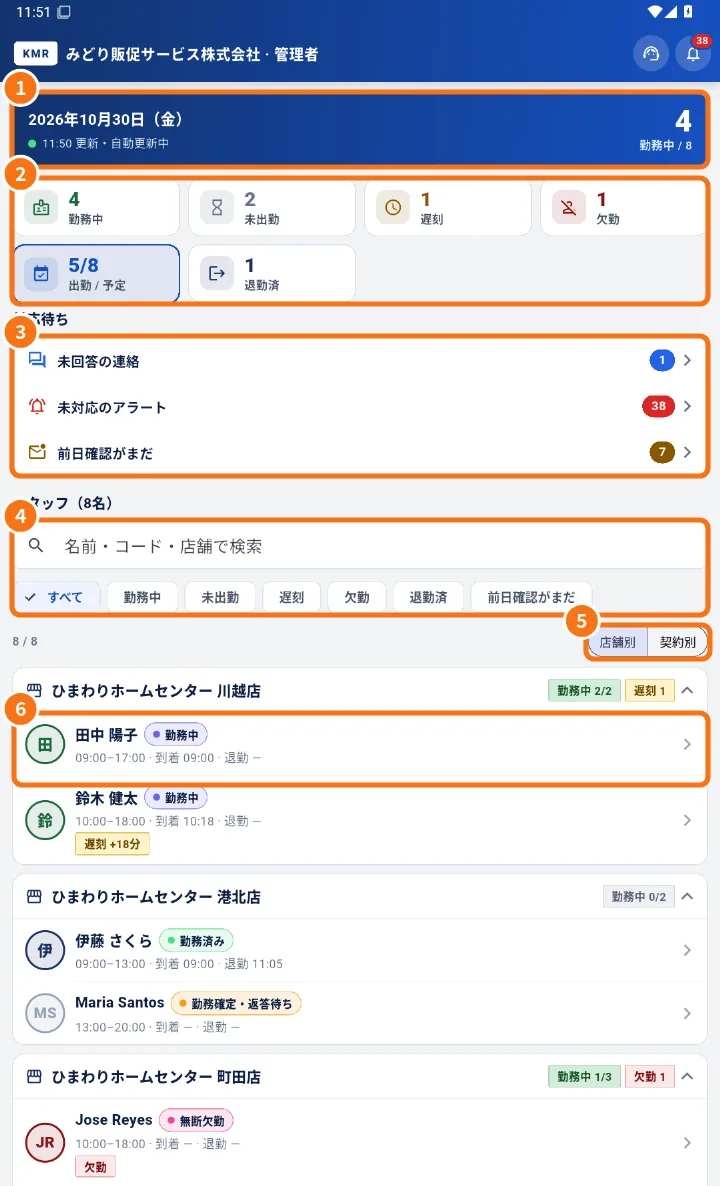 Managers on the phone: tabs, Home and MenuHow managers use the app: the five tabs, the Home screen with the whole day, the person card and the full Menu.English
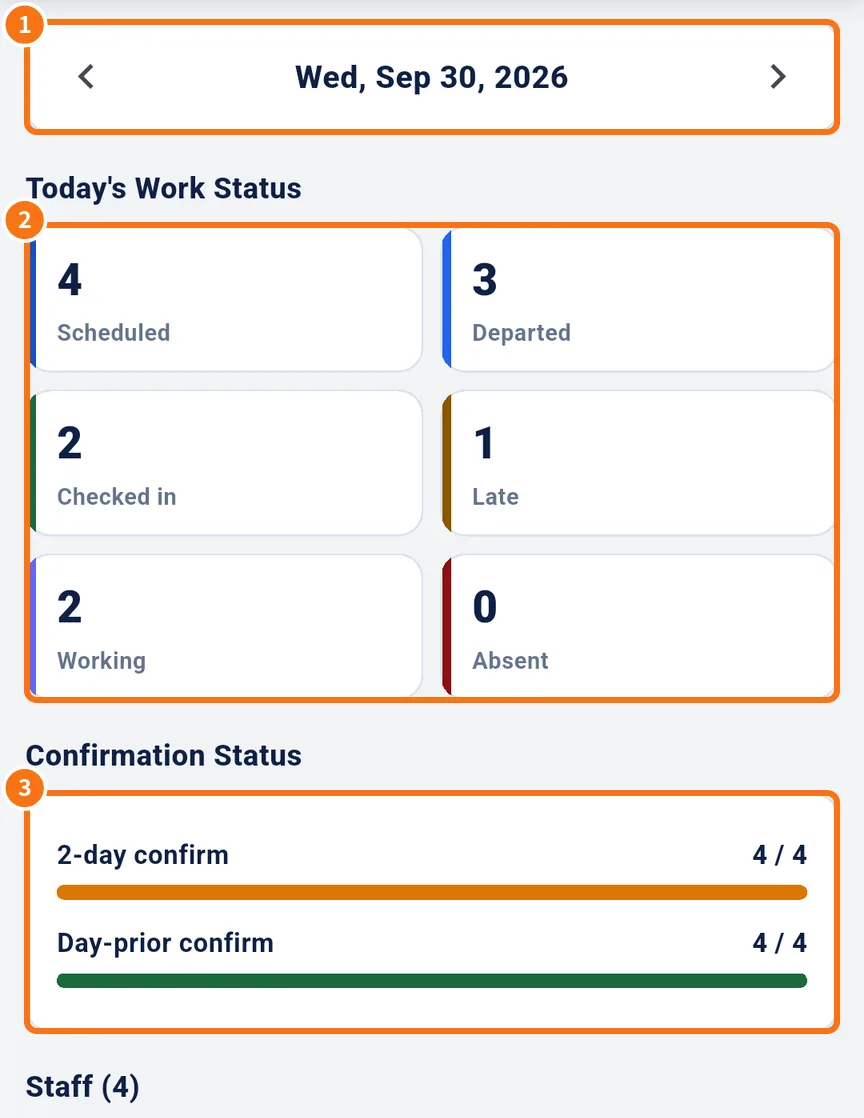 Today in detail and Live mapToday's attendance by hour and confirmation, and the map showing where the team is and how each shift is going.English
Manager — Dashboard
Manager — Shifts
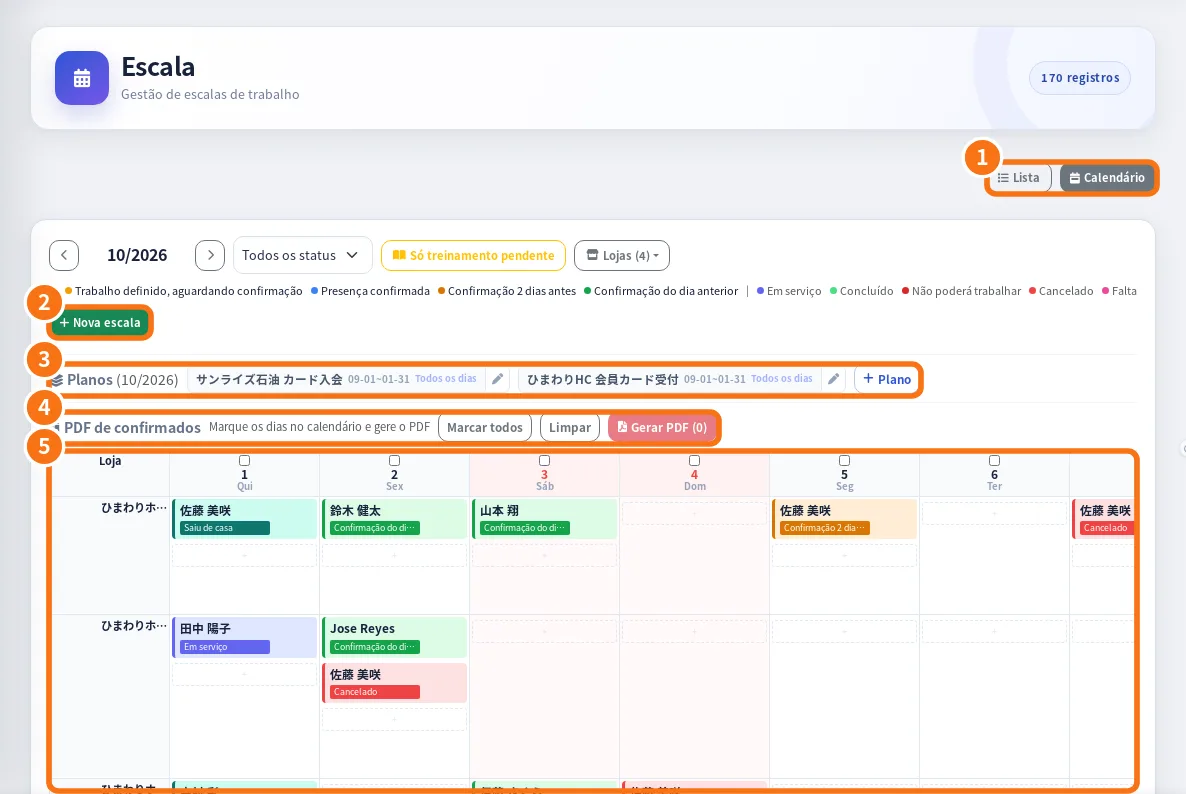 Manager shifts: create, change, confirm and cancelHow managers create shifts, change date or store, resend reminders, mark as confirmed, cancel and make the confirmed-shifts PDF.English
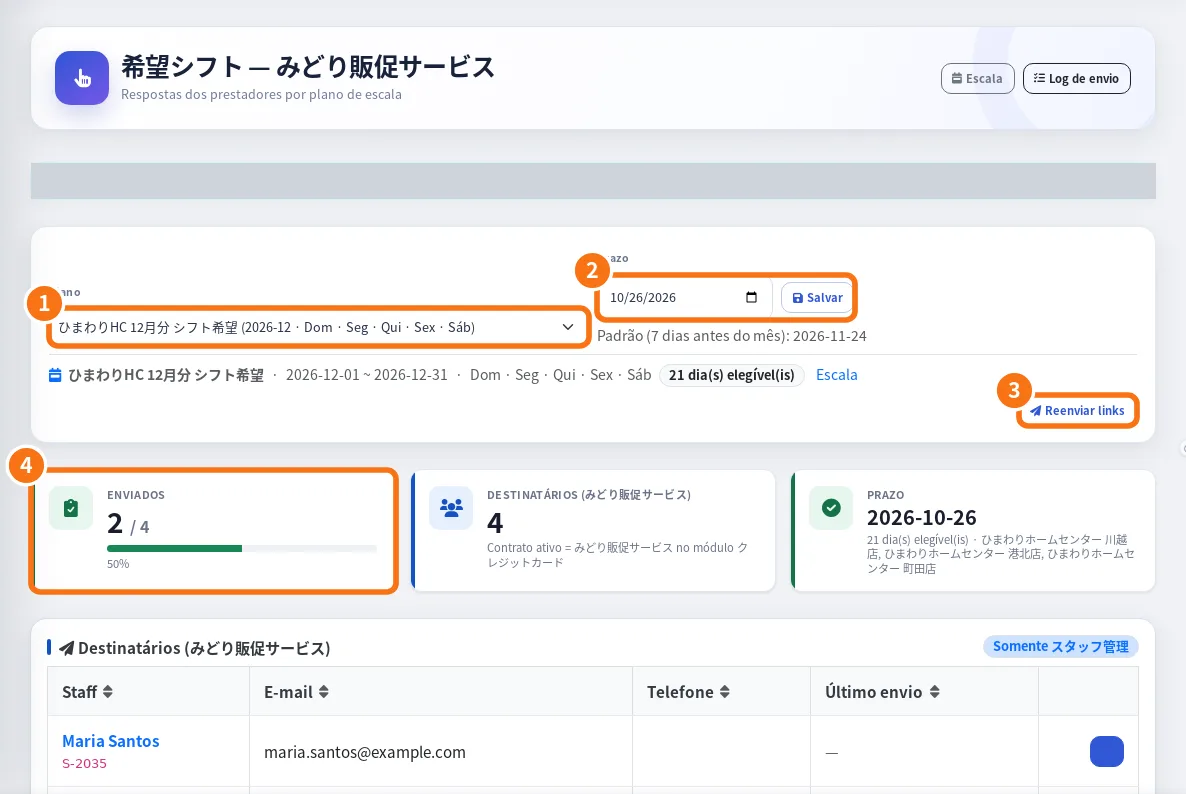 Shift preferences (希望シフト): request, follow and applyHow managers follow the team's answers, generate a schedule draft and apply it to the schedule, notifying each person.English
Manager — Messages
Manager — Team and accounts
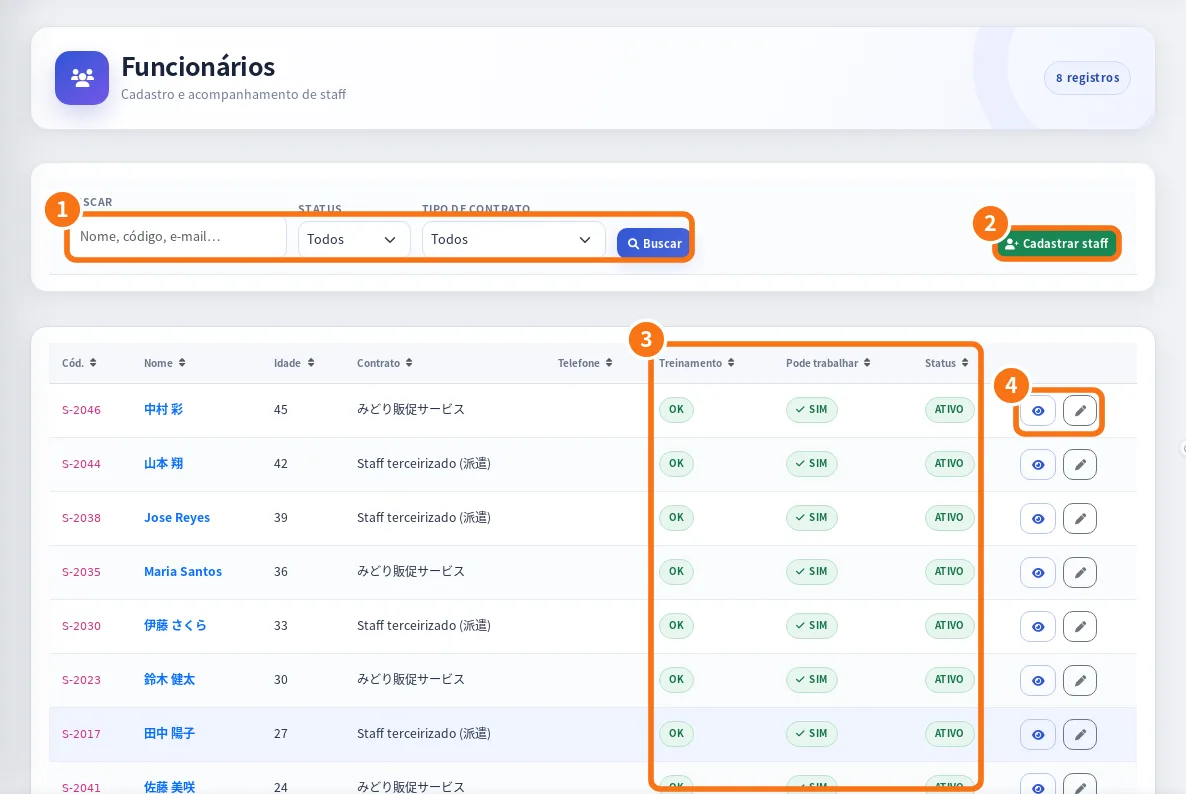 Staff and staff documents: records, profile and reviewHow to register and edit staff, see the profile with performance and training, give portal access and review documents.English
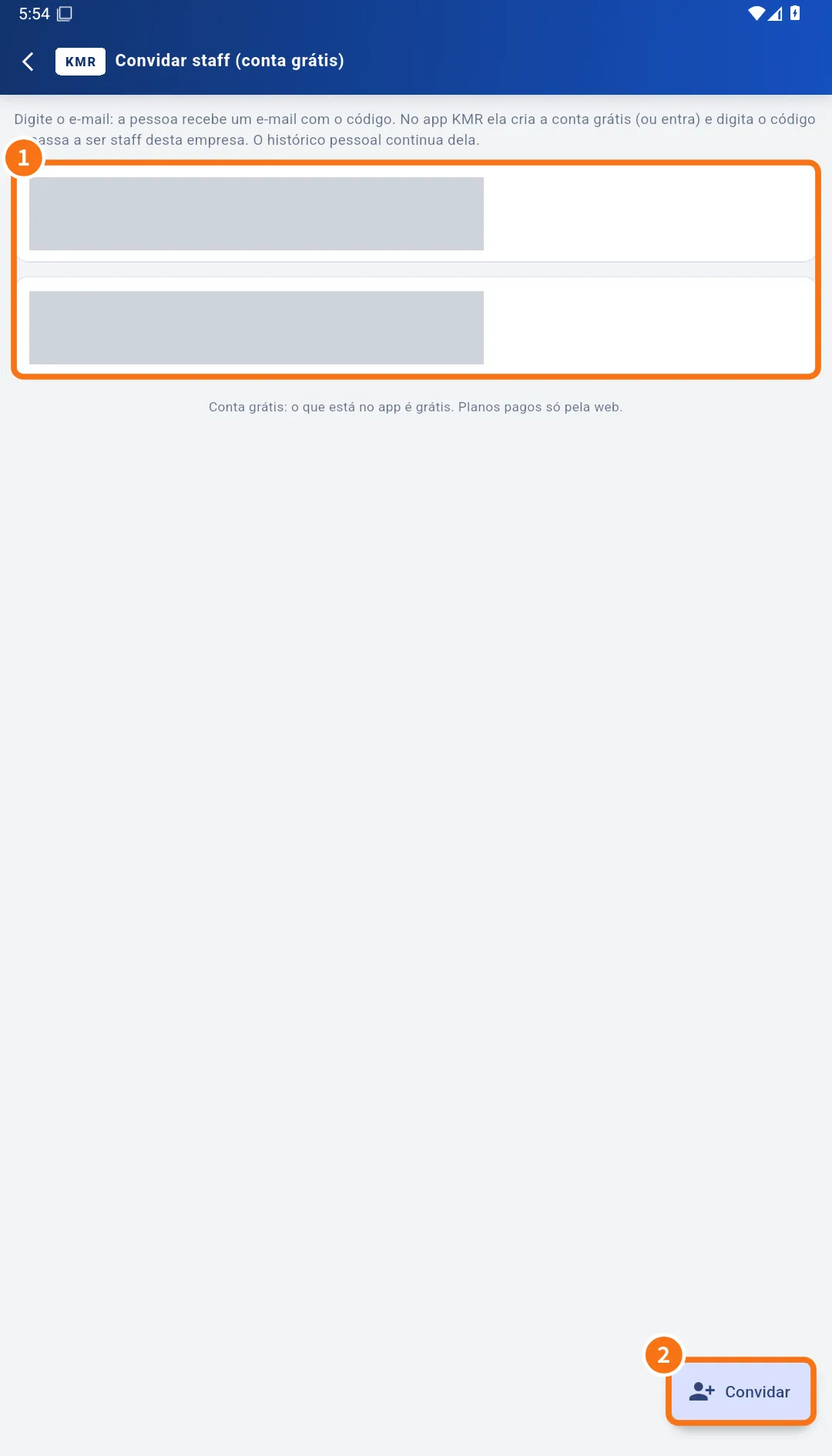 Accounts, free-account invitations and worker modeHow the administrator manages manager and worker accounts, how to invite staff by e-mail and how managers use worker mode.English
Manager — Records and setup
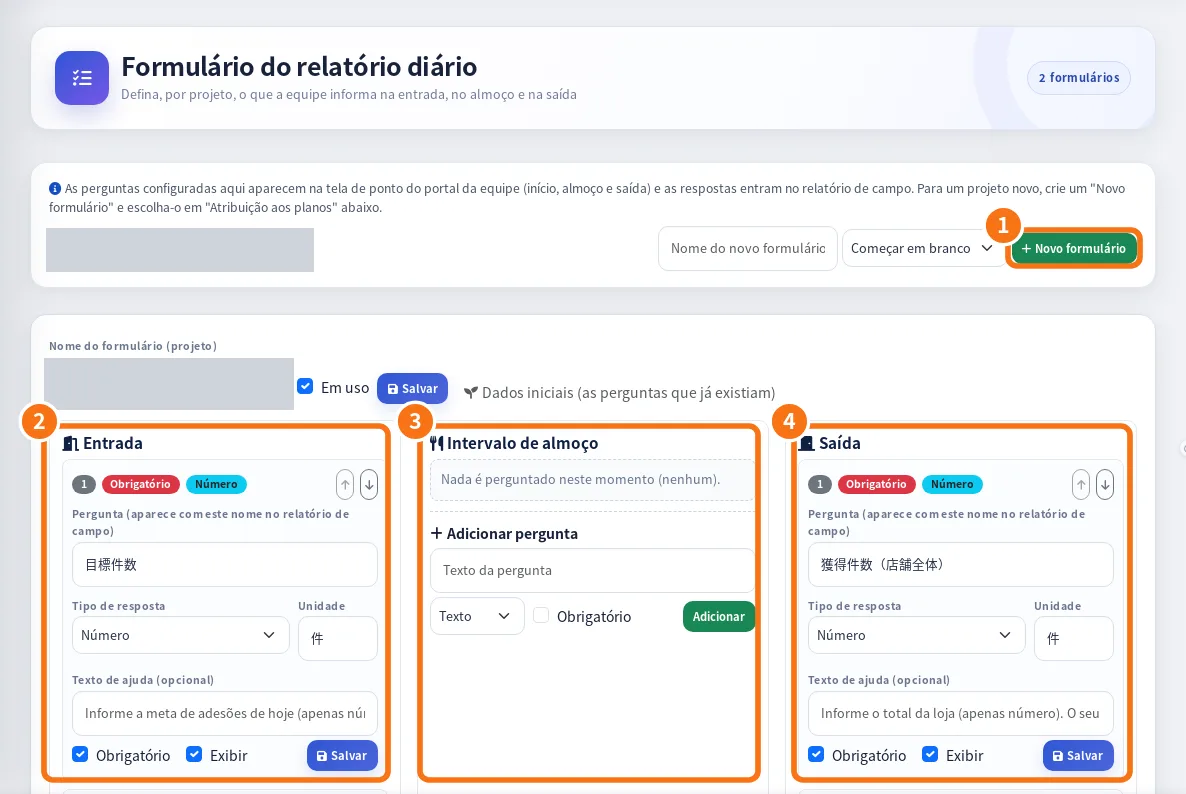 Daily reports, report forms, field reports and report managementHow managers generate and check daily reports, set each project's questions, view field reports and publish reports for the client.English
- Attendance (勤怠), applications (入会受付) and rankingHow managers check and fix attendance, add or fix sign-ups and follow the team ranking with history.English
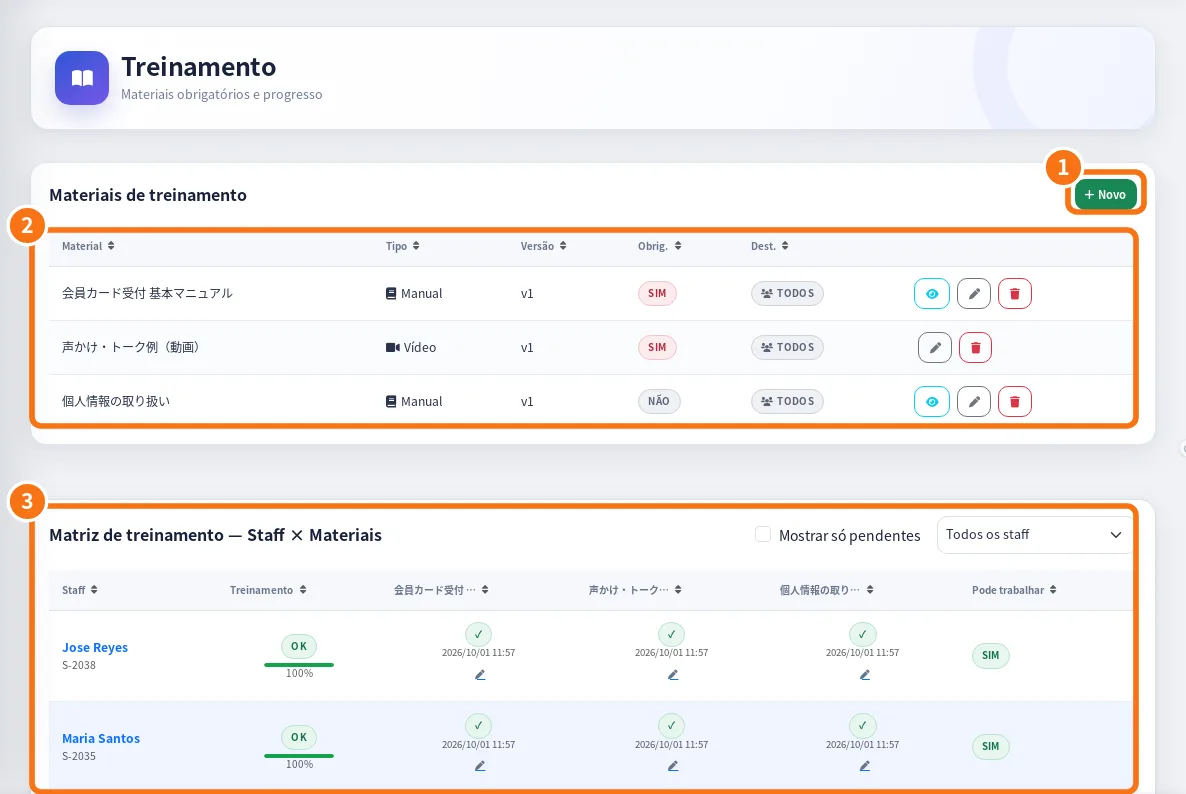 Alerts, stores, projects and trainingHow managers resolve alerts, register stores and projects, and handle training materials and progress.English
Manager — Payment statements
On the web (browser)
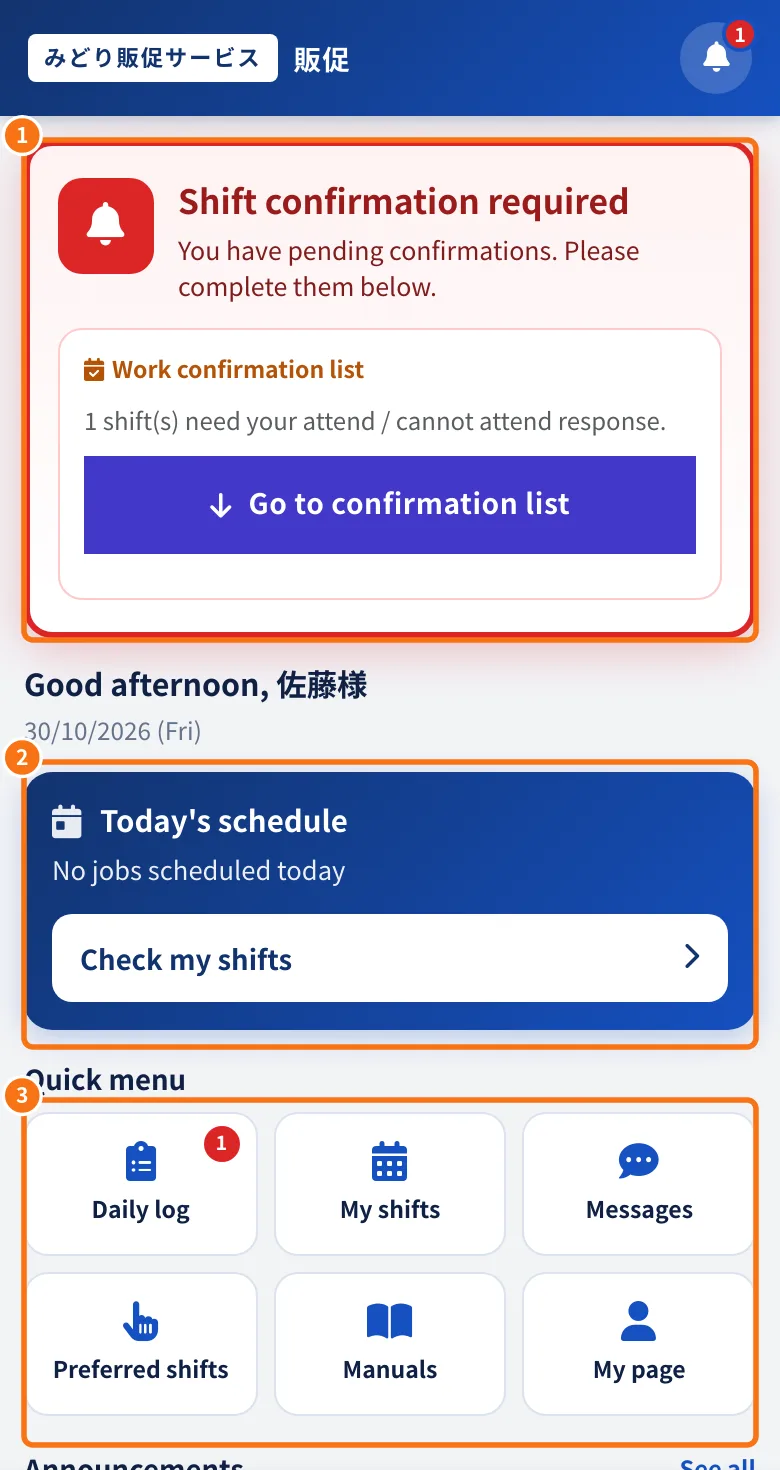 Staff portal in the browserHow staff use KMR in a phone or computer browser: sign in, confirm shifts, record the day and see news and payments.English
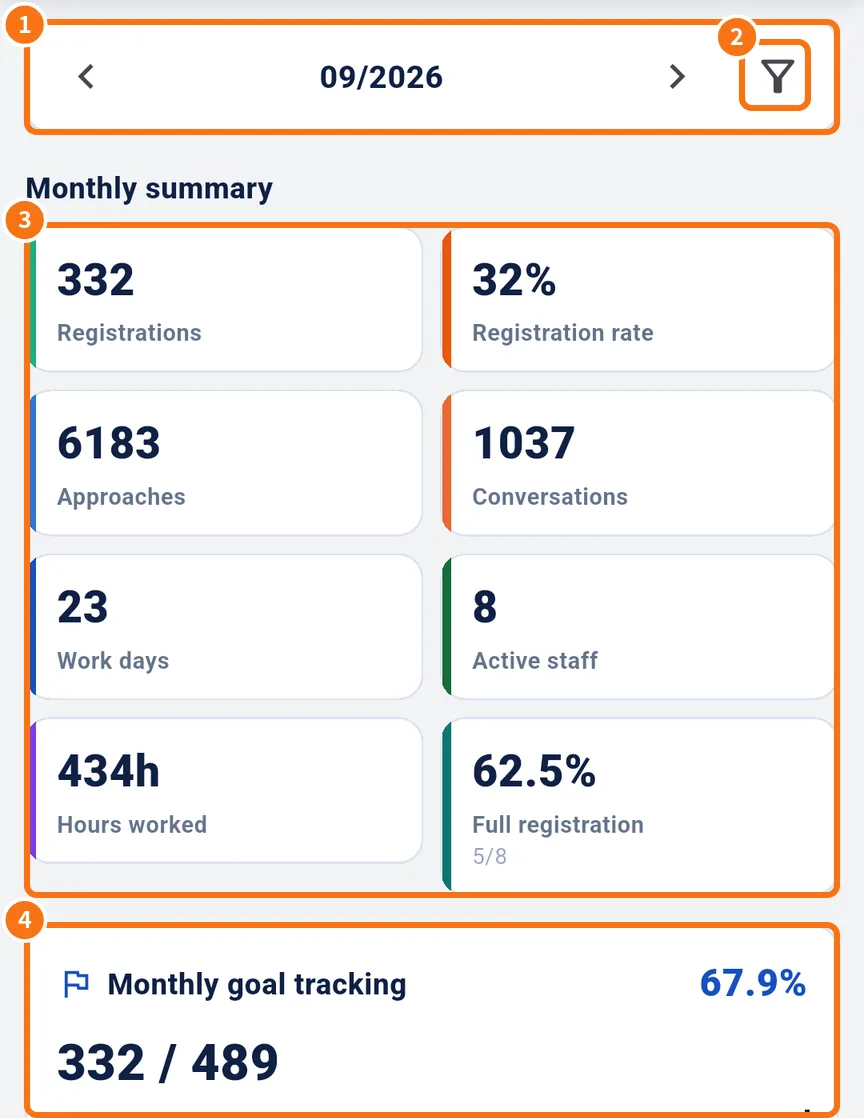
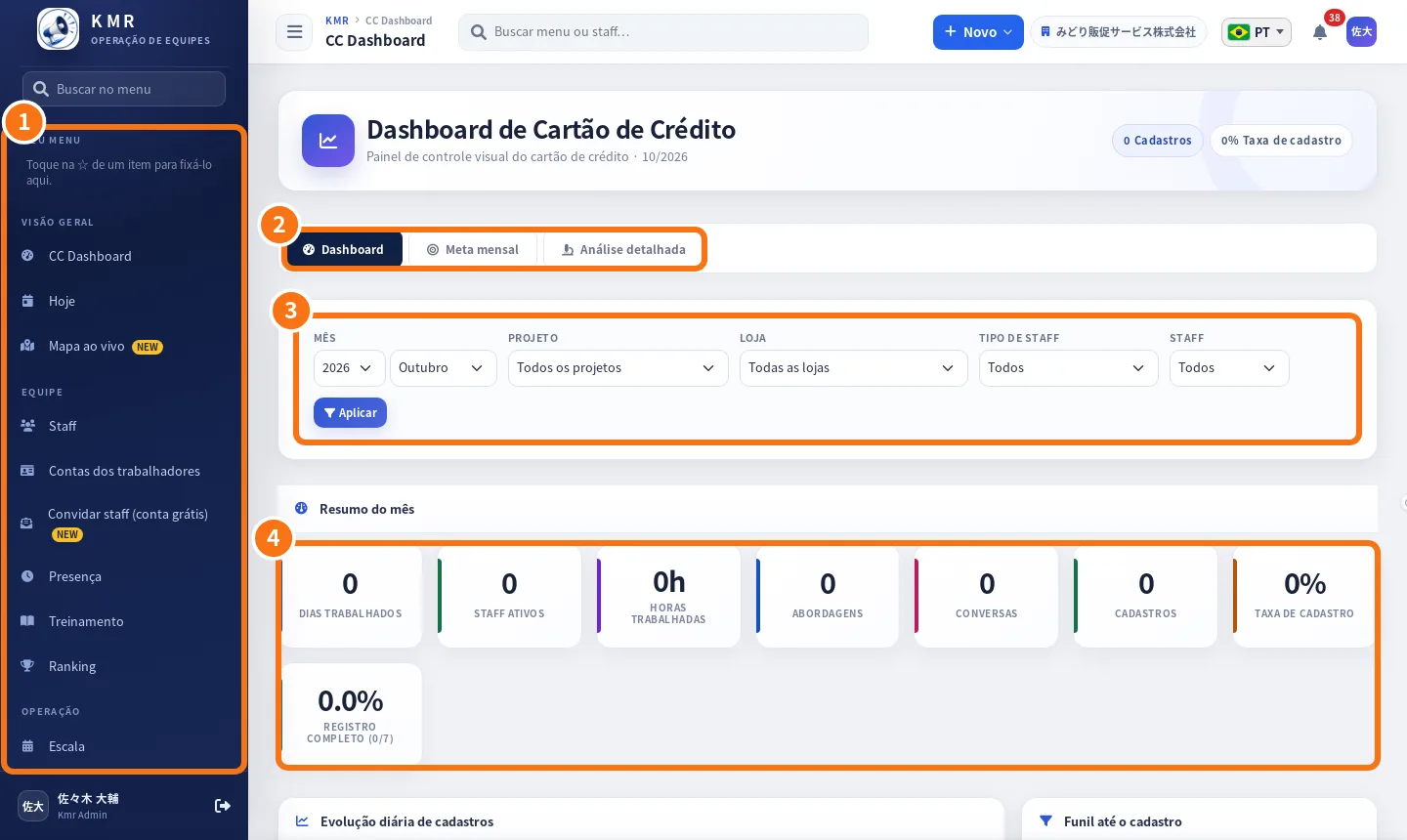 Management panel in the browserThe manager web panel: side menu, search, dashboard with monthly goal, filters and the shift, staff, payment and map screens.English
How to — staff
- How to record a full work day in the appFrom the day before to the end of the shift: confirm, leave home, arrive, count, lunch, add sign-ups and check out.English
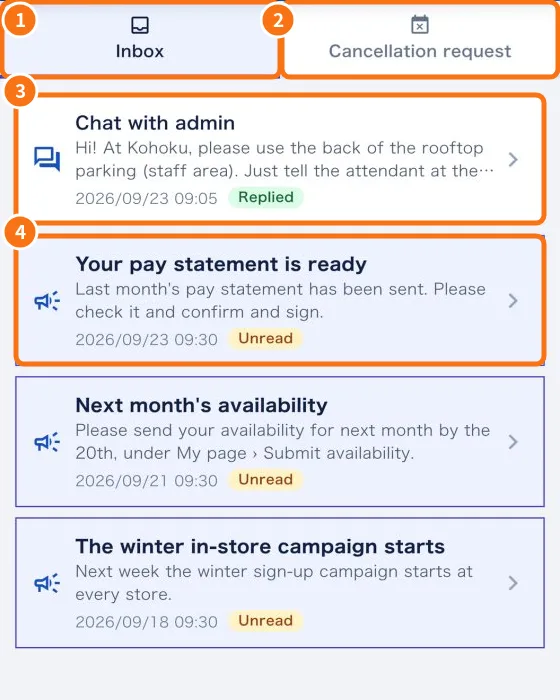 How to tell your company you cannot work a shiftThree ways to tell the company: decline a new shift, cancel at the day-before check, or request cancellation of a confirmed shift.English
- How to fix a forgotten check-outWhat to do when you did not tap “Check out” on the shift day, and when to ask your manager to fix the clock-in.English
- How to accept a company invitation (free account)From the invitation e-mail to the first shift: create or sign in to a free account, enter the code and work for the company.English
- How to change your password and app languageChange the staff password inside the app, pick one of 7 languages, and what is different for managers.English
How to — manager
- How to build the month's schedule from the team's preferencesManager walkthrough: open the preference request, follow answers, generate the draft, apply it and follow confirmations.English
- How to follow the team's day on your phoneA manager's daily routine: check who is in, act on lateness and absence, clear to-dos and see the team on the map.English
- How to close the month's paymentsManager routine at month end: check attendance, generate statements, approve, send for signature and mark payment.English
- How to bring a new person into the teamTwo ways: register the staff member and send access, or invite by e-mail someone who has (or will create) a free account.English
- How to fix a staff member's attendanceWhen and how managers fix arrival, lunch and check-out in Attendance, and how it reaches the payment statement.English