











Kenten · Pantallas y funciones
Inspector: today’s tenken from start to finish
A route for whoever carries out the inspection in the field, on a phone, tablet or shared link. It puts the screens for answering, explaining problems, attaching photos, working without signal and signing in order. Follow it from start to end and only treat the tenken as done when it shows as saved.
Este artículo aún no está traducido a su idioma: se muestra la versión en English.
En esta página
What this is for
A route for whoever carries out the inspection in the field, on a phone, tablet or shared link. It puts the screens for answering, explaining problems, attaching photos, working without signal and signing in order. Follow it from start to end and only treat the tenken as done when it shows as saved.
Step by step
- While you still have internet, sign in to the app and open Tenkens; use search to find today’s item (vehicle, machine or place).
- Open the tenken and confirm the item, questionnaire and today’s date at the top; if you have your own draft, continue it from My drafts instead of starting another.
- Answer one question at a time: OK (green), Attention (yellow) or Not OK (red); read the text and symbol, not only the colour.
- Enter the requested measurements in the unit shown.
- For each Attention or Not OK, write in the fields that appear the reason, what was done and what is still pending, with person in charge and deadline when asked.
- Add a photo from the camera or gallery when it helps explain the problem; avoid people and unnecessary data.
- Without signal, keep going: the app keeps the work in the Outbox; do not delete the app or its data while items are pending.
- Review unanswered questions; a blank answer does not count as OK.
- On a shared form, select or type your name and draw the signature.
- Finish and wait for the confirmation; when signal returns, open the Outbox, use Send/Retry and check the tenken in the monthly calendar.
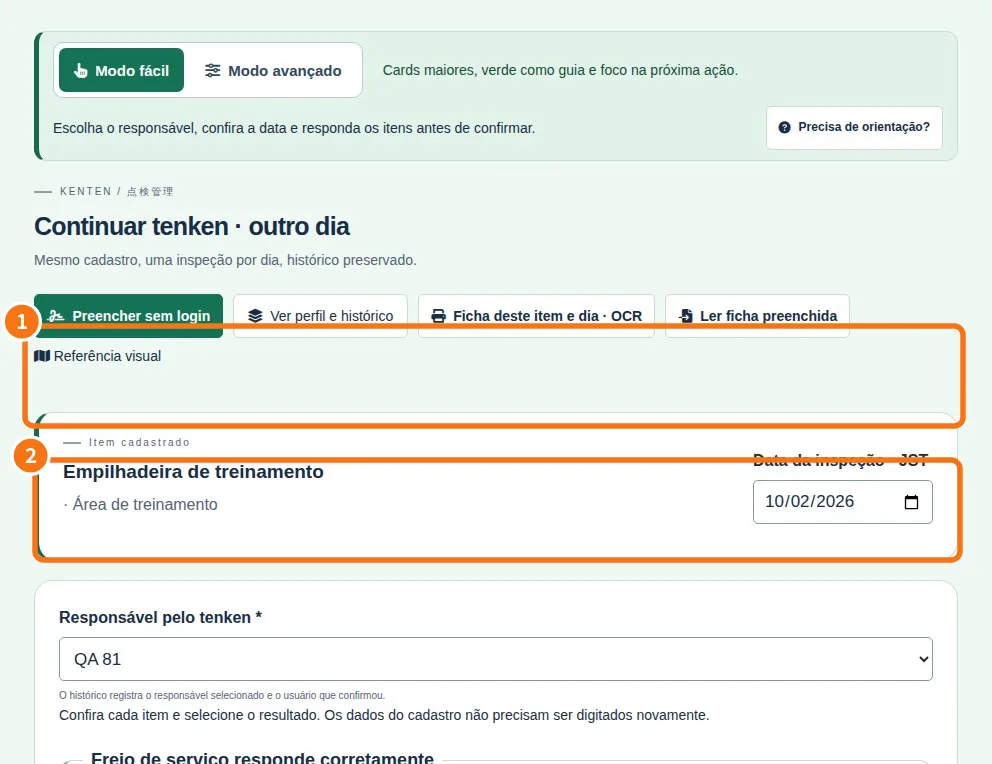
Demo screen. Numbered highlights mark the controls discussed; the image language may differ from yours.
Tip
If something goes wrong
Wrong item or date: stop and go back to the top before answering; do not save on someone else’s item. Tenken not in the calendar: it is still in the Outbox or a draft. Photo or drawing button missing: it depends on the template and plan. Signature not saved: clear, draw again and wait for the confirmation.
Related articles
- FAQ: 20 answers