











Kenten · Screens & features
Use a drawing or site map
An optional tool for work that needs a layout.
On this page
What this is for
An optional tool for work that needs a layout.
Step by step
- Open the tenken that needs a drawing, or create a new one, and choose Draw on map.
- Tap Mark to place a mark on the drawing; use the move and zoom buttons to find the spot.
- Drag the mark to the exact spot (machine, room or check point).
- Wait for the Map saved message: the drawing saves automatically after each change.
- If “Changes are not saved yet” appears, stay on the screen and tap Save to retry.
- Go back to the tenken and keep answering the questions as usual.
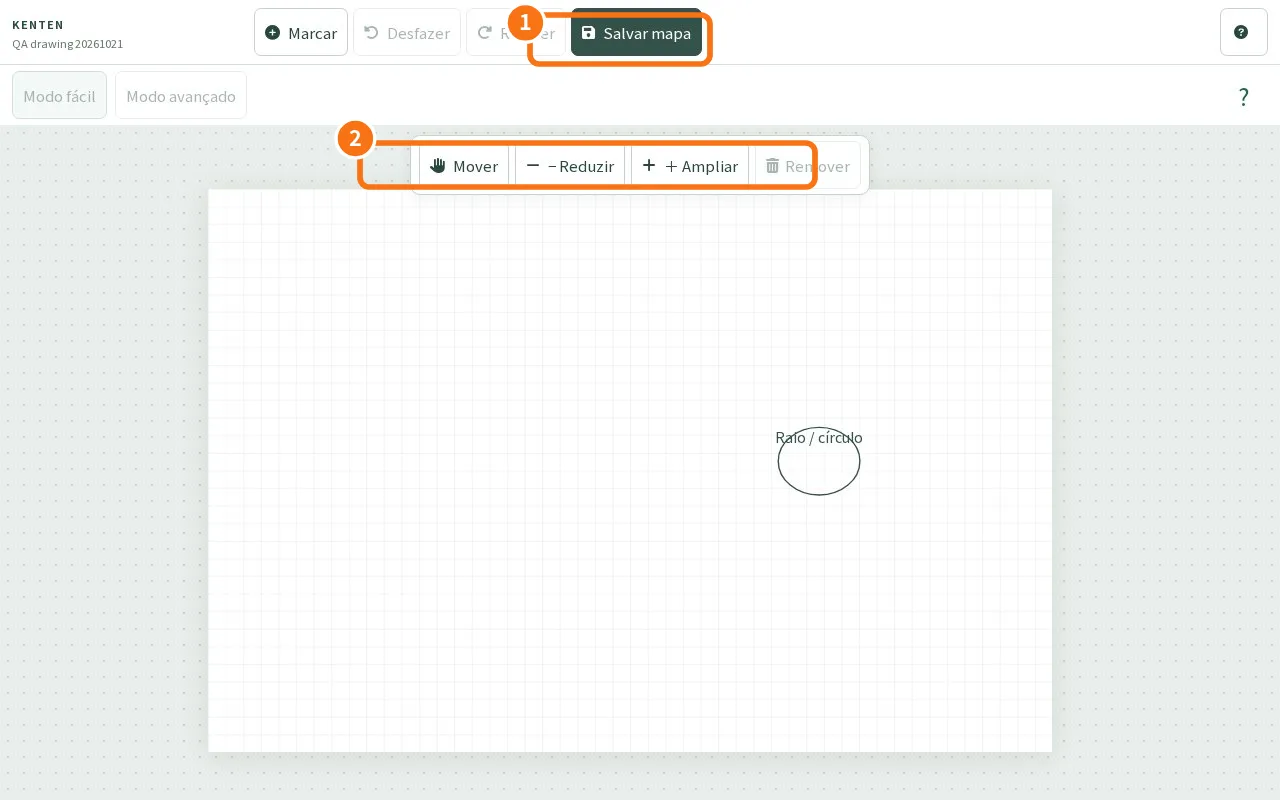
Demo screen. Numbered highlights mark the controls discussed; the image language may differ from yours.
Tip
If something goes wrong
Without saved confirmation, stay on screen and retry Save. A local draft is not proof of synchronization.
Related articles
- FAQ: 20 answers