











KOREOS · Screens & features
Asset management: how to use
How to register assets, search, filter and print QR labels.
On this page
What it is
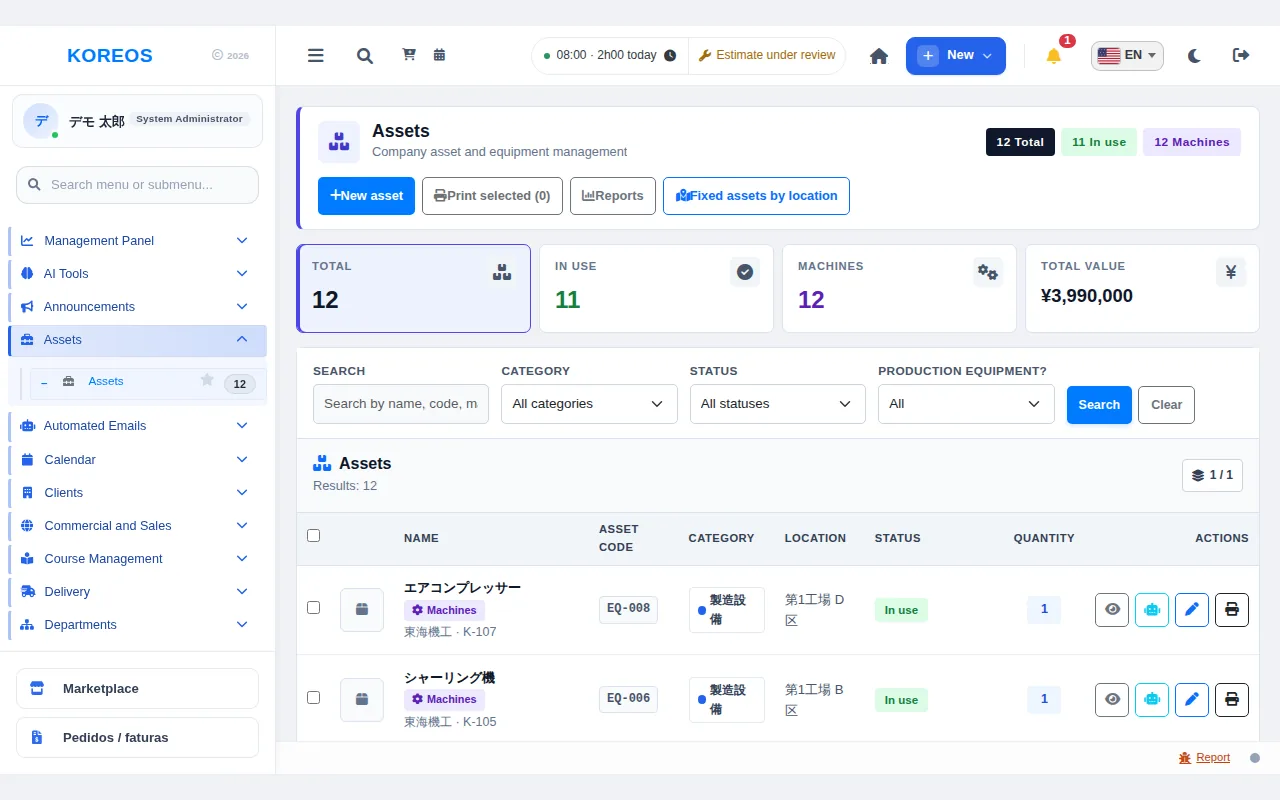
Asset management records the company's equipment and assets and lists where they are, their status, quantity and purchase value. The cards at the top ("Total", "In use", "Machines" and "Total value") give you the overall picture at a glance.
Who it is for
Administration and maintenance staff, area leads and managers who need to know where each asset is and when it was last checked.
Step by step
- See the list: open "Assets" from the menu. Each row shows photo, name, asset code, category, location, status and quantity.
- Search and filter: type a name, code or manufacturer in "Search", narrow down by "Category", "Status" and "Production equipment?" and click "Search". "Clear" returns to the full list.
- Register an asset: click "New asset", fill in name, category, location, value and other data, then click "Save".
- Open the record: click the eye icon (or the name). The record has the tabs "Overview", "Financial", "Maintenance", "Usage (Manufacturing)" and "Photos" for general data, purchase value, maintenance records, machine usage time and photos. The first photo uploaded becomes the main photo in the list.
- Edit: use the pencil icon to fix name, location or quantity and pick the status: "In use", "Under maintenance", "Disposed" or "Inactive". Click "Save".
- Print labels: use the printer icon on the record or in the list to produce a label with a QR code for one asset. For several, tick the boxes on the left and click "Print selected". Scanning the QR code with a phone opens the asset record directly.
- Reports and view by location: "Reports" shows charts by category and by status and lets you print them. "Fixed assets by location" shows assets organized by place.
Tips
- The robot icon opens an AI assistant already focused on that asset. If you ask for a change, it asks for your confirmation before applying it.
- Bulk delete only appears for people with permission and cannot be undone: review your selection before confirming.
Common questions
Q. Where do I see inspections?In each asset's "Maintenance" tab, which keeps the records already made.
Q. An asset is missing from the list.Check for active filters and click "Clear".
Q. Can I change the main photo?Yes, at any time, in the "Photos" tab.
Availability and plan: see the Marketplace article.