











KOREOS · Screens & features
Calendar: how to use
Creating events, inviting colleagues, recurring events and RSVP.
On this page
What it is
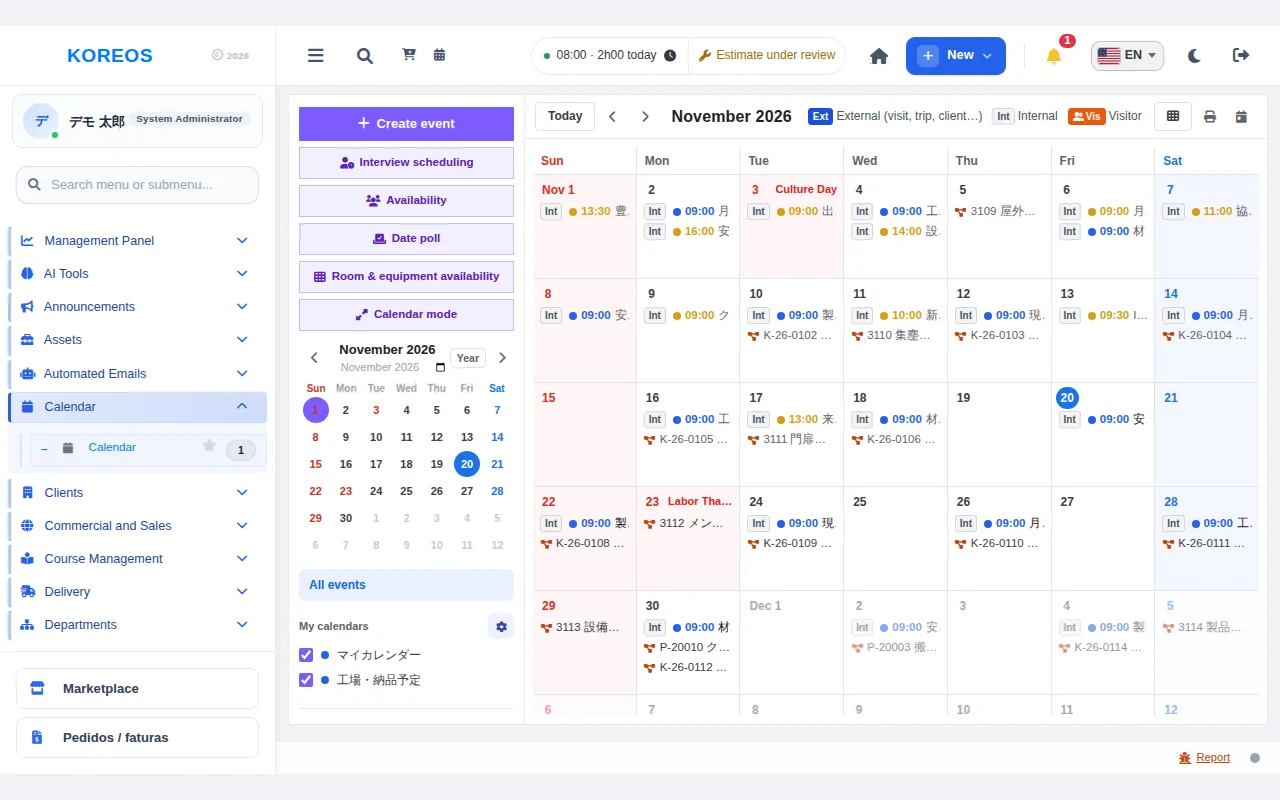
Calendar brings meetings, deadlines and events together in one calendar. You can switch between month, week and day, and invite colleagues after checking their availability. Recurring events and RSVP are supported as well.
Who it is for
Everyone who arranges meetings, visits and external appointments. Organizers use it to create events and follow invitations.
Step by step
- In the menu, open "Calendar" to see this month’s appointments. Use the buttons at the top to switch the view and the arrows to move forward or back.
- Click "Create event" or click a day on the calendar to open the new-event form.
- Enter the title, type (meeting, visit, deadline, etc.), location, and start and end. Also choose whether it is internal or external.
- If the event repeats, set the recurrence: daily, weekly, monthly or yearly.
- Add participants. Their calendars appear side by side, so you can pick a time when everyone is free.
- If needed, choose a room, attach files and save with "Create event".
- Invitees confirm or decline. The organizer sees the answers in the event details.
Tips
- Each appointment shows an "Int" (internal) or "Ext" (external) badge, so you can tell the type quickly.
- Under "My calendars" on the left, choose which calendars are shown.
- A deadline can be created without a time and without invitees.
- Check colleagues’ calendars before scheduling to avoid conflicts.
Common questions
Can I change just one occurrence of a recurring event?
Yes, you can edit or delete only that occurrence.
Where do I see who accepted the invitation?
Open the event: each participant shows as confirmed, declined or pending.
Can I book a room?
Yes, by choosing the room when creating the event, which avoids conflicts at the same time.
Availability and plan: see the Marketplace article.