











KOREOS · Screens & features
Support & requests: how to use
Send an issue or request straight from the screen you are on and follow its progress.
On this page
What it is
Support & requests lets you send a problem, an idea or a request without leaving the screen you are on. Click Report at the bottom right: the link to the current screen is attached automatically, so you do not have to explain where you were. After sending, you can follow the progress. Included in every plan.
Who it is for
- Anyone who hits an error, a broken layout or data that does not add up.
- Anyone with an idea to improve the system.
- Anyone who needs to log an equipment maintenance request or a day-to-day occurrence.
Step by step
- Click Report at the bottom right. The Send report window (Reports center) opens.
- Pick the Type: for example Error (something that does not work, a save failure, inconsistent data), Idea / Suggestion, Maintenance (equipment, machinery or facilities), Occurrence (a workplace event — not a system bug) or Board (a request or topic for leadership). System bugs and requests for new screens go under Development (DX).
- For an error, choose the closest category (Slowness, Inconsistent data, Broken layout…) to start faster. If nothing fits, use Other.
- Fill in the Subject with a short summary and describe the case: what you were doing, what you saw and what you expected.
- Say whether it relates to the current page and click Send. The message “Report sent successfully.” confirms it. Use Back to fix the previous step.
Following up after sending
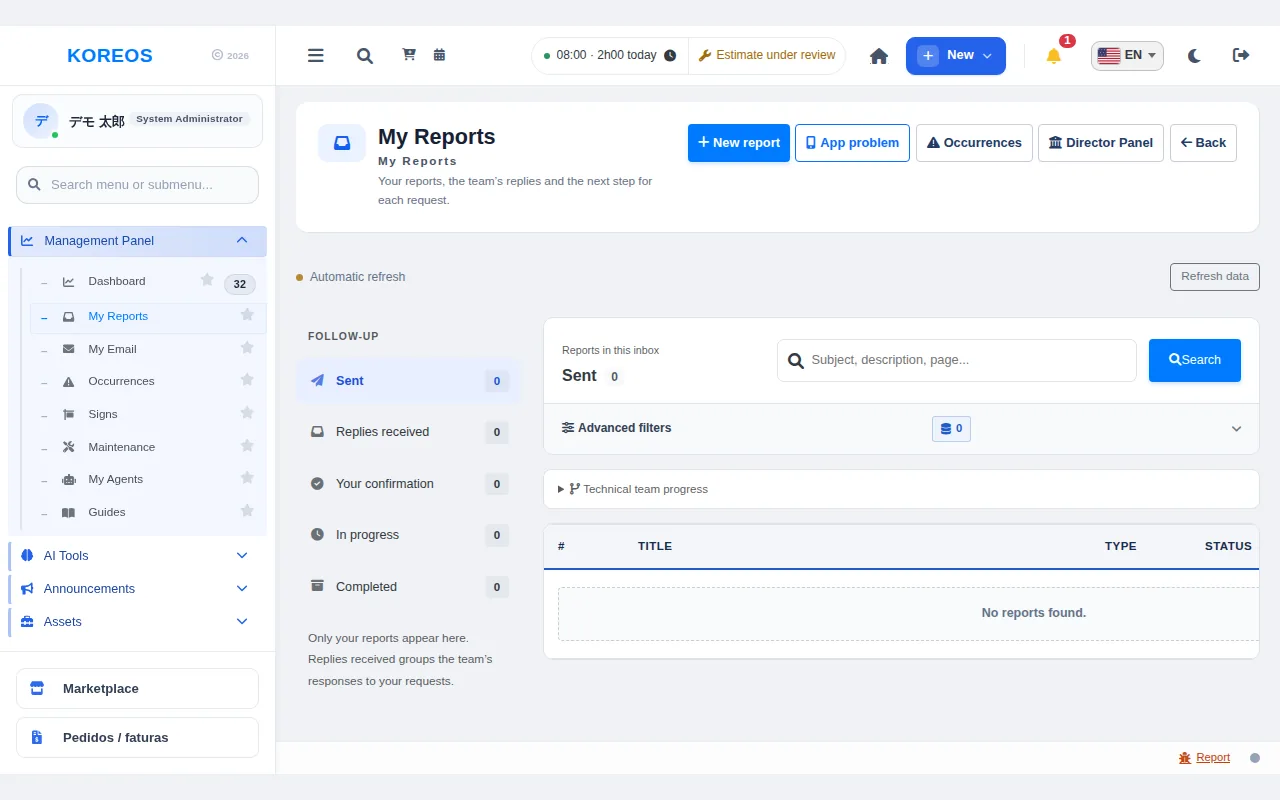
Under My Reports you see only the reports you sent. The folders Sent, Replies received, Your confirmation, In progress and Completed show where each one stands; use search and Advanced filters to find a report. Click a row to see details and the team's replies.
Tips
- For maintenance requests a photo goes a long way.
- If the suggestion is about another screen, paste its link in the optional related-link field.
- One topic per report makes handling easier.
Common questions
Do I need to take a screenshot?No, the link to the current screen is included automatically. For types that accept a photo, it helps.
How do I know the progress?Open My Reports: you will see the status of each submission and the team's replies.
What is the difference between Error and Occurrence?An error is a system problem; an occurrence is a workplace event. System problems go under Development (DX).
Availability and plan: see the Marketplace article.