











KOREOS · Screens & features
Training courses: how to use
Build internal courses with materials and a quiz and record who took and completed them.
On this page
What it is
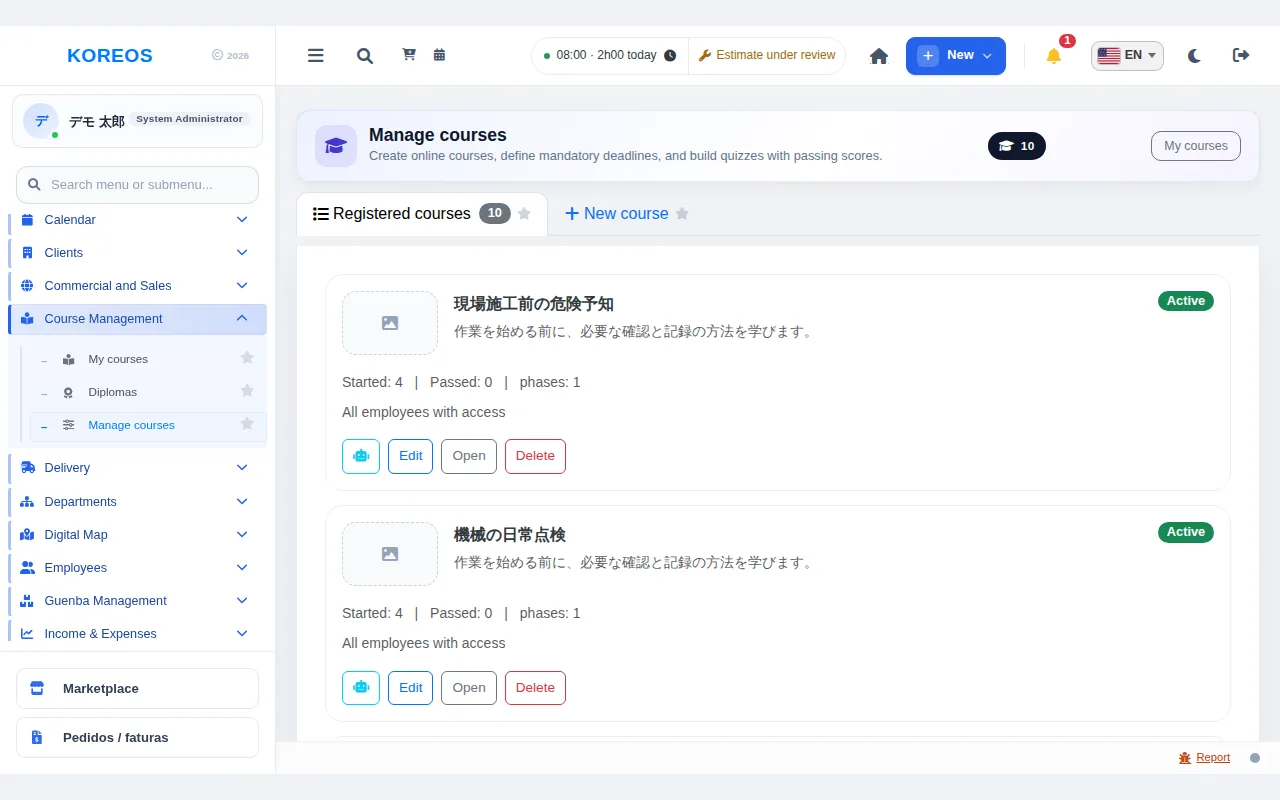
Training courses lets you build internal courses with videos and materials and record who took and completed them. Each course can have phases (lessons), supporting materials and a quiz with a passing score; those who pass receive a diploma.
Who it is for
- Participants: every employee the course is assigned to.
- Creators: people with permission to manage training.
Step by step (taking a course)
- In the course menu, open My courses and see the courses available to you.
- Open the course, go through the phases in order and answer the quiz at the end.
- When you reach the passing score, the diploma appears under Diplomas. If you do not pass, you can retake the quiz.
Step by step (creating a course)
- Open Manage courses and choose the New course tab.
- Enter the title, description, cover image (optional), Passing score, whether it is Mandatory, the Deadline and the Course audience (all, department, role or a specific user).
- Use Add phase to build the content with videos, materials or text.
- Use Add question to build the quiz. Each question needs at least two options and one correct answer.
- If you wish, use Add material to attach downloadable files, then click Save.
Tips
- To start from an existing course, use Import course and adjust the copy.
- To take a course out of circulation without losing its history, untick Active instead of deleting.
Common questions
What does deleting remove?Also participants' progress and quiz results. Prefer deactivating the course.
Can I assign a course to one department only?Yes, in Course audience choose department, role or a person.
Availability and plan: see the Marketplace article.