











KOREOS · 界面与功能
Automated e-mails: how to use
How to send routine e-mails automatically by condition, weekday and time, and check the result in the history.
此文章暂无您的语言版本,以English显示。
本页目录
What it is
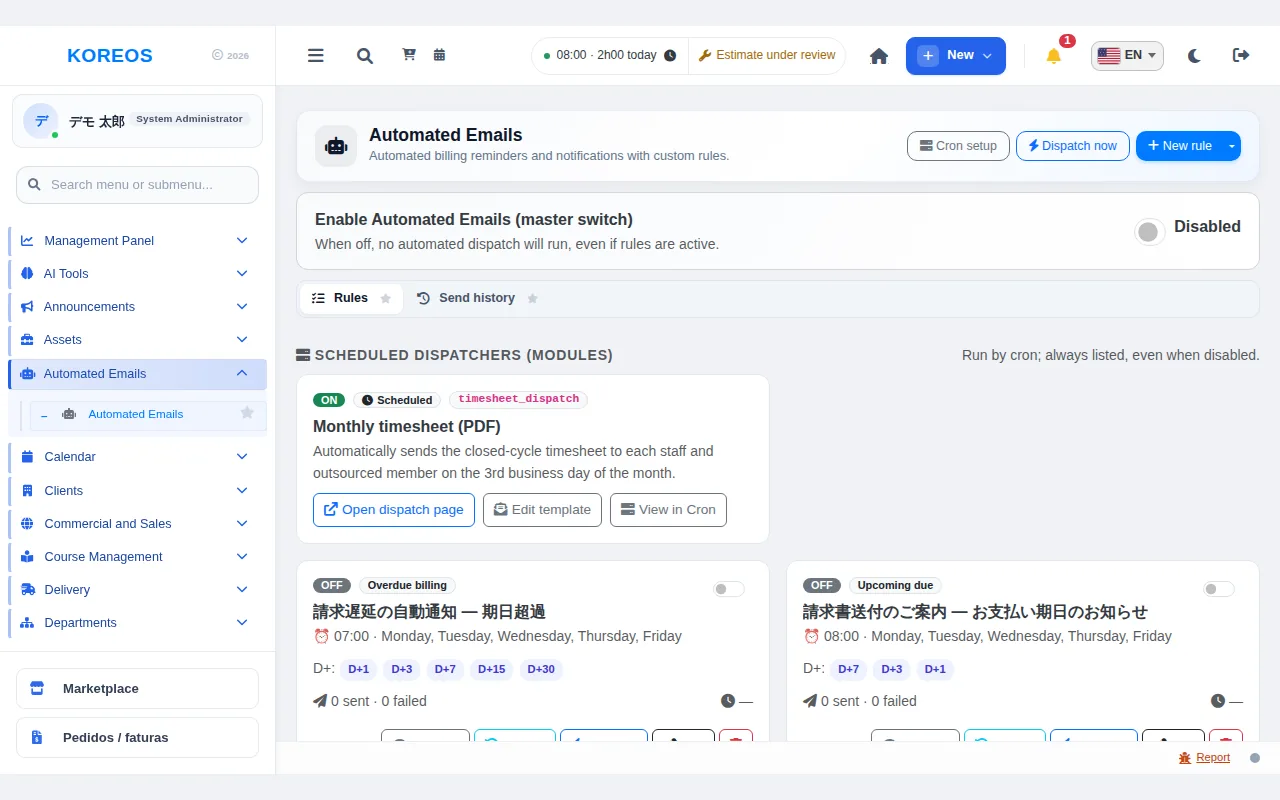
Automated Emails sends routine messages on its own — overdue-invoice reminders, notices before a due date, follow-ups to suppliers — based on conditions, weekdays and a time you set. Every dispatch is logged in the history, so you can check afterwards what went out and what failed.
Who it is for
- Finance and sales teams that currently send payment reminders and due-date notices by hand.
- Purchasing staff who need to chase suppliers that have not answered a quote request (RFQ).
- Administrators who manage the company's sending rules.
Step by step
- Turn on the master switch: at the top, set "Enable Automated Emails (master switch)" to "Enabled". While it is "Disabled", nothing is sent automatically, even if rules are active.
- Create a rule: open the arrow next to "New rule" and pick a type: "Overdue billing", "Upcoming due", "RFQ — Supplier follow-up" or "Purchase order — Supplier".
- Set the conditions: on the edit screen fill in "Rule name", "Dispatch time", "Weekdays", "Trigger days (D+)" (e.g. 1,3,7,15,30) and "Cooldown (hours)". Recipients can be fixed addresses or a field taken from the record itself, such as the owner or the customer.
- Write the message: subject and body accept placeholders (customer name, invoice number, etc.). The PT, EN and JP buttons next to "Load template:" fill in the standard text for each language. You can also attach the invoice and set a "Public link password". Then click "Save".
- Preview before sending: on the rule card click "Preview" to see the subject, how many recipients would be reached, a sample recipient and the filled-in body. Nothing is sent at this stage.
- Run and check: "Run rule" runs just that rule; "Dispatch now" at the top runs every active rule without waiting for the schedule. These buttons send real e-mails. Check the outcome in the "Send history" tab.
Tips
- Always use "Preview" before activating a new rule: it shows the text and how many people will receive it.
- To pause a rule without losing its setup, switch it off instead of deleting it. Deleting cannot be undone, although the send history stays available.
- The "Scheduled dispatchers (modules)" section lists, for reference only, messages sent by other modules such as the monthly timesheet PDF. You can follow them there but not edit or delete them.
- "Cron setup" shows whether the sending mechanism is running. If it reports as not detected, contact support.
Common questions
I created a rule but nothing was sent.A. Check that the master switch is "Enabled", that the rule itself is enabled and that the weekday and time match. Entries marked skipped or failed in the history usually point to the reason.
Can the same person receive the message many times?A. Each rule has a "Cooldown (hours)" field that sets the minimum gap between repeated sends.
Where do I see failed deliveries?A. In the "Send history" tab, with the status of each attempt.
Availability and plan: see the Marketplace article.