











KOREOS · 入门
Getting started with KOREOS: signing in and the home page
What KOREOS is, how to sign in, how to read the home page, change the language and try the demo environment.
此文章暂无您的语言版本,以English显示。
本页目录
What KOREOS is
KOREOS is KOMORI’s business management system. Instead of a closed package it is modular: your company uses the base (time and attendance, staff directory, customers and suppliers, departments) and chooses the modules it needs, such as tasks, calendar, announcements, inventory, purchasing, cases (work orders) and manufacturing. It runs in the browser and also in the KOREOS app for Android and iPhone.
How to sign in
- Open your company’s KOREOS address in the browser (or the KOREOS app).
- On the login screen, sign in with the e-mail and password of the user your administrator created for you.
- On first sign-in the system asks you to change your password. Choose a new one and keep it safe.
- On a phone, when your administrator enables it, you can also sign in by QR code or face recognition.
Forgot your password? Ask your company administrator to reset it under Settings > Users.
Getting to know the home page
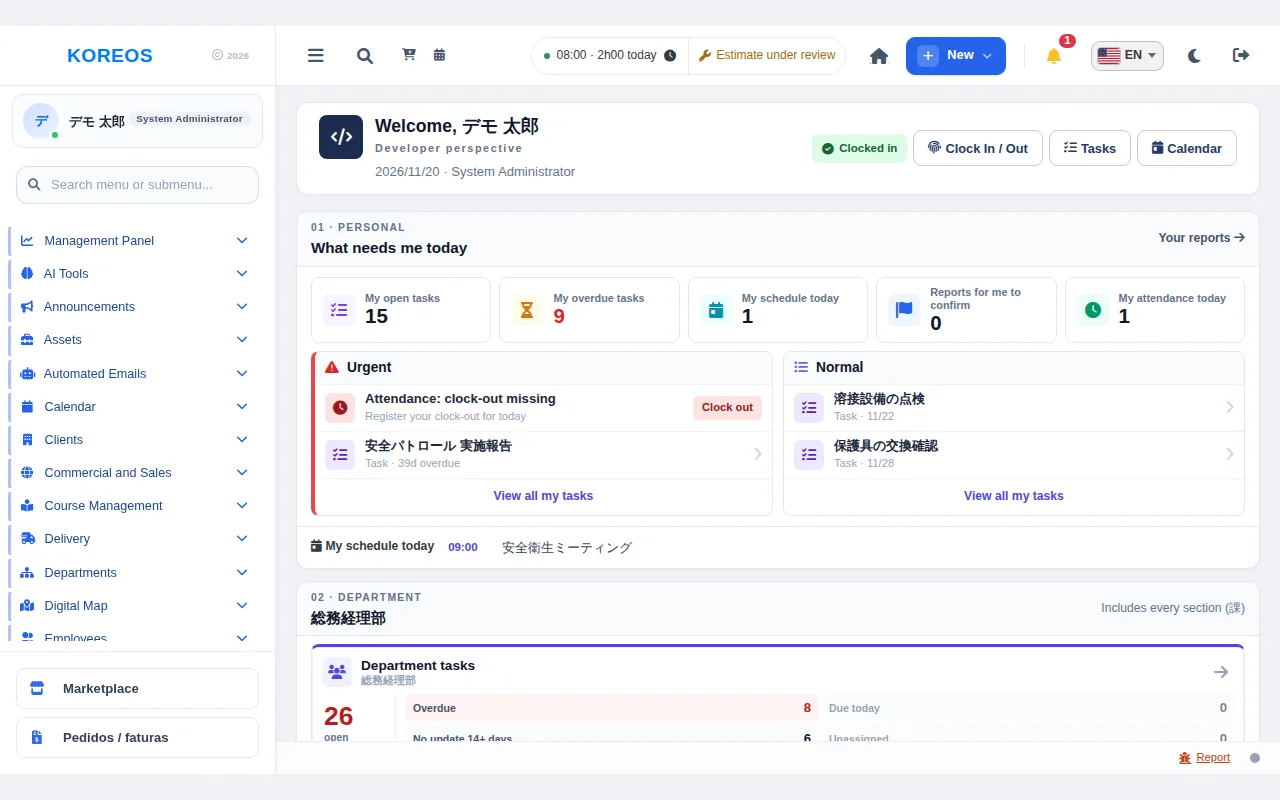
- Side menu: lists the modules active in your company. Use the menu search box to find a screen by name.
- Top bar: button to create something new, notifications, language selector, light/dark mode and sign out.
- What needs you: the numbers for your day (tasks, overdue items, agenda, time clock) and a list of what is urgent or normal. Click a row to open the item.
- Your department: cards that track your area’s progress, such as overdue items or items due today.
- Shortcuts: buttons to clock in, open Tasks and open the Calendar.
Language, photo and notifications
Pick the screen language in the language selector on the top bar. In My Profile you set your photo, language, time zone and notification preferences, and change your password.
Try it before you buy
There is a public demo environment at demo.its-komori.com, with fictitious data that is reset every day. The demo access details are on the KOREOS page of the KOMORI website. Nothing you do there affects real data.
Next steps
Read the Marketplace article to learn how to activate modules and plans, and open the manual for the module you will use first (for example Tasks, Calendar or Announcements).