











KOREOS · 界面与功能
Manufacturing: how to use
How to follow shop orders, stages, time and materials through to delivery.
此文章暂无您的语言版本,以English显示。
本页目录
What it is
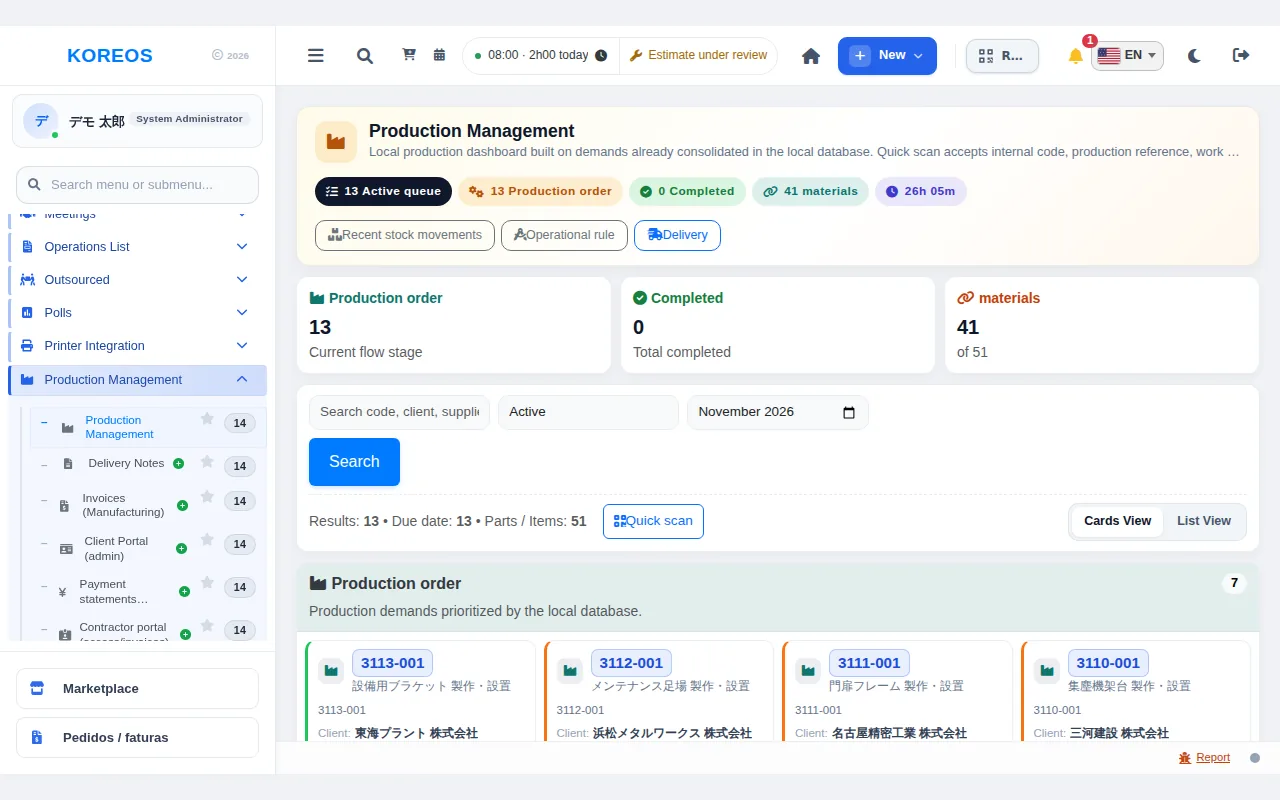
Manufacturing brings shop orders, stage progress, working time and the bill of materials together for the whole plant. On the shop floor, progress can be entered from a tablet, and a finished order moves on to delivery. In the menu the screen is named "Production Management".
Who it is for
- Production managers who want progress and due dates in one place.
- Operators who record the start and end of each stage on the floor.
- Back-office staff who follow the path through to the delivery note and the invoice.
Step by step
- Read the overview: the top of the screen shows "Active queue", the number of orders in production, completed items and materials, plus the total hours.
- Find a demand: type in "Search code, client, supplier...", choose a status (for example Active) and the month, then click "Search". Switch between "Cards View" and "List View".
- Open it with a quick scan: click "Quick scan" and enter the QR or manual code (internal code, production reference, work order, project or purchase order) to open the demand directly.
- Move the stages forward: open the demand from its card and update the progress of the sub-stages and the time spent on each. At a work station, scan the QR code of the PERSON's badge to record who is working — not the QR of the order.
- Release to logistics: when production is done, use "Release to logistics" and confirm with "Release now". The final confirmation of delivery is made on the logistics side with "Mark as delivered".
- Continue to delivery note and invoice: use the "Delivery" button at the top or, in the menu, delivery-note management and the manufacturing invoices.
Tips
- "Recent stock movements" shows the latest material in and out.
- "Operational rule" explains the flow: completing production moves the demand to logistics while keeping the stage history.
- In the list each demand shows how many materials and files (photos, drawings) are linked, which makes it easy to spot what is still missing.
Common questions
The operator's name is not recorded correctly.A. At the station, scan the badge QR of the person themselves. Until someone identifies, the name of whoever is logged in on the tablet is used.
I get "QR not recognised".A. Check that you scanned the person's badge and not an order QR. If the badge is new, the person's record may need updating.
Can a release to logistics be undone?A. By design, completing production moves the demand to logistics and the stage history is kept. To go back, speak to an administrator.
Availability and plan: see the Marketplace article.